
Curious about the version of WordPress a site is running? You’re not alone.
Whether you’re a web developer seeking inspiration or a business owner looking to upgrade your own site, knowing the WordPress version can offer valuable insights. But how do you uncover this information without diving into the site’s backend? This article will guide you through quick and simple methods to find out exactly what version of WordPress a site is using.
By the end of this read, you’ll feel empowered with the knowledge to enhance your web strategies, stay ahead of the competition, and ensure your own site is always up-to-date. Stick around to learn the secrets that many overlook!
Credit: www.wpbeginner.com
Checking Source Code
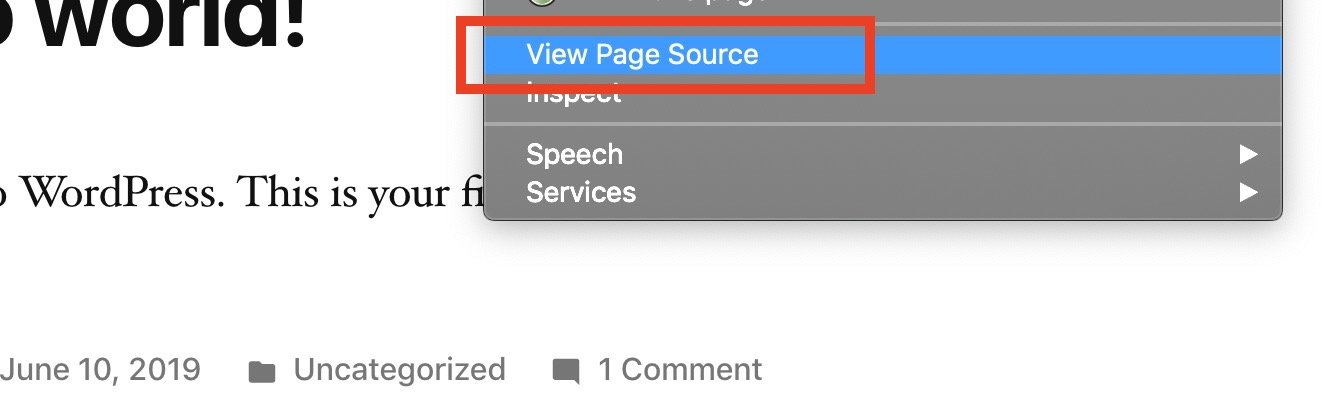
Finding the WordPress version is easy. Start by checking the site’s source code. Right-click on the page and select “View Page Source.” This opens a new tab with the site’s HTML code. Look for meta tags at the top. These tags contain important information. They show details about the page’s content and version.
Locating Meta Tags
Meta tags are usually near the top of the code. They can be identified by the word “meta” in angle brackets. Look for a tag that includes “generator.” This tag often displays the WordPress version. Not all sites will show this tag. If it is missing, try other methods.
Finding Generator Tag
The generator tag reveals the software used to create the site. It can show the WordPress version number. Look for a line that starts with <meta name=”generator”. Next to this, the WordPress version is displayed. Some sites hide this information for security reasons. If it’s not visible, you may need to use a plugin or tool for further investigation.
Credit: smartwp.com
Using Browser Developer Tools
Open the webpage you want to check. Right-click and choose Inspect or press Ctrl+Shift+I. A side panel will appear. It shows the page’s code. Look for the HTML part.
You might see a line that says meta name=”generator”. It tells the WordPress version. Not all sites show this. Some hide it for security.
In the code, press Ctrl+F. A search box will appear. Type WordPress. This highlights the word in the code. Look for version numbers next to it.
Sometimes, scripts and links have version numbers. Check wp-content or wp-includes folders. These might give clues about the version. Remember, some sites might hide this info.
WordPress Version Plugins
Many tools help find the WordPress version of a site. Some are easy to use. Others need more steps. WPScan is popular. It checks for version details. Another tool is IsItWP. It gives quick results. WordPress Version Check is also helpful. These tools save time. They make work easy. Most are free. Some offer more features for a fee. Choose the tool that works best.
Plugins add extra features to WordPress. Some plugins show the site’s version. Start by finding the plugin you need. Then, download it. Next, install it on your site. Finally, activate it. Your WordPress dashboard helps with this. Plugins like Version Info are easy to use. Follow simple steps. After installation, see the version details. Plugins make work simple. Use them wisely.
Online Version Check Tools
Some websites offer free tools to check the WordPress version. These tools are easy to use. Simply enter the website address. The tool will show the WordPress version. This helps you know if the site uses the latest version. Always use tools from trusted sources. This keeps your data safe.
Scan tools find out the WordPress version quickly. They scan the website’s code. This tells them which version is in use. Some tools may need a plugin installed on the site. Be careful with tools needing plugins. They might not be safe. Always read reviews before using any tool.
Manual Methods
Finding the WordPress version can be easy. Look for the readme.html file. It is often in the site’s main folder. Open this file. You might see the WordPress version at the top. Many sites hide this file for security. If you can’t find it, try other methods.
RSS feeds can also reveal the WordPress version. Visit the site’s RSS feed link. Look for the “generator” tag. This tag might show the version number. Not all sites use RSS feeds. Some may block access. If you can’t see the version, you might need another way.
Security Considerations
Knowing the WordPress version a site uses is vital for security. Older versions may have vulnerabilities. Regular updates protect against threats and keep your site safe.
Risks Of Revealing Version
Knowing the WordPress version can help bad people. They find weak spots easily. Older versions have more security holes. Updates fix these holes. But if a site shows its version, it’s a target. Hackers scan for sites with old versions. They use this info to attack. So, keep your site version hidden and safe.
Protecting WordPress Information
Hiding version info is smart. It keeps your site safe. To do this, remove version details from the source code. Use security plugins. They help hide important data. Update WordPress often. This ensures you have the latest security fixes. Always choose strong passwords. They protect against unwanted access.

Credit: jetpack.com
Frequently Asked Questions
How Can I Find A Site’s WordPress Version?
To find a site’s WordPress version, check the page source for meta tags mentioning “generator. ” Alternatively, visit the site’s login page or RSS feed. Online tools can also detect WordPress versions by analyzing the site’s code. These methods help ensure you’re viewing the correct version information.
Why Know A Site’s WordPress Version?
Knowing a site’s WordPress version is crucial for security and compatibility. It helps identify vulnerabilities and ensures plugins and themes match. Updated versions often include security patches and new features. Staying informed allows for better maintenance and protection against potential threats or issues.
Can Plugins Reveal WordPress Version?
Yes, certain plugins can reveal a site’s WordPress version. Security plugins often display version details for monitoring purposes. They help users identify outdated installations, enhancing security. Some plugins also provide insights into potential vulnerabilities, ensuring your site remains up-to-date and protected from threats.
Are Online Tools Accurate For WordPress Version?
Online tools are generally accurate for detecting WordPress versions. They analyze the site’s code for specific indicators. While they offer valuable insights, occasional discrepancies might occur. Always cross-check results using multiple methods to ensure accuracy. Rely on trusted tools for the best results.
Conclusion
Discovering the WordPress version of a site is straightforward. It helps enhance security. You gain insight into potential vulnerabilities. Staying informed about WordPress updates is crucial. Regular checks ensure your site remains safe. Tools simplify the process for everyone. Understanding these steps benefits non-experts too.
Keep your site secure and updated. It’s essential for smooth functionality. Avoid outdated versions that risk cyber threats. Always prioritize safety and efficiency. A well-maintained WordPress site boosts user experience. Protecting your site is vital in today’s digital world. Stay vigilant and proactive in managing your WordPress version.


