
You’re working on your WordPress site, and suddenly, you realize you need to know your WordPress version. Whether it’s for plugin compatibility or troubleshooting, knowing your version is crucial.
But how do you find it? You might feel a bit lost, but don’t worry; you’re not alone. Many users find themselves in this exact situation. This article will guide you step-by-step, ensuring you quickly identify your WordPress version and boost your confidence in managing your site.
By the end, you’ll have the skills to navigate WordPress like a pro. Curious to find out more? Let’s dive in!

Credit: www.interserver.net
Checking WordPress Version In Dashboard
To find your WordPress version, log into your dashboard. Once logged in, look at the bottom right corner. You will see the version number there. It is usually displayed in a small font. This is the easiest way to check. The version is important for updates. Updates keep your site secure. Always know your current version. It helps with troubleshooting. If you face problems, the version is useful info. You can also find the version in the “Updates” section. Click on “Dashboard” and then “Updates”. The version number is displayed at the top. Keeping track of your version helps maintain your site.
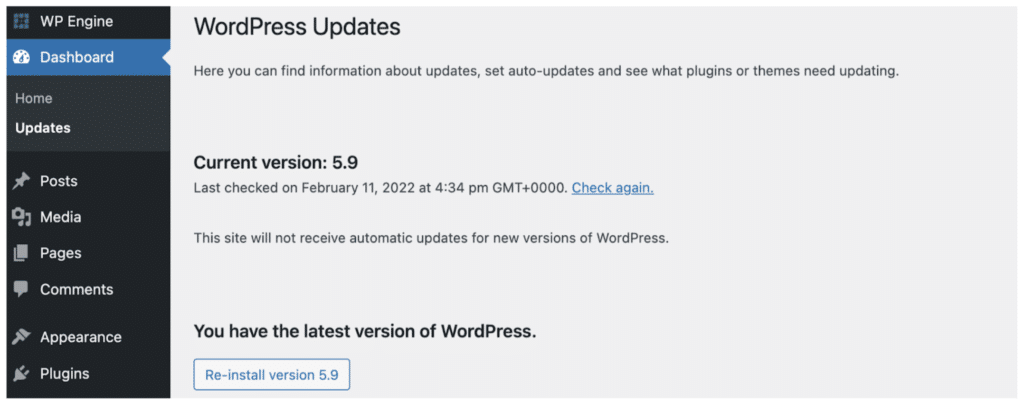
Credit: wpengine.com
Viewing Version In The Admin Footer
Finding your WordPress version is easy. First, log into your WordPress admin area. Look at the bottom of your screen. You will see the version number in the footer. It’s right there, next to the WordPress logo. The footer shows the current version you’re using. This is helpful for updates. You need to know your version for compatibility checks. Always keep your WordPress updated for better security. This helps your site run smoothly. Checking the version takes only a few seconds.
Locating Version In Source Code
Open your website in a browser. Right-click on the page and select “Inspect”. This opens the developer tools. Locate the “head” section of the HTML. Look for meta tags. They hold information about the page. Find a tag named “generator“. It usually shows the WordPress version. If you see “WordPress 5.8”, then you have version 5.8.
Meta tags are hidden in the page code. They tell about the website. To find them, check the HTML source. Open developer tools. Look for “meta” tags with “name” and “content”. The “generator” meta tag will reveal the WordPress version. It’s like finding a secret note in a book.
Finding Version Via Ftp
FTP helps you see hidden files. Connect to your server using FTP software. Navigate to the wp-includes folder. Open the version.php file. This file holds important WordPress details.
Look inside the version.php file. Find the line starting with $wp_version. This line shows the WordPress version number. It’s inside quotation marks. You now know your site’s WordPress version. Easy as pie!
Using WordPress Cli
WP-CLI is a command line tool for WordPress. You need to install it. First, check if you have PHP and curl. These are needed for WP-CLI. Next, download the WP-CLI file. Use this command:
curl -O https://raw.githubusercontent.com/wp-cli/builds/gh-pages/phar/wp-cli.phar.
After downloading, make it executable. Type: chmod +x wp-cli.phar. Now, move it to a folder in your path. For example, use: mv wp-cli.phar /usr/local/bin/wp.
Now, you can use WP-CLI from anywhere.
To check your WordPress version, use a simple command. Type: wp core version. This command shows your current version.
Make sure you are in the WordPress folder. Otherwise, the command won’t work. The version number will appear. It is quick and easy to find out.

Credit: www.interserver.net
Checking Version Through Hosting Panel
Login to your hosting account. Find the control panel or dashboard. This is where you manage your websites. Look for a section named “Website Management” or similar. Click on it. You might see a list of your websites. Select the WordPress site you want to check. Find an option to view more details. You might see the WordPress version there. It can be a number like 5.8 or 6.0.
Some hosts offer one-click installers. Tools like Softaculous or Fantastico are common. Open the installer from your hosting panel. Find your WordPress installation. Click on “View Details” or a similar button. Your version number should be listed there. It’s quick and easy. No extra steps needed.
Updating WordPress Safely
Checking your WordPress version is crucial for safe updates. Find it on your dashboard under “At a Glance. ” Alternatively, view the version number in the site’s source code by searching for “generator” meta tag. Stay informed to ensure smooth updates and enhanced site security.
Importance Of Regular Updates
Keeping your WordPress updated is vital. Security is one big reason. Hackers look for old WordPress versions. Regular updates can block them. They also fix bugs. Bugs can make your site slow or broken. Updates bring new features too. These features make your site better. Updates can also help with compatibility. New plugins or themes may not work on old versions. So, updating keeps everything smooth. It’s like giving your site a fresh coat of paint.
Creating Backups Before Updating
Backups are very important before updating. They are your safety net. If something goes wrong, you can return to the old version. Many tools help you make backups. Some host providers offer easy backup options. Saving a copy of your site is smart. It’s like having an extra key to your house. Always make a backup before hitting the update button. Better safe than sorry!
Frequently Asked Questions
How Do I Check My WordPress Version?
To check your WordPress version, log into your dashboard. Scroll to the bottom of any admin page. You will find the version number displayed in the footer. Alternatively, visit the “Updates” section under “Dashboard” for version information.
Can I Find WordPress Version Without Login?
Yes, you can find it without logging in. Check the readme. html file in your WordPress directory. This file often contains the version number. Note that this file might not be present if security measures are in place.
Is It Important To Know My WordPress Version?
Yes, it’s crucial for security and updates. Knowing your WordPress version helps ensure compatibility with themes and plugins. It also keeps your site secure by allowing timely updates. Regular updates protect against vulnerabilities.
Can Plugins Reveal My WordPress Version?
Yes, some plugins can display your WordPress version. Security plugins often show this information to help manage updates. Always ensure your plugins are updated for accurate results. Check the plugin’s settings or documentation for details.
Conclusion
Knowing your WordPress version is crucial. It helps maintain your site. You ensure compatibility with themes and plugins. Regular updates protect against security threats. Check your version using the dashboard or files. Both methods are straightforward. Take a minute to verify.
It’s an easy task with big benefits. This simple check can enhance your site’s performance. Stay informed about updates. Your site will run smoothly and securely. Keep your WordPress up-to-date for peace of mind. Regular checks make a difference. Stay proactive.
Your site deserves the best care.


