
Are you thinking about switching your web host from Zoho to Bluehost? Making this change can seem daunting, but it doesn’t have to be.
Whether you’re seeking better performance, more features, or improved customer support, moving your website can unlock new potential for your online presence. You’re about to discover how straightforward this process can be, with the right guidance. Imagine faster loading times, increased reliability, and a wealth of tools at your fingertips—all benefits that Bluehost can offer.
Let’s dive into the simple steps you can take to make this transition smooth and stress-free. Read on to find out how you can seamlessly move your site and start enjoying all that Bluehost has to offer.
Evaluating Hosting Needs
Check what your current hosting offers. Look at storage, speed, and support. These features are important for your site. Zoho might offer some unique tools. Make a list of these features. Compare them with what you need.
Think about what your new host should have. Bluehost offers different plans. Do you need more space? Or maybe faster load times? Make a list of must-have features. This will help you decide. Choose the best plan for your site.
Preparing For Migration
Switching your web host from Zoho to Bluehost requires careful planning. First, back up all your files and databases. Then, update DNS settings to point to Bluehost servers.
Backing Up Website Data
Always keep a backup of your website data. This includes all files and databases. Use Zoho’s backup tools or manual methods. Save the backup to a safe place. Ensure you have access to it during the transfer. It prevents data loss and helps in quick recovery.
Checking Domain Name Settings
Check your domain name settings before migration. Ensure your domain is not locked. Update your DNS settings if needed. Verify the name servers to point to Bluehost. This step ensures your website remains accessible. Proper settings prevent downtime during the switch.
Setting Up Bluehost Account
Start by visiting the Bluehost website. Look at the different plans. Pick one that fits your needs. Shared hosting is good for beginners. VPS or dedicated plans suit larger sites. Check the price and features. Make sure it matches your budget. Always look for extra features like free SSL.
After selecting a plan, click on “Get Started”. Fill in your account details. Use a valid email address. Choose a secure password. Set up your domain name. You can use a new domain or transfer an existing one. Follow the instructions on-screen. Review your choices. Then, complete the purchase.
Credit: www.zoho.com
Transferring Website Files
Start by downloading an FTP client like FileZilla. Connect to your Zoho server using your login details. After connecting, you will see your website files. Select all the files you want to move. Download them to your computer. Now, connect to your new Bluehost server. Use the login details provided by Bluehost. Upload the files from your computer to the new server. Make sure all files are uploaded correctly.
First, log in to your Zoho database. Export the database as a .sql file. Keep this file safe. Log in to your Bluehost account. Open the database section. Create a new database. Use the import tool to upload your .sql file. Wait for the upload to finish. Check if all data is correctly imported. Make sure nothing is missing.
Updating Dns Records
First, log into your Zoho account. Find the DNS settings in the control panel. It is usually under the domain management section. Click on it to view the current DNS records. Note down the existing settings. You will need this information for later reference.
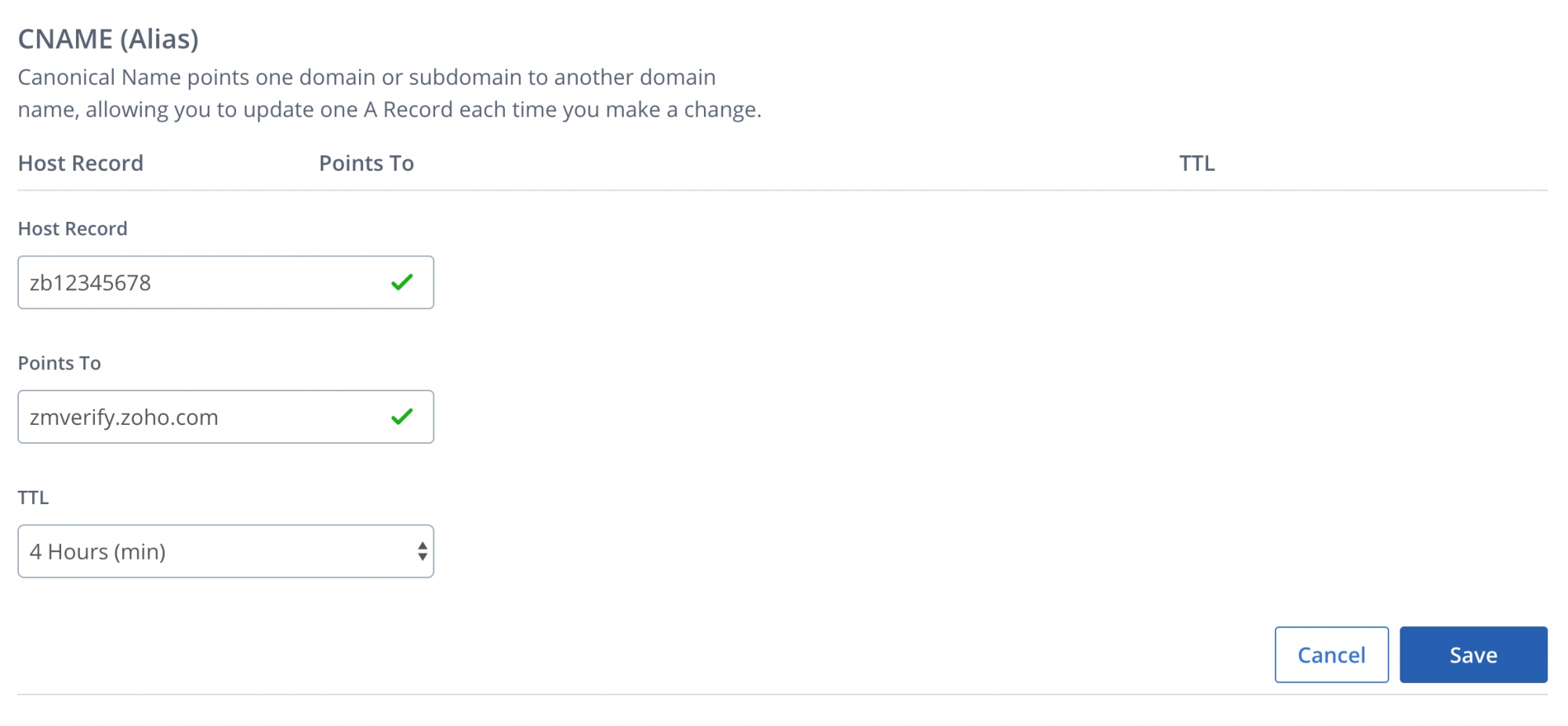
Access your Bluehost account. Navigate to the DNS management area. Here, you will enter the new DNS records. Use the information from Zoho as a guide. Ensure all records match correctly. This step is crucial for your site’s smooth transition. Save changes after updating.

Credit: titan.email
Testing Website Functionality
Testing website performance is very important. First, check if your website loads fast. A slow website can be frustrating for users. Use tools like Google PageSpeed Insights. They help find issues that slow down your site. Next, test all links and pages. Make sure they go to the right places. Broken links can confuse users. Also, check forms and buttons. They should work as expected. Users need easy navigation.
Resolving common issues is crucial for smooth website functioning. If images don’t load, check their file paths. Sometimes, old hosting settings can cause problems. Fix these by updating DNS records. If your site doesn’t display well on mobile, use responsive design. This helps your site look good on all devices. Regularly updating plugins can prevent many issues. Keep everything up-to-date for best performance.
Finalizing Migration Process
Data integrity is crucial during website migration. Always check if all files moved correctly. Compare file sizes and dates between hosts. Use file checksum tools for accuracy. Ensure databases are copied without errors. Run test queries to verify data consistency. Backup old data before starting the migration. This step saves you from potential data loss.
After migration, ensure website functions as expected. Load each page to check for errors. Use online tools to test site speed and performance. Monitor site for broken links or missing images. A smooth transition ensures visitors stay happy. Regular checks help maintain data integrity.
Monitoring Website Post-migration
Website monitoring is essential after switching hosts. Check site uptime daily. Use monitoring tools to get alerts. Fix any downtime issues quickly. This keeps your website reliable. Visitors trust sites that stay online. Keep an eye on site speed. A fast site gives a better user experience. Always update plugins and software. This helps keep your site secure.
Track visitor numbers using analytics tools. Watch for changes in traffic patterns. If traffic drops, investigate possible issues. Engaged visitors are a sign of successful migration. Always ensure SEO settings remain intact. This keeps your search rankings stable. A well-monitored site ensures ongoing success.

Credit: www.bluehost.com
Frequently Asked Questions
How To Transfer Web Hosting From One Company To Another?
To transfer web hosting, first backup all website files and databases. Update domain’s DNS settings to the new host. Upload files to the new server and test the site. Finally, cancel the old hosting plan after confirming successful migration.
How Do I Change Hosting On Bluehost?
Access your Bluehost account dashboard. Select “Domains” and click “Transfer”. Follow the prompts to change hosting. Update DNS settings to point to the new host. Ensure all files and databases are migrated. Contact Bluehost support for assistance if needed.
How Do I Transfer My Domain To Bluehost?
To transfer your domain to Bluehost, unlock your domain at your current registrar. Obtain the transfer code, then log into Bluehost. Navigate to the domain manager, select “Transfer,” and enter the code. Follow the on-screen instructions to complete the transfer process.
Ensure your domain details are accurate.
How To Change Primary Domain In Zoho Sites?
Log in to Zoho Sites, go to the “Site Settings” tab, select “Domain Settings”, and choose “Change Primary Domain”. Follow the prompts to update your primary domain. Ensure your new domain is correctly configured with DNS settings. Save changes to finalize.
Conclusion
Switching hosts from Zoho to Bluehost is straightforward with the right steps. Plan carefully and back up your data. Follow each step to avoid issues. Use Bluehost’s customer support for help. Check your website after the transfer. Ensure everything functions correctly.
Migrating a website can seem challenging. But with patience, it’s achievable. Take your time, and be thorough. A smooth transition ensures your website runs efficiently. Enjoy the benefits of your new hosting environment. Your online presence deserves a solid foundation.
Happy hosting!


