
Are you ready to take your first steps into the world of web hosting with IIS? Imagine having your own website up and running, showcasing your ideas, projects, or business to the world.
Hosting a web page in Internet Information Services (IIS) can sound like a daunting task, but it doesn’t have to be. Whether you’re a beginner or have some experience, this guide will simplify the process and get you started on hosting your web page with ease.
By the end of this article, you’ll have the confidence and know-how to make your web page go live, all while understanding the key steps involved. Let’s dive in and turn your vision into reality!
Credit: www.ssl.com
Setting Up Iis
To start, open the Control Panel. Click on “Programs” and then “Turn Windows features on or off”. A list will appear. Find and check the box next to Internet Information Services (IIS). Click “OK”. Wait for the installation to complete. Restart your computer to apply changes. IIS is now installed.
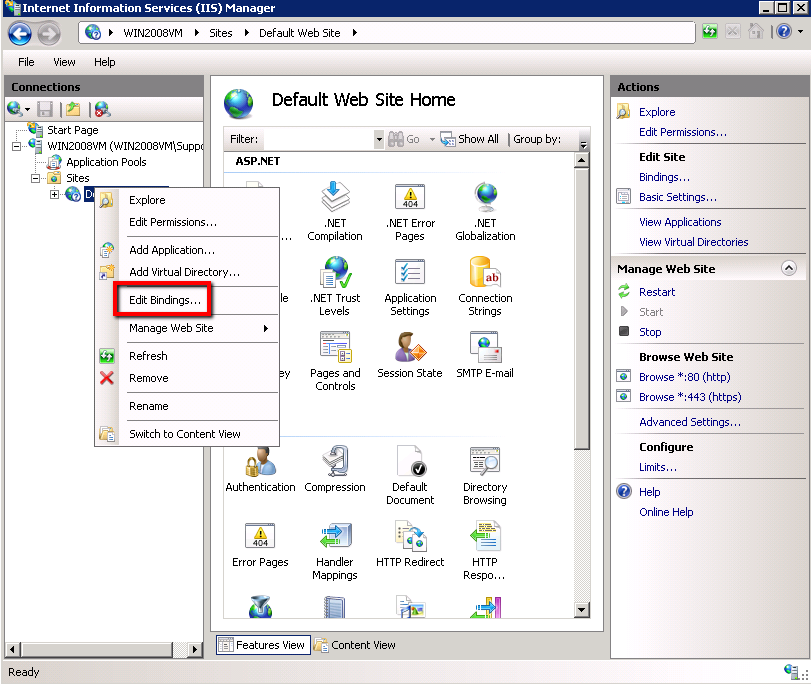
Open the IIS Manager from the start menu. You will see your computer’s name on the left. Click it to see options. Choose “Sites” and then “Default Web Site”. Right-click and select Edit Bindings. Make sure the port is set to 80. This is important for web traffic. Click “OK”. Your IIS is now configured.
Preparing Your Web Page
First, you need to make your web page files. These files are the heart of your web page. Use simple tools like Notepad or a text editor. Write your HTML and save the file with a .html extension. Make sure all the content you want on the web page is included. Don’t forget images or styles if you have them.
Keep files in a neat folder. This helps IIS find everything it needs. Put HTML, images, and styles in one place. Create folders inside for images and styles. Name folders in a way that makes sense. This makes it easy to update your web page. Remember, a good structure is key.
Creating A New Website In Iis
Open the IIS Manager tool on your computer. This tool helps manage websites. Use the search bar to find it quickly. Once open, you will see a list of sites. You can add, edit, or remove sites here. It’s easy to find what you need. Just look on the left side of the screen.
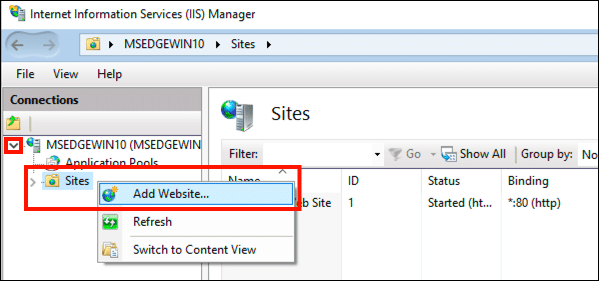
Right-click on Sites in the left panel. Choose Add Website from the menu. A new window will pop up. Fill in the name of your site. Choose where your files are located. This is called the physical path. Click OK to create your site. Your site is now added to IIS.
Select your new site. Click on Bindings on the right side. A window will appear. Click Add. Enter your domain name in the box. Choose HTTP or HTTPS. Click OK to save. Your site is now connected to your domain. It’s ready for visitors.
Credit: knowledge.digicert.com
Configuring Website Settings
An Application Pool helps run your website smoothly. First, open IIS Manager. Click on ‘Application Pools’. Choose ‘Add Application Pool’ from the right. Name the pool and choose the .NET Framework version. Click ‘OK’. Your Application Pool is now ready. This step helps manage resources better.
Security settings keep your site safe. Find your website in IIS Manager. Right-click and select ‘Edit Permissions’. Go to the Security tab. Check user permissions. Make sure only trusted users have access. This step is crucial for protecting data.
Directory Browsing lets users see files. Open IIS Manager again. Find your site and click on it. Look for ‘Directory Browsing’ in features. Double-click to open settings. Click ‘Enable’ on the right. Now, users can view files in the directory. It makes navigation easy for users.
Deploying Web Page To Iis
Begin by copying your web files to the server. Use the correct folder in IIS. Normally, this is the wwwroot folder. Make sure all files are in place. Check if images and scripts are there. Double-check the file names. They should match the links in your HTML.
Open a web browser on the server. Type the URL of your web page. Press enter. Does the page load? Check all links. Do the buttons work? Ensure forms submit correctly. Check each page for errors. Fix any issues right away. Your page should be smooth and easy to use.
Troubleshooting Common Issues
Sometimes, two applications fight over the same port. Check if another app uses your port. Use netstat command to see all ports in use. Change your port in IIS settings if needed. Always choose a free port. This will stop the fight.
Files need the right permissions to work. Go to your file folder. Right-click and check the properties. Ensure IIS user has read and write access. Add permissions if missing. This will help avoid errors.
Mistakes in configuration can cause problems. Double-check your settings in IIS. Make sure the application pool is correct. Verify your path to files is right. Correct any mistakes you find. This will help your site run smoothly.
Optimizing Iis Performance
Caching helps speed up websites. It stores data for faster access. Use output caching for static content. Use dynamic caching for changing content. Set cache rules. This keeps pages fresh. Disk cache is good for large files. Memory cache is faster but uses RAM. Choose a balance that fits your server. Always test the cache settings. Make sure the website loads quickly. Adjust cache if needed.
Check CPU usage regularly. High CPU can slow the server. Memory checks are important too. Enough RAM keeps the server running well. Watch disk space. Full disks cause errors. Use resource monitoring tools. They help track performance. Look at network traffic. High traffic can affect speed. Adjust resources based on needs. Always aim for smooth operation.
Ensuring Security
SSL certificates are vital for web page security. They keep data safe from hackers. To set up SSL, first, buy a certificate from a trusted source. Next, install it on your IIS server. This makes sure data is encrypted. Always check the certificate expiry date. Renew it before it expires. This keeps your website safe and secure.
Firewalls protect web servers from unauthorized access. They act like a security guard. Set up firewalls to block unwanted traffic. Only let safe traffic through. Regularly update firewall rules. This keeps your server safe from attacks. Always check firewall logs. Look for any suspicious activity. This helps in identifying threats quickly.

Credit: serverfault.com
Frequently Asked Questions
How To Host A Webpage In Iis?
Open IIS Manager and add a new website. Set physical path and binding information. Click “Start” to host.
How Do I Host A Web Page?
To host a webpage, choose a hosting provider, register a domain, and upload your website files. Select a plan that suits your needs. Ensure the hosting service offers good uptime, security, and support. Use FTP or a control panel to manage your files and make your website live.
How To Create A Web Server In Iis?
Open IIS Manager, select “Sites,” click “Add Website. ” Enter site name, physical path, and binding details. Click “OK” to create. Ensure server roles and features are installed. Configure security settings if needed. Test your web server by accessing the site URL.
How To Host A .net Web Application In Iis?
Install IIS via Control Panel. Open IIS Manager and create a new site. Set the site’s physical path to your application folder. Configure application pool for. NET version. Bind the site to a port. Start the site and test in the browser.
Conclusion
Hosting a web page in IIS is simple and effective. You learned the basic steps to get started. Installing IIS, configuring settings, and uploading files are key actions. Remember to check permissions and test the site. Troubleshooting may be needed, but solutions are often easy.
IIS offers a robust platform for web hosting. With practice, you will gain confidence. Keep exploring IIS features for more control. Your web page can now reach audiences worldwide. Starting with IIS is a good choice for reliable hosting. Enjoy your journey into web hosting!


