
Are you looking to host a web page locally but don’t know where to start? You’re in the right place.
Hosting a web page on your own computer can be a game-changer. It gives you the freedom to test, tweak, and transform your website without any restrictions. Imagine the peace of mind knowing that your work is secure and under your control.
Plus, it’s a great way to polish your skills and gain confidence before going live. In this guide, you’ll discover the simple steps to get your web page up and running locally. You’ll find that it’s not just easy, but also a rewarding experience. Stick around, and let’s unlock the secrets to hosting locally, giving you the power to shape your online presence like never before.

Credit: www.fixrunner.com
Setting Up Your Environment
First, you need to install a text editor. This helps you write code. Popular choices are Notepad++ or Visual Studio Code. Next, download a local server like XAMPP or MAMP. These let you run your web page on your computer. Follow the instructions to set them up. It’s like installing a game. Just click next and finish.
Your computer must have enough space and memory. Check the specs of your machine. Ensure it meets the software needs. Most computers do. Keep your operating system updated. This helps everything run smoothly. Always check for updates before starting. It saves time and trouble later.
Choosing A Local Server
Local servers let you host a web page on your own computer. This is useful for testing and development. No need for an internet connection. With a local server, you can see how your page looks and works.
There are many popular options for local hosting. Some of them are easy to use. Others might be a bit complex.
| Local Server | Description |
|---|---|
| XAMPP | Good for beginners. Includes Apache, MySQL, PHP. |
| WAMP | Windows-based. Simple interface for local hosting. |
| MAMP | Best for Mac users. Easy setup process. |
Configuring The Server
Start by installing a server software like XAMPP or WAMP. These tools help run web pages locally. First, download and install the software on your computer. Open the control panel and start the Apache server. This server will show your web page. Make sure the server is running. Check the status in the control panel. If it shows green, your server is active.
Security is important for your server. Set up a strong password for access. This keeps your files safe. Go to the security tab in your server tool. Enable the firewall settings. This blocks unwanted access. Always keep your software updated. New updates fix security issues. Check for updates regularly. This ensures your server stays safe.
Creating Your Web Page
First, learn about HTML and CSS. HTML helps you create the page structure. It includes headings, paragraphs, and links. CSS styles your page. It changes colors, sizes, and positions. Together, they make your web page look nice. You can start with simple codes. Add a heading, a paragraph, and a link. Use CSS to change the color. Practice makes it easy. Try different styles. Make your page unique.
JavaScript adds life to your web page. It can move things or change text. It makes web pages interactive. You can use JavaScript for simple tasks. Like changing colors when clicked. It helps in user interaction. Start with small code snippets. Learn how to integrate them. JavaScript is powerful. It can do many things. Experiment and see changes instantly.
Uploading Files To Local Server
Keeping a good file structure is very important. All files should be in one main folder. Name it clearly. Use simple names for files and folders. Avoid spaces in names. Use dashes or underscores instead. This helps your server find files easily.
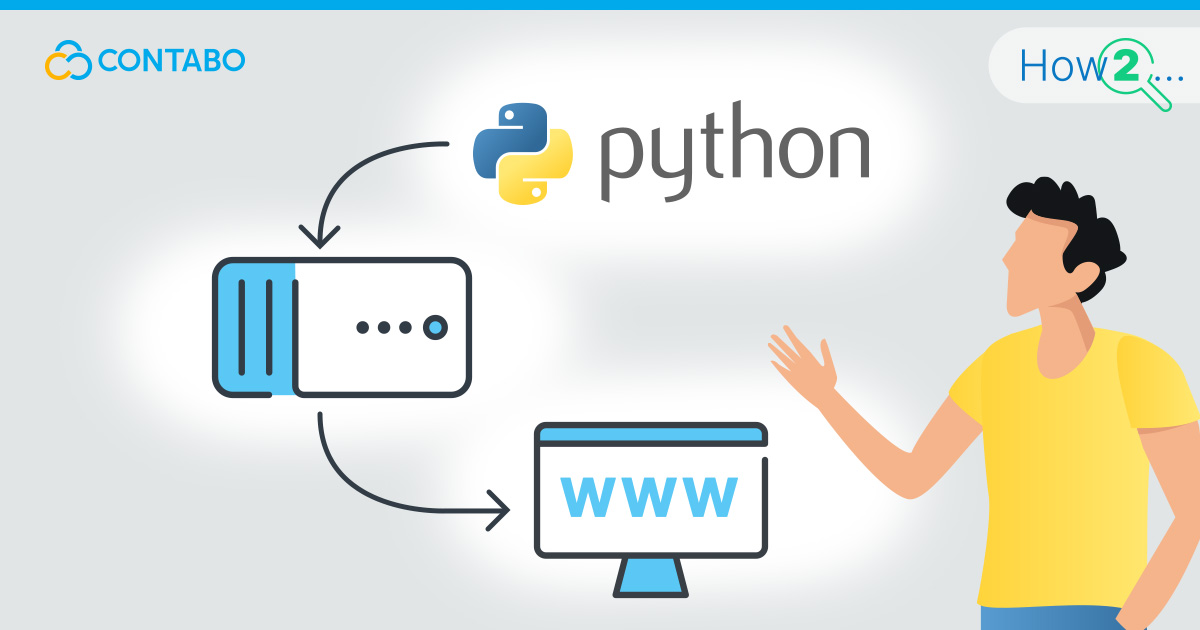
FTP clients help move files to your server. They are easy to use. First, install an FTP client on your computer. Then, open the FTP client. Enter your server details. This includes your IP address and password. Click connect to see your server files. Drag and drop files to upload them.
Credit: contabo.com
Testing Your Web Page
Locally hosted pages may show errors. Some common issues are broken links and missing images. Check file paths to fix these. Sometimes, CSS styles do not load. Ensure the stylesheets are linked correctly. If a script does not work, check the console for errors. The console shows what’s wrong.
Web pages look different on browsers. Test your page on multiple browsers. Check how it looks on Chrome, Firefox, and Safari. Each browser may render elements differently. This helps ensure the page looks good everywhere. Adjust styles if needed. Testing on many browsers makes your web page better.
Maintaining Your Local Site
Keep your site’s content fresh. Add new articles or pictures often. Edit old pages for accuracy. This keeps visitors interested. Use a simple text editor for changes. Save your work and refresh your browser. See changes instantly. Don’t forget to back up your files.
Check how your site runs. Speed is important. Slow pages annoy users. Use tools like PageSpeed Insights. Test loading times often. Look for any broken links. Fix them quickly. Keep track of how many people visit. Use easy tools like Google Analytics. Watch for sudden drops in visits. These might show a problem.
Credit: themeisle.com
Frequently Asked Questions
How Do I Host My Website Locally?
Install a local server software like XAMPP or WAMP. Place your website files in the “htdocs” or “www” directory. Start the server and access your site via “localhost” in your browser. Ensure your firewall allows the server to run.
How Do I Host A Website On My Own Computer?
Install a web server software like Apache or Nginx on your computer. Configure your router for port forwarding to allow external access. Ensure your computer has a static IP address. Place your website files in the server’s root directory. Start the server to host your website.
Can I Host My Website Myself?
Yes, you can host your website yourself. It requires a dedicated server, technical knowledge, and reliable internet connection. Self-hosting gives control but demands maintenance. Consider security, backup, and scalability when choosing this option. Professional hosting services can simplify management.
Can I Host A Website Off My Computer?
Yes, you can host a website on your computer. Use software like XAMPP or WAMP to set up a local server. Ensure your computer is always on and connected to the internet. For public access, configure your network settings and obtain a static IP.
Consider security measures to protect your data.
Conclusion
Hosting a web page locally is simple and rewarding. Follow the steps carefully. You gain control over your web environment. Experiment without online constraints. Perfect for learning and testing purposes. No need for internet access. Just a computer and some software.
Start small and build your skills. Troubleshooting becomes a breeze. You understand how websites work. Enjoy the freedom of local hosting. Practice makes perfect. Soon, you’ll feel confident. Ready to take on bigger projects. Embrace the learning journey. Your web skills will grow.
Keep exploring and creating. Happy hosting!


