
Imagine landing on a website filled with vibrant images that instantly capture your attention. Now, picture those images with compelling captions that speak directly to you, providing context, humor, or even a call to action.
This is the power of image captions in WordPress. Not only do they enhance your site’s visual appeal, but they also play a crucial role in engaging your audience and improving your site’s SEO. Are you curious about how you can leverage image captions to boost your WordPress site?
Stick around, because you’re about to discover how a simple caption can transform your website into a more interactive and engaging experience.
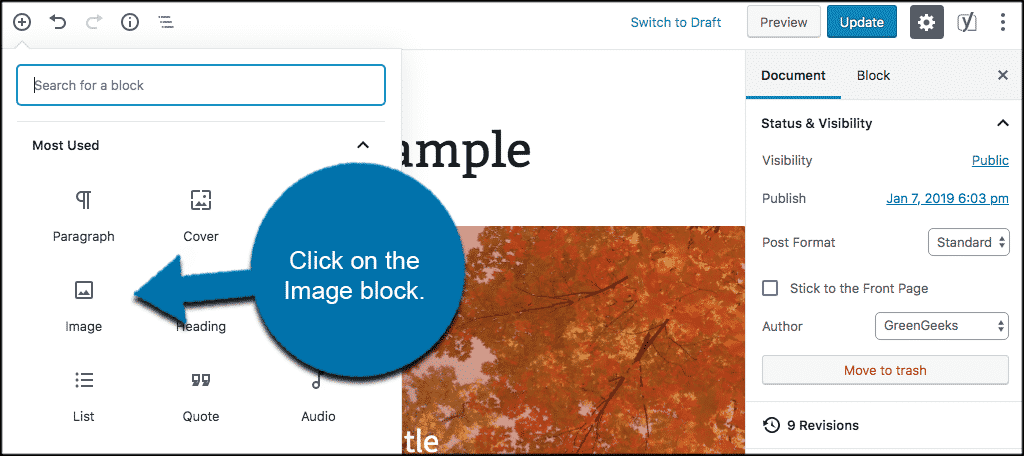
Credit: www.greengeeks.com
Image Caption Basics
An image caption is a short description. It appears below an image. Captions help describe what the image shows. They add context to the picture. This makes it easier to understand. In WordPress, adding a caption is simple. You can do it while uploading an image. Just fill in the caption box. It’s that easy!
Captions can also improve SEO. They include keywords related to the image. This helps search engines understand the content. Remember, a good caption is clear and concise. It tells a story about the image. A few words can make a big difference. So, always add captions to your images in WordPress. It makes your site more engaging and informative.
Importance Of Image Captions
Image captions are very helpful for readers. They describe what is in the picture. This helps readers understand the content better. Sometimes, pictures do not explain everything. Captions fill in the gaps. They provide extra information. This makes the post more interesting.
Adding captions is simple. It is like adding a short story to a picture. It makes the images more meaningful. Captions also help with SEO. They can improve search engine rankings. Search engines read captions to know more about the image. This can make your post appear higher in search results.
People spend more time on posts with captions. They find them engaging. This keeps them on your site longer. So, captions can make your blog more successful.
Creating Image Captions
Image captions help describe pictures. They make your site more engaging. In WordPress, you can add captions easily. First, go to the Media Library. Here, find your image. Click on it to open the details. You will see a box labeled Caption. Type your caption in this box. Save your changes to keep the caption.
Adding captions to posts is simple. First, insert an image in your post. Click on the image. A menu will appear. Look for the edit icon. Click it to open the settings. You will see a Caption box. Type your text here. Captions make images clearer for readers.
Styling Image Captions
Image captions can be styled with custom CSS. This helps make captions look better. You can change font size, color, and style. Add CSS rules to your theme’s style.css file. This is easy if you know basic CSS. Try using text-align to center the caption. This makes the caption look neat and tidy. You can also use padding to give space around the text.
Alignment is important for captions. Choose between left, center, or right alignment. Center alignment is popular. It makes the text look balanced. Left alignment is good for long text. Right alignment is less common. It can be used for special designs. Test different alignments to see what looks best. This can change the feel of your page.
Seo Benefits
Image captions improve search visibility. They provide context for images. Search engines read these captions. This helps rank your website higher. Captions can include keywords. These keywords are important. They help in better ranking. Clear and relevant captions boost search visibility. Good captions attract more viewers.
Enhancing accessibility is another benefit. Captions help people with disabilities. They explain what the image shows. This is important for those who can’t see the image. Captions make websites more user-friendly. They add value to your content. Everyone can understand the images better. This increases your audience reach. Accessibility is crucial for inclusivity.
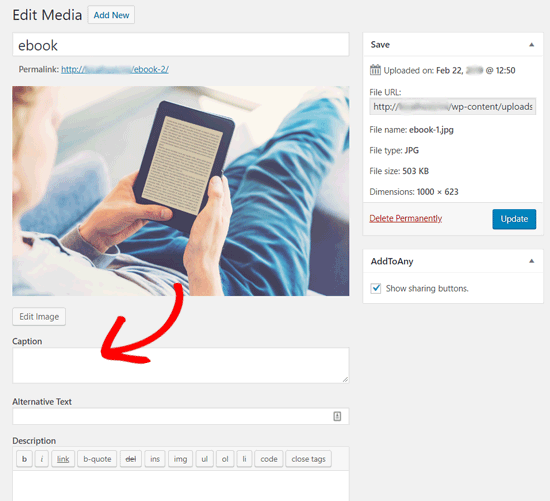
Credit: www.wpbeginner.com
Common Mistakes
Image captions in WordPress often get overlooked. Many users forget to add them, missing out on SEO benefits. Captions help search engines understand images, improving visibility. They also enhance user engagement by providing context. Ensure captions are clear, descriptive, and relevant.
Overloading With Text
Many people put too much text in captions. A caption should be short. It should tell the viewer what the image is about. Too many words make it hard to read. Keep it simple and clear. Use brief sentences. Make sure the caption fits the image.
Ignoring Caption Relevance
Captions should be relevant to the image. A photo of a cat needs a caption about cats. Avoid writing captions that do not match the picture. This confuses viewers. Always check your caption and the image. Make sure they match. This helps the reader understand better.
Tools And Plugins
Image captions in WordPress provide context and enhance user engagement. They describe the image, helping readers understand its relevance. Adding captions is simple with WordPress tools and plugins, improving accessibility and SEO.
Popular Caption Plugins
Choosing a plugin for image captions is important. Some plugins make captions easy. A popular choice is the Image Caption Easy plugin. It helps you add captions fast. Another option is WP Captions. This one has cool features. You can style your captions nicely. Caption Pro is also well-liked. It offers advanced settings.
Choose wisely based on your needs. Some plugins are free. Others may need payment for full features. Check reviews before you decide. User feedback can help a lot. Make sure the plugin updates often. This keeps it working well with WordPress. The right tool makes your site look better. It also helps users understand your images.
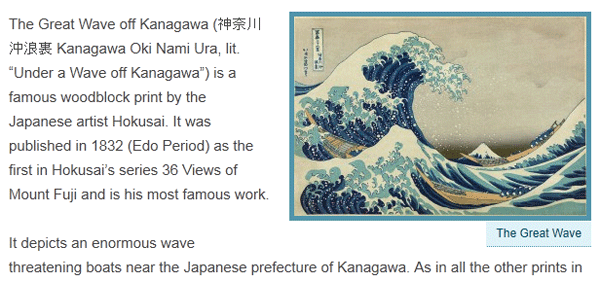
Credit: codex.wordpress.org
Frequently Asked Questions
How To Add Image Captions In WordPress?
To add image captions in WordPress, open the media library and select your image. In the attachment details, you’ll see a ‘Caption’ field. Enter your desired text, and click ‘Insert into post’. The caption will display below your image in the post editor.
Why Are Image Captions Important In WordPress?
Image captions enhance user engagement and provide context. They help explain the image’s relevance to your content. Captions can improve accessibility for visually impaired users and boost SEO by providing additional keywords related to your content.
Can Image Captions Affect Seo In WordPress?
Yes, image captions can affect SEO. They offer an opportunity to include relevant keywords, enhancing your content’s visibility. Well-optimized captions can improve your website’s search rankings by providing context to search engines and increasing user engagement.
How Do Image Captions Improve Accessibility?
Image captions improve accessibility by offering textual descriptions of images. This helps visually impaired users understand the content of the image. Captions also assist screen readers, providing a better experience and ensuring your site is inclusive to all users.
Conclusion
Image captions in WordPress enhance your content’s clarity. They provide context to images. This helps readers understand their significance. Captions improve user engagement by making content more interactive. They can also boost your SEO by including keywords. Crafting effective captions is easy in WordPress.
Use clear and concise language. This adds value to your images and strengthens your message. Remember, a well-captioned image can speak volumes. So, start adding captions today. Enhance both user experience and search rankings. Your WordPress site will benefit greatly.


