
Are you looking to host your website in a cost-effective and highly reliable manner? Amazon S3 might just be the perfect solution for you.
Imagine having the power to scale your website without worrying about infrastructure limits or downtime. Sounds great, right? With S3, you can store and serve static websites with ease, all while enjoying Amazon’s robust infrastructure. But how do you get started with setting it up?
It might sound technical, but don’t worry—it’s simpler than you think! By following a few straightforward steps, you can transform your web hosting experience. Keep reading to discover how you can set up S3 for web hosting and unlock a world of possibilities for your online presence.
Credit: towardsaws.com
S3 Basics
S3 is a storage service. It keeps data safe in the cloud. You can store files like photos and documents. S3 is easy to use. It is a part of Amazon Web Services. People use S3 for many things. It is cheap to store data there. You pay for what you use. It is secure and reliable. Many people trust S3. It keeps data safe from loss.
S3 is great for web hosting. It stores website files. Websites can run faster with S3. S3 scales easily. It handles big traffic well. It is cost-effective. You save money with S3. It is flexible. You can host many types of content. Security is strong with S3. Your website is safe from attacks. Many people use S3 for hosting.
Credit: s3browser.com
Creating An S3 Bucket
Choose a unique name for your bucket. The name must be different from all others. Stick to simple words and no spaces. Only lowercase letters, numbers, and dashes are allowed. Avoid names that can be confusing or hard to remember.
Think about the purpose of your bucket. A clear name helps. It should describe what it holds. For example, use “mywebsiteimages” for images. A good name makes it easy to organize and find later.
Pick a region close to your users. This makes access faster. Check the options AWS offers. Each region has a name, like “US East” or “Asia Pacific.”
Regions can affect cost and speed. Nearby regions can save money. They also improve performance. Make sure to choose wisely for your needs. This ensures your website runs smoothly.
Configuring Bucket Permissions
Setting up public access is important for your bucket. This lets others see your files. But be careful. Some files must stay private. You can change this in the AWS console. Go to the S3 bucket settings. Find the public access options. Turn off block for public access. This allows viewing files. Ensure only necessary files are public.
IAM policies help in managing user permissions. These policies are like rules. They decide who can access your bucket. Use these to keep data safe. Create a policy in the IAM section. Add users who need access. Attach the policy to users. This way, only trusted users can make changes.
Uploading Website Files
Use HTML, CSS, and JavaScript files for your website. These are the basic files. Organize them in folders. Keep images in an “images” folder. Store scripts in a “scripts” folder. Use a “styles” folder for CSS files. This structure helps keep things neat. It also makes your site easy to manage.
Log in to the AWS Console. Find the S3 service. Create a bucket. This is where your files go. Upload your website files to this bucket. Use the Upload button. Drag and drop files if you want. Make sure all files are there. Check the file permissions. They should be public. This lets others see your site. Finally, save your changes.
Setting Up Website Hosting
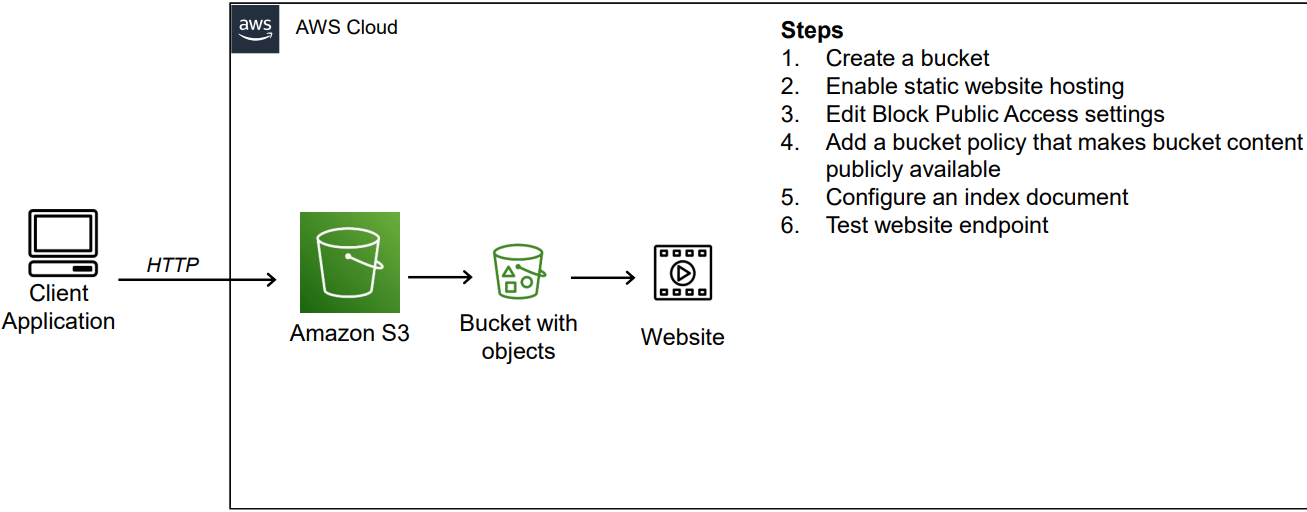
Setting up S3 for web hosting is a straightforward process. Begin by creating an S3 bucket and enabling static website hosting. Upload your website files and configure permissions to allow public access.
Enabling Static Website Hosting
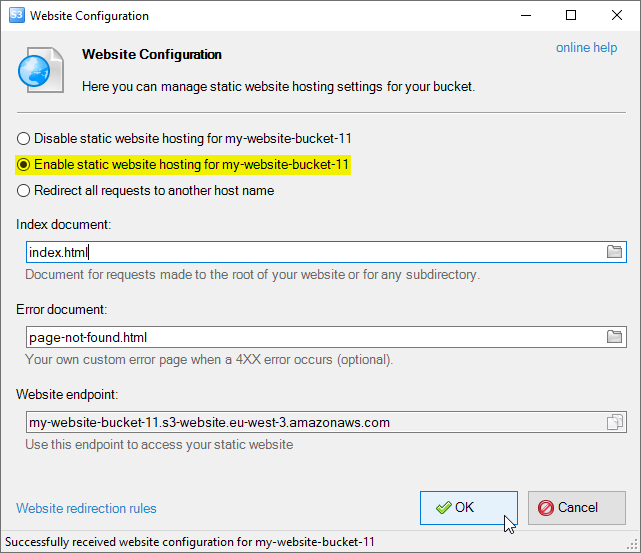
Amazon S3 can host static websites. First, open your S3 bucket settings. Look for Static Website Hosting. Click the box to enable it. Choose your index document. Common names are “index.html”. This is the main page users see.
Next, add your error document. Name it “error.html” or similar. This page shows when there’s a problem. Enter the names in the correct fields. Save the settings. Your site is now ready on S3.
Configuring Domain Settings
Set up S3 for web hosting by configuring domain settings. Start by creating a bucket that matches your domain name. Then, enable static website hosting in the bucket properties to serve your site files efficiently.
Custom Domain Setup Using Route 53
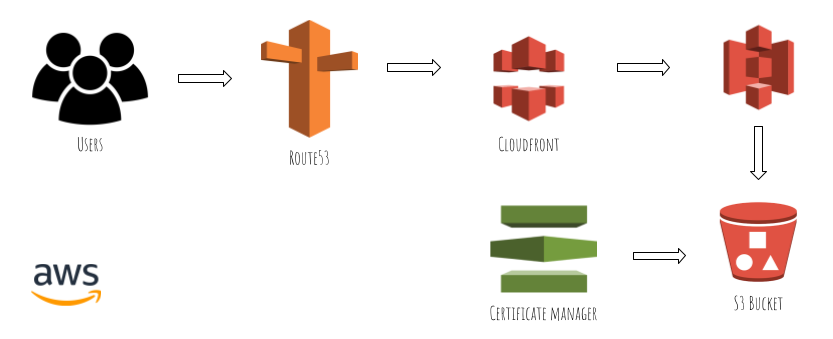
Set up a custom domain for your S3 bucket. First, create a new hosted zone in Route 53. Add the domain name you want. After that, take note of the name servers provided. These will be important later.
Update your domain registrar with these name servers. This step connects your domain with Route 53. It may take a few minutes to update. Once done, create an A record in Route 53. This points your domain to the S3 bucket.
Ensure the S3 bucket name matches your domain name. This is crucial for the setup to work. Double-check all entries for mistakes. Small errors can cause big issues. Once confirmed, your domain should link to the S3 bucket.
Securing Your Website
HTTPS keeps your site safe. Amazon S3 can work with HTTPS. First, create a bucket for your files. Name it after your domain. Example: example.com. Next, get a SSL certificate. It gives you HTTPS. You can use AWS Certificate Manager. It is free. Then, link the certificate to CloudFront. This makes your website secure.
CloudFront makes your website fast. It uses edge locations. These are places near your users. First, set up a distribution in CloudFront. Link it to your S3 bucket. Pick HTTPS only. This makes sure data is secure. Set a price class. It controls costs. Then, test your site. Make sure it loads fast and works well. Now, your site is secure and quick!
Monitoring And Maintenance
Setting up S3 for web hosting involves monitoring and maintenance to ensure optimal performance. Regularly check storage usage and access permissions. Keep your data secure and your website running smoothly.
Tracking Usage And Performance
Keep an eye on your S3 usage. Check how many files are stored. Look for any unusual spikes in usage. Performance metrics help track speed and efficiency. Use monitoring tools to check data transfer rates. Slow performance can mean an issue. Regular checks can prevent problems early. Make sure to review logs. Logs show what is happening with your S3. They help find errors quickly. Monitoring ensures your system runs smoothly. It saves time and prevents headaches.
Regular Backups
Back up your files often. Data loss can be a big problem. Store copies in different places. Use automated tools for backups. Schedule backups to happen regularly. This keeps your data safe. Backups ensure you can restore files if needed. Check your backups often. Make sure they work correctly. Test restoring files from backups. This confirms your backup process is effective.
Credit: medium.com
Frequently Asked Questions
Can S3 Be Used To Host A Website?
Yes, Amazon S3 can host static websites. It provides scalability and reliability for hosting HTML, CSS, and JavaScript files. You need to configure your bucket for website hosting and set permissions. S3’s low cost and easy setup make it a popular choice for static site hosting.
How To Host A Website On S3 Without Getting Lost In The Sea?
Host your website on S3 by creating an S3 bucket. Upload site files and set permissions. Enable static website hosting in bucket properties. Configure index and error documents. Use a custom domain by linking it with Route 53. Monitor performance through AWS management console for smooth operation.
How Much Does It Cost To Host A Website On S3?
Hosting a website on Amazon S3 costs vary based on usage. You pay for storage, data transfer, and requests. Storage costs start at $0. 023 per GB monthly. Data transfer rates begin at $0. 09 per GB. Monitor usage to manage costs effectively.
Visit AWS Pricing Calculator for detailed estimates.
Can Amazon S3 Be Used For Dynamic Web Hosting?
Amazon S3 is ideal for static website hosting, not dynamic web hosting. It serves static files like HTML, CSS, and JavaScript. For dynamic content, use AWS services like EC2 or Elastic Beanstalk. These platforms handle server-side operations, databases, and dynamic user interactions efficiently.
Conclusion
Setting up S3 for web hosting is simple and effective. Follow the steps carefully. Ensure you configure permissions properly. Keep your files organized in buckets. Monitor usage and costs regularly. S3 offers scalability and reliability. Ideal for hosting static websites.
You gain control over resources. Fast loading times enhance user experience. AWS documentation is helpful. Explore advanced features later. Always keep security in mind. Your website can grow smoothly. Now you are ready to utilize S3 for hosting. Enjoy the journey of web hosting with S3!


