
Imagine having the power to control what websites can be accessed on your computer, all without the need for complicated software or expert knowledge. Sounds intriguing, right?
This simple yet effective method can help you manage what content is accessible, whether you’re a parent wanting to restrict certain sites from your kids or someone looking to enhance your focus by eliminating distractions. By leveraging your computer’s host file, you can easily block any website you wish.
The best part? It’s completely free and surprisingly straightforward. Ready to take control of your web browsing experience? Let’s dive into the step-by-step process and empower you to make your digital environment exactly how you want it.
Host File Basics
A host file is a simple text file. It helps computers find websites. Each line has an IP address and a website name. Computers use this to match names to numbers. It works like a small phone book.
The host file is important for network settings. It tells the computer where to go online. It can block websites too. Just change the address in the file. The computer won’t go to the blocked site. It is easy to use. Many people use it to keep their computers safe.
Credit: www.tenforums.com
Locating The Host File
Find the host file on your computer. Use the search bar and type “Notepad”. Right-click and select “Run as administrator”. Open File menu, then choose “Open”. Go to C:WindowsSystem32driversetc. Choose “All Files” to see the host file. Click on the host file to open it.
Open Terminal from Applications. Type sudo nano /etc/hosts and press Enter. The host file appears in the editor. Edit it as needed. Use the keyboard to navigate. Save changes with Control + O. Exit with Control + X.
Access the host file using Terminal. Type sudo nano /etc/hosts. Press Enter. The file opens for editing. Make necessary changes. Save with Control + O. Exit with Control + X. The file updates instantly.
Editing The Host File
You need admin permissions to edit the host file. Without it, changes won’t save. Make sure you have the right permissions. Ask an adult if you need help. It’s important to have the right access.
Use a text editor to open the host file. Notepad is a good choice. Avoid using programs that change file formats. Always save the file in the same format. This will help keep the file safe. Make sure the editor is simple and easy to use.
Credit: www.pcworld.com
Syntax For Blocking Websites
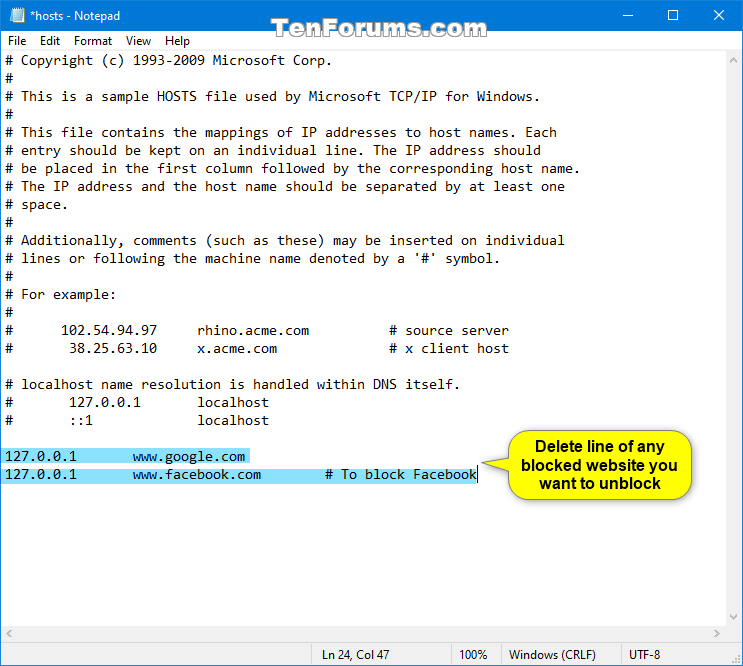
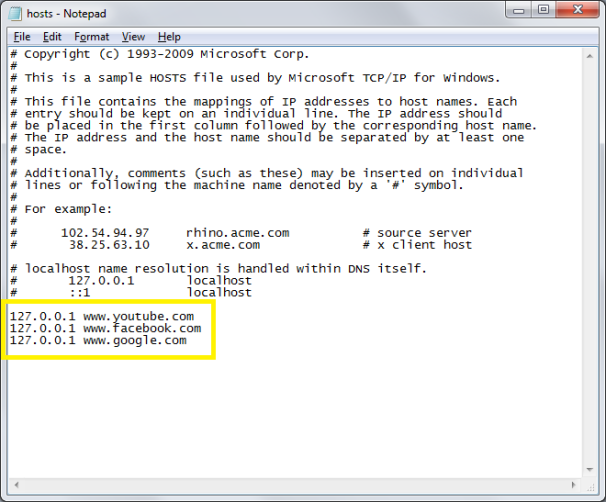
The host file is a powerful tool. It helps block websites. You need to map an IP address to a website name. Use 127.0.0.1 for local blocking. This means the site won’t load. It points to your computer instead. This is easy and fast to do.
First, open the host file. You can find it on your computer. Add a line for each domain you want to block. Start with the IP address. Then write the domain name. Save your changes. Now, your computer blocks that website. This method is safe and simple. It helps keep unwanted sites away.
Testing Website Restrictions
To check if the website is blocked, open your browser. Type the website’s address in the address bar. If the site does not load, the block is working. Sometimes, a cached version might appear. Clear your browser cache to make sure. Try again. If the site still loads, double-check the host file entries. Ensure there are no errors.
If the website is still accessible, there might be issues. Check if you saved the host file correctly. Ensure you have administrator rights. Sometimes, antivirus software might block changes. Temporarily disable it and try editing again. Restart your computer. This can help apply changes. If problems persist, consult online forums or guides for help.
Security Considerations
Preventing Unauthorized Access is key for online safety. A host file helps in blocking unwanted sites. It stops access to risky websites. This keeps your computer safe. Hackers cannot reach you easily. This tool is very powerful. But it must be used wisely. Wrong use can block good sites too. Always check the entries in your host file. Make sure only bad sites are listed. This keeps your browsing safe and sound.
Backing Up the Host File is very important. Always have a copy. This prevents loss of important settings. If changes go wrong, a backup helps. You can restore the file easily. Save the backup in a safe place. Use the copy to fix any problems. This saves time and effort. Always update the backup after big changes. It ensures you always have the latest settings.
Alternative Methods
Using the host file to restrict websites offers a straightforward approach. By editing the host file, specific site access can be blocked. This method works well for home and office networks, enhancing security and control.
Using Browser Extensions
Browser extensions are easy tools. They help block websites. Extensions are simple to use. Install them from the browser store. Many extensions are free. They block sites with a click. They offer control over browsing. Parents use them for safety. Companies use them for productivity. Extensions work on multiple browsers. They are flexible and reliable. Some extensions even allow schedules. Block sites during work hours. It keeps focus and saves time.
Network-based Solutions
Network solutions manage internet access. Routers can block websites. Set rules in the router settings. Control which sites are accessible. This method is stronger. Network-based control covers all devices. It protects the whole network. Parental controls are part of this. They keep kids safe online. Schools use these solutions. It ensures students focus on learning. Network solutions offer broad protection. They are essential for large settings.
Credit: medium.com
Frequently Asked Questions
How To Block A Website Through Host File?
Edit the hosts file as an administrator. Add a new line with “127. 0. 0. 1” followed by the website URL. Save the file to block the website.
How Can I Restrict Access To A Website?
Use a password protection feature or IP whitelisting to restrict website access. Implement login credentials for users. Utilize. htaccess files for Apache servers to control access. Consider using a firewall or VPN for additional security. Regularly update security settings to maintain restricted access.
How To Block A Program In The Firewall And Add A Host File?
To block a program in the firewall, open Control Panel, navigate to Windows Defender Firewall, and select “Advanced Settings. ” Choose “Outbound Rules,” then “New Rule,” and follow prompts to block the program. To add a host file, edit the “hosts” file in C:WindowsSystem32driversetc, adding desired entries and saving changes.
How Do I Block A Website In Localhost?
To block a website in localhost, edit the hosts file. Add the site URL and map it to 127. 0. 0. 1. Save changes, and clear browser cache for effect. This method redirects the website to your local machine, effectively blocking access.
Conclusion
Blocking websites using the host file is simple and effective. This method empowers users to control internet access easily. No extra software needed. Just follow the steps carefully. It enhances online safety by preventing unwanted sites. Remember to back up your host file first.
Mistakes can happen. Double-check entries for correct website addresses. This ensures everything works smoothly. Now, you can manage your internet experience better. Feeling confident in your ability to block websites? Give it a try today. Your digital world is now in your hands.


