
Are you ready to unlock the potential of your web applications by hosting a WCF (Windows Communication Foundation) service in ASP.NET? Imagine the seamless integration and enhanced functionality you can offer your users.
Whether you’re a seasoned developer or just starting out, understanding how to host a WCF service can elevate your application to new heights. In this guide, you’ll learn straightforward steps and practical tips to effortlessly integrate WCF services into your ASP.
NET web applications. Get ready to transform your development process and captivate your audience with powerful, dynamic applications. Let’s dive in and explore how you can make this integration work for you!
Credit: www.tutorialspoint.com
Setting Up The Environment
Start by installing Visual Studio. This tool is essential for development. It supports ASP.NET and WCF Services. You also need the .NET Framework. Ensure you have the correct version. The framework is vital for running your application. Download from the official Microsoft site. Follow the instructions carefully. Installation is straightforward. It ensures compatibility with WCF Services.
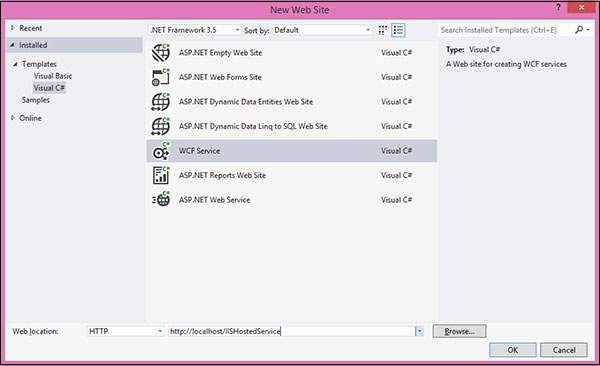
Open Visual Studio and configure settings. Create a new project. Select ASP.NET Web Application. Make sure to choose the right template. Configure WCF Service in your project. Check the properties panel. Set service endpoints correctly. Test the service locally. Ensure it runs without errors. Debugging tools are available. Use them to fix issues. Configuration is crucial for smooth operation.

Credit: learn.microsoft.com
Creating A Wcf Service
A service contract is like a list of tasks. It tells what the service can do. Use the [ServiceContract] attribute. Add it to your interface. Inside, list your tasks with [OperationContract]. This makes sure each task is clear. It’s simple and organized. Always check your list before moving on.
Service logic is where the magic happens. It’s the brain. Use classes to define logic. Each task in your contract needs logic. Keep it clear and simple. Use methods to do the work. Keep code neat. Test each part as you go. If it works, then move to the next task. Always keep it organized. This makes it easy to change later.
Integrating Wcf With Asp.net
First, open your ASP.NET project. Go to the Solution Explorer. Right-click on References and choose Add Service Reference. A new window will pop up. Enter the URL of your WCF service. Click Go to search. Once found, give your service a namespace. Click OK to add. Now, the service is ready to use.
Open the web.config file in your ASP.NET project. Find the system.serviceModel section. Add a new behavior under behaviors. Set the serviceMetadata to enabled. This allows metadata exchange. Configure serviceDebug to show exceptions in detail. Save the changes and close the file. Your service behavior is now configured.

Credit: www.youtube.com
Configuring Web.config File
Define the service endpoints in the Web.Config file. This tells your application where to find the service. Use the element. It should include the address, binding, and contract attributes. Make sure the address is correct. The binding specifies how to connect. The contract tells what the service does. Always check the values for errors.
The service bindings describe how data moves. Use the section for this. Choose a suitable binding type. Examples are BasicHttpBinding or NetTcpBinding. Each has different uses. Set the properties like security and reliability. These settings affect data safety. Ensure the configuration matches your needs. This keeps the service running smoothly.
Testing The Wcf Service
Hosting a WCF Service in an ASP. NET web application involves creating a service endpoint. This lets clients communicate with your service. Simple steps include adding a service reference and configuring the service in the web. config file. This makes your service accessible and ready for testing.
Use Wcf Test Client
The WCF Test Client is a helpful tool. It allows you to test your service operations easily. Open the tool from your Visual Studio. Navigate to your project folder and find the .svc file. Drag this file into the WCF Test Client window.
You will see a list of operations. Click on an operation to test it. Fill in the required data. Then, click Invoke. The tool will show the response from the service. Check if everything works as expected.
Errors will appear if something is wrong. Read the error messages carefully. Make necessary changes to fix issues. This step helps ensure your service runs smoothly.
Validate Service Operations
Validating the service operations is crucial. Each operation should return the correct response. Use the WCF Test Client for this. Test each operation one by one.
Check if the output matches your expectations. Look for any discrepancies. Fix any mismatched data immediately. This ensures the service functions properly.
Use logs to track the operations. Logs help identify issues quickly. They provide valuable insights into the system’s behavior. Regular validation keeps the service reliable.
Deploying The Asp.net Application
Publishing your ASP.NET app to IIS is simple. First, open Visual Studio. Next, select your project. Click on Build and choose Publish. Select IIS as the target. Follow the wizard steps. Ensure paths are correct. Double-check settings before proceeding. This helps avoid errors.
After deployment, verify the service. Open a browser. Type the service URL. It should display. If not, check configurations. Ensure IIS is running. Make sure bindings are correct. Verify firewall settings. Sometimes, they block access. Fix any errors you find. Testing is crucial. Ensures everything works smoothly.
Troubleshooting Common Issues
Hosting a WCF service in an ASP. NET web application can present challenges. Issues often arise with configuration settings and endpoint addresses. Ensuring compatibility between the service and client is crucial for smooth operation. Understanding these common problems helps in effective troubleshooting and seamless integration.
Resolve Configuration Errors
Fixing configuration errors can be tricky. Ensure the web.config file is correct. Check the service address and binding settings. Use clear, simple paths. Verify endpoint settings. Look for missing or extra tags. Keep configurations neat and organized. Avoid using old settings. Update to the latest version. Confirm all dependencies are properly installed.
Handle Security Concerns
Security is vital for web applications. Always use HTTPS for secure connections. Add authentication to protect data. Encryption is essential for sensitive information. Avoid using weak passwords. Implement role-based access. Regularly update security protocols. Monitor for unusual activity. Use firewalls to block threats. Keep security settings tight.
Frequently Asked Questions
How Do I Host A Wcf Service?
To host a WCF service, create a service contract and implement it. Configure the service in a configuration file. Choose a hosting environment like IIS, WAS, or a Windows service. Create a service host and open it. Ensure proper endpoint configuration for communication.
Test the service for functionality.
How To Publish A Wcf Service?
To publish a WCF service, configure your service, build your project, then use IIS or a hosting application. Ensure endpoint settings are correct in the web. config file. Deploy your service files to the server, then test the service to confirm successful publication.
Does Wcf Require Iis?
WCF does not require IIS for hosting. You can host WCF services using self-hosting, Windows services, or any other managed application. IIS is an option for hosting WCF services to provide additional features like process management and security.
How To Add A Wcf Service Reference To Console Application?
Open your console application in Visual Studio. Right-click on “References” and select “Add Service Reference. ” Enter the WCF service URL, click “Go,” and select the desired service. Provide a namespace, and click “OK” to add the service reference.
Conclusion
Hosting a WCF service in an ASP. NET web application is straightforward. Follow the steps and guidelines above. Ensure your web. config settings are correct. Check your endpoints and bindings. Test your service thoroughly. Secure it with proper authentication. These steps help avoid common pitfalls.
Practice makes perfect. Once you master the basics, hosting becomes second nature. So, dive in and start creating robust web applications. Share your knowledge with others. Encourage collaboration and learning. Hosting WCF services can be rewarding. You enhance your skills and contribute to the tech community.


