
Are you ready to unlock the potential of your web service? Hosting on Internet Information Services (IIS) can be a game-changer for your online presence.
Whether you’re launching a new app or enhancing an existing service, understanding how to effectively host on IIS is crucial. Imagine effortlessly managing your web applications with a reliable, scalable solution that caters to your specific needs. In this guide, we’ll walk you through the process in straightforward steps, making it easy for you to grasp and apply.
You’ll discover tips and tricks that ensure your service runs smoothly, and learn how to leverage IIS’s robust features for optimal performance. Get ready to transform your digital landscape—let’s dive into the essentials of hosting a web service on IIS!
Setting Up Your Environment
Open your computer. Go to Control Panel. Find Programs and Features. Click on it. Look for Turn Windows features on or off. Click it. A list will open. Find Internet Information Services (IIS). Check the box next to it. Click OK. Windows will install IIS. Wait a few minutes. Once done, close the window.
Go to the Start menu. Type IIS in the search box. Click on IIS Manager. It will open. On the left, find your computer’s name. Click it. Now, click Sites. Right-click and choose Add Website. A new window will open. Enter a name for your site. Choose a path for your files. Click OK. Your web service is ready.

Credit: learn.microsoft.com
Preparing Your Web Service
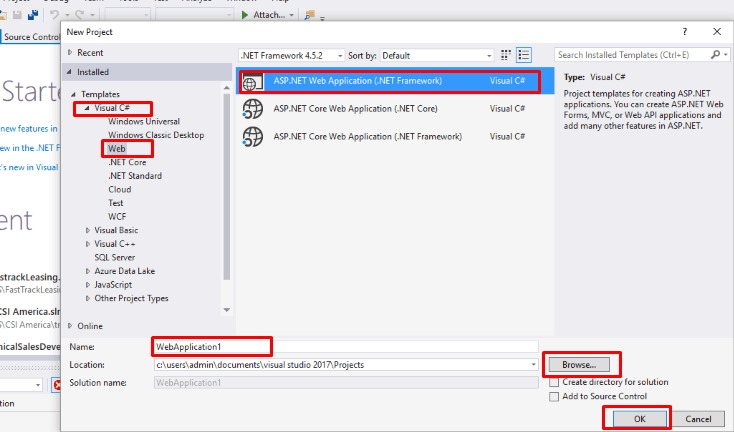
Choose a framework that works with IIS. Many developers use .NET frameworks. These frameworks are easy to use. They help in building web services quickly. Ensure that the framework supports HTTP and HTTPS protocols. This is important for secure communication. Test your web service before hosting. Make sure it runs smoothly and efficiently.
First, gather all necessary files. These include application files and configuration files. Package them in a ZIP file or a folder. Ensure that the package is easy to deploy on IIS. Check for any missing files. Missing files can cause errors during deployment. Finally, verify the package. This step ensures that everything is ready for hosting.
Deploying To Iis
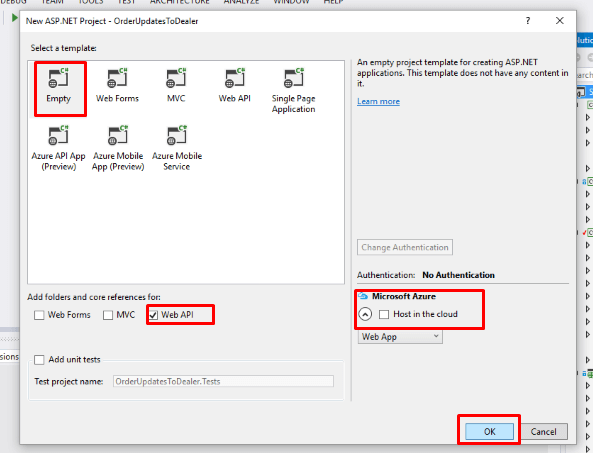
First, prepare your web service files. Make sure all files are ready. Use a tool like FileZilla to upload. Connect to your server using FTP. Enter the server’s IP address, username, and password. Locate the root directory of your server. Drag and drop your files here. Wait for the upload to finish. Ensure all files have uploaded correctly. Check for any missing files. This step is important for your service to work.
Open your IIS Manager. Find the Application Pools section. Click on it to view the list. Choose the pool for your web service. Right-click and select “Advanced Settings”. Set the .NET Framework version. Choose the correct version for your service. Set the pipeline mode to Integrated. This is important for modern applications. Adjust the recycling settings if needed. Save your changes to apply them. These settings help your service run smoothly.
Credit: www.cloudfronts.com
Configuring Security Settings
SSL certificates keep data safe. They encrypt information sent to and from the server. Users feel safe when they see a padlock icon. To set up, buy a certificate from a trusted provider. Then, install it on your server. This makes your website secure.
Authentication protocols check who can enter. IIS offers many options. Basic authentication asks for a username and password. Windows authentication uses your Windows login. Choose what suits your needs. Protects your website from unwanted visitors.
Testing Your Web Service
Setting up a web service on IIS involves configuring server settings and deploying your application files. Ensure you have the correct. NET framework and follow step-by-step guides for a smooth installation process. Testing the setup is crucial to confirm that the service runs efficiently.
Running Initial Tests
Start by launching your web service in a browser. Check if it loads properly. Ensure all links work as expected. Look for missing images or broken paths. Test the functionality of forms. Submit sample data and check responses. Verify error messages are clear and helpful. Watch for loading times. Pages should load fast. Slow pages can frustrate users.
Monitoring For Issues
Keep an eye on server logs. They reveal hidden issues. Look for repeated errors. These might need fixing. Check user feedback regularly. Users often spot problems first. Use monitoring tools to track performance. Tools can alert you to slowdowns or downtime. Make sure to update your service often. Updates fix bugs and improve security.
Optimizing Performance
Use application pools to manage web services. They help control resources. Assign each service its own pool. This keeps them separate. If one fails, others stay safe. Set recycling times for the pools. This refreshes them and clears memory. Adjust the number of worker processes. More processes mean better performance. But too many can slow things down. Check CPU usage and tweak settings. This ensures the best speed. Always keep an eye on the logs. They show how the pools work.
Load times matter a lot. Fast sites make users happy. Compress files to make them smaller. Smaller files load quicker. Use caching to store data temporarily. This reduces load time for repeat visitors. Minimize the use of heavy scripts. They can slow things down. Optimize images for the web. Smaller images load faster too. Test your site speed often. This helps find any issues. Fixing them keeps your site fast. Users enjoy fast, smooth sites.
Troubleshooting Common Problems
Error messages can be confusing. But they tell us what’s wrong. Start by reading the message carefully. Look for key words like “not found” or “access denied”. These words hint at the problem. Check if the file path is correct. Confirm you have permission to access it. Sometimes, a typo can cause an error. Double-check everything you typed. Also, ensure all needed files are present. A missing file can trigger an error.
Configuration conflicts cause many issues. First, check your settings. Ensure no two settings contradict each other. For example, ports must be unique. Two services on the same port will clash. Review your web.config file carefully. Look for incorrect or duplicate entries. It helps to compare it with a working setup. Sometimes, reinstalling can fix conflicts. But, always back up your files first.
Credit: www.cloudfronts.com
Frequently Asked Questions
How To Host Web Services In Iis?
Open IIS Manager and navigate to your site. Right-click and choose “Add Application”. Enter alias and physical path. Configure application pool settings. Click “OK” to complete. Use “Browse” to verify the web service is live.
How To Host A Web Service?
Choose a reliable hosting provider and register a domain. Set up a server with necessary software. Deploy your web service files. Configure DNS settings to point your domain to the server. Ensure security by using SSL certificates and regular updates.
Test the service for functionality and performance.
How To Host The Web Api In Iis?
Install IIS and configure it. Publish your Web API project. Copy published files to the IIS server. Create a new IIS site pointing to your API directory. Set. NET Framework version in Application Pool. Test the API using a browser or tool like Postman.
How To Host Windows Service In Iis?
To host a Windows service in IIS, use a web application as a wrapper. Convert the service to a WCF service and deploy it in IIS. Ensure to configure bindings and security settings properly in the IIS Manager.
Conclusion
Hosting a web service on IIS is straightforward. Follow the steps outlined here. Ensure your server meets requirements. Check permissions and configurations. Test your service thoroughly. Address any errors promptly. Proper setup ensures reliable performance. Make security a priority. Regular updates improve functionality.
Keep your system safe. With this guide, you’re ready to host efficiently. Share your services with ease. Enjoy the benefits of IIS hosting. It’s a great way to manage your web services. Start today and streamline your operations. Your web service awaits.


