
Are you ready to unlock the potential of your website with a powerful web hosting panel? Setting up a web hosting panel might sound daunting at first, but it’s a crucial step to ensure your online presence is robust, reliable, and easy to manage.
Imagine having the ability to control your server environment effortlessly, with all the tools you need at your fingertips. Whether you’re a seasoned webmaster or just starting out, mastering this setup can elevate your website’s performance and security. In this guide, you’ll discover straightforward steps and insider tips to get your web hosting panel up and running smoothly.
Let’s dive in and simplify this process, so you can focus on what you do best—growing your online presence.
Choosing The Right Hosting Panel
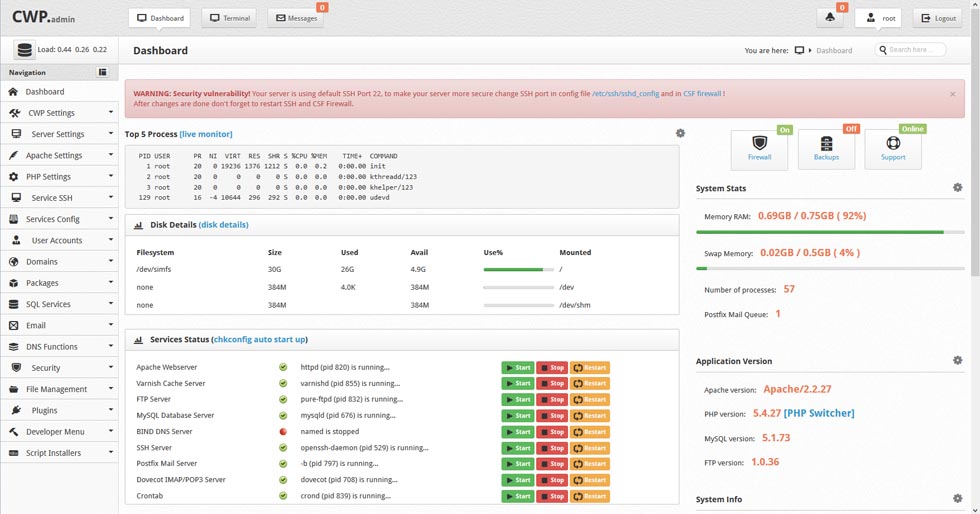
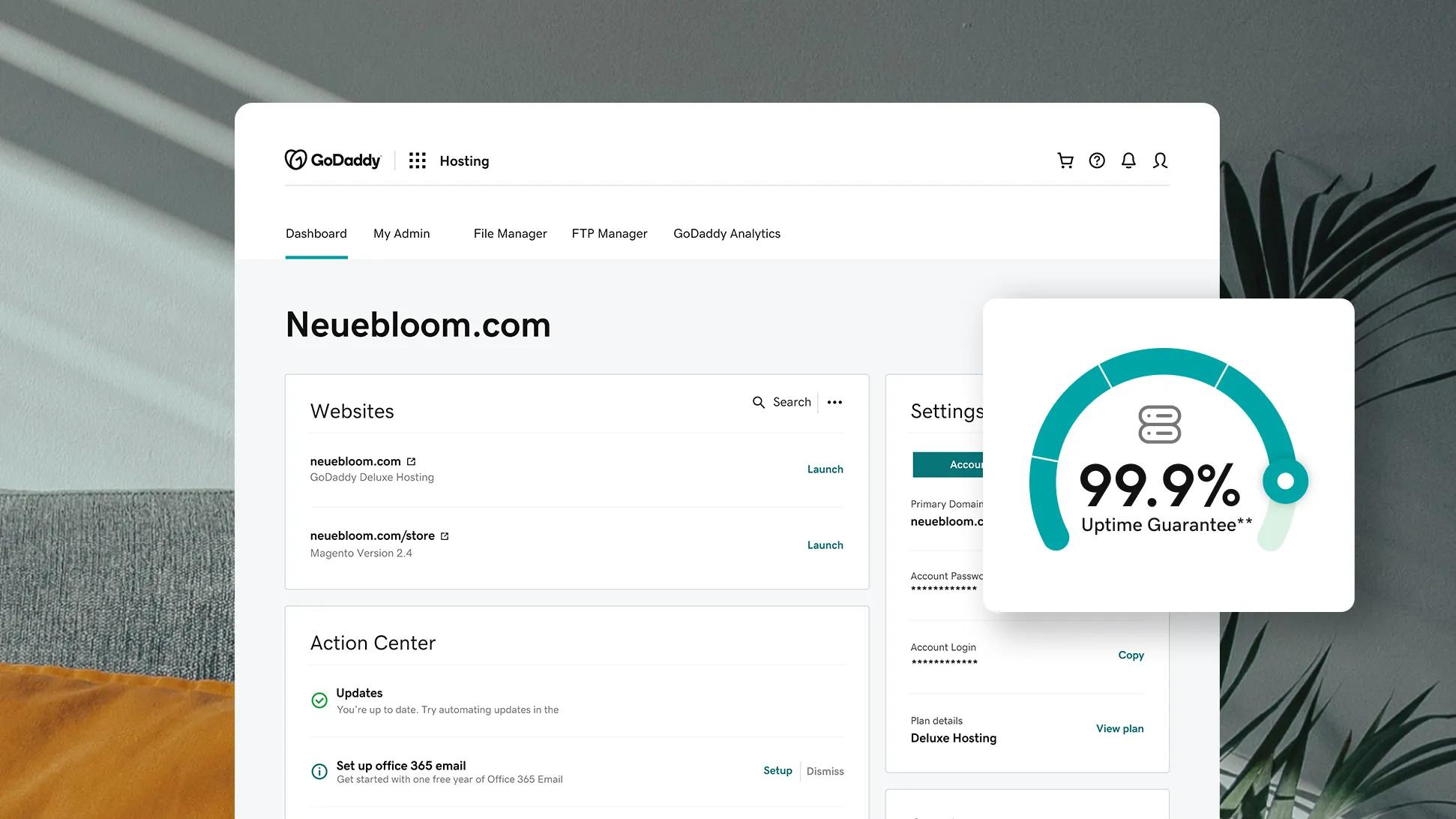
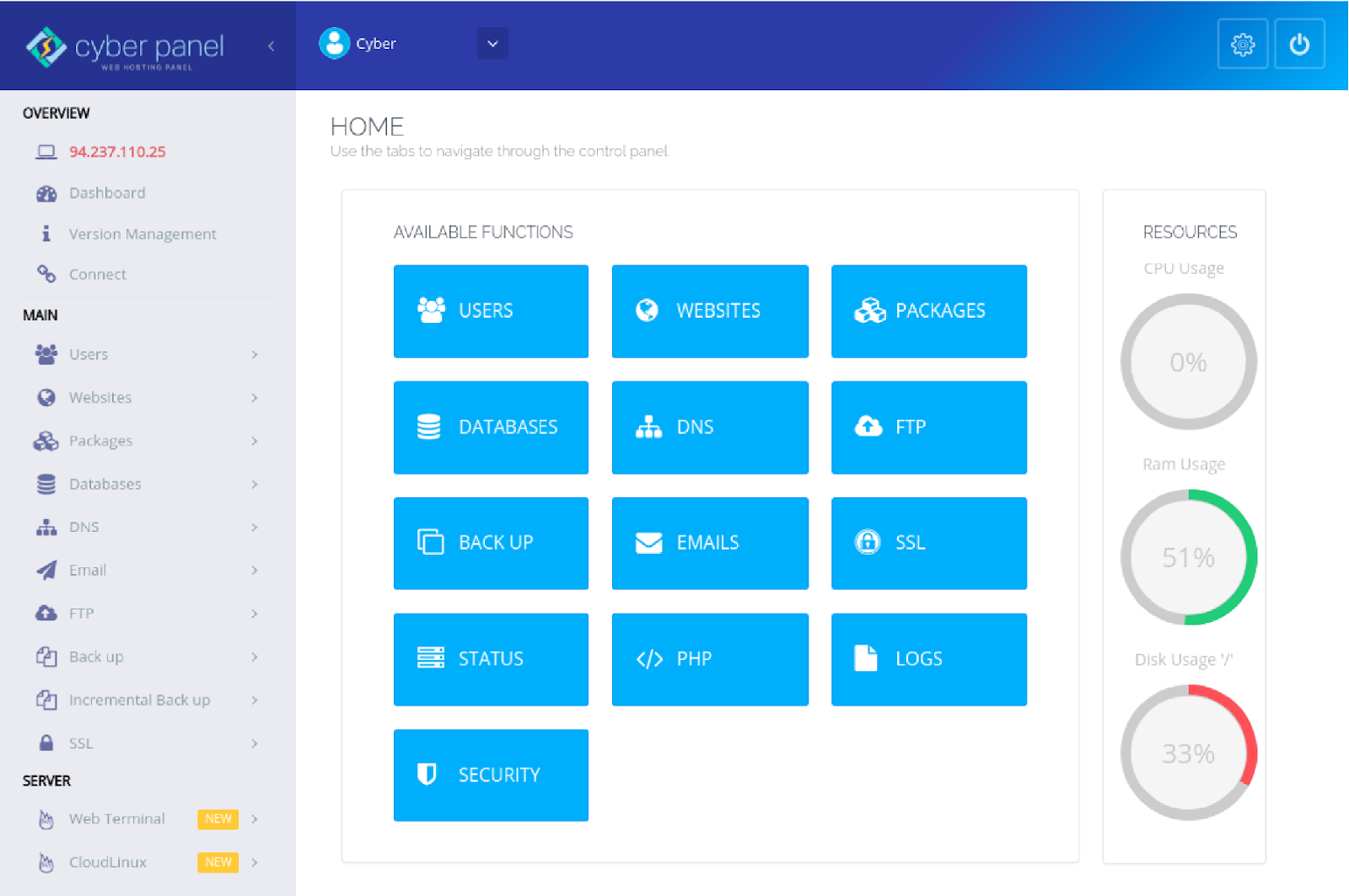
Several hosting panels are available. cPanel is very famous. It offers a user-friendly interface. Plesk supports multiple operating systems. It’s known for its security features. DirectAdmin is lightweight and fast. It has a simple design. Webmin is open-source and flexible. It allows advanced customization. Each panel has unique advantages.
Consider your technical skills. If you are new, choose a simple panel. Think about your budget. Some panels are free. Others require monthly fees. Decide on the features you need. Do you need email support? Or maybe database management? Check the compatibility with your server. Your decision impacts your site’s performance.
System Requirements
A good server needs strong hardware. Choose a fast processor. At least 2 GHz is ideal. More cores mean better speed. RAM is also crucial. Aim for 4 GB or more. This makes tasks quicker. Storage matters too. Use SSD for fast access. HDD is slower. A 100 GB drive is a good start.
Your server must run the right software. Linux is a popular choice. Many panels like cPanel work well on it. Windows servers are another option. Check if your panel supports it. Ensure PHP and MySQL are up-to-date. This keeps things running smoothly. Always update your software. It protects your server from threats.
Installing The Hosting Panel
First, visit the official website. Look for the download section. Click to start the download. Save the file to your computer. Ensure you have enough space. The file might be large. Wait for the download to finish. Now, check the file location. Make sure it downloaded completely. This is important.
Open the downloaded file. Follow the installation wizard. Click “Next” to proceed. Read the terms. Agree to continue. Choose your installation folder. Click “Install” to start. Wait for the process to finish. This might take a few minutes. When done, click “Finish”. Your panel is now installed!
Credit: www.en.ee
Configuring Dns Settings
Choosing a good domain name is important. It should be short and easy to remember. Use a name that fits your website. After choosing, register the domain. A registrar company can help. They handle domain names and their records. Make sure the name is unique. No other website should use it. This makes your site stand out.
DNS records are like instructions. They guide the internet to your website. There are different types of records. A Record points your domain to an IP address. CNAME Record is for subdomains. It links them to the main domain. MX Record handles emails. It directs them to your server. Check these records often. Ensure they are correct. Wrong records can cause problems. Always keep them updated.
Security Measures
SSL certificates keep your website safe. They encrypt data between a user’s browser and your server. Visitors trust sites with SSL certificates. Install the certificate on your server. Follow the steps from your hosting provider. Choose a reliable SSL provider for your site. Protect user information and build trust.
Firewalls block bad traffic. They protect your server from attacks. Configure your firewall correctly. Set rules for allowed and blocked traffic. Regularly update firewall settings. Keep your web hosting panel safe. Monitor firewall logs to spot threats. Ensure your server stays secure.
Creating And Managing User Accounts
Setting up user accounts is important. First, create a user account. Use a username and a secure password. Strong passwords keep accounts safe. Always choose a unique username. Never share passwords with others. Email verification helps ensure safety. It’s a good step to include.
User permissions control what users can do. Some users need full access. Others need limited access. Assign permissions carefully. Read-only permissions mean users can see, not change. Write permissions let users edit. Always check before assigning. Wrong permissions can cause problems.
User quotas limit the amount of resources. Quotas help manage server space. Set quotas based on user needs. Ensure no user uses too much. Balanced quotas keep the server fast. Review quotas often. Adjust as needed. This keeps everything running smoothly.
Monitoring And Maintenance
Keep an eye on your server’s resources. CPU, memory, and disk space are vital. Too much usage can slow down your website. Check these regularly. Many hosting panels show graphs. These graphs help you see usage over time. This helps spot any problems early. If usage is high, find out why. You might need to upgrade your plan.
Backups are very important. They save your data. If something goes wrong, you can restore it. Make sure backups are done often. Use automated tools if possible. This ensures you never forget. Store backups in a safe place. Maybe on another server or a cloud service. This keeps them safe from damage or loss.
Troubleshooting Common Issues
Setting up a web hosting panel can be tricky. Common issues include incorrect server settings and firewall misconfigurations. Troubleshooting involves checking server logs and verifying DNS settings for smooth operation.
Error Log Analysis
Error logs are files that record mistakes. They help fix problems. Check these logs often. Find patterns in the errors. Solve issues quickly. Understanding logs is crucial. It helps in identifying errors. This reduces downtime. Logs show when errors happen. They also show why errors occur. Sometimes, logs can be confusing. Focus on the main error message. Ignore extra information. This makes analysis easier.
Resolving Common Errors
Many errors are common. Each error has a solution. Some errors come from incorrect settings. Check your settings first. Others come from missing files. Ensure all files are present. Permissions can cause issues. Check file and folder permissions. Update software regularly. This fixes bugs and errors. Restart the server if needed. Contact support for help. They can guide you. Always keep backups. They save time and effort.
Optimizing Performance
Caching helps in speeding up websites. It stores repeated data. This means less work for the server. Pages load faster. Users get a better experience. Static files like images and stylesheets can be cached. This reduces server load. Dynamic content can also be cached. It requires special tools. Caching plugins are available. They are easy to use. Choose the right caching method for your needs.
Load balancing distributes traffic evenly. It helps handle more visitors. Websites stay online even with high traffic. Servers share the work equally. This prevents any server from getting too busy. Use a load balancer to direct traffic. It sends users to the least busy server. This improves reliability. Websites run smoothly. Downtime is reduced. Visitors stay happy.
Credit: www.godaddy.com
Credit: cyberpanel.net
Frequently Asked Questions
How Do I Set Up My Website Hosting?
Choose a reliable hosting provider. Sign up for a hosting plan. Connect your domain to the hosting account. Upload your website files using a file manager or FTP. Test your website to ensure it’s live and functioning properly.
How To Open Hosting Control Panel?
Log into your hosting account. Locate the control panel link, often named cPanel or similar. Click to open it. Use your credentials to access the panel’s features and manage your hosting settings effectively.
What Is A Cpanel For A Website?
CPanel is a web hosting control panel, simplifying website management tasks. It offers tools for file management, email setup, and domain configuration. Users can easily install software, monitor site performance, and manage databases. Its intuitive interface makes website administration accessible for beginners and experienced users alike.
How To Operate A Cpanel?
Log in to your cPanel using your credentials. Navigate the dashboard to manage files, databases, and email accounts. Utilize available tutorials and support for assistance. Keep your software updated to enhance security and functionality. Always back up your data regularly for safety and recovery purposes.
Conclusion
Setting up a web hosting panel is straightforward. Start with understanding your needs. Choose the right panel that fits. Install it carefully on your server. Configure settings to optimize performance. Always keep security in mind. Regular updates ensure smooth operation.
Backup your data frequently. Troubleshooting becomes easier with practice. Support communities offer helpful advice. Enjoy managing your website with ease. Growth is possible with a solid hosting panel. Explore and learn more for advanced features. Keep improving your skills. Happy hosting!


