
Imagine having the power to manage your virtual machines with ease, right from your web browser. That’s exactly what the ESXi Host 5.5 Web Console offers.
If you’ve ever felt overwhelmed by complex IT tasks or found yourself wishing for a simpler way to handle your virtual infrastructure, you’re in the right place. This guide is tailored to help you unlock the potential of the ESXi Host 5.
5 Web Console, making your virtual management experience smoother and more efficient. Picture the time saved and the stress reduced when you can access and control your ESXi environment with just a few clicks. Stick with us, and you’ll find that mastering this tool isn’t just achievable—it’s easier than you think. Let’s get started on transforming your virtual management.
Prerequisites For Esxi 5.5 Web Console
ESXi 5.5 needs a 64-bit processor. At least 4 GB RAM is required. A hard disk of minimum 1 GB is needed. Network interface card must support gigabit speed. BIOS settings should enable hardware virtualization. Check for compatible hardware list from VMware. Ensure your CPU supports Intel VT-x or AMD-V.
Set up a static IP address for your host. Ensure DNS settings are correct. Check the subnet mask matches your network. Configure the gateway properly. Firewall should allow necessary ports for ESXi. Verify the network speed is sufficient. Use a dedicated network for management. Avoid network congestion for best performance.
Credit: www.vmwarearena.com
Installing Esxi 5.5
First, visit the VMware website. Find the ESXi 5.5 download page. Create a free account if needed. Look for the ISO file. This is what you need. Save it on your computer. Ensure your internet speed is good. The file might be large.
Burn the ISO to a CD or USB drive. Insert it into the server. Restart the server. Watch for the boot menu. Choose the CD or USB option. Wait for the installer to load. It will take a few minutes.
Follow the on-screen instructions. Choose your language first. Agree to the license terms. Pick the disk for ESXi installation. This will erase all data on the disk. Confirm your choice. Set up a strong password. Finish the setup. Restart when prompted.
Accessing The Web Console
Enable the ESXi Shell for remote access. First, login to the direct console user interface. Then, navigate to troubleshooting options. Turn on the ESXi Shell. This process is important for accessing the web console.
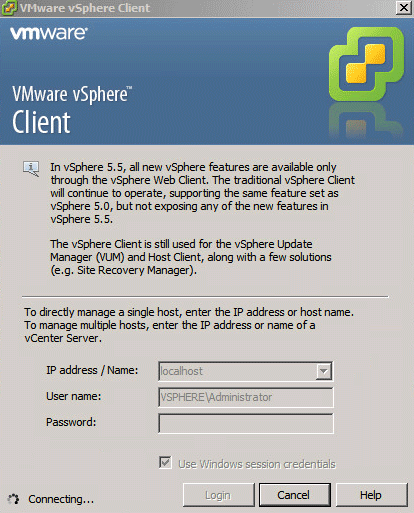
Start the vSphere Client to connect. Enter the IP address of the ESXi host. Use your username and password to log in. The client connects to the host. This step is crucial for managing the host settings.
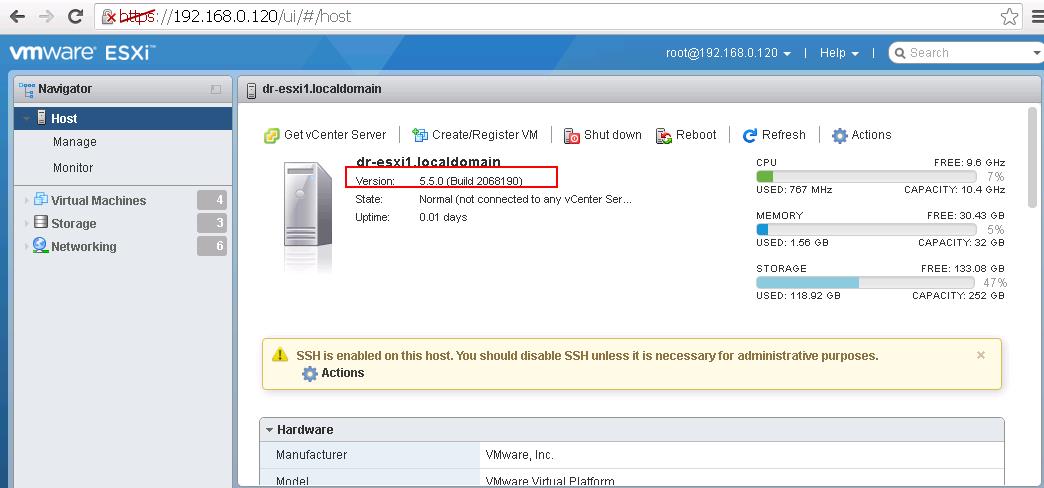
Open your web browser. Type the host’s IP address into the address bar. The web interface appears. You can now see different menus. Explore the options to manage your host. Settings are easy to find and use.
Credit: interworks.com
Managing Virtual Machines
Start by accessing the web console. Click on New VM. Choose the template that fits your needs. Assign a name to your virtual machine. Select the right datastore for storage. Allocate CPU and memory resources. Make sure to save changes.
Open the settings of your virtual machine. Set the network options. Choose the right network adapter. Adjust the disk space as needed. Ensure that the guest OS is correct. Apply security settings for protection. Save all configurations.
Look at the performance tab. Check the CPU usage. Monitor the memory consumption. Watch the disk activity. Keep an eye on network traffic. Use graphs to understand trends. Make necessary adjustments.
Security Best Practices
Secure your Esxi host with strong passwords. Use a mix of letters, numbers, and symbols. Keep passwords private. Avoid sharing with others. Change passwords frequently. Use multi-factor authentication for extra security. This adds a layer of protection. Ensure only trusted users can access.
Configure firewalls to block unwanted traffic. Limit access to specific IP addresses. Set up VPNs for remote access. Monitor network activity regularly. Use encryption for data transfers. This keeps data safe. Avoid using default settings. Customize settings for better security.
Update your Esxi host often. Install patches when they are available. This fixes bugs and improves security. Check for updates monthly. Stay informed about new releases. Updates keep your host secure. Neglecting updates can cause vulnerabilities. Always use the latest version.

Credit: williamlam.com
Troubleshooting Common Issues
Connection issues can be frustrating. Ensure your network cables are secure. Check if your Esxi host is online. Verify the IP address is correct. Firewall settings might block connections. Adjust settings to allow access. Restarting the host can sometimes help. Always keep your software updated. Updates fix bugs and improve security.
Slow system performance affects work. Monitor CPU and memory usage regularly. High usage means your system is overloaded. Free up resources by closing unused apps. Check disk space and clear any unnecessary files. Network speed impacts performance too. Use tools to test and optimize speed. Consider upgrading hardware if issues persist.
Error logs provide vital clues. Look for patterns in logs. Common errors have known solutions. Use diagnostic tools to pinpoint issues. Regularly review logs to catch problems early. Update tools to ensure accuracy. Keep a record of past errors and solutions. This helps in future troubleshooting.
Frequently Asked Questions
How To Access Esxi Host Through Web Client?
Open a web browser and enter “https://[ESXi-host-IP]/ui”. Log in with your ESXi credentials.
How To Access Esxi Host Console?
Access the ESXi host console by using SSH or via the Direct Console User Interface (DCUI). Enable SSH in ESXi through the vSphere Client. For DCUI, connect directly to the host’s physical console. Always ensure proper authentication and security measures.
How To Access Vmware Esxi Web Interface?
Access VMware ESXi web interface by entering the server’s IP address in your web browser. Log in using your admin credentials. Ensure your device is connected to the network hosting the ESXi server. This process allows you to manage virtual machines efficiently through a user-friendly interface.
How Do I Access The Esxi Console Remotely?
Access ESXi console remotely using SSH or VMware vSphere Client. Enable SSH via vSphere Web Client. Connect using SSH client software.
Conclusion
Mastering the Esxi Host 5. 5 Web Console is achievable. Follow the steps carefully for success. Each step enhances your understanding. Troubleshooting becomes simpler with practice. Explore more features as you gain confidence. Remember, patience is key. Regular updates keep your system secure.
Keep learning to optimize performance. Share your knowledge with fellow users. They benefit from your experience. Your skills grow as you explore further. Stay curious and improve your expertise. Embrace the challenges and enjoy the process. This guide helps you on your journey.
Celebrate your progress and keep advancing.


