
Are you considering canceling your web hosting with SiteGround? Whether you’re switching providers or simply no longer need their services, it’s essential to know the steps involved in canceling your account effectively.
You might be concerned about hidden fees, data loss, or complicated procedures that could make the process daunting. But don’t worry! In this guide, we’ll walk you through each step in clear, simple terms, ensuring you can cancel your SiteGround hosting without any hassle.
By following this straightforward approach, you’ll be able to save time and avoid unnecessary stress, making your transition smooth and worry-free. Stay with us to discover how easy it is to take control of your hosting decisions and ensure your peace of mind.
Reasons To Cancel Siteground Hosting
Siteground can be expensive for some users. Monthly fees add up quickly. Other providers offer better price plans. Users may find cheaper options. Budget is important for small businesses. Cutting costs helps save money.
Some users are unhappy with Siteground service. Support can be slow. Issues take time to resolve. Users need quick solutions. Unhappy customers may look elsewhere. Service quality matters. Reliable support builds trust.
New providers offer better features. Some have faster speeds. Others offer more storage. People want the best service. Switching can improve performance. Upgrading is a smart choice. Users seek better deals.
Preparing For Cancellation
Canceling web hosting with SiteGround involves a few straightforward steps. Log into your account, navigate to the “My Accounts” section, and select “Manage Account. ” Click on the “Cancel” button and follow the prompts to complete the process.
Back Up Your Data
Always save your data before canceling. Use a reliable method to back up files. Store them securely on your computer or cloud. This way, you won’t lose important information. It ensures you can access it anytime.
Review Cancellation Policy
Check the cancellation policy on Siteground’s website. Understand any fees or conditions. Knowing the policy helps avoid surprises. It gives you peace of mind while canceling.
Gather Necessary Information
Collect all account details before you start. This includes your username and password. Have your billing information ready. It makes the process smoother and faster. You won’t have to search for details later.
Cancellation Process Steps
First, open your web browser and go to the Siteground website. Enter your username and password. Click the login button. You will see your account dashboard. Make sure all information is correct.
Find the services tab in your dashboard. Click on it. Look for the hosting plan you want to cancel. Next, click on the settings or manage button. There should be an option for cancellation.
Click the cancel button. A new page will open. You may need to confirm your choice. Some questions might ask why you are leaving. Fill these out if needed. Finally, click the submit or confirm cancellation button.

Credit: chemicloud.com
Handling Remaining Payments And Refunds
SiteGround has a 30-day money-back guarantee for hosting plans. This means you get a full refund if you cancel within the first 30 days. After 30 days, you may not get a refund. This is important to check before canceling. Always review your purchase date and plan details.
To cancel your hosting, you need to contact SiteGround support. They are friendly and ready to help. You can reach them through chat or email. Explain your reason for canceling. They might offer solutions or discounts. Be polite and clear about your decision. This helps in smooth processing.
Impact On Domain And Emails
Domain retention is crucial when canceling Siteground hosting. You can keep your domain even if you stop hosting. Domains are separate from hosting services. Transfer your domain to another provider to retain it. Check for domain transfer fees. Ensure your new provider supports your domain type.
Siteground allows you to keep your domain. You can transfer it to another registrar. Choose a reliable domain registrar for a smooth transition. Consider renewal costs and customer support. Make sure to update your domain settings after transfer.
Email accounts linked to Siteground may need changes. Backup your emails before canceling hosting. Consider using a new email provider. Transfer emails to a new service like Gmail or Outlook. Make sure your contacts know your new email address. Update email settings to avoid missing messages.

Credit: www.siteground.com
Post-cancellation Considerations
Switching hosts can be a big task. First, check what features you need. Do you need more storage? Or maybe faster speed? Make a list of what you want. Then, compare different hosts. Look at prices and features. Don’t forget to read reviews. See what others say about the host. A good host should have helpful support. You can call them if you have problems. Also, check if they have easy website tools. Some hosts offer free site transfers. That can save you time and worry. Pick a host that fits your needs and budget.
Think about why you need a website. Is it for fun or business? The purpose can change your needs. Check your website’s traffic. How many people visit? More traffic needs better hosting. Look at your site’s growth. Will it grow soon? If yes, plan for it. More growth means more space and speed. Also, review your site’s security. Strong security keeps bad people away. These things help you choose the right host. Make sure to pick the best one for you.
Common Challenges And Solutions
Cancelling web hosting can be tricky. Some users face technical issues. The cancellation button might not work. Or, the system may not respond. This can be very frustrating. But there are solutions. Users should clear their browser cache. Another option is to try a different browser. These steps often solve the problem. If not, contact Siteground support. They can help fix the issue.
Billing disputes can delay cancellation. It’s important to resolve these first. Check if there are any outstanding payments. Make sure all bills are paid. If there’s a mistake, contact support. They can help clear up errors. This ensures a smooth cancellation process. Always keep records of payments. This helps in case of future disputes.
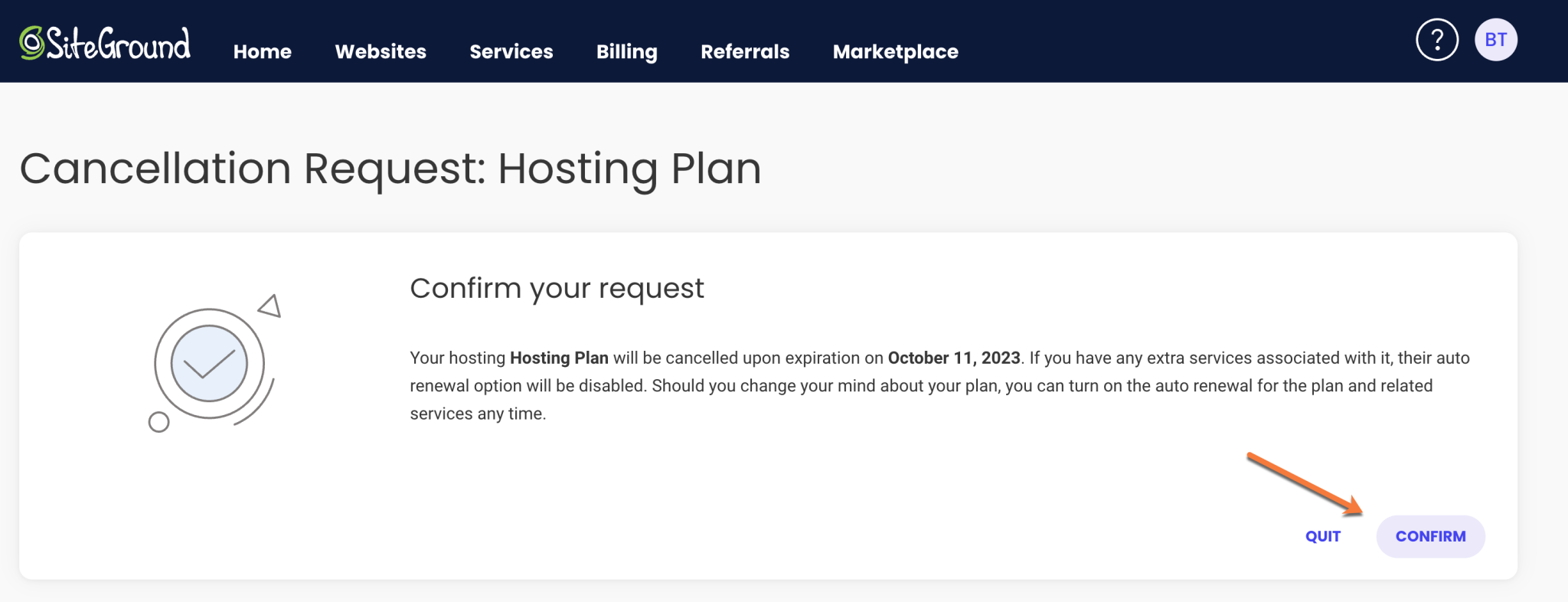
Credit: chemicloud.com
Frequently Asked Questions
How Do I Cancel My Hosting Subscription?
Log in to your hosting account. Go to the subscription or billing section. Select the cancel option. Follow the prompts to confirm. Contact support if needed for assistance.
How Do I Stop Auto Renewal On Siteground?
Log into SiteGround, go to the Billing section, and select “Renewal Settings. ” Turn off auto renewal there.
What Happens If I Cancel My Website Hosting?
Canceling hosting may lead to website downtime and data loss. Backup your data before canceling. Contact your provider for details on refunds or transferring domains.
How Do I Get My Money Back From Siteground?
Request a refund from SiteGround within 30 days of purchase. Log in to your account, navigate to the Support section, and submit a ticket. Customer support will assist you. Ensure you meet the refund policy requirements to increase your chances of a successful refund.
Conclusion
Canceling web hosting with SiteGround is straightforward and manageable. Follow the steps mentioned earlier for a smooth cancellation process. Remember to back up your website data before proceeding. This ensures you don’t lose vital information. Always review your hosting needs before making any changes.
It’s important to choose a plan that fits your requirements perfectly. SiteGround’s support team is available if you need assistance. They can guide you through any uncertainties. Your hosting journey should be stress-free and efficient. Make informed decisions for your website’s future.


