
Are you ready to launch your own website and share your passion with the world? Installing WordPress on a web host is your first step toward creating a stunning online presence.
It’s easier than you might think, and you don’t need to be a tech wizard to do it. You just need clear guidance and a sprinkle of enthusiasm. Imagine transforming your ideas into reality with just a few clicks, opening up endless possibilities for your blog, business, or portfolio.
This guide will walk you through the process step-by-step, ensuring you feel confident and in control. Let’s turn your vision into a vibrant website that attracts visitors and keeps them coming back for more. Dive in, and discover how straightforward and rewarding setting up WordPress can be!
Credit: www.godaddy.com
Choosing The Right Web Host
A good web host is important. Speed and uptime are key. Your website should load fast. It should always be online. Customer support is another factor. Problems can happen anytime. You need help quickly. Security must also be strong. Keep your data safe. Look for SSL certificates. These protect your site. Check the price too. It should fit your budget. Make sure there are no hidden fees.
| Provider | Features |
|---|---|
| Bluehost | Good support, free domain |
| SiteGround | Great speed, strong security |
| HostGator | Affordable, easy to use |
Setting Up Your Domain
First, pick a domain name that is easy to remember. Search for it using a domain provider. If the name is available, you can register it. Some providers are GoDaddy and Namecheap. Choose a plan that fits your needs. Pay for your domain name and confirm your purchase. Now, the domain belongs to you. Keep your registration info safe and secure.
Find the DNS settings in your domain provider’s account. You need to link it to your web host. Get the nameservers details from your web host. Enter these nameservers into the domain DNS settings. Save the changes. It might take a few hours to update. Then, your domain will point to your web host. Check your website to see if it works. Now your domain is ready to use.
Installing WordPress Using Cpanel
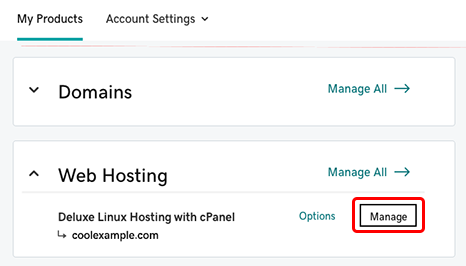
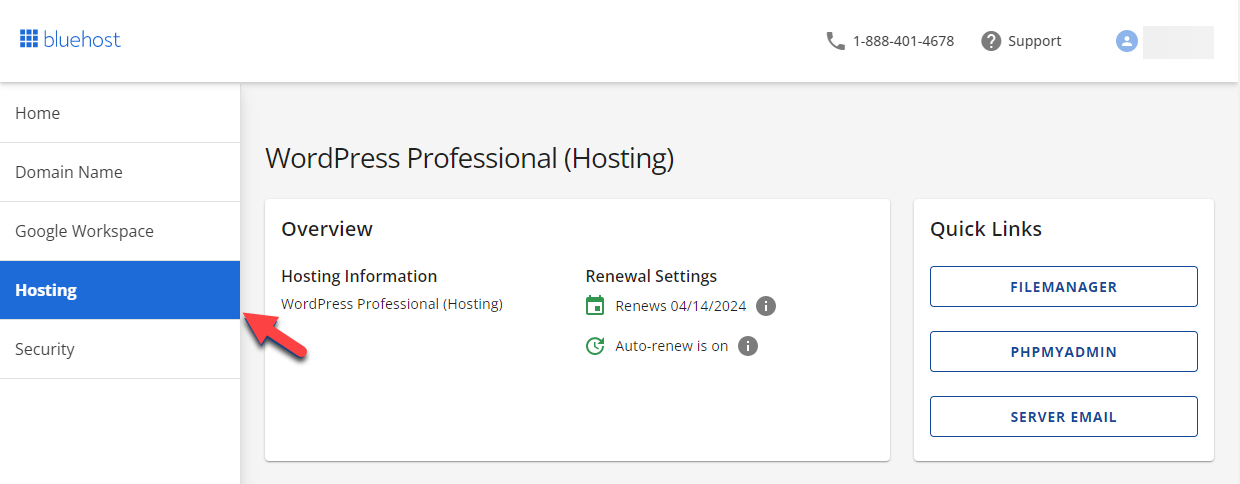
Find your cPanel login information from your web host. This usually comes in an email. Use this info to go to your cPanel login page. Enter your username and password. cPanel is a powerful tool. It helps manage your website easily. Look for the WordPress installer once you log in.
Inside cPanel, find the WordPress installer. It is often under “Auto Installers” or “Softaculous”. Click on the WordPress icon. The installer guides you through the setup. Fill in your site name and admin details. Choose a strong password. Click “Install” to begin. The installer will set up WordPress for you. This process is quick and simple. Your WordPress site will be ready soon.
Credit: www.bluehost.com
Manual WordPress Installation
First, visit the WordPress website. Find the download section. Click to download the latest version. Save the file on your computer. The file is a zip. Unzip the folder to see the files inside.
Open your web host control panel. Look for the database section. Select MySQL Databases. Choose “Create New Database”. Name your database. Write down the name. Next, create a database user. Give the user a password. Note these details. They are important.
Open the wp-config-sample.php file. Use a text editor. Find database settings. Enter your database name. Enter your user and password. Save the file as wp-config.php. This file connects WordPress to your database.
Customizing Your WordPress Site
Choose a theme that fits your site’s purpose. Themes change how your site looks. Some themes are free. Others cost money. Look for themes with good reviews. Check if they are updated often. This keeps your site safe. Popular themes have many features. They help your site stand out. Pick a theme that is easy to use.
Plugins add features to your site. They help with things like forms and security. The WordPress plugin directory has many options. Choose plugins with high ratings. Make sure they get updates. This keeps your site secure. Don’t add too many plugins. They can slow down your site. Install plugins from trusted sources.
Organize your site well. Good structure helps visitors find information easily. Use pages and categories. Make your menu clear. Add links to important pages. This helps users navigate your site. A simple structure is best. It keeps your site easy to understand. Plan your site layout before adding content.
Securing Your WordPress Site
Begin by choosing a reliable web host for your WordPress site. Find a host with strong security features. Install WordPress through the host’s control panel for easy setup. Follow the prompts to complete the installation. Ensure all themes and plugins are updated regularly.
Protect your site by using strong passwords and security plugins.
Regular Updates
Always update WordPress to keep your site safe. Updates fix bugs and stop hackers. New versions make the site better. Updating plugins is also important. They need to match the newest WordPress. Check for updates every week. Set up automatic updates if possible.
Security Plugins
Use security plugins to protect your site. Plugins like Wordfence and Sucuri are popular. They block bad people from entering. Some plugins also scan for malware. Always choose trusted plugins. Read reviews before installing. Keep them updated too.
Backup Strategies
Backups save your site if something goes wrong. Use a backup plugin like UpdraftPlus. Save backups on the cloud. Services like Google Drive or Dropbox work well. Schedule backups regularly. At least once a week. Keep multiple copies of each backup. This ensures nothing is lost.
Troubleshooting Common Issues
Installing WordPress on a web host can be tricky. Common issues include database errors and file permission problems. Ensure correct database details and proper folder permissions to avoid these problems.
Error Messages
WordPress sometimes shows error messages during installation. These can be confusing. “500 Internal Server Error” means server issues. “403 Forbidden Error” indicates permission problems. Check file permissions or contact your host. “Error establishing a database connection” means database issues. Ensure correct database details in the wp-config.php file.
Plugin Conflicts
Plugins can sometimes conflict with each other. This might cause errors. Try deactivating plugins one by one. See if the error stops. Update all plugins regularly. This reduces conflicts. If a specific plugin causes issues, check for alternatives. Always keep a backup before making changes.
Performance Optimization
Slow websites frustrate visitors. Optimize performance for better speed. Cache plugins can improve speed. Minimize image sizes. Use lazy loading for better performance. Limit the number of plugins installed. Too many plugins slow down your site. Regularly update WordPress and themes for best performance.
Credit: www.youtube.com
Frequently Asked Questions
How To Install WordPress On Web Hosting?
Begin by logging into your web hosting account. Find the cPanel and select ‘WordPress Installer’. Follow installation prompts, entering necessary details. Once installed, access WordPress via your domain. Customize settings to suit your needs. Ensure plugins and themes are updated for security and functionality.
Enjoy building your website!
How Do I Install WordPress On My Local Host?
To install WordPress locally, download XAMPP or MAMP. Set up a database in phpMyAdmin. Download WordPress and extract it into the local server’s directory. Run the WordPress installer via “localhost/wordpress” in your browser. Follow the prompts to complete installation.
Can I Install WordPress On Shared Hosting?
Yes, you can install WordPress on shared hosting. Most shared hosting providers offer easy WordPress installation tools. Ensure your hosting plan meets WordPress requirements. Shared hosting is cost-effective and suitable for beginners. It’s perfect for small to medium websites needing basic resources.
How To Manually Install WordPress On Cpanel?
Access cPanel and click “File Manager. ” Upload WordPress files to the public_html folder. Create a MySQL database. Edit wp-config. php with database details. Run the WordPress installation script by visiting your domain. Follow the prompts to complete setup. Log in to your WordPress dashboard.
Conclusion
Installing WordPress on a web host is straightforward. First, choose a reliable web host. Next, download WordPress from the official site. Upload the files to your server. Create a database for WordPress. Finally, run the installation script. Follow the prompts to set up your site.
Remember, always keep your WordPress updated. This ensures security and performance. With practice, installation becomes quicker. Enjoy building your site with WordPress. It’s user-friendly and powerful. Now, start customizing your site. Explore themes and plugins. Make your website unique and functional.
Happy blogging!


