
Are you struggling to locate an address in your web host panel? You’re not alone.
Finding specific information in a web host panel can often feel like searching for a needle in a haystack. But don’t worry, we’re here to help. Navigating through these panels doesn’t have to be a frustrating experience. In this guide, you’ll discover simple steps to uncover the information you need effortlessly.
Whether you’re setting up a new website or managing an existing one, knowing how to find an address in your web host panel is essential. By the end of this article, you’ll have the confidence and skills to find that elusive address quickly and efficiently. So, let’s dive in and simplify your web hosting experience!
Credit: docs.plesk.com
Accessing Web Host Panel
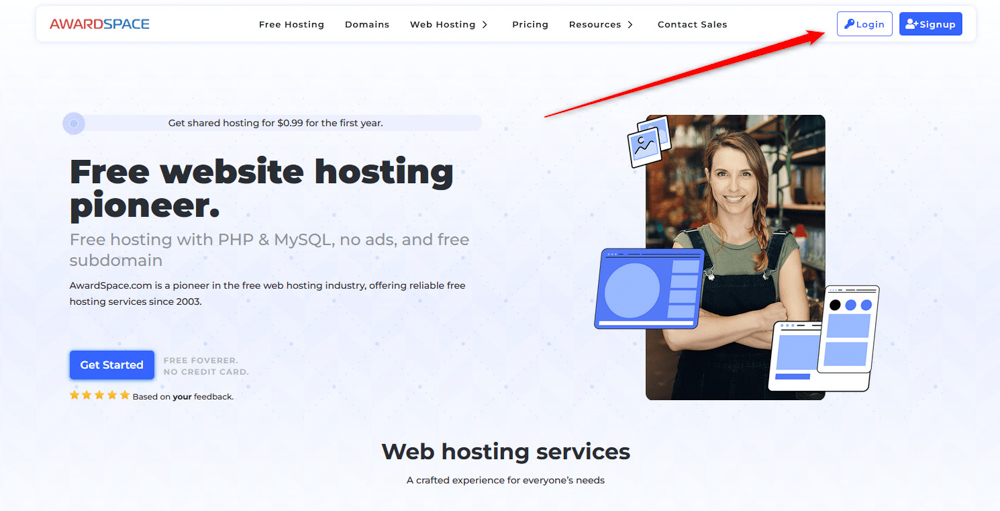
First, open your browser. Type the web host URL. Press enter. You will see the login page. Enter your username. Enter your password. Click on the login button. You are now logged in. Keep your details safe. Do not share your password.
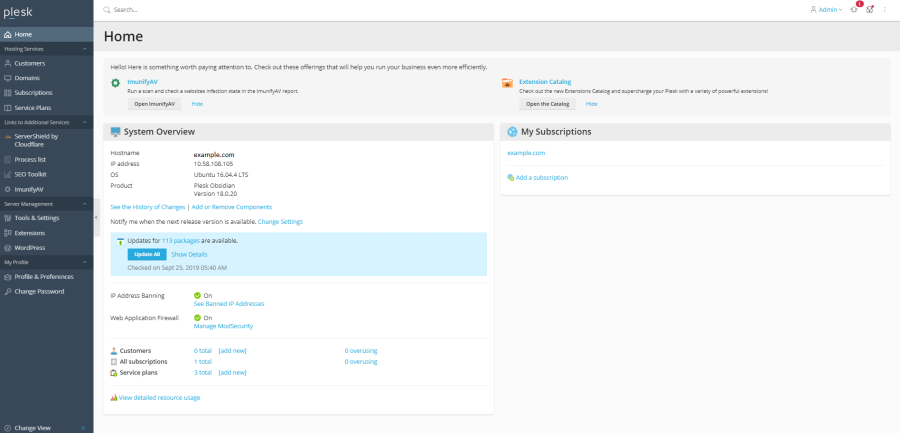
The dashboard is your main page. It shows many options. Look for the ‘address’ tab. Click on it. You will see your address details. You can update them. Use the search bar to find info quickly. Always check your updates. Make sure they are correct.
Credit: www.awardspace.com
Locating Domain Information
Log into your web host panel. Look for the section labeled “Domains”. Click on it. A list of all your domains will appear. Each domain will have its own line. Check each one carefully. Make sure you see all your domains listed. If not, contact support for help.
Once you see your domain, click on it. This will show more information. You can find the IP address and other details here. Look for sections like “DNS” or “Settings”. This is where most details are found. Remember, each panel might look different. But the information is usually similar.
Identifying Ip Address
IP addresses are like home addresses on the internet. They help computers find each other. There are two main types: IPv4 and IPv6. IPv4 looks like 192.168.1.1. IPv6 looks different, like 2001:0db8:85a3:0000:0000:8a2e:0370:7334. Most places use IPv4 but IPv6 is getting popular.
IPv4 is shorter and easy to remember. But, there are not many left. IPv6 is longer and harder to remember. But, there are many more of them. Knowing the difference helps in finding an IP address.
Log into your web host panel. Look for a section called Server Information or Network Settings. Find the listed IP address. It might be labeled as Shared IP Address or Dedicated IP Address. This is the server’s home address on the web.
Credit: www.accuwebhosting.com
Using Dns Settings
To find an address, log in to your web host panel. Look for the DNS Zone Editor in the control panel. This is where you can see and manage DNS records. Sometimes, it’s called DNS Management or DNS Settings. Click on it to open.
You’ll see a list of domains you own. Pick the one you need. This will show you all the DNS records for that domain. The records are A Records, CNAME Records, and others. Each record has a name, type, and value.
A Record is important for finding an IP address. It connects your domain name to the server’s IP. Look for a row with Type: A. The value here is the IP address. If you need to update it, find the Edit option. Enter the new IP and save changes.
Troubleshooting Common Issues
Locating an address in your web host panel can be tricky. Navigate to the control panel, find the domain settings. Look for options like ‘DNS’ or ‘Server Information’ to access your IP address or server details quickly.
Resolving Access Problems
Access problems can be very frustrating. Check if your login details are correct. Sometimes, passwords need changing. Use a strong one. Make sure your internet is stable. A weak connection can cause issues. Try restarting your browser. It helps a lot. If issues persist, contact your host support team. They can assist further. Always keep your login information safe. This prevents unauthorized access.
Verifying Dns Propagation
DNS changes take time to update. This is called propagation. It might take up to 48 hours. Be patient. Check if your DNS records are updated. Use online tools to verify. They show if changes are working. If not, double-check your DNS settings. Ensure they’re correctly entered. Correct DNS settings are crucial for proper website function.
Utilizing Support Resources
Customer support can help find an address in the web host panel. Contact support through chat, phone, or email. Ask them for step-by-step guidance. They often solve problems quickly. Provide your account details when contacting them. This helps them find your information faster. The support team is trained to assist users. They are patient and friendly. They make sure you get the help you need. They are available 24/7 for assistance. Don’t hesitate to reach out for help.
Knowledge bases contain helpful articles and guides. Search for specific topics related to addresses in the web host panel. Find articles that explain how to locate addresses. They have pictures and examples to make it easy. Information is clear and simple to understand. Use the search bar to find articles. This is a quick way to get answers. Follow the steps in the guide carefully. This ensures you find the address correctly. Knowledge bases are a great resource for learning.
Frequently Asked Questions
How To Find Cpanel Url?
Find your cPanel URL by typing “yourdomain. com/cpanel” in your browser. Replace “yourdomain. com” with your actual domain name. You can also use “yourdomain. com:2083” for direct access. These URLs lead you to the cPanel login page.
How To Find Hosting Ip Address?
Access your hosting account’s control panel. Navigate to the DNS settings or server information section. Locate the IP address listed there. Alternatively, use online tools like “Ping” or “DNS Lookup” to find the hosting IP by entering your domain name.
How To Check Hosting Provider From Cpanel?
Log into cPanel and check the left sidebar for server information. Locate the hosting provider’s name under “Server Information. ” You can also find hosting details in your cPanel account email notifications or billing statements.
How Do I Find My Url On Godaddy?
Log in to GoDaddy, navigate to “My Products”, and find your domain in the list. Click “Manage” for URL details.
Conclusion
Finding an address in a web host panel is simple. Follow the steps mentioned earlier. You can locate the address quickly and efficiently. No need to stress over complicated processes. Just a few clicks and you’re done. Most panels have user-friendly interfaces.
Easy navigation makes the task straightforward. Remember to check for updates regularly. This ensures you get the latest information. Practice these steps, and soon you’ll be confident. Help others by sharing your knowledge. It’s rewarding and builds community. Always keep learning and exploring.
That’s the key to success in tech tasks.


