
Have you ever wanted to block a website on your computer but didn’t know how? You’re not alone.
Many people are searching for simple ways to manage the websites that can be accessed on their devices. This is where the host file comes in handy. It’s a powerful tool that can help you control your internet experience. Imagine being able to block distracting websites, prevent harmful ones, or protect your kids from inappropriate content—all with a few clicks.
You’ll discover how to block a website using the host file. We’ll guide you through each step, ensuring you can easily follow along. Whether you’re a beginner or have a bit of tech knowledge, you’ll find this method straightforward and effective. Stick around, and soon you’ll have the power to customize your browsing environment just the way you want it. Ready to take control? Let’s dive in!
Credit: www.pcworld.com
What Is The Host File?
The host file is like an address book for your computer. It tells your computer where to find websites on the internet. Every website has a unique IP address. The host file maps these IP addresses to website names. This helps your computer find sites faster. Changes in the host file can block websites. Blocking websites can protect kids from bad sites. It can also stop distractions during homework time.
The host file is a simple text file. It is easy to edit with a text editor. You can add or remove websites from this file. This file is found in a special folder on your computer. Most computers have this file in the same place. Editing the host file needs care. Mistakes can cause problems with your internet. Always back up the file before changes.
Locating The Host File
The host file is in the System32 folder. Go to C:WindowsSystem32driversetc. You will see the hosts file there. You need admin rights to edit it. Open it with Notepad or any text editor.
Find the host file using the Terminal. Open Terminal and type sudo nano /etc/hosts. Press Enter and enter your password. The host file will open. You can now edit it.
The host file is in the /etc directory. Open a terminal window. Type sudo nano /etc/hosts and press Enter. Enter your password if asked. The file is now open for editing.
Editing Permissions
To block websites, you need administrator access. Without it, changes won’t save. On Windows, use the Command Prompt. On Mac, use the Terminal. Find the shortcut on your computer. It opens a black window. Type commands here.
Type cmd on Windows. On Mac, look for Terminal in Applications. Right-click and select “Run as administrator”. You need a password. Enter it to proceed. This step is important.
Open the file you need. Type notepad C:WindowsSystem32driversetchosts on Windows. On Mac, type sudo nano /etc/hosts. Both commands open the hosts file. It’s where you block sites. Make sure to enter the command correctly. Incorrect typing will cause errors.
Blocking A Website
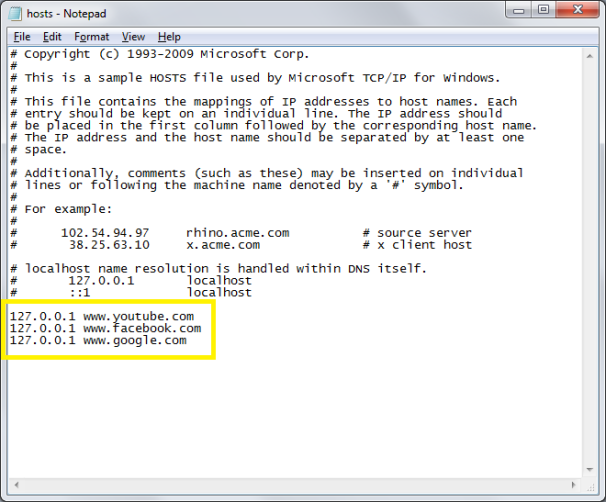
Open the host file on your computer. Find the location in the system folder. Use a text editor to open it. Add new lines for each site to block. Write “127.0.0.1” before the website name. This makes the site unreachable. Remember to use the correct format. Always check for spelling mistakes.
Use the right syntax in the host file. Each entry must start with “127.0.0.1”. Then, type the website name after that. Example: “127.0.0.1 www.example.com”. Ensure there are no extra spaces. Keep the format simple and clear. Always verify the entries twice.
Save the host file after editing. Use the “Save” option in the text editor. Make sure the changes are saved correctly. Check the file by reopening it. Changes must remain intact. Sometimes, admin permission is needed. Grant it if required.
Testing The Block
Flushing DNS Cache is important after blocking a website. This clears old data and ensures changes work. Open the command prompt on your computer. Type ipconfig /flushdns and press enter. This command clears the DNS cache. Your computer will use new information. If using Mac, open the terminal. Type sudo dscacheutil -flushcache. This will also clear the DNS. Flushing DNS helps in seeing block changes.
Verifying Block in Browser is the next step. Open your web browser. Try to visit the blocked website. If the block works, the site won’t open. You may see an error message. This means your block is successful. Check with different browsers. Sometimes, different browsers show different results. Verifying ensures your block is effective.
Troubleshooting Common Issues
Sometimes, the host file might not save. This can be frustrating. First, check if you have administrator rights. Without it, changes won’t save. Also, ensure no programs are using the file. Close any browsers or apps. Try saving again. If it still won’t save, restart your computer. This often solves the problem.
Even after changes, the website might still open. This can happen if the DNS cache is not cleared. To fix this, open the command prompt. Type ipconfig /flushdns and hit enter. This clears the cache. If the site remains open, check the host file again. Make sure the entry is correct. Lastly, ensure your browser is not using cached data. Clear the browser cache and try again.
Reverting Changes
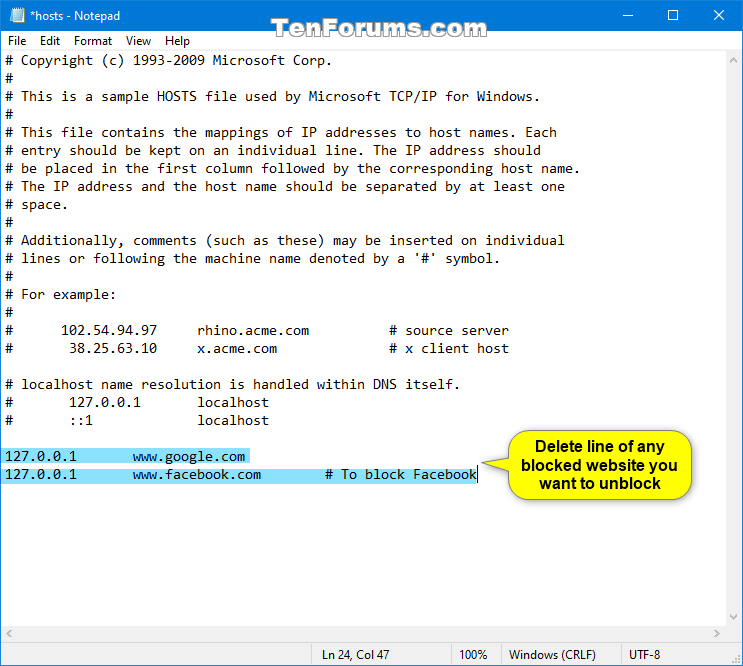
Deleting entries from the host file is simple. Open the host file with a text editor. Find the website address you wish to remove. Delete that line completely. Save the changes to the host file. This will unblock the website. Make sure to restart your computer. This ensures the changes take effect.
Sometimes, restoring the original host file is best. Open the host file in a text editor. Delete all custom entries. Keep only the default lines. Save the changes. This will return the host file to its default state. Restart your computer to apply changes. The websites will no longer be blocked.
Credit: medium.com
Credit: www.tenforums.com
Frequently Asked Questions
How To Block A Website With Hosts File?
Open the hosts file with a text editor. Add the line “127. 0. 0. 1 [website]” at the end. Save changes. This blocks the website.
How To Block A Website In Localhost?
Edit the “hosts” file on your computer to block a website in localhost. Add a line with “127. 0. 0. 1” followed by the website’s domain. Save the changes, and the website will be blocked on your device. Remember to have administrative privileges to edit the “hosts” file.
Is There A Way To Block A Specific Website?
Yes, blocking a specific website is possible. Use browser extensions, parental controls, or firewall settings to block sites. Each method offers different steps, ensuring restricted access to unwanted websites. Adjust settings to suit your needs and enhance online safety.
How To Block A Program In The Firewall And Add A Host File?
To block a program, open Windows Firewall, select “Advanced Settings,” and create an outbound rule. For host file additions, navigate to C:WindowsSystem32driversetc, edit the “hosts” file with Notepad, and add desired entries. Always save changes.
Conclusion
Blocking websites with the host file is simple. It improves focus and productivity. The steps are straightforward and quick to follow. This method gives more control over internet use. It can help manage distractions effectively. Remember to save changes after editing the host file.
Always check for correct entries to avoid errors. This technique is valuable for parents and professionals alike. You now have the knowledge to block unwanted sites easily. Use it wisely to enhance your online experience. Stay focused and enjoy a more controlled browsing environment.


