
Are you tired of dealing with distracting sidebars on your WordPress site? You’re not alone.
Many website owners like you are searching for ways to create a cleaner, more focused look for their pages. Removing the sidebar can transform your site’s appearance, making it more appealing and user-friendly. But how do you go about it, especially if you’re using a professional WordPress theme?
In this guide, you’ll discover a simple, step-by-step process to get rid of that pesky sidebar, enhancing your website’s aesthetics and functionality. Stick around, and by the end of this article, you’ll have the know-how to make your website shine.
Credit: wpastra.com
Accessing The WordPress Dashboard
Log in to your WordPress account. Use your username and password. After logging in, you will see the dashboard. This is the main area where you control your site. On the left, find the menu. It has many options like Posts and Pages. Look for Appearance in the menu. Click it to see more choices. This will help you find theme settings. These settings can change how your site looks. Remember, the dashboard is like the control room. You can do many things here. Always save your changes before leaving. Saving keeps your work safe. You can return to the dashboard anytime. It’s easy and important.
Credit: www.wpbeginner.com
Navigating To Page Settings
To remove the sidebar on a WordPress page, access the dashboard. Go to the Pages section. Click on the page you want to edit. Locate the Page Settings on the right side. Look for the Sidebar Layout option. Select the layout without a sidebar.
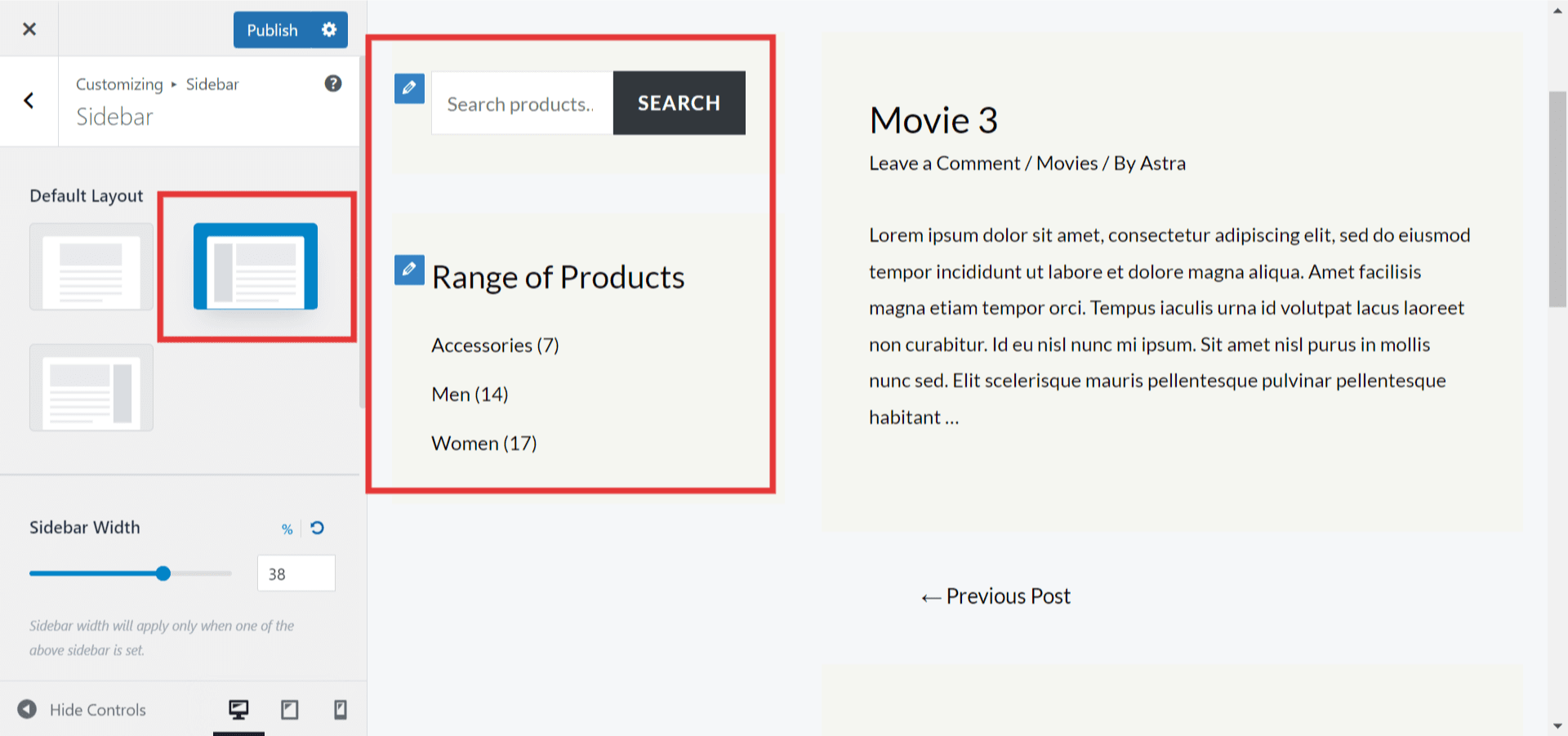
Save your changes. Check the page to see if the sidebar is gone. If it’s still there, check theme settings. Some themes have different sidebar controls. Explore the theme customizer. Find the Sidebar Settings there. Adjust the settings to remove the sidebar. Save and refresh your page.
Some pages may not allow sidebar removal. This depends on the theme. Always preview changes before publishing. This ensures your page looks right without the sidebar.
Selecting The Desired Page
First, go to your WordPress dashboard. Find the Pages section on the left. Click on it. A list of pages appears. Choose the page you want to edit. Click on the Edit button. This opens the page editor.
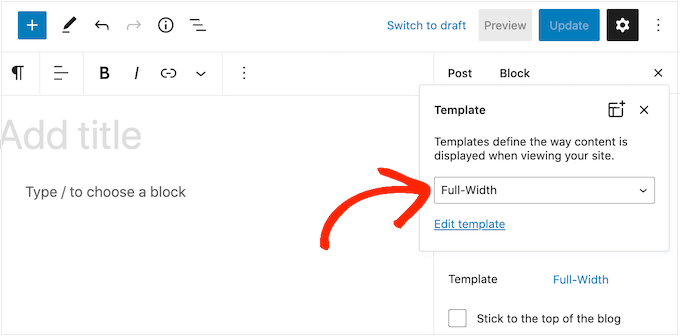
Look for the Page Attributes box. It is usually on the right. Here, you can select different templates. Choose a template with no sidebar. Some themes have a Full Width option. This option removes the sidebar automatically.
If there is no option, you might need a plugin. Plugins can help manage page layouts. Install a layout plugin from the WordPress plugin store. Follow the plugin instructions to hide the sidebar. Always save changes before exiting.
Choosing A Full-width Template
Selecting a full-width template removes the sidebar. This gives a cleaner look. Go to your WordPress dashboard. Click on Pages. Choose the page you want to edit. Look for the Page Attributes box. In the template dropdown, select Full Width. This will hide the sidebar.
Some themes may not have this option. Check theme settings if needed. A full-width design is often more attractive. It keeps the focus on your content. This method is easy for beginners. You don’t need to code. Just a few clicks and you’re done.
Customizing Page Layout
Many WordPress themes have settings to change the page layout. These settings help in removing the sidebar. Look for the theme options panel. Often found in the WordPress dashboard. Once there, select the layout without a sidebar. Save your changes. Refresh your page to see the result. The sidebar should be gone now.
Page builders allow custom page layouts. They are tools like Elementor or Beaver Builder. Start by opening the page editor. Choose a blank template. This template has no sidebar. Drag and drop elements to create your page. Save your design once finished. The sidebar won’t appear on your page. Page builders offer easy and flexible layout changes.
Using Css To Hide Sidebar
First, find the sidebar’s ID or class. Open your website in a browser. Right-click on the sidebar. Choose “Inspect” from the menu. Look for HTML tags that show sidebar. They often start with “div”. Note the ID or class name.
Next, add custom CSS to hide it. Go to your WordPress dashboard. Click on “Appearance” then “Customize”. Find the “Additional CSS” section. Enter the code: {display: none;} for the sidebar’s ID or class. Press “Publish” to save changes. Refresh your page. The sidebar should now be hidden.
Editing Theme Files
Finding the right file is crucial. Each theme has different files. Check your theme documentation. Look for files named page.php or single.php. These often control page layouts. Use an FTP client to access your files. Make a backup before editing. This prevents issues later.
Locate the sidebar code. It’s usually a function call. Functions like get_sidebar() add sidebars. Remove or comment out this code. Use HTML comments for safety. Check if changes reflect on your site. If not, clear your cache. Ensure your theme supports these edits. Not all themes allow direct file changes.
Utilizing Plugins For Sidebar Removal
Many plugins help remove sidebars. It’s important to choose the right one. A suitable plugin makes the task easy. Look for plugins with good user reviews. Popular plugins often have more support. Read descriptions before installing. Ensure it works with your theme. Some plugins are free. Others may have a cost. Pick what fits your needs and budget.
After choosing, install the plugin. Go to your WordPress dashboard. Click on “Plugins” and then “Add New.” Search for your chosen plugin. Once found, click “Install Now”. Wait for it to install. Then, click “Activate”. Next, go to the plugin settings. Configure it according to your needs. You might need to disable the sidebar. Check your site to see the changes. If all looks good, you are done!
Testing The Page Layout
Preview the page after removing the sidebar. Check if the page looks balanced. The content should be centered. Ensure the text is easy to read. Images should not be too large. Adjust their size if needed. Look at the spacing between sections. Keep it uniform for a clean look. Make sure the header and footer are visible. Test different browsers for consistency. Each browser may show the page differently.
Ensure the page looks good on all devices. Use tools to see the page on phones and tablets. The text should be readable on small screens. The images should adjust to fit the screen. Make sure buttons are easy to click. Navigation should be simple. Check if links work correctly. Test the page speed. Slow pages lose visitors. Optimize to keep users happy.
Credit: forum.tagdiv.com
Frequently Asked Questions
How Do I Remove The Sidebar In WordPress?
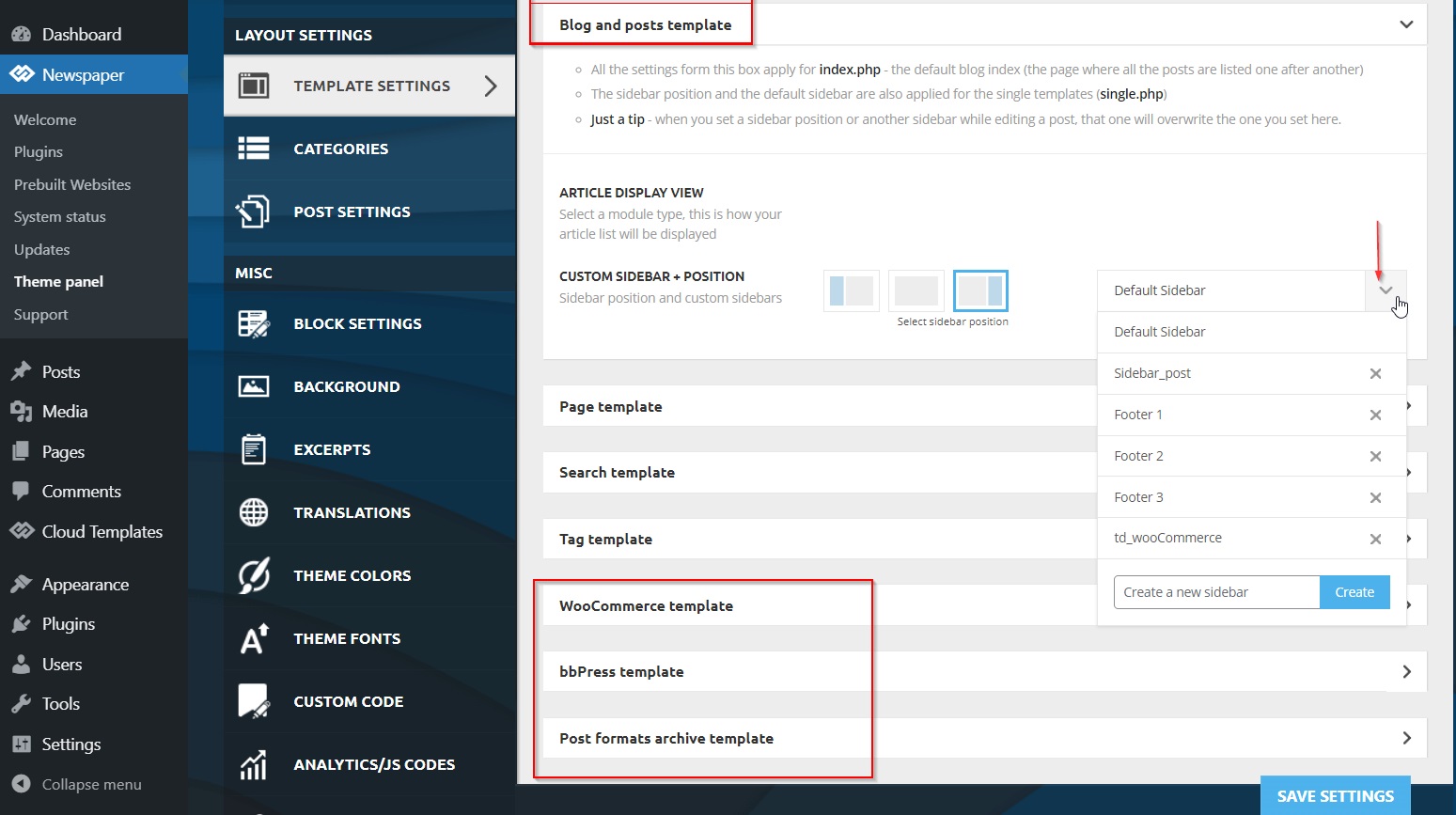
To remove the sidebar in WordPress, go to your theme settings. Look for the “Layout” or “Sidebar” option. Select “No Sidebar” or “Full Width” for the page template. Save changes to update the page without a sidebar.
Can I Hide Sidebar For Specific Pages?
Yes, you can hide the sidebar for specific pages. Edit the page and choose a template without a sidebar. Alternatively, use custom CSS to target specific pages and remove the sidebar.
Is Removing Sidebar In WordPress Theme Easy?
Removing the sidebar in a WordPress theme is typically straightforward. Access your theme settings and choose a full-width template. If your theme doesn’t support this, custom CSS might be necessary.
Will Removing Sidebar Affect Seo?
Removing the sidebar may impact SEO slightly. Sidebars often contain important links and widgets. Ensure essential content is incorporated elsewhere to maintain SEO value and user engagement.
Conclusion
Removing the sidebar in WordPress is simple and quick. Follow the steps mentioned above for seamless customization. Enjoy a cleaner page design by adjusting your theme settings. This small change can greatly enhance your site’s appearance. Improved layout can lead to better user experience.
Your content will shine without distractions. Remember, practice makes perfect. Try these steps and see the difference. Keep experimenting with your WordPress settings. Happy customizing!


