
Are you feeling overwhelmed with your current web hosting situation? Perhaps you’ve outgrown your Bluehost plan, found a better deal elsewhere, or simply want to explore other options.
Whatever your reason, navigating the cancellation process can seem daunting. But don’t worry, we’re here to guide you every step of the way. You’ll discover a straightforward method to cancel your Bluehost web hosting without hassle. Imagine the relief of saying goodbye to unnecessary expenses and the freedom to focus on what truly matters for your website.
Stay with us as we unravel the secrets to a smooth cancellation process, ensuring you make the most informed decision. Your path to a worry-free hosting experience begins here!
Reasons To Cancel Bluehost
Many users find Bluehost support lacking. They face long wait times. Sometimes, issues take days to resolve. Uptime problems can also be a concern. Websites may go down often. This affects business and trust. Pricing might be another reason. Bluehost can be more costly compared to others. Hidden fees can surprise users. Many want to switch for better deals. Some users need specific features. Bluehost might not offer these. Users then look for other hosts. Performance issues also arise. Slow loading times frustrate visitors. This can lead to lost traffic. Some users simply outgrow the service. They need more than Bluehost offers. Control panel might be confusing too. Not everyone finds it user-friendly. This can lead to errors. Many users desire a simpler interface. So, they look elsewhere. These reasons push many to cancel. Making it important to understand your needs. Choose wisely before deciding.
Before You Cancel
It is crucial to save your important files. Use tools like FTP or Bluehost’s file manager. Download all necessary data to your computer. This includes websites, emails, and databases. Make sure nothing is left behind. Double-check to ensure everything is safe.
Understand Bluehost’s refund policy before canceling. They offer a 30-day money-back guarantee. This applies to first-time hosting plans. After 30 days, fees might not be refundable. Read all terms and conditions carefully. Know what to expect. This helps avoid surprises.
Step-by-step Cancellation Process
Begin by logging into your Bluehost account. Use your username and password. Look for the login button on the homepage. Click it to enter your details.
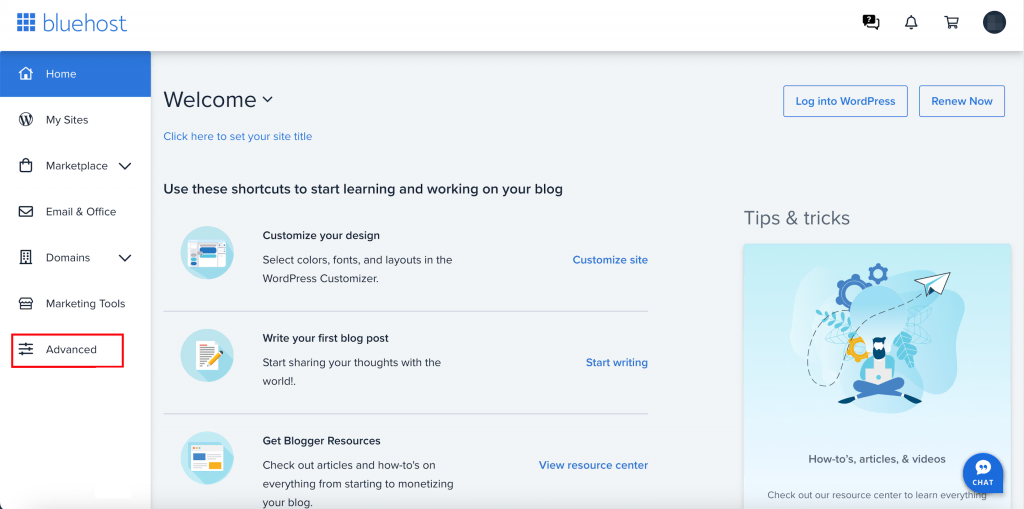
Once inside, find the hosting tab. Navigate to your products. Search for the cancel hosting option. It’s usually under account settings. Click to proceed.
A new page will appear. It will ask you to confirm. Review the details carefully. Click on the confirm cancellation button. Ensure you understand all terms. This step is final.

Credit: www.bluehost.com
Alternative Options
Bluehost offers different hosting plans. If your current plan feels too much, downgrading could be a good choice. Smaller plans cost less and might fit your needs better. Check your current usage. Then, compare it with smaller plans. Choose a plan that matches your website’s needs. This way, you save money without canceling your service. It’s a smart way to keep your site running. And it’s easy to switch plans. Just contact Bluehost support. They’ll help you with the downgrade process.
Sometimes, you might need to pause your website. Bluehost lets you do that. Pausing saves you money. But your website stays safe. Your data and files stay on the server. When you’re ready, you can resume your service. It’s easy and hassle-free. Just talk to Bluehost support. They will guide you. This option is great if you need a break. Or if you’re not sure about canceling yet.
Common Issues And Solutions
Sometimes, users face technical glitches while canceling their Bluehost hosting. These issues can include slow website loading or server errors. It’s common for users to experience difficulty accessing the control panel. Ensuring you have a stable internet connection can help. Also, clearing your browser cache might resolve some problems. If problems persist, contacting Bluehost support is a good idea. They can provide guidance and solutions.
Billing concerns often arise during cancellation. Users may see unexpected charges or pending payments. Checking your billing history is crucial. It helps to understand if there’s a renewal fee pending. Ensure your payment details are correct to avoid issues. Contacting Bluehost’s billing department can clarify doubts. They can assist with refund processes and fee explanations.
Customer Support
Reaching out to Bluehost is easy. Use their live chat for quick help. The phone support is also available. It’s usually fast. You can find the number on their website. They have email support too. But it may take longer to get a reply. Make sure you have your account details ready. This helps them assist you faster.
The support team at Bluehost is friendly. They can guide you through cancellation. Make sure to ask all your questions. This ensures you understand the process. They can help with other queries too. Be clear about what you need. They are there to help. You can also check their help center. It has many articles and guides. These resources are very useful.
After Cancellation
Make sure your account is completely closed. Check your email for a confirmation message. This email should say your account is successfully cancelled. If you do not get this email, contact Bluehost support right away. They can help verify the closure. Keep any emails for your records. These messages prove your account is closed.
Verify Account Closure
Log into your old account to confirm it is inactive. A closed account should not let you log in. Check your payment method. Ensure there are no extra charges after cancellation. This step is important to avoid unexpected fees.
Explore Other Hosting Providers
Find new hosting options that fit your needs. Look for providers with good reviews. Compare their features and prices. Some may offer free trials or discounts. Make a list of potential providers. This helps in picking the right one. Take your time to decide on the best choice.

Credit: html.com
Credit: www.hostinger.com
Frequently Asked Questions
How Do I Cancel My Bluehost Hosting?
Log in to your Bluehost account. Go to the “My Products” tab. Click on “Manage” next to your hosting plan. Select “Cancel” and follow the prompts to complete the cancellation process. Contact customer support if you need further assistance.
How Do I Cancel My Hosting Subscription?
Log into your hosting account dashboard. Navigate to the subscription section. Find the “Cancel Subscription” option. Follow the cancellation prompts to confirm. Contact customer support if needed.
What Is The Cancellation Policy Of Bluehost?
Bluehost offers a 30-day money-back guarantee on hosting plans. Cancel within 30 days for a full refund. Domain fees are non-refundable. After 30 days, refunds are prorated. Certain conditions apply. Check Bluehost’s official website for detailed policy information.
What Happens If I Cancel My Web Hosting?
Canceling web hosting stops website access, removing files and data. Visitors see an error page instead. Ensure data backup before canceling. Check for refund policies with the hosting provider. Domains may remain active but require separate management.
Conclusion
Canceling Bluehost hosting is simple with these steps. First, log in to your account. Next, navigate to the “My Products” section. Then, select the hosting plan you wish to cancel. Finally, follow the prompts to complete the cancellation. Remember to back up your data beforehand.
This ensures you don’t lose any important information. Cancelling hosting can save money if it’s no longer needed. It’s straightforward and quick. If you face any issues, customer support is there to help. With these tips, you can cancel your Bluehost hosting without hassle.


