
Are you considering changing your web hosting domain name? Whether you’re rebranding your business, seeking a more memorable domain, or simply making updates to your website, this task can feel daunting.
But don’t worry; you’re not alone, and it’s easier than you might think. By taking the right steps, you can ensure a smooth transition without losing your search engine rankings or confusing your visitors. Imagine the possibilities with a new domain name that perfectly reflects your brand or vision.
We’ll guide you through each step of the process, ensuring you have all the tools and knowledge needed to change your web hosting domain name with confidence and ease. Let’s dive into this transformative journey and unlock the full potential of your website!
Choosing A New Domain
Find a name that fits your website. Think about words that describe it well. The name should be short and easy to remember. Use tools online to help find ideas. These tools give suggestions based on keywords.
Make sure the domain is available. Search for the name on domain registrar sites. If taken, try different variations. Avoid names that look or sound like others. Protect your brand by choosing a unique name.
Choose the best domain extension. Extensions are the part after the dot. Common ones are .com, .org, and .net. .com is very popular. Use .org for organizations. Pick an extension that matches your website’s purpose.
Credit: diggitymarketing.com
Preparing For Domain Change
Always create a backup of your website data. This ensures safety. Use tools like cPanel or FTP for backup. Save important files and databases. Store them securely. Backup helps recover data if needed. Never skip this step.
Inform all stakeholders about the domain change. They need to know early. Send emails or messages. Explain reasons for the change. Provide the new domain name. Keep communication clear and simple. This builds trust and avoids confusion.
SEO is important for your website. A domain change can impact it. Check for broken links and redirects. Use tools like Google Search Console. Update your sitemap. Monitor search rankings after the change. Keep an eye on website traffic. This helps maintain your SEO status.
Updating Dns Records
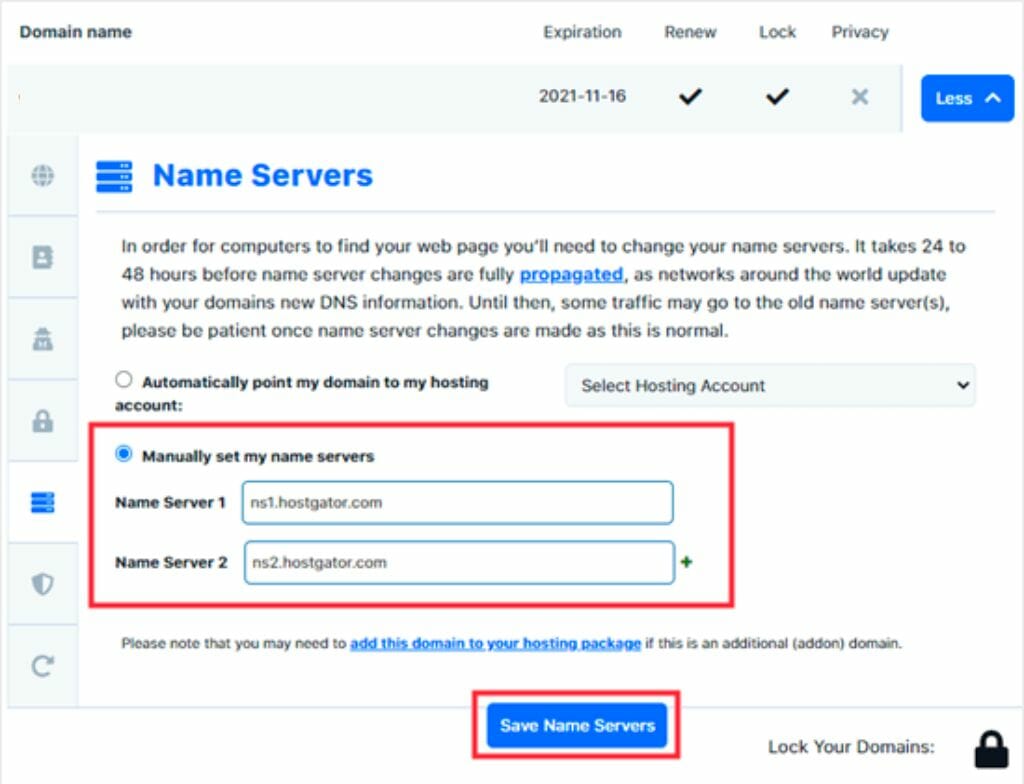
First, go to your domain registrar’s website. Log into your account. Find the DNS settings section. This section allows changes to your domain. Look for an option called DNS Management or similar. Click on it to see the settings.
Locate the A Record in your DNS settings. This points your domain to the server IP. Change it to the new server’s IP address. Then, find the CNAME Record. This often points the www version of your domain. Update it if needed. Click Save after making changes.
DNS changes can take some time. Check if your changes have spread online. Use a tool like What’s My DNS. Enter your domain name there. It will show if changes are active worldwide. This process may take up to 48 hours. Keep checking until all locations show the new records.
Configuring Web Hosting Settings
Changing your web hosting domain name involves accessing your hosting account settings. Find the domain management section. Update the domain name to the new one. Ensure DNS records are correct. This process helps your website point to the correct domain, maintaining online presence.
Accessing Hosting Control Panel
First, log in to your hosting account. Use your username and password. Find the control panel option. Click to open it. The control panel is your main tool. It helps you manage your website settings. Easy to use and very helpful.
Updating Domain In Hosting Account
Go to the domain settings section. Look for an option to update the domain. Enter the new domain name carefully. Double-check for mistakes. Once updated, changes might take some time. Be patient and let the system work.
Ensuring Ssl Certificates Are Updated
SSL certificates keep your site secure. After changing the domain, update these certificates. Check the security settings in your control panel. Look for the SSL section. Click to renew or update them. Keeping them current is important. It helps protect user data.
Redirecting Traffic
301 redirects are important for moving traffic. They tell browsers the page moved. Search engines understand this change. Setting up redirects keeps your website ranking. It also keeps user trust. Redirects help users find new pages easily. Use them wisely.
Testing ensures redirects work. Click on links to see if they go to the new page. Check with different browsers. Also, test on mobile devices. This guarantees every user finds the right page. Problems can confuse visitors. Fix any issues quickly.
Links inside your site need updates. Change old links to new ones. This keeps navigation easy. Visitors find information faster. Update links in menus and content. Don’t forget images with links. Every link matters for a good user experience.

Credit: www.greengeeks.com
Notifying Search Engines
Log into your Google Search Console account. Select your old domain. Click on settings. Choose the change of address option. Add your new domain here. Click on validate and update. This tells Google about your new domain. It’s simple and important.
Create a new sitemap for your new domain. A sitemap helps search engines. It shows them your website’s structure. Go to Google Search Console. Select your new domain. Find the sitemap section. Submit your new sitemap there. This helps Google find your pages.
Check if your new pages appear in search results. Use Google Search Console. It shows indexing status. Look for errors or warnings. Fix them if needed. This helps improve your site’s visibility. Keep your site healthy for search engines.
Communicating With Users
Tell users about the new domain. Use clear words. Explain why the change is happening. This keeps everyone informed. Create a plan for sharing this news. Use email, blogs, and social media. Make sure the message is easy to understand. Keep it simple and direct. Users will appreciate clarity.
Update all social media profiles. Change the domain link on each profile. Ensure the new link works. Check every platform. Facebook, Twitter, Instagram. All profiles must show the correct domain. Users will look for updates there. Keep your online presence consistent.
Send an email to all subscribers. Inform them about the domain change. Include the new link. Explain what this means for them. Use simple language. Make sure they understand. Answer any questions they might have. Encourage them to visit the new domain. Emails are a direct way to communicate.
Credit: www.liquidweb.com
Monitoring And Maintenance
Good performance is key. Slow sites lose visitors. Regular checks help. Use tools like Google PageSpeed. Fix slow loading issues quickly. Optimize images and scripts. Happy users stay longer.
Track how many visit your site. Google Analytics is useful. See where visitors come from. Know what pages they like. Understand trends over time. Adjust content as needed. Keeps your site engaging.
Problems happen. Fix them fast. Broken links frustrate visitors. Check for errors often. Use tools to help. Update plugins regularly. Keeps your site safe. A healthy site keeps users happy.
Frequently Asked Questions
How To Change Website Hosting Domain?
To change your website hosting domain, first update DNS records to point to the new domain. Ensure backups are secure. Then, modify domain settings in hosting control panel. Finally, verify changes and test website functionality on the new domain. Always consult hosting support for specific instructions.
How Do I Change My Domain Name On My Hosting Account?
Log in to your hosting account. Navigate to the domain settings section. Select “Change Domain Name. ” Follow the on-screen instructions. Confirm changes to finalize the process.
Can I Rename My Website Domain?
Yes, you can rename your website domain. You’ll need to register a new domain name. Update all website links and inform your audience about the change. Ensure proper redirects to maintain SEO rankings and avoid losing traffic. Always backup your website before making any changes.
Can I Move My Website To A New Domain Name?
Yes, you can move your website to a new domain. Ensure you set up 301 redirects and update your sitemap. Notify search engines of the change. Keep your content consistent to maintain SEO rankings. Monitor traffic and address any issues quickly.
Conclusion
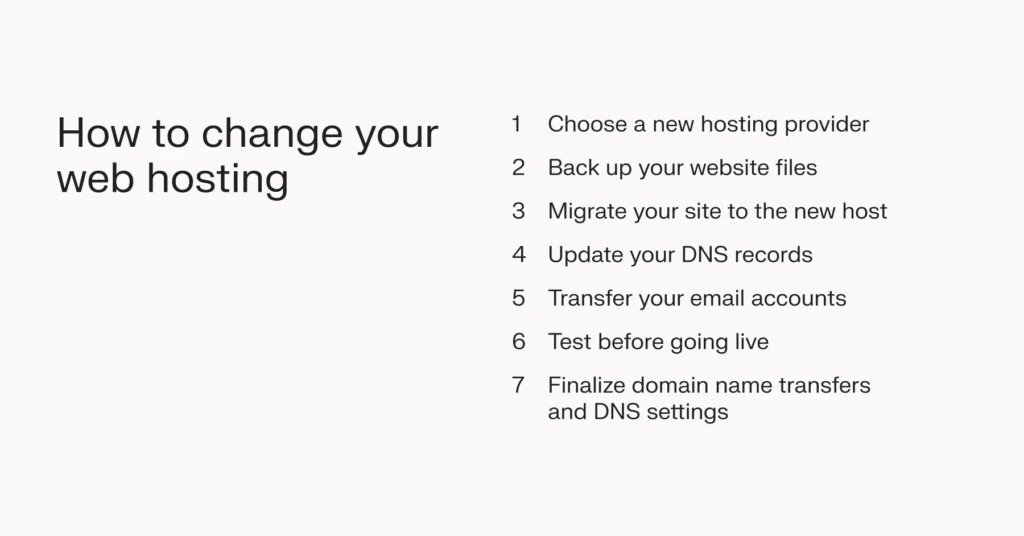
Changing your web hosting domain name is straightforward. Start by backing up your site. Next, update domain settings with your host. Ensure DNS settings are correct. Test your site once changes are made. Fix any broken links promptly. Inform your audience about the new domain.
Keep track of SEO impacts. Stay patient during the transition. Small tweaks might be needed. Support from your host can help. Maintain regular updates. This process strengthens your online presence. You gain control and flexibility. Follow these steps to achieve a smooth domain change.
Your website will continue to thrive.


