
Are you looking to give your WordPress site a fresh new look? Updating your Themeforest WordPress theme is the perfect way to keep your website modern, secure, and running smoothly.
But, if the thought of updating a theme feels daunting, don’t worry—you’re not alone. Many website owners feel the same way. That’s why we’ve crafted this step-by-step guide just for you. Imagine the satisfaction of seeing your website transform with the latest features and designs, all while ensuring optimal performance.
Dive into this article, and you’ll discover how simple and rewarding it can be to update your Themeforest WordPress theme, keeping your site both stylish and functional. Let’s get started!
Backup Current Website
Backups keep your website safe. Sometimes, things go wrong. Updates might break your site. A backup helps you restore it. Important files stay safe with a backup. It is like having a safety net. Never skip this step. It is very crucial.
Several tools help with backups. UpdraftPlus is a popular choice. It is easy to use. BackupBuddy is another option. It is simple and reliable. Jetpack also offers backup features. Choose a tool that fits your needs. Most tools are user-friendly. They guide you step by step.

Credit: themeforest.net
Check For Theme Updates
First, visit the Themeforest website. Log into your Themeforest account. You will see a dashboard. Click on “Downloads”. It shows all purchased themes. Find your WordPress theme in the list. Check if there is a new version available. Look for an update notification. Updates help fix bugs and add new features.
Once logged in, locate the theme. Click on “Downloads” again. Find the theme name. Click on “Download”. Choose “Installable WordPress file only” option. This file is ready for upload. Save it to your computer. You are now ready to update your theme. Make sure to backup your site first. Updates can change settings.
Download The Latest Theme Version
Visit the Themeforest website first. Log into your account. Go to the “Downloads” section. Find your purchased theme. Click the “Download” button. Select the “Installable WordPress file only” option. Save the file to your computer. Make sure to remember the location.
Locate the downloaded theme file. It will be in a .zip format. Do not unzip it now. This file is needed for the update. Keep it safe on your computer. You will use this file in WordPress. It must stay as a .zip file.
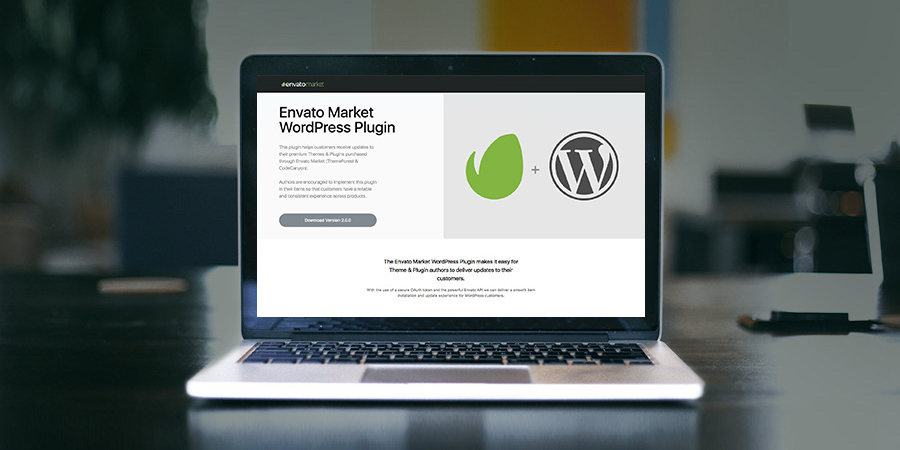
Credit: www.wpexplorer.com
Prepare For Update
Begin by deactivating all plugins. This step is crucial. It avoids conflicts during the update. Go to your WordPress dashboard. Click on Plugins. Select all and deactivate. This process keeps your site safe. No plugin should be active now.
Switching to a default theme is vital. Use a WordPress theme like Twenty Twenty-One. This ensures compatibility. Go to Appearance. Choose Themes. Activate the default one. Your site might look different. But it is temporary. The update will be smooth with this setup.
Upload The New Theme Version
To update your theme, visit the WordPress dashboard. Find the Appearance tab. Click on Themes. You will see your current theme. Click on Add New at the top. Upload the new theme version. Make sure it’s a .zip file. WordPress will do the rest. Wait for the upload to complete. Activate the new theme once done. Check your site for changes. Everything should work smoothly.
FTP is another way to update themes. Open your FTP client. Connect to your website server. Go to the wp-content/themes folder. Find your current theme. Download it as backup. Upload the new theme version. It should replace the old one. Check your site after upload. Ensure everything is working fine. FTP can be tricky. Be careful with files.

Credit: www.youtube.com
Activate The Updated Theme
After updating the theme, check your plugins. Some might need reactivation. Go to the Plugins page. Look for any deactivated plugins. Click “Activate” next to each one. Make sure all plugins work well. This keeps your site running smoothly.
Return to the Themes page. Look for the updated theme. Click “Activate” to switch back. Ensure the theme is set as active. Check your site. Everything should look correct. If not, revisit the settings. Adjust them as needed.
Test The Website
Open your website and look at each page. Make sure all images load properly. Text should be clear and easy to read. Ensure that colors and fonts look correct. Examine the layout on different devices. Try it on a phone, tablet, and computer. Check in different browsers too. Sometimes, a theme update can cause changes. Things might not look the same as before. Spot any broken parts or odd displays. Fix them if needed.
Test all buttons and links on the site. Click each one to see if it works. Fill out forms to check if they submit properly. Make sure any sliders or galleries function. Play embedded videos to ensure they run smoothly. Check your contact page and make sure it works. Users should be able to send messages without issues. Test any special features your site has. Everything should work as it did before the update.
Troubleshoot Common Issues
Updating a theme can cause compatibility issues. Plugins may not work well with the new theme version. To fix this, check for plugin updates. Most plugin developers update their plugins regularly. Always ensure your plugins are up to date. If issues persist, try deactivating plugins one by one. This helps find the problem. Once identified, contact the plugin developer. They might offer a solution or update.
After an update, some features may break. Start by clearing your browser cache. Sometimes old files cause issues. Next, restore your backup if features remain broken. Always keep a backup before updating. This helps you return to the old version if needed. If the problem continues, check the theme’s support page. Many users post solutions there. Lastly, reach out to theme developers. They often provide guidance or patches.
Frequently Asked Questions
How Do I Back Up My Current Theme?
Before updating, it’s crucial to back up your existing theme. Use a WordPress backup plugin or your hosting provider’s backup service. This ensures you can restore your site if the update causes issues. Always store backups in a secure location, such as cloud storage.
What Tools Are Needed For Theme Updates?
To update your Themeforest WordPress theme, ensure you have an FTP client and ThemeForest account. The FTP client helps upload files directly to your server. Your ThemeForest account provides access to the latest theme versions. These tools ensure a smooth and efficient update process.
Can I Update The Theme Without Losing Customizations?
Yes, you can update without losing customizations by using a child theme. Child themes preserve your custom changes while allowing the parent theme to update. Always back up customizations and verify changes after updating to ensure everything works correctly. This practice ensures a seamless update experience.
Why Should I Update My WordPress Theme?
Updating your WordPress theme enhances security, improves functionality, and fixes bugs. New updates may also offer enhanced features and better compatibility with plugins. Staying updated ensures your site performs optimally and remains secure against vulnerabilities. Regular updates are crucial for a robust website.
Conclusion
Updating your Themeforest WordPress theme is straightforward. Follow the steps outlined above. Ensure backups before making changes. This avoids potential issues. Use the latest version for improved features. Better security too. Regular updates keep your site running smoothly. They enhance user experience.
Stay informed about new releases. This keeps your site modern. Enjoy a refreshed look and feel. Your visitors will appreciate it. A simple update can make a big difference. Keep your website up to date. It’s a smart move for any site owner.
Happy updating!


