
Imagine landing on a blog post and feeling an instant connection with the writer. Seeing a well-crafted author bio can spark this connection.
It’s not just a name at the end of an article; it’s a bridge between you and the person behind the words. If you’re using the WordPress Twenty Thirteen theme, you might wonder how to display your author bio seamlessly.
This article will guide you step-by-step, making sure your readers get to know the person behind the content. After all, people are more likely to trust and engage with content when they feel a personal connection to its creator. Stick around to learn how to add this personal touch to your WordPress site effortlessly.
Theme Features
The Twenty Thirteen theme has many features. It is designed for blogging. The layout is simple and clean. It supports different post formats. You can add images, audio, and videos easily. The theme is also responsive. This means it looks good on phones and tablets.
Colorful header and footer make it unique. You can change the colors to match your style. Custom menus and widgets are also available. This helps in organizing the content better. Plus, the theme supports threaded comments. This makes conversations easy to follow. It is a great choice for bloggers.
Importance Of Author Bio
An author bio lets readers know who wrote the post. It builds trust. Readers like to know the person behind the words. A bio adds a personal touch. It can also boost your credibility. Sharing your background or skills helps too. Readers may connect with your story. This keeps them coming back. A good bio can attract more followers. It can lead to more engagement on your blog. Adding a photo can make the bio even better. It puts a face to the words. Remember, a clear and simple bio works best.
Accessing Theme Editor
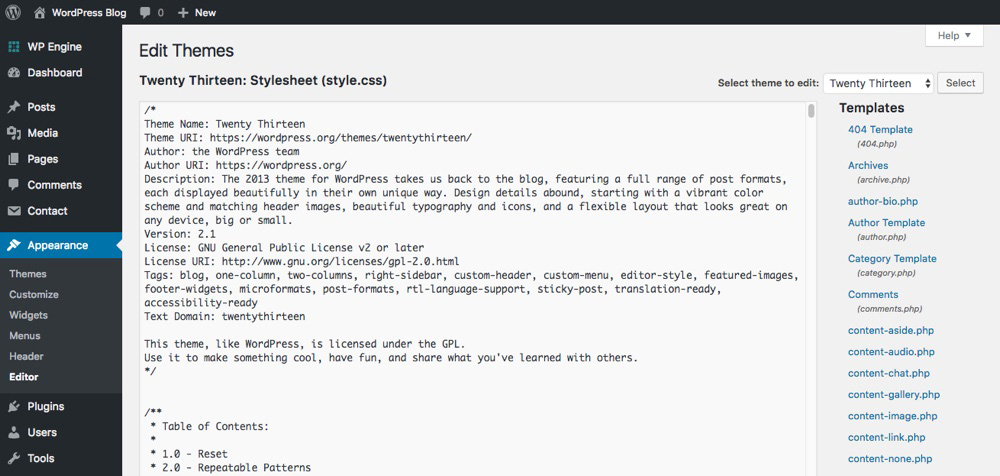
First, locate the WordPress dashboard. Look for the Appearance option. Click on it. Then, select Theme Editor. This opens the theme files. Be careful while editing. Incorrect changes can break your site. Always back up your files first.
In the editor, find the single.php file. This file controls single posts. You might also see content-single.php. Choose the right file for your theme. Add the author bio code here. Save changes once done.

Credit: www.youtube.com
Creating Author Bio Section
Start with a simple HTML structure for the author bio. Use a to contain the bio. Add a for the author’s name. Include a for a brief description. Add a
Use CSS to style the author bio. Set a border for the to stand out. Add padding to make it look neat. Center the author’s picture using text-align: center;. Choose a simple font for the text. Use font-family like Arial or Verdana. Make the name bold with font-weight: bold;. Keep the colors simple and easy on the eyes.
Adding Author Information
Author bio can make your blog more personal. It tells readers about the person behind the words. To add this, log into your WordPress dashboard. Go to Users and click on Your Profile. Fill in details like name, description, and photo. Save changes. This info will show below posts.
Custom fields help add extra info. Go to the post editor. Find Custom Fields below the text area. Click Add New to create a field. Enter the name and value. This can be a short bio or links. Save the post. Now readers see more about the author. These steps are simple. Anyone can do it.
Displaying Author Bio On Posts
Enhancing your WordPress Twenty Thirteen theme involves displaying the author bio on posts. Customize your theme by editing the author. php file. This addition personalizes your content, giving readers insight into the author’s background.
Modifying Single Post Template
Open the single.php file from your theme. Find the place where the post content appears. Add a line of code to show the author bio. This code is usually php the_author_meta('description'); ?. It shows the author’s description.
Put this code below the post content. Make sure it is inside the loop. The loop checks for the post data. Save changes to see the author’s bio.
Using Conditional Tags
Conditional tags help show the author bio only on single posts. Use is_single() to check if the page is a single post. Wrap the author bio code with this tag. This ensures the bio appears only when needed.
Conditional tags keep your site clean. They prevent the bio from showing everywhere. Use them wisely in your theme.
Plugins For Author Bio
Enhance your WordPress Twenty Thirteen theme by displaying an author bio using plugins. These tools help add engaging author details to your posts. Easily customize and showcase author information to connect with your readers.
Popular Plugins
Author Bio plugins make it easy to display author information. WP Author Bio is a popular choice. It offers customization options. Simple Author Box is another plugin. It supports social media links. Starbox provides a stylish author box. These plugins are easy to use. They enhance your blog’s look. Choose a plugin that suits your needs.
Configuration Tips
Configure plugins with care. Ensure the author bio is clear. Use simple language. Add a photo for a personal touch. Include social links if needed. Check settings for display options. Make sure the author name is visible. Keep the design clean. Test the bio on different devices. This ensures a good user experience.
Credit: www.wpexplorer.com
Customizing Author Bio Appearance
CSS makes your author bio look better. Change the font size or color. Make the text bold or italic. It’s easy to do. Use the WordPress customizer. Paste your CSS code. You can change the border or add a shadow. This helps the bio stand out. Keep it simple for easy reading. Readers like clear and neat styles. Experiment with different designs.
Gravatar shows a picture next to the bio. It helps readers connect with the author. You need an account to use Gravatar. Upload your photo. Link it to your WordPress email. The picture will appear automatically. A photo makes your bio look friendly. People remember faces better than names. Keep your photo professional and clear. It builds trust with your readers.
Troubleshooting Common Issues
Displaying an author bio in the WordPress Twenty Thirteen theme involves tweaking theme settings or using plugins. Start by accessing the theme’s editor, then locate the appropriate section to insert your author information. Utilize plugins like Simple Author Box for added customization and ease of integration.
Bio Not Displaying
Check if the author bio is enabled in your theme settings. Some themes have options to show or hide it. If the bio is still not showing, it might be a plugin conflict. Disable plugins one by one and see if the bio appears. Sometimes, custom code in the functions.php file might cause issues. Look for any code that affects author display.
Theme Compatibility
The Twenty Thirteen theme might not support all plugins. Ensure your WordPress and theme are updated. Older versions might have bugs. If you have customized the theme, revert changes and check again. Custom CSS might hide the bio. Inspect your site with the browser’s developer tools. Check if any CSS is set to display: none for the author bio section.

Credit: learn.wordpress.org
Frequently Asked Questions
How Do I Add Author Bio In Twenty Thirteen?
To add an author bio in Twenty Thirteen, go to your WordPress dashboard. Under ‘Users,’ select ‘Your Profile. ‘ Fill in the ‘Biographical Info’ section. Install a plugin like ‘WP Author Box’ for enhanced features. Customize the appearance using CSS if needed.
Save changes to display the bio.
Can I Customize Author Bio Appearance?
Yes, you can customize the appearance using CSS. Many plugins offer design options. Navigate to your theme’s customizer or additional CSS section. You can adjust font size, color, and layout. Some plugins provide built-in style settings for easy customization without coding.
Which Plugin Is Best For Author Bio?
Popular plugins for author bios include ‘WP Author Box,’ ‘Simple Author Box,’ and ‘Author Bio Box. ‘ These plugins offer easy customization and additional features. They enhance the appearance and functionality of author bios. Choose one based on your specific needs and compatibility with the Twenty Thirteen theme.
Does Twenty Thirteen Support Author Bio?
Yes, the Twenty Thirteen theme supports author bios. You can add and display them using WordPress’s built-in features. Additionally, plugins can enhance the display and customization options. It’s compatible with various plugins designed for author bios, making it easy to integrate and customize.
Conclusion
Adding an author bio in WordPress Twenty Thirteen is simple. Start by customizing the theme. Then, use widgets or plugins to display author details. This enhances trust. Readers feel more connected. They know who writes the content. A detailed bio can boost engagement.
It makes your blog more personal. So, take a moment. Showcase your author bio. It’s worth the effort. Your audience will appreciate it. A small change can make a big difference. Remember, a good bio enriches your site. Keep it updated and relevant.
Your readers will enjoy knowing the writer behind the words.


