Are you struggling with a child theme in WordPress that’s causing more headaches than solutions? You’re not alone.
Many WordPress users find themselves tangled in a web of themes and plugins, unsure of how to safely remove a child theme without risking their entire website. But worry not, because you’ve landed in the right place. In this guide, we’ll walk you through each step, ensuring you can remove that troublesome child theme with confidence and ease.
Get ready to regain control of your WordPress site and enhance its performance. Let’s dive in!

Credit: m.youtube.com
Understanding Child Themes
A child theme is like a small helper. It works with the main theme. This main theme is called the parent theme. Child themes help you make changes without breaking the main theme. They keep your customizations safe. Even when updates happen. Imagine you have a favorite book. But you want to add notes. A child theme is like writing notes on a separate paper. The book stays clean and safe. Child themes are smart. They keep everything organized.
Using a child theme has many benefits. Your custom changes stay after updates. You can experiment without fear. The main theme remains untouched. It is easier to fix mistakes. Just switch back to the parent theme. Child themes make changes more organized. They help keep your site looking good. Always. No matter what updates come. Customization becomes simple. Even for beginners. They make WordPress flexible and fun.
Reasons To Remove A Child Theme
Switching to a new theme can be exciting. It offers fresh design and features. Old child themes might not fit well. They may cause design mismatches. Removing them helps the new theme work better. It prevents conflicts. Ensure your site looks neat and organized.
Themes can have bugs or errors. These issues can slow your site. They might cause display problems. Removing child themes might fix these issues. Your site can run smoothly again. Say goodbye to glitches. Users will have a better experience.
A cluttered site confuses visitors. Too many elements make it messy. Removing child themes can simplify the layout. This makes navigation easy. It helps visitors find what they need. A clean site is more appealing. Users enjoy browsing with ease.
Preparing For Theme Removal
Backing up your website is very important. It keeps your data safe. Use a reliable plugin for this task. Choose one that saves files to the cloud. Services like Google Drive or Dropbox are good options. You can also save backups to your computer. Always have more than one copy. This way, you protect your website from loss. Make it a habit to back up regularly.
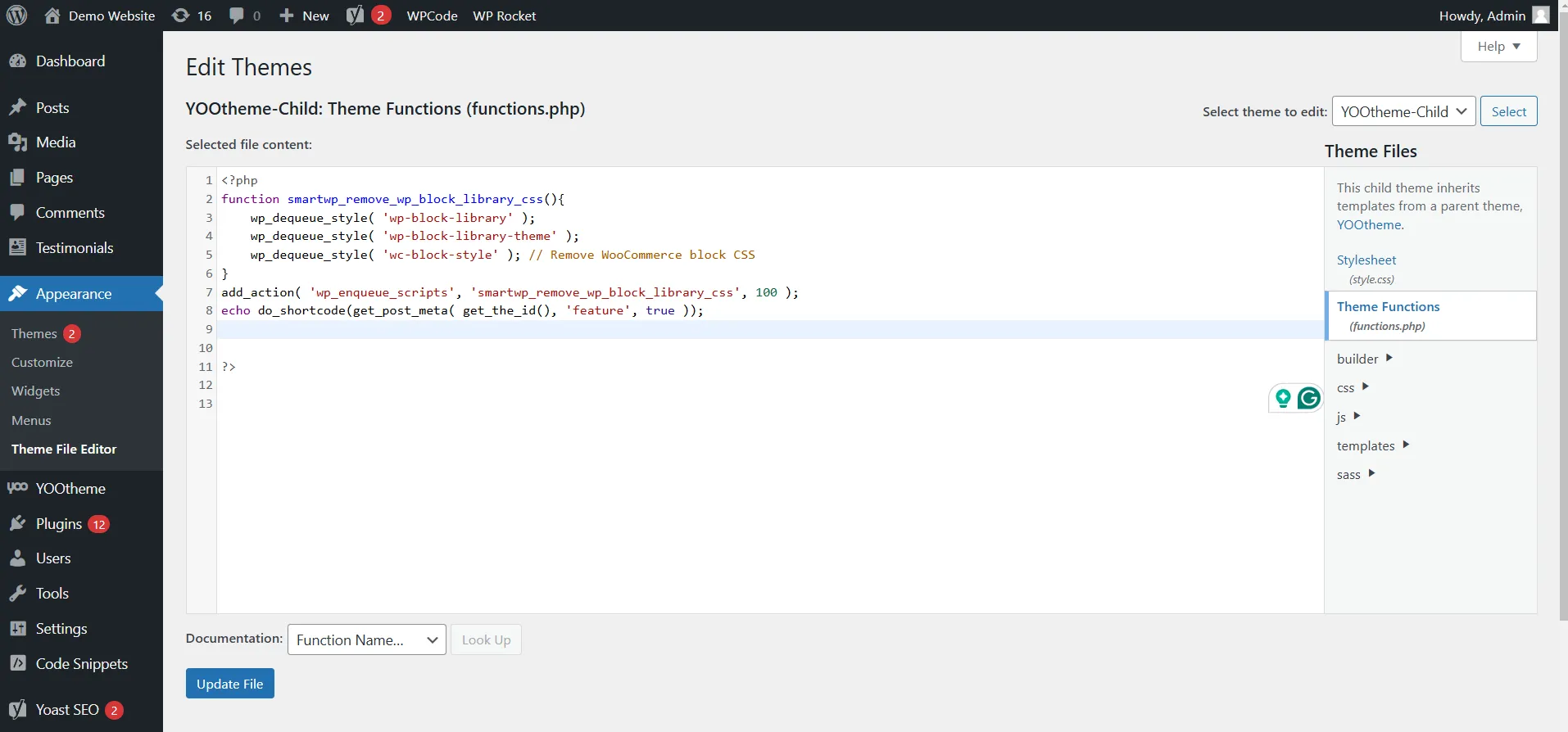
Check for any dependencies before removing a theme. See if your website uses special plugins. Some plugins need your child theme to work. Deactivate these plugins first. This helps avoid any errors on your website. Look for custom code too. Sometimes, custom code is in the child theme. Move the code to your main theme if needed. This ensures your website runs smoothly.
Steps To Remove A Child Theme
Log in to your WordPress Dashboard. Find the menu on the left. Click on Appearance. Then, click on Themes. This is where you see all your themes.
Inside the Themes page, find the active Child Theme. Click on Activate for another theme. This will deactivate the child theme. Now, your site uses the new theme.
Go back to the Themes page. Find the child theme again. Click on Theme Details. Then, click Delete at the bottom. Confirm to remove the theme files.
Alternatives To Removing A Child Theme
Consider switching themes without deleting the child theme in WordPress. Deactivate the child theme under Appearance > Themes. Use a plugin to handle theme customizations for a seamless transition.
Disabling Instead Of Deleting
Disabling a child theme can be a safe option. This way, the theme stays saved. You won’t lose any customizations. Simply go to the WordPress dashboard. Find the Appearance section. Click on Themes. Activate another theme. This will disable the child theme. Your changes remain intact. If needed later, you can easily switch back.
Switching To A Parent Theme
Switching to the parent theme is another choice. This means using the original theme. The parent theme often has updates. These updates improve site safety. Go to your WordPress dashboard. Click on Appearance, then Themes. Choose the parent theme. Click Activate. Your site now uses the parent theme. This method is quick. It’s also reversible if you change your mind.
Credit: litextension.com
Troubleshooting Common Issues
Always keep a backup of your site. This helps when things go wrong. Use a plugin to make this easy. Choose a day to do it each week. Store the backup in a safe place. Your computer or cloud service is a good choice. To restore, go to your backup tool. Follow the steps. Your site will be back to normal.
Theme conflicts can break your site. This happens when themes do not get along. First, turn off all plugins. Then, turn them on one by one. This helps find the problem. If the issue remains, switch to a default theme. Check if the problem is gone. Contact theme support for more help.
Best Practices For Theme Management
Regularly updating themes keeps your website safe. Updates fix bugs. They also improve performance. Check for updates often. Use the update button in WordPress. It is easy and quick. Themes need updates like apps do.
Maintaining backups is smart. Save copies of your website. Backups protect from loss. If something breaks, you can restore it. Use plugins for backups. Some are free. Others cost money. Choose the best one for you.

Credit: wpastra.com
Frequently Asked Questions
What Is A Child Theme In WordPress?
A child theme is an extension of a parent theme. It allows customization without altering the original theme files. This ensures updates to the parent theme won’t overwrite custom changes. Child themes are ideal for maintaining site design and functionality while keeping the core theme intact.
Why Remove A Child Theme From WordPress?
Removing a child theme can be necessary for simplifying site management. It might also help in troubleshooting theme-related issues. If you no longer need customizations, removing it can streamline your website. Ensure backups are taken to prevent data loss during removal.
How To Safely Remove A Child Theme?
To safely remove a child theme, first switch to a different theme. Then delete the child theme from the WordPress admin panel. Make sure to review theme files and settings. Always backup your site before making any changes to themes.
Will Removing A Child Theme Affect My Website?
Removing a child theme might change your site’s appearance or functionality. Ensure you have a backup of any customizations. Reapplying changes in a new theme might be necessary. Test your website thoroughly after removal to avoid any disruptions in user experience.
Conclusion
Removing a child theme from WordPress is straightforward. Follow the steps carefully. First, back up your data to prevent loss. Next, navigate to the themes section in your dashboard. Deactivate the child theme and activate another theme. Lastly, delete the child theme files from your server.
Always double-check your website after changes. This ensures everything functions smoothly. Properly managing themes keeps your site running well. Regular maintenance is key. Keep learning and stay updated. Your WordPress skills will improve over time. Happy managing!