
Are you feeling trapped by your current web host? Maybe the customer service is lacking, or your site is just too slow.
You know it’s time to move on, but the thought of migrating to a new web host seems daunting. Don’t worry; you’re not alone. Many people hesitate to switch hosts because they’re afraid of losing data or experiencing downtime. But here’s the good news: migrating to a new web host can be smoother and simpler than you think.
You’ll discover a step-by-step guide to make your transition seamless and stress-free. Get ready to take control of your website’s future and experience the reliability, speed, and support you deserve. Stick with us, and you’ll soon wonder why you didn’t make the switch sooner!
Credit: www.hostpapa.com
Choosing A New Web Host
First, think about what your website needs. How much space will it take? How much traffic do you expect? These questions help find the right host. Consider if you need special features like email support or databases. Know your website’s essential requirements.
List down several hosting providers. Look at their features. Compare their prices and support options. Some hosts offer extra benefits like free domain names. Others might have better security. Make sure to choose one that fits your needs and budget.
Read what other users say. Customer reviews can tell a lot about a host. Look for positive feedback and note any complaints. Reviews can help you avoid bad experiences. Trust the opinions of others who have used the service.
Backing Up Your Website
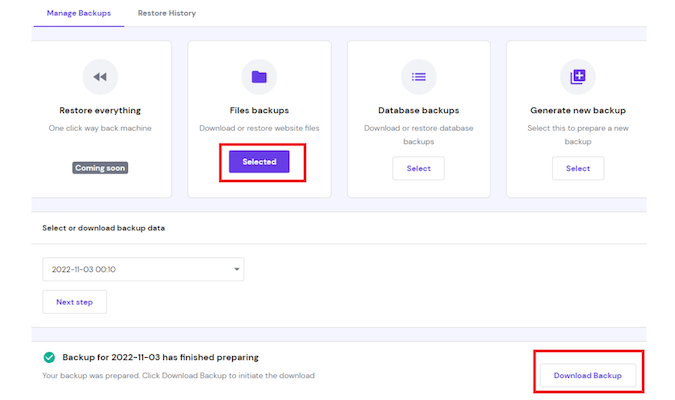
Many hosting providers offer easy tools for backup. These tools help save your website data. It is simple to use them. Just click a few buttons. Your website data will be backed up. This is a quick and safe way. Always check if your host has these tools. They can save you a lot of time.
Manual backups need a few steps. First, download all website files. Use an FTP client for this. Next, export your database. Use tools like phpMyAdmin. Store these files on your computer. This method is more work. But it’s important. You have complete control over your data. Keep a schedule. Backup your website often.
It is important to store backup files safely. Use an external hard drive or a cloud service. Google Drive or Dropbox are good options. Keep your backups in more than one place. This way, you won’t lose them. Protect your backup files with passwords. Make sure only you can access them. Safe storage is key to protecting your website.
Transferring Domain Name
Domains must be unlocked before transfer. Log in to your domain account. Look for the domain settings. Find the option to unlock. This step is important. It allows the domain to move. Make sure to save changes.
The authorization code is a secret key. It is needed for the transfer. Request it from your current registrar. Check your email for the code. It looks like a password. Keep it safe. You will need it soon.
Start the domain transfer process. Go to your new host. Find the transfer domain option. Enter the domain name. Use the authorization code. Follow the prompts. Confirm the transfer when asked. It may take a few days. Be patient. Your domain will soon be with your new host.
Credit: www.wpbeginner.com
Migrating Website Files
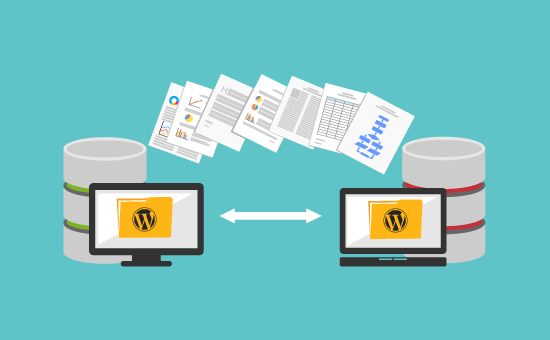
FTP is a tool to move your website files. Start by installing an FTP client. FileZilla is a popular choice. Connect to your old host. Enter your login details. Find the website folder. Download all files to your computer. Connect to the new host. Upload the files from your computer. Check all files have transferred. This process needs patience and care.
Databases store your website data. Export the database from your old host. Use phpMyAdmin for this task. Save the file to your computer. Go to the new host. Import the database file. Use phpMyAdmin again. Double-check the import was successful. Fix any errors you find.
Ensure files are the same after transfer. Compare sizes of files on both hosts. Check for missing files. File integrity is very important. Use tools to verify checksums. MD5 or SHA-1 are common. Fix any mismatches promptly. Your website will run smoothly.
Updating Dns Settings
Changing Nameservers is important for your new web host. Nameservers tell the internet where your website lives. To change them, visit your domain provider’s website. Find the DNS settings. Look for nameservers. Enter new nameservers given by your web host. Save these changes.
Propagation Time Considerations are crucial. Changes take time to spread. Usually, it takes 24 to 48 hours. During this period, your site might not work everywhere. Be patient. Check your site from different locations.
Testing DNS Changes ensures everything is correct. Use online tools to check your DNS settings. Enter your domain name. Look for nameservers. Verify they match your new host. If correct, your site is ready.
Credit: www.crazyegg.com
Testing The New Setup
Ensure every page loads correctly. Click all buttons and links. They should work fine. Test the contact form to make sure it sends messages. Check images on the site. They must appear without issues. Try different browsers like Chrome or Firefox. The site should look the same.
Confirm the database links with the website. Try logging into the admin panel. Edit some data and save it. See if changes appear on the site. This shows the database is connecting well. If errors pop up, check the database settings. They might need fixing.
Measure how fast the site loads. Use tools like GTmetrix or Pingdom. Faster sites keep visitors happy. If the site is slow, try compressing images. Also, reduce the number of plugins. This might help speed up the site. Keep testing until the site is quick.
Handling Common Issues
Migrating to a new web host involves transferring files and databases smoothly. Backup all data before starting. Confirm compatibility with the new host to prevent downtime.
Resolving Downtime Problems
Downtime can cause panic. Check if your new host is online. Look at server status or contact support. Backups are important. They help restore your site quickly. Keep a backup before migrating. This prevents data loss.
Fixing Broken Links
Broken links confuse visitors. They might leave your site. Use tools to find broken links. Fix or redirect them. This helps keep visitors happy. Check links after migration. Ensure all paths lead to the right page.
Addressing Email Issues
Email issues can disrupt communication. Check email settings. Ensure DNS records are correct. Test email sending and receiving. Contact support if issues persist. Communicate using alternate methods if needed.
Final Steps
Final steps in migrating to a new web host include updating DNS settings to point to the new server. Double-check all website functionalities to ensure everything works smoothly. Finally, monitor site performance to catch any unexpected issues.
Canceling Old Hosting Plan
Ensure your new host is running smoothly. Confirm all files are transferred. Check emails and databases are working. Once satisfied, cancel your old hosting plan. Cancel before renewal to avoid charges. Notify old host of cancellation. This prevents auto-renewal. Keep a copy of confirmation email.
Monitoring Site Performance
Regularly check your site’s speed. Ensure links work correctly. Look for broken pages or images. Use tools to monitor uptime. Monitor daily for changes. Your site must be fast and reliable. User experience matters. Keep an eye on traffic stats. Adjust settings if needed.
Seeking Support If Needed
Reach out to your new host for help. Ask questions if things seem off. Support teams are there to assist. Use their chat or email services. Understand the issue clearly. Follow their advice to fix problems. Your host wants you happy. Keep communication open for best results.
Frequently Asked Questions
How Do I Move From One Web Host To Another?
To move hosts, first back up your website files and databases. Choose a new host and set up your account. Transfer files using FTP or a migration tool. Update DNS settings to point to the new host. Test your website to ensure it functions correctly.
How To Transfer From One Host To Another?
Transfer hosts by backing up your website files and databases. Choose a new host and upload backups. Update DNS settings to point to the new host. Test your site to ensure proper functionality. Contact support if needed for technical assistance during the transfer process.
How Do I Move My Domain To A New Host?
To move your domain, unlock it with your current registrar. Obtain the authorization code. Update nameservers to point to the new host. Initiate the transfer with the new registrar using the code. Confirm the transfer via email. Ensure DNS settings are correct to avoid downtime.
How Long Does It Take To Migrate A Website To A New Host?
Migrating a website to a new host typically takes 24 to 48 hours. Transfer time varies based on site size and complexity. Efficient planning and execution speed up the process. Ensure backups are ready for a smooth transition. Check DNS propagation to finalize the migration.
Conclusion
Migrating to a new web host can be straightforward. Start with careful planning. Backup all your files and databases. Choose a reliable host with good support. Transfer your domain and update DNS settings. Test your website thoroughly after migration. Ensure everything works smoothly.
Keep communication open with your new host. Resolve any issues quickly. A successful move can improve website performance. Enjoy faster speeds and better security. Remember, patience and attention to detail are key. Follow these steps, and your site will thrive on its new host.


