
Are you ready to take control of your website but feeling overwhelmed about logging into your HostGator web panel? You’re not alone.
Navigating the digital maze can be tricky, especially when you’re eager to get things done. But here’s the good news: logging into your HostGator web panel is simpler than you think, and I’m here to guide you step by step.
Imagine the freedom of managing your website with ease, knowing you have the power at your fingertips. By the end of this guide, you’ll feel confident and empowered, ready to dive into the world of web management. Stick around, and let’s make this journey as smooth as possible.
Credit: www.hostgator.com
Accessing Hostgator Web Panel
First, open your web browser. Type www.hostgator.com in the address bar. Press the Enter key. This takes you to HostGator’s website.
Next, find the Login button. It is at the top right corner. Click on it. A new page will open.
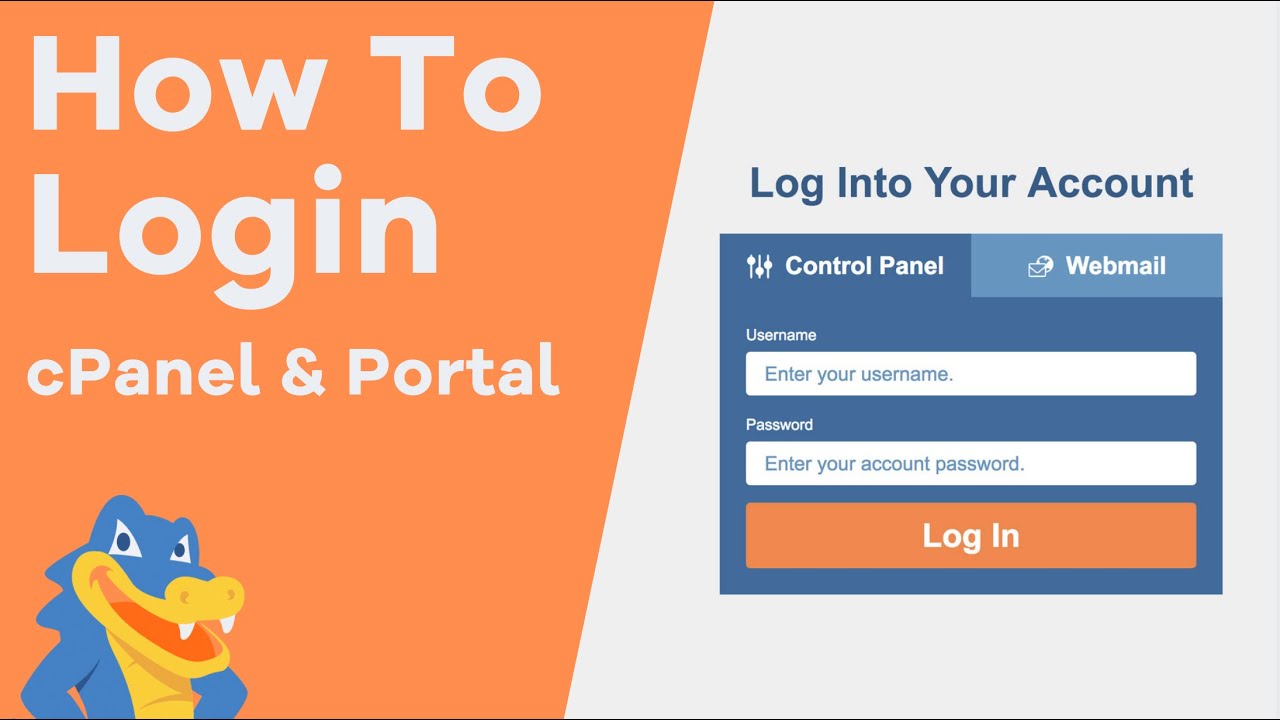
Enter your Username. Type your Password. Make sure to check for typing errors. Click on the Login button.
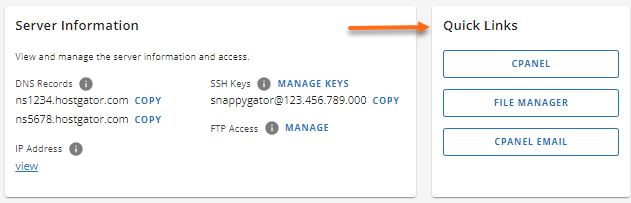
You will now enter your HostGator web panel. Here, you can manage your website. You can see settings, tools, and more.

Credit: www.hostgator.com
Navigating To The Login Page
Begin by opening your browser. Type the HostGator login URL in the address bar. Make sure the URL is correct. It usually looks like “https://yourdomain.com:2083”. Press enter to go to the page. The page will load quickly. You will see a login form.
Check the email from HostGator. It has your username and password. The username is often your domain name. The password is a mix of letters and numbers. Keep it safe. You need these to access the panel. Enter them in the form fields. Click on the login button to continue. You’re now ready to manage your website.
Troubleshooting Login Issues
Passwords are easy to forget. Don’t worry. Click on the “Forgot Password” link. Enter your email. Check your inbox for a reset link. Follow the link. Set a new password. Make sure it’s strong. Use letters and numbers. Avoid using easy words. Now, try logging in again. It should work.
Entering wrong details can lock your account. Wait for 15 minutes. Try again after this time. Make sure your details are correct. If still locked, contact support. They can help. Tell them your issue. Be ready with your account info. They will guide you.
Security Tips For Login
Always use a strong password for your web panel. A good password has at least eight characters. Mix letters, numbers, and symbols. Do not use easy words like “password” or “123456”. Change your password every few months. This keeps your account safe.
Two-factor authentication adds another layer of security. It needs two steps to log in. First, enter your password. Then, use a code from your phone. This makes it harder for others to access your account. Always enable this feature if available. It helps keep your information safe.
Exploring The Web Panel Features
Discover the simplicity of logging into Host Gator’s web panel. Follow easy steps to access your hosting dashboard quickly. Enjoy managing your website effortlessly with user-friendly features.
Managing Domains
The web panel helps in managing domains easily. You can add new domains or remove old ones. Check the domain settings any time. It’s simple to view the expiration dates. Update domain records with just a few clicks.
Setting Up Email Accounts
Create email accounts in minutes. The panel allows setting custom email addresses. Manage email settings for better use. Access is easy for checking emails or changing passwords. Ensure spam protection is active for safety.
Accessing File Manager
File Manager is useful for website files. It allows users to upload, download, or delete files. Organize files in folders for better access. Check the file sizes for space management. Edit files directly without downloading. Keep files safe with backups.
Credit: www.youtube.com
Frequently Asked Questions
How Do I Login To The Website Cpanel?
To log in to cPanel, visit yourdomain. com/cpanel. Enter your username and password. Click “Log In” to access the dashboard. Ensure you have correct credentials for successful login. If you forget your password, use the “Reset Password” option. Secure your details for future access.
How Do I Login To The Hostgator Cpanel?
To login to HostGator cPanel, visit yourdomain. com/cpanel. Enter your username and password. Click “Log In”.
How Do I Login To The Hosting Control Panel?
To log in to the hosting control panel, visit your hosting provider’s website. Enter your username and password. Click on the login button. If you face issues, check your credentials or contact support. Always ensure you’re on the correct login page for security.
Why Can’t I Login To My Cpanel?
Check your username and password for typos. Ensure your IP isn’t blocked by the server. Verify your hosting account’s status and contact support if problems persist. Clear browser cache or try a different browser.
Conclusion
Accessing Host Gator’s web panel is simple with our guide. Follow the steps. Log in to manage your hosting account easily. Remember your login details for quick access next time. Troubleshooting tips can help resolve common login issues. Explore features once logged in.
This platform offers tools for website management. Keep login credentials safe for security. Bookmark the login page for easy access. With practice, logging in becomes second nature. Enjoy managing your hosting services efficiently. Your website success starts with easy panel access.


