
Are you facing issues with your WordPress theme or simply want to start fresh with a new look for your website? Re-installing a theme on WordPress might be the perfect solution.
Whether your current theme is acting up or you’re just in the mood for a change, knowing how to re-install a theme can save you time and frustration. It’s easier than you might think, and can breathe new life into your site with just a few clicks.
In this guide, we’ll walk you through the step-by-step process so you can effortlessly re-install your theme and get back to showcasing your content. So, if you’re ready to enhance your website’s appearance and functionality, keep reading to learn how to do it quickly and efficiently!
Credit: www.fixrunner.com
Backup Your Current Theme
Always save your theme before making changes. This is vital. First, go to your WordPress dashboard. Then, click on Appearance and select Theme Editor. Here, you can see your theme files.
Select each file. Copy and paste them into a text editor. Save them on your computer. This is your backup. Don’t skip this step. It keeps your data safe.
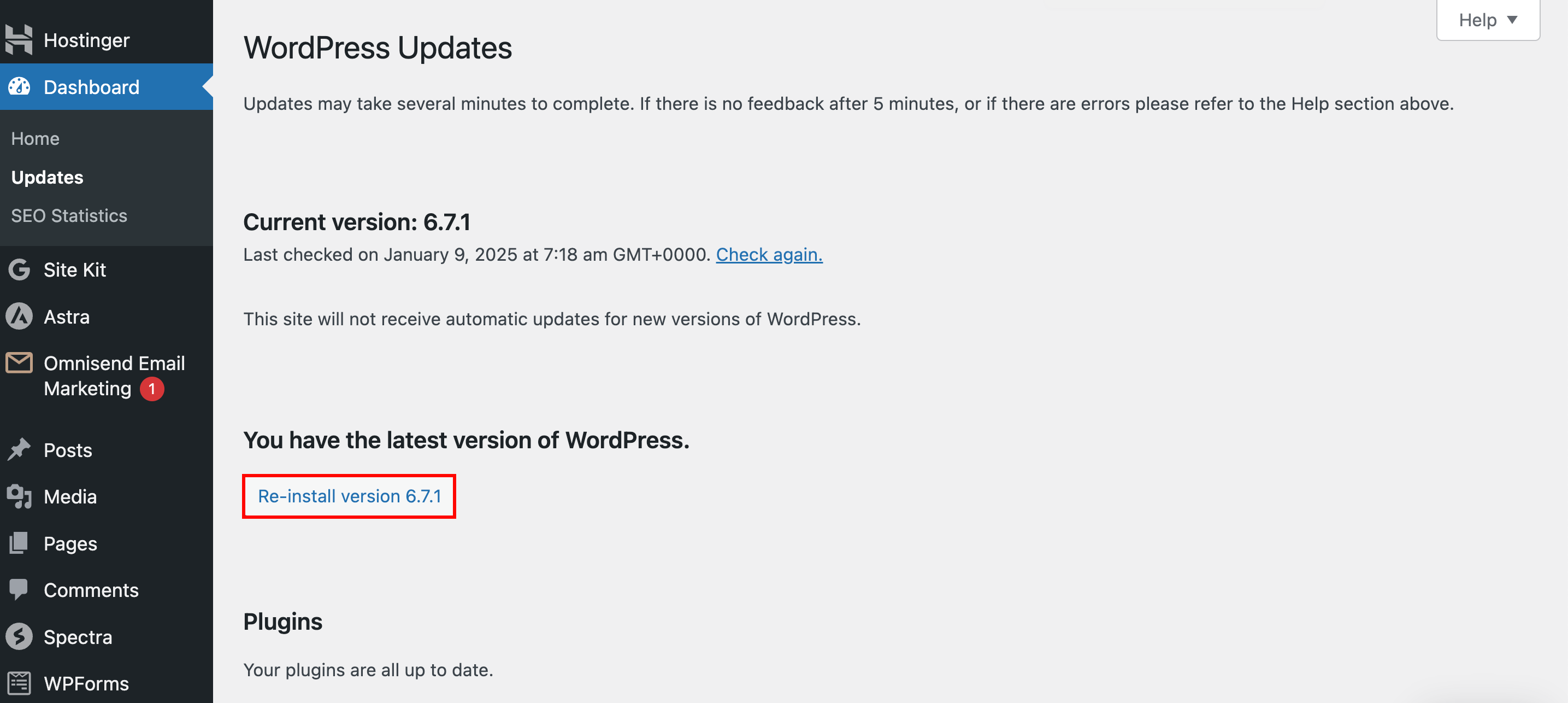
Also, consider using a WordPress backup plugin. This plugin can save your entire site. Some popular ones are UpdraftPlus and BackupBuddy. Install and activate a plugin for extra safety.
Credit: www.hostinger.com
Access WordPress Dashboard
Open your browser and type your website URL. Add “/wp-admin” at the end. Hit enter. You will see the WordPress login page. Enter your username and password. Click the Log In button. You are now in the dashboard.
Look on the left side. Find the menu. Click on Appearance. Then click on Themes. This shows all your themes. You can add, remove or change themes here. The dashboard is your control center.
Navigate To Themes Section
First, log into your WordPress dashboard. Look for the menu on the left side. Click on Appearance. Then, select Themes. This will take you to the themes section. Here, you can see all installed themes. Choose the theme you want to reinstall.
Click on the theme’s name. You will see more details about it. To reinstall, you need to delete it first. Click on the Delete button at the bottom. Confirm you want to delete the theme.
Once deleted, click on the Add New button. Use the search bar to find your theme. Click on Install, and then Activate the theme. Your theme is now reinstalled.
Choose The Theme To Reinstall
First, go to your WordPress Dashboard. Find the “Appearance” tab on the left side. Click on it. You will see a list of themes. Find the theme you need to reinstall. Remember its name and version. This is important. Next, visit the official WordPress Theme Directory. Search for your theme by name. Make sure it matches the version you noted. If not, you might see errors later. Once you find the right theme, download it. Save it to your computer. Ensure it is in a safe place. You will need it soon.
Download Theme Files
First, locate the theme you want. Go to the theme website. Find the download button. Click it. Wait for the download to finish. Save the theme files on your computer. Make sure you remember the location.
After downloading, check the files. Ensure they are complete. Sometimes files can be corrupted. If files are missing, download again. Keep the files safe. You will need them for the next step.
Delete Existing Theme
First, go to your WordPress dashboard. Find the Appearance tab on the left. Click on it. You will see the Themes option. Select it. Here, you will see all your themes. Find the theme you want to delete. Make sure it is not active. If it is active, switch to another theme. Click on the theme. Then, click on the Delete button at the bottom. A pop-up will ask for confirmation. Confirm by clicking OK. The theme will be removed.
Deleting a theme frees up space. It keeps your site fast. Always keep a backup. It is important.
Upload And Install Theme
First, log into your WordPress dashboard. Look for the Appearance menu and click Themes. Here, you can add a new theme. Select the Upload Theme button at the top. Choose the theme file from your computer. Ensure it is in .zip format. Press Install Now to start the upload.
Once uploaded, the theme needs activation. Click the Activate button. Your new theme will be live. Check your website to see changes. If the theme has extra settings, adjust them. Use the theme options panel. Customize as you like. This process is simple and quick. Ensure your theme is compatible with your WordPress version. This helps avoid errors.
Activate The Theme
Find the theme you want in your WordPress dashboard. Go to Appearance and click on Themes. You will see a list of themes. Look for the theme you want to use. Click on the theme’s thumbnail to open it. Then, press the Activate button. Your theme is now active.
Check your website to see the new look. Make sure everything is working fine. Sometimes, you might need to adjust settings. You can find these settings under the Customize option. If something looks wrong, go back and check the theme settings again. This will help fix any small issues.
Customize Theme Settings
First, go to your WordPress dashboard. Find the Appearance tab. Click on Customize. This opens the theme settings. You can see many options here. Change the site title and tagline if needed. Choose colors that you like. Adjust fonts to match your style.
Add a logo if you have one. Decide on the layout. Choose between one-column or two-column. Add a background image if desired. Check the preview to see changes. Don’t forget to click Publish to save your work.
Make sure all changes look good on mobile. This keeps your site user-friendly. Explore other settings for more options. It’s fun to try different looks.

Credit: jetpack.com
Verify Theme Installation
Make sure the theme is installed correctly. Check the appearance tab in your dashboard. You should see the theme listed. If not, try installing again. Check for any error messages during installation. They can give clues about what went wrong. Also, ensure the theme version is compatible with your WordPress. Sometimes older versions cause issues. It’s important to have a backup before changing themes. This prevents data loss. After installation, test the theme features. Make sure everything works fine. Try different pages and functions. Contact support if problems persist.
Frequently Asked Questions
How Do I Reinstall A WordPress Theme?
To reinstall a WordPress theme, navigate to your dashboard. Go to “Appearance” and then “Themes. ” Deactivate the current theme and delete it. Click “Add New,” search for your theme, and install it again. Activate the theme to complete the reinstallation process.
Will Reinstalling A Theme Delete My Content?
Reinstalling a theme will not delete your content. WordPress stores content like posts, pages, and media in the database. However, customizations made in theme-specific settings might be lost. Always back up your site before reinstalling to ensure you can restore any lost configurations.
How Do I Back Up My WordPress Theme?
To back up your WordPress theme, use an FTP client to access your server. Locate the “wp-content/themes” directory and download the folder of your active theme. Alternatively, use a backup plugin like UpdraftPlus for a more comprehensive backup of your entire site, including themes and settings.
Can I Reinstall A Theme Without Losing Settings?
Reinstalling a theme might reset settings stored in the theme’s options panel. Use a child theme to preserve customizations. Check if your theme has an export settings feature. Always back up your settings before reinstallation to restore them afterward.
Conclusion
Reinstalling a theme on WordPress is straightforward. Follow the steps closely. First, backup your site data. This ensures safety. Next, deactivate the current theme. Now, remove the old theme files. Download the new theme version. Install it through the WordPress dashboard.
Activate the new theme. Check your site for any errors. Troubleshoot if needed. Keep your themes updated regularly. This helps maintain site performance. A fresh theme can enhance your site’s appearance. Enjoy your updated WordPress theme experience. Your site is now ready for visitors.


