
Are you ready to transform your WordPress site with a sleek, modern look? The Kameron theme might just be what you’re looking for.
With its stylish design and user-friendly features, Kameron makes it easier than ever to create a visually stunning website that captures attention and keeps visitors coming back. But how do you get started? Don’t worry; you’re about to find out.
In this tutorial, we’ll guide you step-by-step through the process of installing and customizing the Kameron theme on WordPress. By the end, you’ll have a website that not only looks amazing but also functions seamlessly. Keep reading to discover how you can elevate your online presence and make a lasting impression with the Kameron theme.
Installation
First, visit the Kameron Theme website. Click the download button. Save the file to your computer. This file is a .zip format. Do not unzip it.
Go to your WordPress dashboard. Click on Appearance. Then, click Themes. Find the button that says Add New. Click on it.
Then, click on Upload Theme. Choose the .zip file you downloaded. Click Install Now. Wait for the upload to finish.
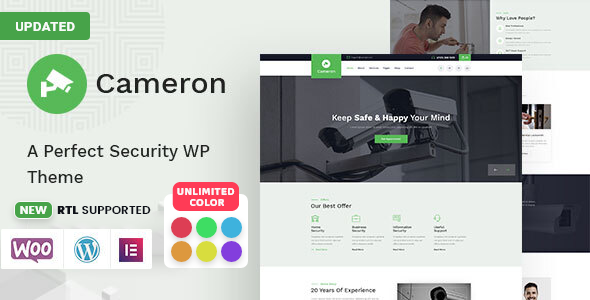
Credit: themeforest.net
Theme Activation
Go to your WordPress Dashboard. Click on Appearance, then Themes. Find the Kameron theme in the list. Click on the Activate button. This will make Kameron your active theme. Check your site to see the changes.
Open the Kameron settings in the Dashboard. Look for the License section. Enter your License Key in the box. Click Save Changes to store it. This key ensures you get theme updates.
Customizing Appearance
The Customizer is a tool. It helps change how your site looks. It is easy to use. You can see changes instantly. This makes editing fun and quick.
Colors make your site unique. You can pick from many options. Fonts help show your style. The right font is important. It makes reading easy.
Your logo is your identity. It should be clear and memorable. Branding helps your site stand out. Make sure it matches your style.
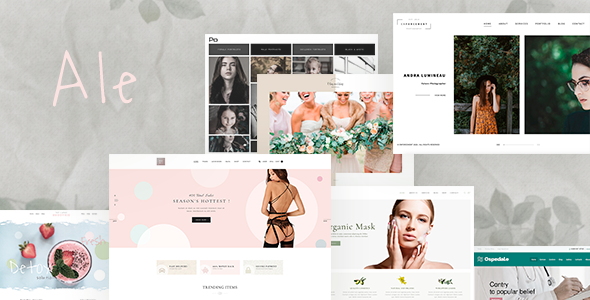
Credit: themeforest.net
Setting Up Pages
Start by going to the WordPress dashboard. Click on Pages in the menu. Then select Add New. Name the page Home and click Publish. Navigate to Settings and choose Reading. Set the home page to display a static page. Choose the Home page you created. Save changes. This will be your main welcome area. Add content that you like. Keep it simple and clear.
Create new pages for About and Contact. Go to Pages, then Add New. Name one About and the other Contact. Click Publish for each. In the About page, share who you are. Tell your story. On the Contact page, add ways to reach you. Email, phone, or forms work well. Make sure the information is correct. You want people to find you easily.
Adding Content
Writing a blog is fun. Use simple words. Readers love stories. Engage them with your ideas. Keep sentences short. Pictures make posts better. Use them wisely. Add headings to guide readers. Connect with your audience. Share your thoughts clearly. Edit your work for mistakes. Publish when ready. Share your post with friends.
Portfolios show your best work. Choose your top projects. Display them neatly. Organize by categories. Add descriptions for each item. Use clear images. Keep portfolios updated. Remove old projects. Highlight your skills. Attract potential clients. Show your uniqueness.

Credit: webdesignerdepot.com
Widgets And Plugins
Explore the Kameron Theme on WordPress with this easy tutorial. Learn to customize widgets and plugins effortlessly. Enhance your website’s functionality and design with simple steps.
Using Recommended Plugins
Plugins make your site better. They add new features. Start with the essential plugins. They help with security and speed. Yoast SEO helps with search engines. Jetpack offers many features in one. You can find plugins in the WordPress Plugin Directory. To install, go to your dashboard. Click Plugins, then Add New. Search for the plugin name. Click Install and then Activate. Now, your plugin is ready.
Configuring Widgets
Widgets help you organize your site. They add content to sidebars. Go to the dashboard. Click Appearance, then Widgets. Choose a widget you like. Drag it to your sidebar. Custom HTML widgets can add special content. Some widgets need setup. Click the widget name to set it up. Save your changes. Now your widget is live.
Advanced Settings
Explore the advanced settings in the Kameron Theme for WordPress. Adjust layout and design for a personalized website experience. This tutorial simplifies the process for beginners.
Custom Css And Scripts
Customizing your website is fun. Use Custom CSS to change styles. Add new colors or fonts. Make your site look unique. CSS helps create a personal touch. Scripts add special features. They make websites interactive. Use them carefully. Some scripts can slow down your site. Test changes before going live. Always check how they affect speed. Balance is key. Keep your site fast and stylish.
Seo Optimization
SEO makes your website easy to find. Use keywords that relate to your content. They help search engines understand your site. Place keywords in titles. Also, use them in headings and text. This improves visibility. Avoid keyword stuffing. It can harm your ranking. Write naturally. Make your content helpful and clear. Search engines value quality information. Users do too. Good content attracts more visitors.
Troubleshooting
Learn to troubleshoot Kameron Theme on WordPress with ease. This tutorial provides simple steps to resolve common issues. Enhance your site smoothly without technical hassle.
Common Issues
Many users face installation problems with the Kameron Theme. It might not load properly. This can happen if the theme files are not uploaded correctly. Another issue is the slow website speed. Large images can slow down your site. It’s best to optimize images for faster loading. Some users report broken links in menus. Ensure menu links are set right. The theme might not appear well on mobile devices. Check if the mobile settings are correct. Always update the theme to fix bugs.
Theme Support
The Kameron Theme offers support options for users. It has a dedicated support team. You can reach them through email. They respond quickly to queries. There is also a community forum. Here, users share tips and solutions. The theme’s documentation is very helpful. It explains how to use features. Always check for updates. Updates can solve many issues.
Frequently Asked Questions
How To Install Kameron Theme On WordPress?
To install the Kameron theme, log in to your WordPress dashboard. Navigate to “Appearance” > “Themes” > “Add New”. Search for “Kameron” and click “Install”. Once installed, activate the theme. Make sure to customize your settings for optimal performance and appearance.
Is Kameron Theme Suitable For Photography Websites?
Yes, Kameron is perfect for photography websites. Its design emphasizes visuals and offers galleries and portfolio options. The theme is responsive, ensuring your photos look great on any device. It also allows for customizations to match your branding and style preferences.
Can I Customize Kameron Theme Easily?
Yes, customizing Kameron is easy using WordPress Customizer. You can adjust colors, fonts, and layouts without coding knowledge. The theme offers various pre-built templates. These allow you to quickly set up your website while maintaining a unique look.
Does Kameron Theme Support Plugins?
Kameron supports a wide range of plugins. It is compatible with popular plugins like Yoast SEO and WooCommerce. This ensures you can enhance your site’s functionality. Always ensure plugins are updated to avoid compatibility issues and maintain optimal performance.
Conclusion
Kameron Theme on WordPress is easy to set up. With this guide, you customize efficiently. Personalize your site to match your style. Enhance user experience with intuitive features. The theme offers flexibility for any website. Follow the steps outlined for a seamless process.
Enjoy creating a unique digital space. Remember, practice makes perfect. Explore options to suit your needs. Utilize tools to elevate your site. Dive into WordPress and discover possibilities. Share your work with the world. Your website can reflect your vision.
Keep learning and improving. Happy designing!


