
Are you ready to give your website a fresh, new look with a WordPress theme but feeling a bit overwhelmed by the process? You’re not alone.
Installing a WordPress theme in Hostgator can seem daunting, especially if you’re new to web hosting. But don’t worry; it’s easier than you think! This guide will walk you through each step, ensuring you have your theme up and running in no time.
Imagine your website transforming with just a few clicks, making it not only visually appealing but also functional. By the end of this article, you’ll feel empowered and confident in managing your website’s appearance. Stick with us, and you’ll see how simple the installation process can be. Ready to dive in? Let’s make your website shine!

Credit: www.youtube.com
Preparing Your Hostgator Account
First, open your internet browser. Type the Hostgator website address. Enter your login details carefully. Click on the control panel button. This is your main dashboard. It helps in managing your website.
Look for the cPanel link. Click it. This will show you many options. Each option has a special job. Find the one you need.
Find the File Manager icon in your cPanel. Click on it. This is where your website files live. You can upload new files here.
To upload a theme, click upload. Choose the theme file. It must be in zip format. Wait for the upload to finish. Once done, extract the theme. Now, it is ready to be used.
Downloading WordPress Theme
Installing a WordPress theme on HostGator involves downloading your chosen theme from the WordPress repository. Next, log into your HostGator cPanel and navigate to the File Manager. Find the ‘public_html’ directory and upload your theme file. Finally, activate the theme via the WordPress dashboard to see the changes.
Choosing A Reliable Source
Always pick a trusted source for your WordPress theme. Check ratings and reviews. A good theme keeps your site safe and fast. Never use themes from unknown places. They might harm your website. Official WordPress theme directory is a good place. Premium themes from reputable sites are also safe.
Saving The Theme Files
After downloading, save the theme files on your computer. Use a folder you can find easily. The files often come in a zip format. Do not unzip them now. You will need them as they are. Keep a backup of your files. This helps if something goes wrong.
Uploading Theme To Hostgator
Open the Hostgator control panel. Find the File Manager icon. Click it to open. In the left panel, choose your website folder. Look for the wp-content folder. Open it. Inside, find the themes folder. Click it to open. Now, click Upload at the top. Select your theme zip file. Wait for the upload to finish.
Go back to the themes folder. Find your uploaded zip file. Right-click it. Choose Extract. Your theme is now ready.
Download an FTP client like FileZilla. Open it. Enter your Hostgator server details. Connect to the server. Find the wp-content/themes folder. Drag your theme folder from your computer. Drop it in the themes folder. Wait for the transfer to finish. Go to your WordPress dashboard. Activate your new theme.
Activating Your New Theme
First, log into your WordPress Dashboard. This is your main control area. Find the left-hand menu. Look for “Appearance”. Click on it. This opens a new page.
On the “Appearance” page, see “Themes”. Choose your new theme. Click “Activate” to use it. Your website now has a fresh look. You can change settings later. It’s simple and quick.
Customizing Theme Settings
Themes offer many ways to change how your site looks. Start by going to the WordPress dashboard. Find the Appearance tab and click on Themes. Here, you can see all the themes you have. Click on Customize next to the theme you want. Now you can change the colors, fonts, and backgrounds. Try different settings to see what you like best. Don’t forget to save your changes. Your site will look different now!
Layout changes how things are placed on your site. Use the layout settings to move things around. You can make your site look simple or fancy. Try changing the header and footer. Add or remove sidebars if you want. It’s fun to make these changes. Always check how it looks after you change something. Keep your site easy to read and nice to look at.
Credit: www.hostgator.com
Troubleshooting Common Issues
Installing a WordPress theme on HostGator can sometimes be tricky. Ensure your theme file is in the correct format. Check compatibility with your WordPress version to prevent issues.
Resolving Installation Errors
Errors happen sometimes. First, check your internet connection. A weak link might cause issues. Then, try clearing your browser cache. This might help refresh the page. If errors persist, consider re-uploading the theme. Ensure the theme file is not corrupted. Download a fresh copy and upload again. Lastly, ensure your WordPress version is up-to-date. Compatibility issues could be the culprit.
Fixing Compatibility Problems
Compatibility issues can be tricky. First, check your plugins. Some plugins might not work well with your theme. Disable all plugins and see if that helps. Then, activate plugins one by one. This will help find the problematic plugin. Also, ensure your theme is compatible with your WordPress version. Sometimes, updating WordPress can solve the problem. If problems persist, reach out to the theme developer. They might have a fix or workaround.
Credit: www.hostgator.com
Frequently Asked Questions
How Do I Upload A WordPress Theme To Hostgator?
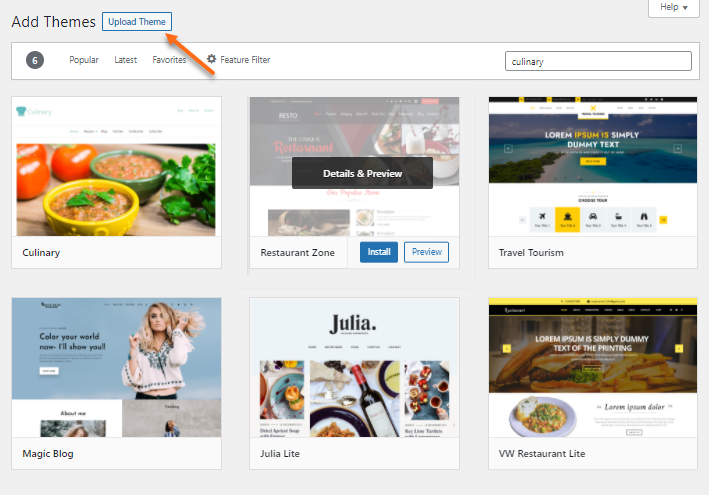
To upload a WordPress theme to HostGator, log in to your WordPress dashboard. Navigate to “Appearance,” then “Themes. ” Click on “Add New” and “Upload Theme. ” Choose your theme file and click “Install Now. ” Once installed, activate the theme to start customizing your site.
Can I Use Free WordPress Themes On Hostgator?
Yes, you can use free WordPress themes on HostGator. Simply access your WordPress dashboard, go to “Appearance,” then “Themes. ” Click “Add New” and explore the free themes available. Choose your desired theme and click “Install” to use it.
What Are The Steps To Activate A Theme?
To activate a theme, go to your WordPress dashboard. Click “Appearance,” then “Themes. ” Find the installed theme you want. Click the “Activate” button below the theme. Your website will now display the activated theme, ready for customization.
Why Is My Theme Not Installing?
If your theme is not installing, check for file compatibility issues. Ensure the theme file is in. zip format. Verify your WordPress and PHP versions are up-to-date. If problems persist, contact HostGator support for assistance with the installation process.
Conclusion
Installing a WordPress theme on HostGator is simple. Just follow these steps. First, access your HostGator account. Then, navigate to your WordPress dashboard. Upload the theme you downloaded. Activate the theme with one click. Your site now sports a fresh look.
Customize it to match your style. Explore features and settings. Enjoy the new design. Remember, themes enhance your website’s appeal. Regular updates keep your site secure. Now your WordPress site is ready to impress. Keep learning, and your site will thrive.
Happy blogging!


