
Have you ever wanted to change the look and feel of your WordPress site but found yourself stuck with the limitations of a theme? You’re not alone.
Many WordPress users face the challenge of wanting a unique design but feel constrained by the default options. Overwriting a theme might sound technical, but it’s simpler than you think. Imagine having the power to customize every detail, ensuring your site stands out and meets your vision perfectly.
We will guide you through the steps to overwrite a theme in WordPress, giving you full control over your site’s appearance. Get ready to transform your website into something extraordinary!

Credit: www.templatemonster.com
Choosing The Right Theme
Start by knowing what you want. Think about your site’s purpose. Is it a blog? A store? Each type has different needs. List the features you need. Consider layout and color. Decide on the style you like. Simple or fancy? Easy navigation is key. User-friendly themes are best. Choose a theme that fits your goals.
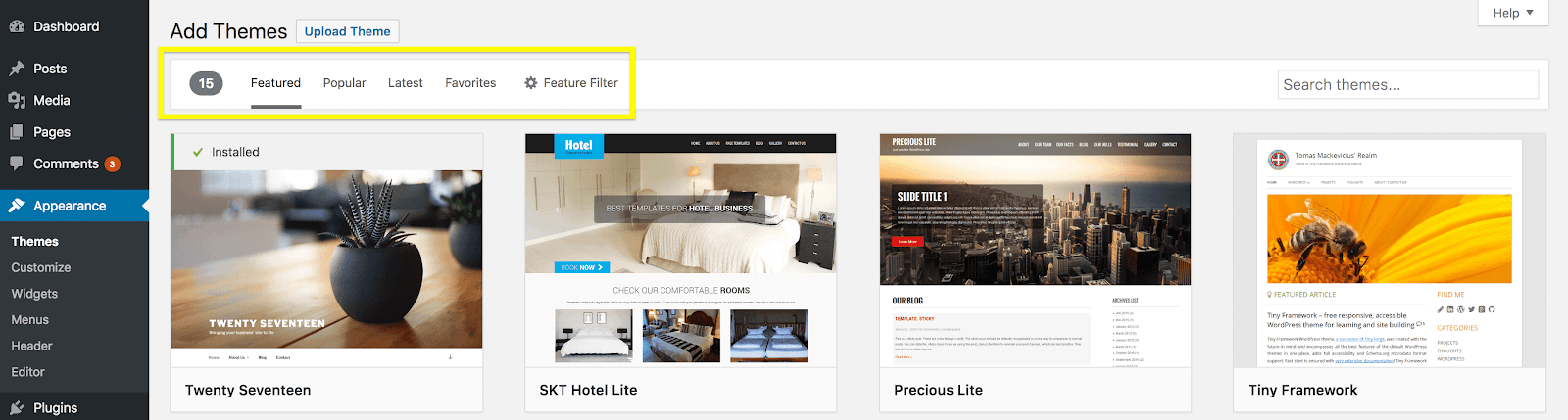
WordPress offers many themes. Free and paid options are available. Read reviews for insights. Preview themes before choosing. Check for updates and support. Look at the demo. Ensure it meets your needs. Compare features. Pick a theme that works well. Match it with your site’s purpose.
Setting Up A Child Theme
A child theme helps keep your changes safe. Updates to the parent theme do not erase your modifications. This way, you can keep your site fresh and secure. It also allows for easy customization. You can tweak styles and features without breaking the main theme. This makes it a smart choice for WordPress users.
First, create a new folder in the themes directory. Name it after the parent theme with “-child” at the end. Inside, add a style.css file. This file tells WordPress about your child theme. Include the parent theme’s name and template information. This step is crucial for proper functionality.
Enqueue the parent stylesheet in your child theme. This ensures all styles load properly. Add a functions.php file in your child theme folder. Use the wp_enqueue_style() function to link the parent stylesheet. This keeps your site’s design intact and consistent.
Modifying Theme Files
Editing template files can change your site’s look. Open your WordPress dashboard. Go to Appearance and then Theme Editor. Choose the template file you want. Be careful when making changes. Small mistakes can break your site. Always make a backup before editing.
To customize styles with CSS, go to the Customizer. Find the Additional CSS section. Here, you can add your own CSS code. This changes how your site looks. Use simple CSS rules for small changes. Make sure to save your changes.
Adding custom functions can add new features. Find the functions.php file in your theme. Add your custom function code here. Again, be careful. Bad code can cause errors. Test your changes on a test site first.
Using Theme Hooks
Action hooks let you add your own code. This code runs at specific points. These points are set by the theme. They help you change things without changing the theme’s files. This is safe and easy. WordPress themes come with many action hooks. They are in different places. For example, you can add code to the header or footer. Understanding these hooks is key. It helps you make your theme do more.
Filter hooks change data before it shows on the site. They can modify text, images, or other content. Filters do not add new code. They change existing things. This makes them powerful. You can change how your site looks and feels. Filters are like small tweaks. They let you adjust without much effort. This keeps your site fresh and unique.
Use hooks wisely to keep your site fast and safe. Always back up your site before changes. This protects your work. Test hooks on a test site first. This avoids problems on your live site. Document changes you make. This helps if you want to undo them. Keep your code clean and simple. This makes it easier to manage. Using hooks well makes your site better.
Integrating Custom Plugins
Enhancing functionality in WordPress can be simple. Custom plugins can help. They add new features to your site. Ensure they match your theme. Plugins can make your site unique. Users will enjoy the new tools. Keep your site easy to use.
Selecting compatible plugins is crucial. Not all plugins work with every theme. Check plugin details first. Look for good ratings. See if others recommend them. Compatibility is key. Choose wisely.
Configuring plugins is important. Each plugin has settings. Adjust them to fit your needs. Make sure they work with your theme. Test each one carefully. Your site should run smoothly.

Credit: jetpack.com
Testing And Debugging
Test your theme on a tablet, phone, and computer. Make sure everything looks good. Check that buttons work. Watch out for broken images or text. Always test on different web browsers too. This ensures your site works for everyone. Ask friends to test it. They might find things you missed.
Sometimes, things break. Maybe the layout is wrong. Or a button doesn’t work. Check your code for mistakes. Look at the browser’s console for errors. Fixing them helps your site run smoothly. Use plugins to find problems too. They can help a lot. Make sure to update your theme. Updates fix old bugs.
Fast websites are important. Users like them more. Make sure your theme loads quickly. Optimize images. Use caching plugins. They help speed things up. Remove unused plugins. They slow down your site. Check your site’s speed online. Many tools are free. Good performance keeps visitors happy.
Backing Up And Updating
Backup your WordPress site often. It protects your work. Use plugins like UpdraftPlus or BackupBuddy. These plugins make it easy. Save backups in different places. Think of cloud storage or external drives. Keep backups safe. Regular backups mean you don’t lose important data.
Update themes carefully. Always backup first. Check theme compatibility. Updates can break sites. Use a staging site before updating. Test changes there. This keeps your live site safe. Update during low traffic times. Choose early morning or late night.
Sometimes updates go wrong. No panic. You can restore backups easily. Use the same plugin you backed up with. Follow the steps. Restoring is like turning back time. Your site returns to a good state. Always have a backup ready. It is like a safety net.
Credit: wpengine.com
Frequently Asked Questions
How Can I Overwrite A WordPress Theme?
To overwrite a WordPress theme, create a child theme. This preserves the original theme during updates. Copy the files you want to change into the child theme folder. Modify them as needed. Activate the child theme from the WordPress dashboard.
Why Use A Child Theme In WordPress?
Using a child theme preserves customizations during updates. It allows you to experiment without affecting the original theme. This method is recommended for beginners. It’s a safe way to make custom changes to your WordPress site.
What Files Can I Overwrite In A Theme?
You can overwrite template files, stylesheets, and functions. Copy them to the child theme folder. Only modify the files you need to change. This minimizes errors and keeps your site running smoothly.
Is It Safe To Overwrite A WordPress Theme?
Overwriting a theme is safe if done correctly. Always use a child theme to protect original files. Regularly backup your site before making changes. This ensures you can restore it if something goes wrong.
Conclusion
Mastering WordPress theme overwrites is simpler than it seems. Follow the steps mentioned for a smooth process. Always back up your site before changes. This ensures safety if something goes wrong. Practice makes perfect. Experiment with different themes and styles.
Each change will enhance your skills. Remember, patience is key in learning. As you grow, customizations will become easier. Soon, you’ll create a unique site that stands out. Enjoy the journey of transforming your WordPress site. Happy designing!


