
Imagine transforming your website’s appearance with just a few tweaks. Changing the margins of your WordPress theme can make a world of difference in how your content is presented.
You might feel like your site is a bit cramped or too spaced out, and the default settings just don’t cut it. You’re not alone, and the good news is that you can easily override your theme’s margins without needing to be a coding expert.
This guide will walk you through the steps, empowering you to take control of your site’s design. By the end, you’ll be able to make your site look exactly how you want, creating a more inviting and engaging experience for your visitors. Ready to learn the secrets of margin adjustments? Keep reading, and unlock the potential of your WordPress site!
Understanding WordPress Themes
WordPress themes control how your site looks. They set the layout and design. Each theme has its own style. The margins in themes decide space around elements. Changing these margins can make your site look better. You may want more or less space. To change margins, you need to override the theme.
The theme editor in WordPress lets you change code. You can edit CSS files. CSS controls the style of your site. You can add new rules to change margins. Another way is to use a child theme. This method is safe. It keeps your changes even after updates. A child theme copies the parent theme. You then edit the child theme’s CSS.
Importance Of Customizing Margins
Customizing margins makes your website look neat. It helps in creating space between text and images. This space is important for readability. Visitors find it easier to focus on content. Margins also help in organizing the layout. A well-organized layout keeps users engaged. They do not feel overwhelmed with information.
Too much or too little margin can be confusing. It can make the site look messy. Adjusting margins gives a professional touch. It shows that you care about your site’s look. Users appreciate sites that are easy to read. They are more likely to come back again.
Creating A Child Theme
A child theme helps keep changes safe. Original theme stays untouched. Updates won’t erase your work. No need to worry about losing edits. It’s like a backup plan. Easy to switch back if needed. Customizations won’t break anything. Child themes are easy to manage. You get a clean slate for changes. It’s the smart way to edit themes.
First, make a new folder. Name it after your theme, add “-child”. Next, create a style.css file. Copy header info from the original theme. Paste it in your new file. Add a line to show it’s a child theme. Now, create a functions.php file. Use it to link the parent theme styles. Finally, activate the child theme in WordPress. Your changes are now safe.

Credit: github.com
Locating The Style.css File
First, go to your WordPress dashboard. Find the section labeled Appearance. Click on Theme Editor. You will see a list of theme files.
Be careful while editing. Changes can break your site. Make sure to back up your files.
Look for a file named style.css. It’s usually on the right side. This file controls the look of your theme. You can change the margins here.
Open the file by clicking on it. You will see lines of code. Find the part that says margins. Adjust the values to change them.
Modifying The Css For Margins
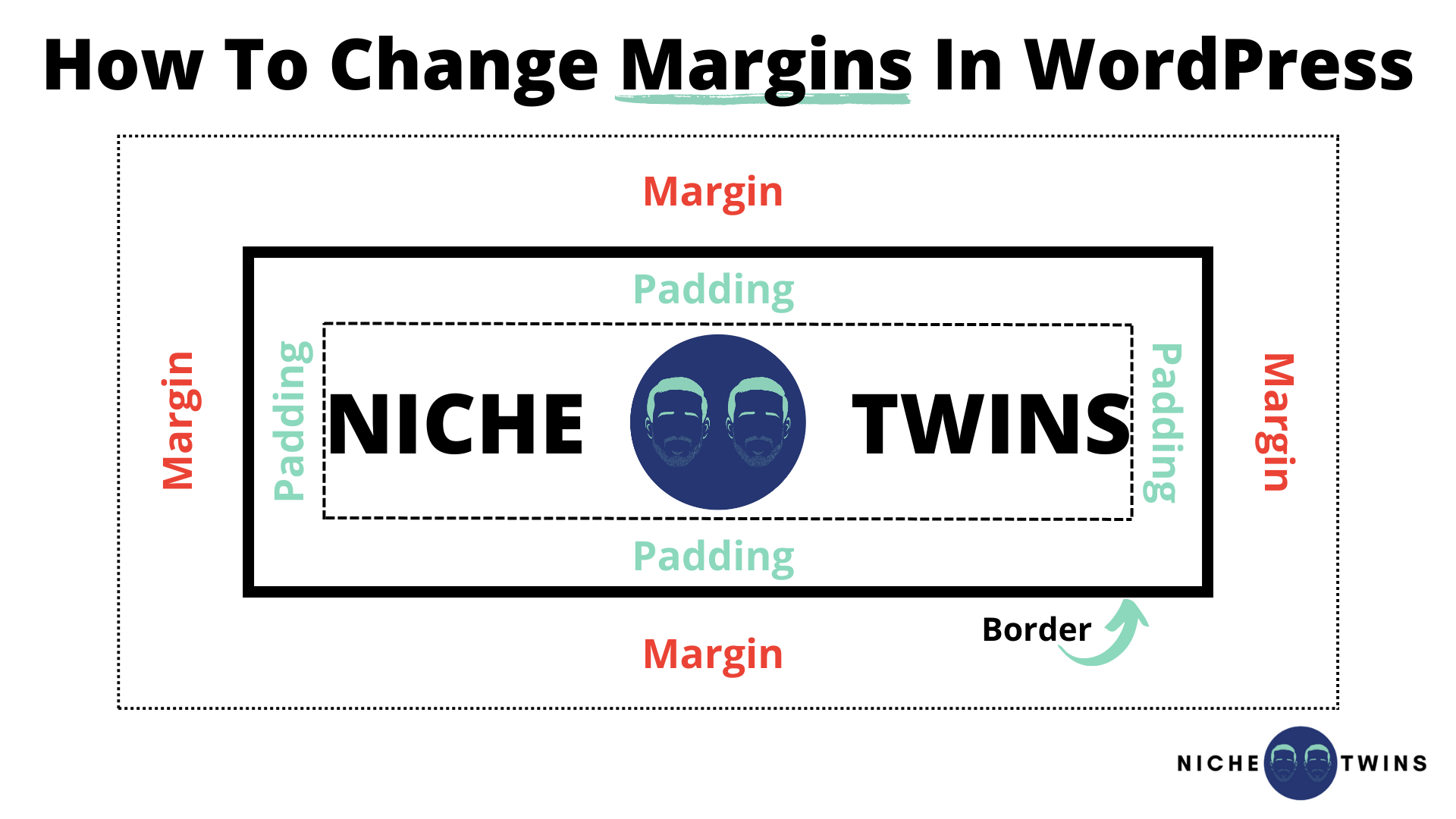
CSS controls how pages look. Margins are spaces around elements. They help organize content. CSS syntax is simple. You use selectors to pick elements. Then, you set properties.
Properties decide how elements behave. Margin properties affect space around items. For example, margin-top changes space above. margin-right changes space to the right. Same for margin-bottom and margin-left. All margins can be set together using margin.
Find the CSS file of your theme. Open it in a text editor. Locate the element you want to change. Identify its selector. Set new margin values. Use numbers and units. Pixels or percentage are common.
Example: To add space above a header, use h1 { margin-top: 20px; }. Save changes and refresh the webpage. Check if the margins look right.
Credit: nichetwins.com
Testing Changes Safely
Before making changes, use Browser Developer Tools. These tools help you preview changes safely. Open your website and right-click on the area. Choose “Inspect” to see the code. Here, you can change the margins temporarily.
Adjust the CSS properties and see the results instantly. This way, you know how it looks. No need to touch actual code yet. It keeps your site safe from errors. Once you’re happy, note the changes. Then apply them to your theme’s CSS file. This method is safe and easy for beginners.
Preview changes before publishing. It helps you avoid mistakes. Always test first, then update. Stay confident in your edits.
Implementing Changes To The Live Site
To change margins on a WordPress theme, override styles using custom CSS. Access the WordPress Customizer and add your code to adjust margins. Save changes to instantly see the updated layout on your live site.
Uploading And Activating The Child Theme
Creating a child theme is crucial to save your changes. First, make a new folder for the child theme. Use the FTP client to upload it to your site. Next, go to the WordPress dashboard. Find the themes section and select your new child theme. Activate it by clicking ‘activate’. This keeps your changes safe after updates.
Ensuring Compatibility With Other Plugins
Check if the child theme works with plugins. Go to the plugins section in the dashboard. Look for any errors or issues. Update the plugins if needed. This ensures everything works smoothly together. Avoid disabling important plugins. Always make backups before major changes.
Troubleshooting Common Issues
Easily adjust WordPress theme margins by creating a child theme. Modify the CSS file to change the margin values. This approach keeps your changes safe during theme updates.
Reverting Unsuccessful Changes
Changes might not work as expected. Always keep a backup of your original theme files. This helps revert changes easily. Use a child theme to make changes. This keeps original files safe. If changes break your site, restore the backup quickly. Check each file for errors. Mistakes can cause problems. Debugging is easier with small changes. Try one change at a time. Fix issues step by step.
Handling Browser Cache Problems
Browsers save old versions of your site. This is called cache. It can cause display problems. Clear browser cache to see new changes. Use CTRL + F5 on Windows to refresh. On Mac, use Command + Shift + R. Sometimes, cache plugins on your site need clearing. Go to plugin settings. Find the option to clear cache. This ensures changes appear correctly. Remember, cache can hide updates.
Best Practices For Theme Customization
Always make a backup before changing your theme. This keeps your work safe. You can save the backup on your computer or cloud. This step helps if something goes wrong. Then you can restore your site easily.
Write down every change you make. Use a simple document or notebook. This helps you remember what you did. If you need to fix something, you know where to look. Keeping track saves time later. It also helps when asking for help.
Credit: www.joomunited.com
Frequently Asked Questions
How Do I Change Margins In WordPress?
To change margins in WordPress, you’ll need to edit your theme’s CSS file. Access the WordPress dashboard, navigate to Appearance > Theme Editor, and locate style. css. Modify the margin properties for the elements you wish to adjust. Always backup your files before making changes to avoid any loss.
Can I Override WordPress Theme Css?
Yes, you can override a WordPress theme’s CSS by using a child theme or custom CSS plugin. Child themes allow you to modify styles without altering the original theme files. Custom CSS plugins let you add new styles directly from the WordPress dashboard, ensuring your changes remain during theme updates.
What Is A WordPress Child Theme?
A WordPress child theme is a theme that inherits functionality and styling from another theme, called the parent theme. It allows you to customize your website without affecting the parent theme’s files. Using a child theme ensures that your changes aren’t lost when the parent theme is updated.
Why Should I Backup Before Editing Css?
Backing up before editing CSS is crucial to prevent data loss. If you make a mistake or want to revert to the original design, a backup ensures you can restore your files. Regular backups protect your site from unexpected issues or updates that might overwrite customizations.
Conclusion
Changing your WordPress theme margins is simple with the right steps. Follow the guide to make your site look better. Start by backing up your site. Then, create a child theme to protect changes. Use custom CSS to adjust margins.
Test changes to ensure everything looks good. This process keeps your design safe. It also allows easy updates. Remember to save your work regularly. Now, enjoy a more personalized site. Happy blogging!


