
Imagine having a stunning website that captivates your audience and showcases your ideas perfectly. You know WordPress is the ideal platform, and HostGator is your chosen host.
But, how do you get that perfect WordPress theme up and running? You’re not alone; many face this challenge, and the solution is simpler than you might think. In this guide, you’re going to discover how to effortlessly install a WordPress theme on HostGator.
Whether you’re launching a blog, a business site, or an online portfolio, the right theme can make all the difference. You’ll learn step-by-step how to transform your site with ease, saving time and avoiding common pitfalls. The clarity and simplicity of this process might surprise you, leaving you wondering why you didn’t do it sooner. Stick with us, and by the end of this article, you’ll be ready to showcase your website to the world. Let’s get your WordPress theme installed and make your online presence shine.
Credit: www.hostgator.com
Choosing The Right WordPress Theme
First, know what you want. Simple design or more features? Think about your website goals. A blog has different needs than a store. List your must-haves. This helps in finding the right theme.
There are many themes. Some are free, and others cost money. Check ratings and reviews before picking one. Free themes are good to start. Paid themes have more options. Make sure the theme is easy to customize. Look for themes that are responsive. This means they work well on phones and tablets.
Preparing Your Hostgator Account
Log into your HostGator account. Find the Customer Portal link. Click it. Enter your username and password. Once inside, look for the Hosting tab. Click on it. Your dashboard will show. Here you can manage your website. Make sure you see the control panel. It helps you do many tasks.
Check for WordPress in your control panel. Locate the WordPress Installer tool. It might be named QuickInstall or Softaculous. Open it. See if WordPress is listed under installations. If not, you need to install it. Click the install button. Follow the steps. Wait for the process to finish. WordPress is now ready for themes.
Downloading Your Chosen Theme
Reliable sources are key for downloading themes. Official WordPress site is a safe choice. Explore trusted theme marketplaces like ThemeForest. Check reviews and ratings. Avoid unknown websites. They might have harmful files. Look for recent updates in themes. An updated theme is usually more secure. Community forums can guide you. They often have recommendations for themes. Pay attention to user feedback. It tells a lot about the theme’s quality.
Choose your theme and click download. Files will be in a zip format. Save them on your computer. Check the download location. It helps to find them easily later. Ensure the theme is compatible with your WordPress version. Look for a license file. It shows theme’s usage rights. Keep files organized. It makes installation simpler. Double-check the file size. Large files might take more time to upload.
Credit: www.hostgator.com
Uploading The Theme To Hostgator
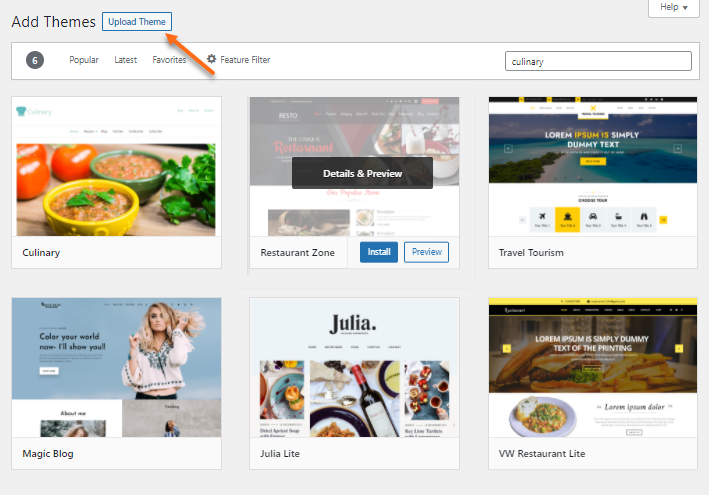
First, log into your WordPress dashboard. Click on “Appearance” and then “Themes.” Next, click the “Add New” button. You will see an “Upload Theme” button at the top. Click it. Choose the theme file from your computer. Make sure it is in a .zip format. After selecting, click “Install Now.” Wait for the installation to finish. Finally, click “Activate” to use your new theme.
Open your FTP client and connect to HostGator. Enter your username and password. Once connected, go to the “public_html” folder. Find the “wp-content” folder. Open it and then open the “themes” folder. Upload your theme folder here. After uploading, go back to your WordPress dashboard. Click on “Appearance” and then “Themes.” You will see your new theme listed. Click “Activate” to use it.
Activating Your New WordPress Theme
Activate your new WordPress theme on Hostgator with ease. Upload your theme via the WordPress dashboard. Select “Appearance,” then “Themes,” and click “Add New” to upload your chosen theme file. Once uploaded, hit “Activate” to set it live.
Navigating To The Appearance Section
Find the Appearance option in your WordPress dashboard. It’s on the left side. Click it to see more options. Themes will be at the top. This is where you manage your theme.
Activating The Theme
Choose the theme you want to use. Click on it to preview. If you like it, press the Activate button. Your site now has the new look. Check your site to see the changes. It’s that simple!
Customizing The Theme
Installing a WordPress theme on Hostgator involves accessing your control panel and finding the WordPress installer. After installation, choose and upload a theme via the dashboard to customize your site’s look.
Exploring Theme Customizer Options
The Theme Customizer helps you make changes to your site’s look. Find it under the “Appearance” menu in WordPress. With it, you can change colors, fonts, and layout. Try different options to see what looks best. You can always preview changes before saving them. This way, your site can have a unique style. It’s fun and easy to use.
Installing Essential Plugins
Plugins add extra features to your WordPress site. They are like apps for your phone. Some plugins help with security. Others help with speed. You can find plugins in the WordPress dashboard. Search for the ones you need. Click “Install” and then “Activate.” Make sure to update plugins regularly. This keeps your site safe and fast.
Troubleshooting Common Issues
Installing a WordPress theme on HostGator can sometimes be tricky. Ensure the theme is compatible and files are correctly uploaded. Check permissions and update plugins to avoid conflicts.
Resolving Theme Compatibility Problems
Sometimes, themes don’t work well together. This causes issues on your site. Check theme details before installing. Ensure compatibility with your WordPress version. Update both WordPress and your theme regularly. Outdated versions often cause problems. If issues persist, try a different theme. Consult forums for advice and solutions. Expert users often share tips.
Fixing Broken Layouts
Broken layouts are frustrating. Check your theme’s settings first. Adjust margins and padding. Make sure images fit correctly. Large images can break layouts. Use smaller images for better fit. Look at your plugins. Some plugins mess with layouts. Disable conflicting plugins to fix layout. Check your site’s CSS. Sometimes, simple CSS changes help. Seek help if needed. Experts can guide you.

Credit: www.youtube.com
Ensuring Theme Security
Always update your theme. Updates fix security holes. They keep your site safe. Check for updates often. Install them right away. This keeps hackers out. It also improves site speed. Old themes can be slow. New updates make them faster. They also add new features.
Security plugins are helpful. They add extra protection. Some plugins block bad logins. Others scan for malware. Choose a plugin with good reviews. Try it on your site. Set it up to scan often. This will catch problems early. Keep your plugin updated too. Updated plugins work best. They help your theme stay safe.
Frequently Asked Questions
How Do I Upload A WordPress Theme To Hostgator?
To upload a WordPress theme to Hostgator, first log into your WordPress dashboard. Navigate to “Appearance” and click on “Themes. ” Click on “Add New” and then “Upload Theme. ” Choose your theme file and click “Install Now. ” Finally, activate the theme to complete the process.
Can I Install WordPress Themes Manually On Hostgator?
Yes, you can manually install themes. Download the theme’s ZIP file. Access your Hostgator cPanel and open the File Manager. Navigate to “wp-content/themes” and upload the ZIP file. Extract the file, then go to your WordPress dashboard, navigate to “Appearance,” and activate the theme.
Are Free Themes Available For WordPress On Hostgator?
Yes, free themes are available for WordPress on Hostgator. In your WordPress dashboard, go to “Appearance” and “Themes. ” Click “Add New” to browse thousands of free themes. You can filter by features, popularity, or latest additions. Once you find a suitable theme, click “Install” and then “Activate.
“
How To Choose The Right WordPress Theme?
Choosing the right theme involves considering design, functionality, and responsiveness. Ensure the theme is compatible with your plugins and has good reviews. Check if it’s regularly updated and offers customer support. Test its demo version to see if it meets your requirements before installation.
Conclusion
Installing a WordPress theme on HostGator is simple and rewarding. Follow the steps carefully to avoid errors. Choose a theme that fits your site’s purpose. Download and install it through your WordPress dashboard. Customize the theme to suit your brand’s style.
This enhances your site’s appearance and user experience. Always test the changes to ensure everything works smoothly. With the right theme, your website will stand out and attract visitors. Now, enjoy building a beautiful and functional website on HostGator.


