
Are you ready to transform your WordPress site with a fresh new look? Installing a WordPress theme directly from your dashboard is a quick and straightforward process, and it can dramatically change how your site appears to your audience.
Whether you’re a beginner or a seasoned WordPress user, knowing how to navigate this process efficiently can save you time and improve your site’s aesthetics. Imagine captivating your visitors with a stunning design that reflects your brand’s identity. In this guide, you’ll discover the step-by-step approach to installing a WordPress theme from the dashboard, ensuring you can enhance your website without any hassle.
Stick around, and you’ll see how simple tweaks can lead to a powerful impact on your online presence.
Preparing Your Site
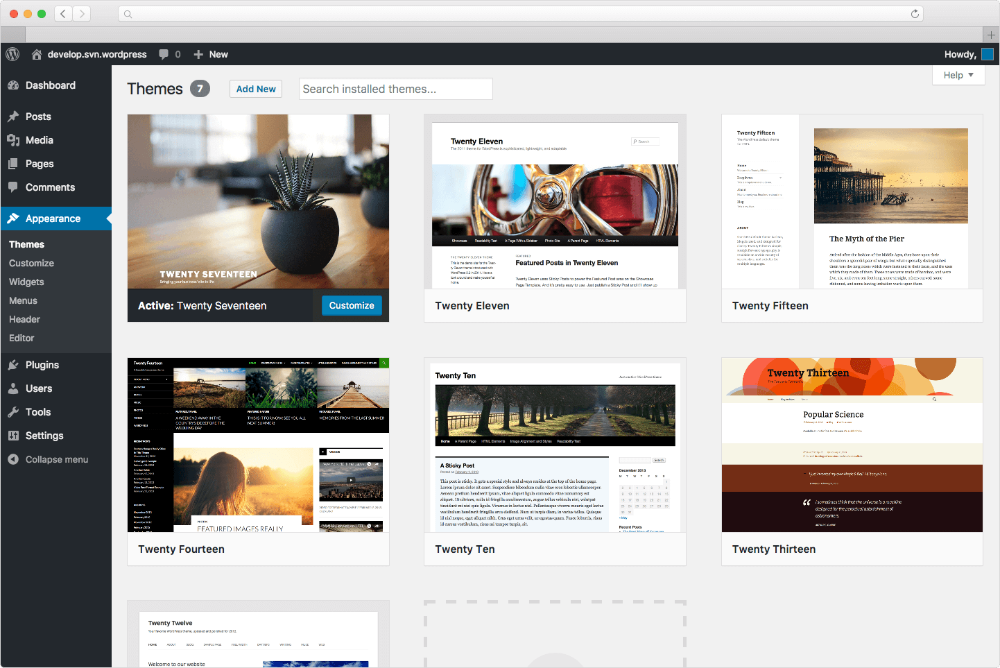
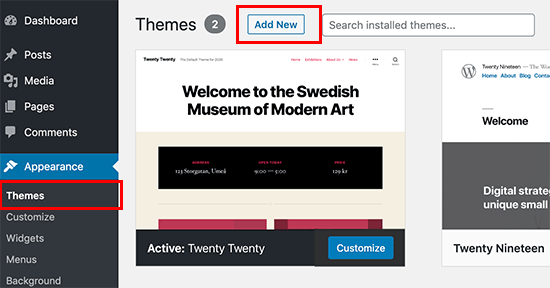
Installing a WordPress theme from the dashboard is simple. First, log in to your WordPress account. Navigate to ‘Appearance’ and select ‘Themes’. Click ‘Add New’ to browse themes or upload a zip file. Click ‘Activate’ to apply the chosen theme.
Your site is now ready with a fresh look.
Checking Theme Compatibility
Before installing a new theme, ensure it fits your site’s needs. Visit the theme’s page to see its features. Look for a demo or preview option. Check if it works with your current plugins. Check if it fits your WordPress version. Compatibility is key for smooth operations. A mismatched theme can cause errors. It can also affect your site’s look and feel. Choose a theme that complements your content. This way, visitors enjoy a seamless experience.
Backing Up Your Site
Always back up your site before changes. It’s a safety net. If something goes wrong, you won’t lose data. Use a reliable backup plugin. Some popular ones are UpdraftPlus or BackWPup. These tools save your content. They also save your settings. Store backups on cloud or external drives. This ensures you can restore your site easily. A backup protects your hard work. It gives peace of mind during updates.
Accessing The Dashboard
Logging into WordPress is simple. Open your web browser and enter your website’s URL. Add “/wp-admin” at the end. Type your username and password. Click the login button. You will see the WordPress dashboard. It has tools for managing your site.
Navigating to the Appearance Section is easy. Find the sidebar on the left. Look for the “Appearance” option. Click on it. You will see more options. Themes, Customize, and Editor are there. Choose “Themes” to install a new one. This is where you manage themes.
Installing A New Theme
Go to your WordPress dashboard. Find the Appearance menu. Click on Themes. You will see a button that says Add New. Click it to visit the theme directory. Here, you can find many themes. Use the search bar to find themes you like. Click Install to add a theme to your site. After installing, click Activate to use it. Your site will now have a new look.
First, download the theme file. It should be in a .zip format. Go back to the Themes page. Click on Add New. Next, click Upload Theme. Choose your .zip file. Click Install Now. Wait for the upload to finish. After that, click Activate. Your theme is now live.
Credit: docs.presscustomizr.com
Activating The Theme
Previewing the Theme is important. It helps you see how your site will look. Click the “Live Preview” button. This shows the theme in action. You can check colors and fonts. Make sure everything looks right. If you like the preview, you can activate it.
Activating Your Choice is simple. Go to the theme page. Click the “Activate” button. Your site will use the new theme. You can change it later if you want. Explore different themes to find the best one. Enjoy your new website look!
Customizing Your Theme
The Customizer is a tool inside WordPress. It helps change your theme. You can adjust colors and fonts. You can even add a logo. It is easy to use. Click on each option to explore. It shows changes in real-time. Save your changes when you like them. This makes your site unique.
Widgets are small boxes. They add features to your site. You can add them to the sidebar. Some examples are recent posts and search bars. Menus help users find pages. Create menus in the dashboard. Drag and drop items to arrange them. Save to see changes. Widgets and menus make your site better.

Credit: docs.themeisle.com
Troubleshooting Common Issues
Installing a WordPress theme from the dashboard can face some common hurdles. Connectivity issues might prevent theme downloads. Ensure your internet is stable. Compatibility problems arise when themes conflict with plugins. Deactivate plugins to check if the theme installs correctly.
Dealing With Errors
Errors can occur during theme installation. Common errors include broken themes or missing files. Double-check the theme file is complete. Ensure it’s in .zip format. Sometimes, the theme may be incompatible with WordPress version. Update WordPress to the latest version. This often fixes compatibility issues. If errors persist, contact theme support for help.
Restoring Default Themes
If a new theme causes problems, return to the default theme. Go to the WordPress dashboard. Click on Appearance, then Themes. Locate the default theme, usually named Twenty Twenty or similar. Click Activate to switch back. This restores your site to the original look. It helps identify if the new theme was the issue.
Credit: thimpress.com
Frequently Asked Questions
How Do I Upload A Theme To WordPress?
To upload a theme, go to your WordPress dashboard. Navigate to “Appearance” and select “Themes. ” Click “Add New,” then “Upload Theme. ” Choose your theme file, click “Install Now,” and activate it. This process is straightforward and quick, enhancing your site’s appearance instantly.
Can I Change My WordPress Theme Anytime?
Yes, you can change your WordPress theme anytime. Go to “Appearance” in your dashboard and select “Themes. ” Choose a new theme and activate it. Ensure to preview changes first to maintain your site’s functionality and design consistency.
What To Do If Theme Installation Fails?
If theme installation fails, check your internet connection. Ensure the theme file is not corrupted. Verify that your WordPress version is compatible with the theme. Alternatively, upload the theme via FTP or contact your hosting provider for assistance.
Are Free WordPress Themes Reliable?
Free WordPress themes can be reliable if sourced from reputable developers. Check user reviews and ratings before downloading. Ensure the theme is regularly updated and compatible with your WordPress version. Always back up your site before making any changes.
Conclusion
Installing a WordPress theme from the dashboard is straightforward. First, log into your WordPress admin area. Next, navigate to Appearance, then click on Themes. Select Add New to browse available themes. Choose a theme that fits your site’s needs. Click Install and then Activate.
Your new theme is now live. Remember to customize settings to match your vision. Explore various features to enhance functionality. Don’t rush; take time to explore options. With practice, your installation skills will improve. Enjoy your new website design and the endless possibilities it brings.
Happy blogging!


