
Are you ready to give your WordPress site a fresh, professional look but feeling overwhelmed by the process? You’re not alone.
Many WordPress users face the challenge of making their site visually appealing while ensuring it functions smoothly. Installing theme demo content can be a game-changer, providing a ready-made design that you can customize to fit your unique style and needs.
Imagine having a stunning website up and running in no time, without the stress of starting from scratch. In this guide, we’ll walk you through the simple steps to install theme demo content in WordPress, making your site look polished and professional in just a few clicks. Stick around to discover how easy it can be to transform your website into something truly spectacular.
Credit: xpeedstudio.com
Preparing Your WordPress Site
Always make a copy of your site before big changes. Use a trusted plugin or your hosting service. This copy helps if something goes wrong. Keep backups in a safe place. Like on your computer or in the cloud. This keeps your site safe and sound.
Check if your WordPress is the latest version. New versions fix bugs and add features. Go to your dashboard. Click on “Updates.” Update plugins and themes too. Updated tools keep your site running well. They help avoid problems. Make updating a regular task.
Credit: xpeedstudio.com
Choosing A Theme
Searching for a good theme is important. Many websites offer themes. Check what themes are popular. Popular themes often have good reviews. They also have features people like. Visit the theme’s official page.
Read what people say about it. Look at the ratings. High ratings mean many people like it. A good theme should be easy to use. It must also be responsive. This means it works well on phones and computers.
Every theme has different features. Make a list of features you need. Some themes have special features. These can be galleries, sliders, or shops. Choose a theme with the features you want.
Some themes let you change colors and fonts. This is called customization. A theme with good customization is flexible. It lets you make your site unique.
Installing The Theme
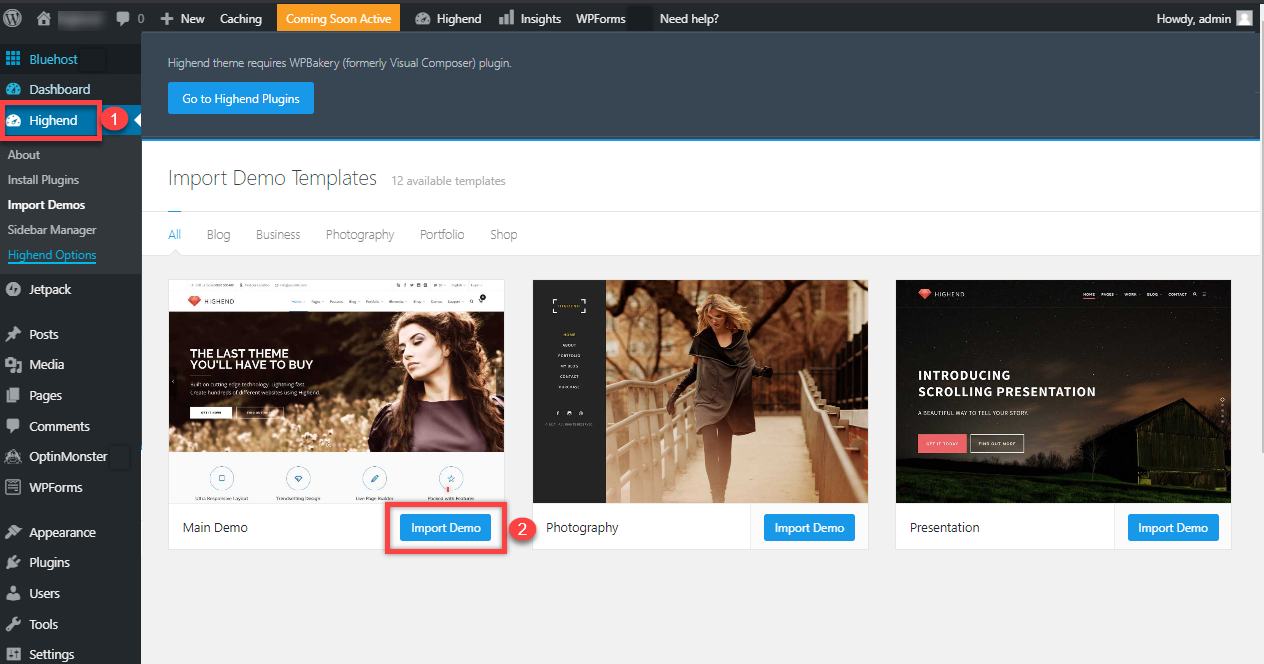
Easily install theme demo content in WordPress by navigating to your theme’s settings. Access the import section and select the demo content you wish to use. This process helps you quickly set up a site with pre-designed layouts and features.
Upload Theme Files
First, download the theme files from the website. Go to your WordPress dashboard. Click on “Appearance”, then “Themes”. Press the “Add New” button at the top. Click “Upload Theme” and choose the file. Make sure the file is in .zip format. Click “Install Now” to upload the theme.
Activate The Theme
After installing, a success message will show. You will see an “Activate” button. Click on it to make the theme live. Your site will change to the new theme. Check your site to see the new look. Ensure all parts of the theme show up correctly. If anything is missing, refresh the page.
Importing Demo Content
Demo content files help your theme look nice. Find these files in your theme folder. They might be called demo.xml or sample.xml. These files have important data. Like pages and posts. Check the theme folder carefully. The files should be easy to spot. Don’t delete or move them. You need them for later steps. Most themes provide clear instructions. Follow the guide for best results. This will ensure a smooth import process. Some themes might offer demo files on their website. Download them if needed.
WordPress has a handy tool. It helps import demo content. Go to the WordPress dashboard. Find the Tools section. Click on Import. You will see a list of options. Choose the WordPress importer. Install it if it’s missing. Use this tool to upload demo files. Follow on-screen instructions. It’s simple and quick. Wait for the process to finish. Check your site after importing. You should see new pages and posts. If errors appear, retry the steps. A successful import will transform your site.
Configuring Demo Content
Start by going to the Appearance section in WordPress. Click on Menus. Here, you can see a list of items. Choose the menu you want to edit. Add items by checking them and clicking Add to Menu. Arrange them by dragging and dropping. Save the changes to keep the order. Make sure the menu is set to the correct location. This helps users find things easily.
Go to the Appearance tab again. Click on Widgets. You will see different areas like the sidebar. Drag widgets from the left to these areas. Each widget has settings. Click to open and adjust them. Common widgets include Search and Recent Posts. Customize them to fit your theme. Remember to save any changes. Now, your widgets are ready to use!
Troubleshooting Common Issues
Installing theme demo content in WordPress can be tricky. Common issues include incomplete installations and missing images. Ensure all plugins are activated and check your internet connection to resolve these problems.
Missing Images
Sometimes, images do not appear after installing a theme. This can be frustrating. Check if the images are in the media library. If they are missing, upload them again. Make sure the image URLs are correct. Wrong URLs often cause this issue. Also, check your internet connection. Slow connections might delay image loading. Use the browser’s inspect tool to find broken links. Fix the URLs in the theme settings if needed. This often solves the problem.
Broken Links
Broken links can spoil your site’s look. They happen often with theme demos. Check all links after importing demo content. Use a link checker tool for help. This tool finds broken links quickly. Fix these links in the WordPress editor. Update the permalinks to refresh the links. Go to Settings, then Permalinks, and click Save. This simple step helps a lot.
Enhancing Demo Content
Adding custom content makes your website unique. Use the dashboard in WordPress to do this. First, go to the editor. Find the page or post you want. Click to open it. Add your text or images. Use the toolbar for formatting. Make text bold or italic. Insert links to important pages. Add images that fit well. You can also add videos. Save your changes. Check the preview before publishing. Make sure everything looks good. Custom content can improve user experience. It helps to engage visitors. Keep content simple and clear.
Optimize for SEO to get better results. Use keywords that describe your content. Place them in titles and headings. Write short and clear sentences. Check spelling and grammar. Use meta tags to describe your page. Add alt text for images. This helps search engines understand them. Ensure your site is mobile-friendly. Mobile users are increasing every day. A well-optimized site ranks higher. More people will find it.
Credit: www.bluehost.com
Frequently Asked Questions
What Is Theme Demo Content In WordPress?
Theme demo content refers to pre-designed layouts and elements that showcase a theme’s full potential. Installing demo content helps users visualize their site with real data. It includes posts, pages, images, and widgets. This provides a starting point for customization, making it easier to build a professional-looking website quickly.
How Do I Import Demo Content?
To import demo content, first, install and activate your chosen theme. Then, navigate to the theme’s settings or appearance options. Look for an “Import Demo Content” or similar button. Click it, and follow the on-screen instructions. Ensure your server meets the necessary requirements to handle the import process smoothly.
Does Importing Demo Content Affect Existing Data?
Yes, importing demo content can overwrite existing data. It may replace or add posts, pages, and media. Always back up your current website data before proceeding. This ensures you can restore everything if needed. Consider using a staging site to test the demo content import before applying it to your live site.
Can I Customize Imported Demo Content?
Yes, you can customize imported demo content. Once imported, demo content is fully editable like any other WordPress content. Modify text, images, and layout to suit your brand and style. Use WordPress’s built-in editor or page builders like Elementor to make changes.
This flexibility ensures your site remains unique and tailored.
Conclusion
Installing theme demo content in WordPress is straightforward. Follow the steps in this guide. Your website will look professional in no time. Remember to check compatibility with your theme. Use the import tool carefully for smooth installation. Customize the demo content to fit your brand.
Make sure your content is engaging and relevant. With practice, you’ll get better at customizing. Keep learning to improve your WordPress skills. A well-installed theme can enhance user experience. Enjoy creating a unique website that stands out. Your creativity shines through your design choices.


