
Are you tired of staring at your outdated WordPress theme, wishing it could look more modern and function better? Updating your theme is a simple yet powerful way to give your website a fresh look and improved features.
But how do you install a theme update without breaking anything? You might be worried about losing your custom settings or facing technical glitches. Don’t worry; you’re not alone in this. Many WordPress users face the same challenge, and with the right guidance, you can easily navigate through the process.
In this guide, we’ll walk you through the steps to safely install a theme update in WordPress, ensuring your site remains stunning and functional. Get ready to transform your website into a masterpiece!
Backup Your Website
Backing up the database is important. It holds all your data. Use a reliable plugin. Choose one like UpdraftPlus or BackWPup. Install the plugin. Follow simple steps. Save the backup file to a safe place. You might need this file later. It helps restore your site. Always make sure the backup is complete.
Backing up files is crucial too. These files include themes, plugins, and media. They make your site look and work well. Use a plugin for file backup. Upload files to a secure location. Never forget this step. It prevents loss during updates. You can use FTP clients like FileZilla. They are easy and quick. Files should be saved regularly.

Credit: www.namecheap.com
Check For Theme Update Compatibility
Reviewing theme documentation is crucial. It helps understand the update process. The documentation often contains instructions and precautions. Always ensure that the update supports your WordPress version. This will prevent any unexpected issues. Look for specific features that might change after the update. This will help you decide if you need the update.
Plugins may not always work with new theme updates. Check if your plugins are compatible. This will help avoid website errors. Sometimes, you may need to update plugins too. Always keep your plugins and themes up-to-date. This ensures your site runs smoothly.
Download The Theme Update
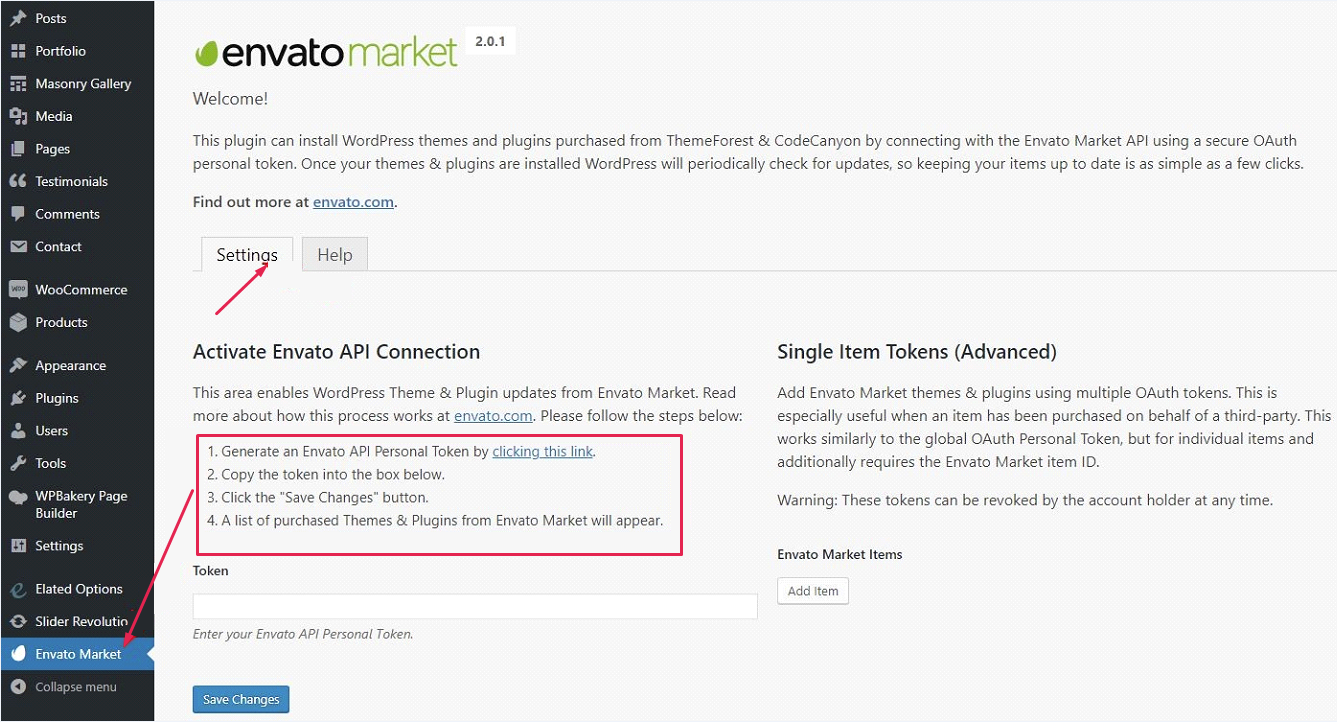
Visit the theme provider’s website for updates. Log into your account. Look for the latest version of your theme. Click to download the update file. Save it to your computer. Keep this file for installation. Always check for any release notes or instructions. These may help with the update process.
Access the WordPress dashboard. Go to the Themes section. Check for available updates. Click the update button. Wait for the update to complete. Ensure your site is backed up before updating. This protects your data. Verify the new version is working properly. Check your site’s appearance and functionality. Report any issues if they occur.
Credit: helpcenter.qodeinteractive.com
Install The Theme Update
First, log in to your WordPress Admin Panel. Click on Appearance, then Themes. You will see all your current themes here. If an update is available, a notice will show. Click on the Update Now button. Wait as WordPress updates your theme. Refresh your page to check the update. Always backup your site first. This keeps your data safe.
Download the latest theme file. Connect to your site using an FTP client. Navigate to the /wp-content/themes/ directory. Find your theme folder. Delete or rename the old theme folder. Upload the new theme folder. Ensure all files are transferred. Check your site to see the changes. This method takes more time. Be careful with file transfers.
Test The Updated Theme
Start by checking the appearance of your site. Look for missing images or broken links. Ensure the layout is correct. Does the font look right? Are colors consistent? Make sure all menus and buttons are working. If something looks off, note it down. You might need to fix it. This step helps catch easy problems.
Test all features on the site. Click every button and link. Do they work? Check forms like contact or login forms. Fill them out. Ensure they send data properly. Play any videos or animations. Do they run smoothly? Verify the search bar works. Find different pages. Each function must perform as expected. If a feature fails, it needs fixing. A thorough test ensures your site stays user-friendly.

Credit: www.elegantthemes.com
Troubleshoot Common Issues
Updating a WordPress theme can sometimes lead to issues. Ensure your website is backed up before starting. Common problems include broken layouts or missing features. Fix these by checking for plugin conflicts or re-uploading the theme files. Always clear browser cache after updates for best results.
Resolve Style Conflicts
Style conflicts can make your website look bad. They happen when themes and plugins clash. First, identify the conflicting plugin. Deactivate plugins one by one. Refresh the page after each deactivation. This helps find the troublesome plugin. Update or replace it if needed. Another way is to use custom CSS. Add it to fix small conflicts. Always back up your site before changes.
Fix Missing Features
Missing features can confuse users. Check if all plugins are updated. Sometimes, updates restore missing features. Review theme settings. Make sure all options are turned on. Check documentation for guidance. Some features may need extra plugins. Install them if necessary. Always ensure compatibility between themes and plugins. This prevents missing features. Regular checks keep your site functional.
Optimize And Backup Again
Site Performance Checks are important after a theme update. Make sure your site is fast and responsive. Use tools like Google PageSpeed Insights. Check loading times and optimize images. Slow sites can lose visitors. A fast site keeps users happy.
Create a New Backup before any major changes. Backups save your work. Use plugins like UpdraftPlus. Store backups safely. This keeps your data secure. In case of problems, backups help restore your site.
Frequently Asked Questions
How Do I Update A WordPress Theme Safely?
To update a WordPress theme safely, always backup your site first. Use a staging environment to test the update. Ensure compatibility with plugins and WordPress version. Update through the WordPress dashboard or FTP. After updating, check your site for any issues or broken features.
Can I Revert A Theme Update In WordPress?
Yes, you can revert a theme update in WordPress. First, ensure you have a backup of your previous theme version. You can restore it using a backup plugin. Alternatively, use FTP to replace the updated theme files with the older version.
Why Should I Update My WordPress Theme?
Updating your WordPress theme is essential for security, performance, and compatibility. Updates often fix vulnerabilities and bugs, enhancing site security. They also ensure compatibility with the latest WordPress version and plugins. Additionally, updates might include new features and improvements for better user experience.
What Happens If I Don’t Update My Theme?
Not updating your theme can lead to security vulnerabilities. Outdated themes may become incompatible with the latest WordPress version and plugins. This can cause functionality issues and broken features. Additionally, you might miss out on new features and performance improvements included in updates.
Conclusion
Updating your WordPress theme is crucial for site health. Follow the steps carefully. Always back up your website first. This prevents data loss. Use the WordPress dashboard for updates. It’s easy and safe. Double-check compatibility with plugins. This avoids site issues.
After updating, review your site. Look for any errors. Fix them promptly. Keeping themes updated ensures security. It enhances performance too. Regular updates improve user experience. Your website remains fresh and functional. Stay proactive with maintenance. Your visitors will thank you.
A well-maintained site attracts more traffic. Keep learning and improving your skills. Happy updating!


