
Imagine transforming your WordPress blog into a stunning visual masterpiece that captivates your audience from the very first glance. The theme you choose is more than just a design; it’s the soul of your blog, the element that conveys your unique style and message.
Installing a theme might sound technical, but it’s actually a straightforward process that you can master in minutes. Whether you’re looking to refresh your current design or starting from scratch, knowing how to install a theme on your WordPress blog is essential.
This guide will walk you through each step with clarity and simplicity, ensuring you have the confidence to personalize your site effortlessly. Ready to unlock the potential of your blog? Let’s dive in and make your WordPress site truly yours.
Credit: elements.envato.com
Prerequisites
To install a theme, you need a WordPress account. A WordPress account helps you manage your blog. Create an account on the WordPress website. Fill out the necessary details. Once done, you can log in anytime. Keep your login details safe.
The dashboard is where you control your blog. It’s like the command center. You can see everything here. Install themes, write posts, and more. To access it, log in to WordPress. Look for “Dashboard” in the menu. Click on it and start exploring. Make sure you understand the dashboard. It helps in setting up your blog easily.

Credit: www.interserver.net
Choosing A Theme
Free themes are easy to find. They cost nothing. But, they may have limited options. Premium themes offer more features and support. They usually look better. They can cost money. Picking the right theme is key. It can change how your blog looks. Think about what you need. A free theme is good for starters. A premium theme can offer more style. Choose based on your needs and budget.
A responsive design is important. It makes your blog look good on all devices. Phones, tablets, and computers. A theme should fit any screen size. This helps all users. No matter what device they use. It also helps your SEO. Search engines like responsive sites. This means more visitors. Always check if a theme is responsive. It’s a must-have feature today.
Check the features a theme offers. Look for things like customization options. Also, check if it’s SEO-friendly. Some themes have built-in widgets. Others offer shortcodes. Think about the speed. A fast theme keeps visitors happy. Does it support plugins? This can add more functions. Choose a theme that fits your needs. Look at reviews. They can help you decide.
Installing A Theme Via WordPress Directory
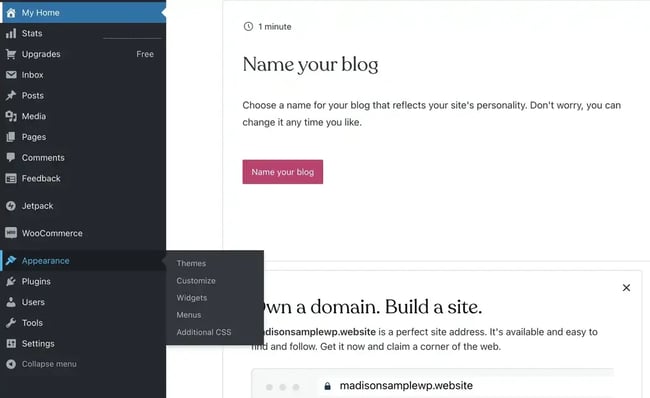
Start by logging into your WordPress dashboard. Find the menu on the left side. Click on Appearance. This opens a new page. It shows options for themes. You are now ready to explore.
Inside the Appearance page, find the Theme section. Click on Add New. This brings you to the theme directory. Use the search bar. Type keywords to find themes. You can sort themes by features or popularity.
Hover over a theme image. Click on Preview to see how it looks. If you like it, click on Install. Wait for the installation to finish. Once done, click on Activate. Your new theme is now live.
Uploading A Theme From Third-party Sources
First, find a theme you like. Click on the download button. Save the file on your computer. The file is usually a .zip format. Keep it in a place you remember.
Go to your WordPress dashboard. Look for the Appearance menu. Click on Themes. You will see an Add New button at the top. Click on it. Then, click on Upload Theme. Choose the .zip file you downloaded. Click on Install Now. Wait a few seconds.
After installation, a new page appears. It shows the theme details. Click on the Activate button. Your new theme is now live. Visit your site to see the changes.
Customizing Your Theme
Explore the process of installing a theme on your WordPress blog. Start by logging into your dashboard. Then, navigate to “Appearance” and select “Themes. ” Upload or choose a theme, click “Install,” and activate it to customize your blog’s look.
Using The WordPress Customizer
The WordPress Customizer is very useful. It helps to change your theme. You can adjust the site title and tagline. You can change colors and fonts too. Preview changes live before saving them. This is fun and easy. Make your blog look unique. This tool is powerful.
Adjusting Layout And Colors
Change the layout of your blog with ease. You can move menus and sidebars. Pick colors to match your style. Bright or dark themes are available. Choose wisely. Make sure it looks good. Your blog should be eye-catching. Use the color wheel for help.
Adding Custom Widgets
Widgets are tools for your blog. They add features like search bars. You can add social media links. Show recent posts or comments. This makes your blog interactive. Widgets are easy to add. Drag and drop them in place. Customize them to fit your needs.
Credit: blog.hubspot.com
Ensuring Theme Compatibility
Plugins are like tools for your website. They help with many tasks. Before adding a theme, check these plugins. Some themes don’t work well with certain plugins. Look for a list of plugins that are compatible. Ensure your theme supports them. This keeps your site smooth and fast. If a plugin causes issues, find alternatives.
People use different browsers. Some use Chrome. Others use Firefox or Safari. Test your theme on these browsers. This ensures it looks good everywhere. Use online tools for testing. Check if the theme displays all content. Fix any issues you find. A browser-friendly site gets more visitors.
Many people browse on phones. A theme must fit all screen sizes. Check your theme on a mobile. Ensure it looks neat and tidy. Text should be easy to read. Buttons must be clickable. If a theme fails, try another. A mobile-friendly site keeps users happy.
Backing Up Your Site
Backups keep your site safe. Mistakes can happen. Hackers might attack. Updates can break things. Without backups, you may lose your work. Backups protect your data. They allow you to restore your site. This gives peace of mind. You can fix errors quickly.
Backup plugins make the process easy. They save time. Most plugins offer automatic backups. This means you don’t have to remember. Some plugins store backups off-site. This adds extra security. Choose plugins with good reviews. Many plugins are free. A few plugins cost money. Paid plugins might offer more features. Always check plugin compatibility.
Troubleshooting Common Issues
Installing a theme on your WordPress blog can sometimes be tricky. Errors often occur due to incompatible plugins or incorrect file formats. Ensure your theme matches your WordPress version and deactivate conflicting plugins for a smooth setup.
Theme Not Displaying Correctly
Check if the theme is compatible with your WordPress version. Sometimes themes need updates. Clear your browser cache to see changes. Disable plugins one by one. This helps find the conflict. Check theme settings for any incorrect configuration. Reinstall the theme if needed.
Fixing Broken Layouts
Update your theme to the latest version. Sometimes updates fix layout issues. Check for missing files in the theme folder. Missing files cause layout problems. Use the browser inspector tool to find CSS errors. Adjust settings in the theme customizer for better layout.
Resolving Plugin Conflicts
Deactivate all plugins and then reactivate them one by one. This helps find which plugin is causing trouble. Check for plugin updates. Updated plugins might fix conflicts. Contact plugin developers if conflicts remain. Sometimes developers have solutions.
Frequently Asked Questions
How Do I Choose A WordPress Theme?
Choosing a WordPress theme involves considering your blog’s purpose and audience. Look for a responsive design, SEO-friendly features, and customization options. Check user reviews and ratings to ensure reliability. Ensure the theme is regularly updated to maintain compatibility with WordPress updates.
Can I Change My WordPress Theme Later?
Yes, you can change your WordPress theme anytime. However, changing themes may affect your site’s appearance and functionality. Always backup your site before switching themes. Check theme compatibility with existing plugins and customize settings to maintain a consistent user experience.
Is It Free To Install A WordPress Theme?
Many WordPress themes are free, but premium themes offer advanced features. Free themes provide basic designs and functionality. Premium themes offer more customization and support. Choose based on your budget and requirements. Consider investing in a premium theme for a professional look.
How Do I Upload A Theme To WordPress?
To upload a theme, go to your WordPress dashboard. Navigate to ‘Appearance’ > ‘Themes’ > ‘Add New’ > ‘Upload Theme’. Choose the theme file from your computer and click ‘Install Now’. After installation, click ‘Activate’ to apply the theme to your site.
Conclusion
Installing a theme on your WordPress blog is simple. First, choose a theme that suits your style. Next, go to your WordPress dashboard. Click on “Appearance,” then “Themes. ” Upload your chosen theme and activate it. Explore different customization options.
Adjust colors, fonts, and layout to match your vision. Themes can change your blog’s look instantly. Don’t hesitate to experiment with various themes. Find the perfect fit for your content. Always ensure your theme is responsive. A well-designed theme enhances user experience.
Happy blogging with your new theme!


