
Imagine transforming your WordPress site with a fresh, captivating theme that not only enhances your site’s aesthetics but also boosts its functionality. You’ve got your hands on the latest version of your favorite theme, but now you might be wondering how to install it seamlessly without disrupting your existing content.
You’re not alone—many WordPress users face similar challenges when updating themes. In this guide, you’ll discover how to install the new theme version on WordPress in a few straightforward steps. Whether you’re a seasoned website owner or a beginner exploring the world of WordPress, these tips will ensure a smooth transition.
You’ll learn how to keep your site looking modern and professional, maintaining the appeal that keeps your visitors coming back for more. Stick around, because mastering these steps can be the game-changer your website needs.
Preparing For The Update
Updating your WordPress theme involves a few easy steps. Start by backing up your site to prevent data loss. Next, navigate to the “Themes” section in your dashboard, choose “Add New,” and upload the latest theme version. Finally, activate the new theme and check your site for any display issues.
Backup Your Website
Backing up is very important. It keeps your site safe. Save all files and data. Use a plugin or manual method. Store the backup in a safe place. This prevents data loss. Always backup before updating.
Check Theme Compatibility
Ensure the new theme works with your plugins. Compatibility avoids errors. Check the theme’s description. Look for any compatibility issues. Read user reviews for insights. This helps in smooth updates. Avoid themes with known issues.
Review New Version Features
Look at the new features. Check if they fit your needs. New features can improve site look. See if the features are useful. Some features may be complex. Choose themes with simple updates. This helps in easy management.
Credit: www.elegantthemes.com
Downloading The New Theme Version
Find the official website for your WordPress theme. Look for the theme’s latest version. It should be in the download section. You might need an account to access it. Always check for the correct file type. Usually, it’s a ZIP file.
Use a secure internet connection to download. This keeps your computer safe. Avoid public Wi-Fi for downloading. Check for any malware warnings. Your antivirus software should scan the file. Save the file to a location you can find easily. You might need it later.
Installing The New Theme Version
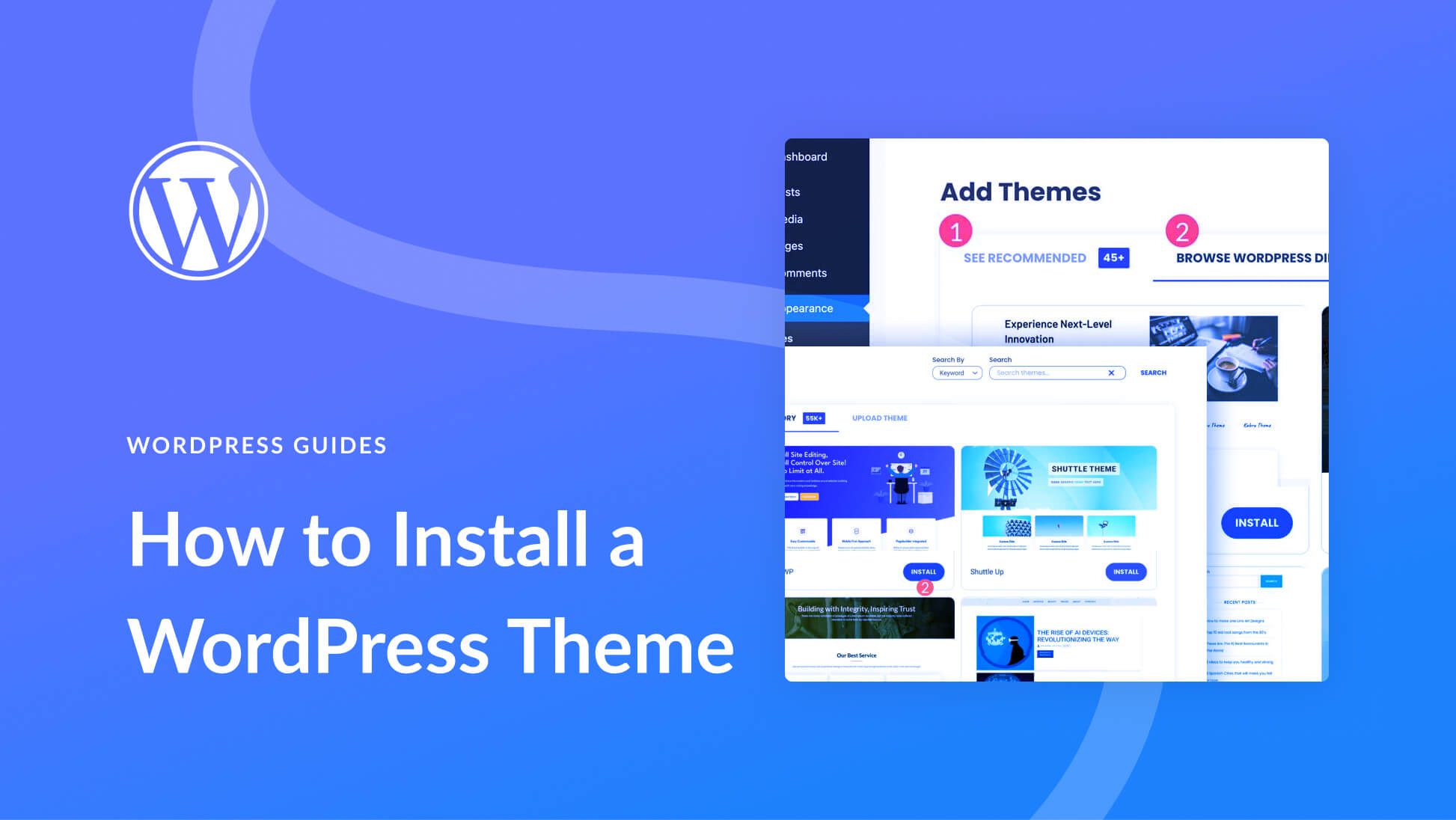
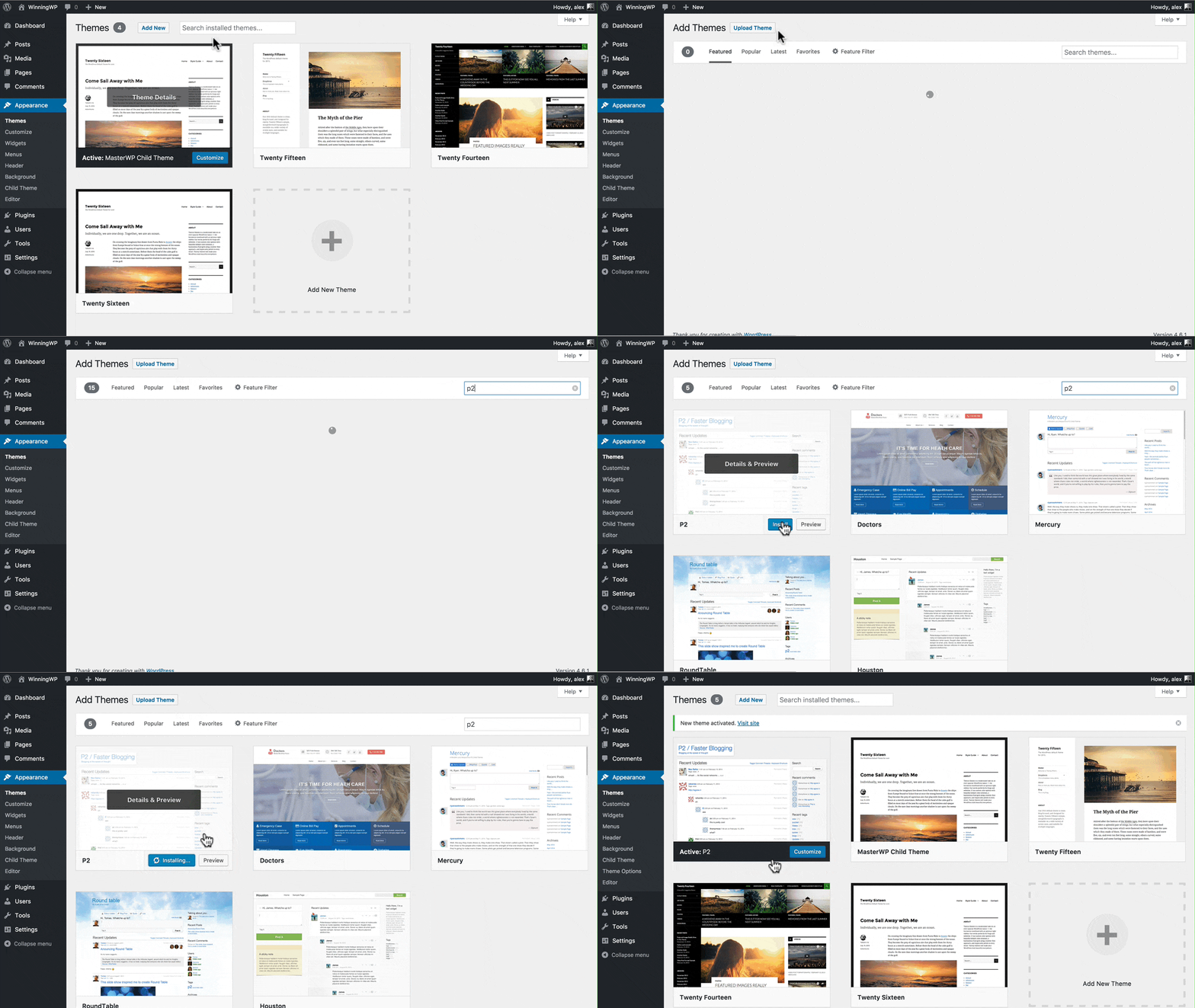
First, log into your WordPress dashboard. Find the Appearance section in the menu. Click on Themes. You will see a list of your current themes. Look for the Add New button at the top. Click it to open a new page. Search for the theme you want. After finding it, click Install. Wait for it to install. Then, click Activate. Your new theme is now active.
Use an FTP client to upload your theme. Connect to your website server. Find the wp-content folder. Inside, locate the themes folder. Upload your theme files here. Once uploaded, go back to the WordPress dashboard. Check if the theme is listed under Appearance. Click Activate to use the new theme. Make sure everything looks good.

Credit: wpmarmite.com
Customizing The Updated Theme
Restoring your custom settings is simple. Open the WordPress dashboard. Go to Appearance and click Themes. Choose your new theme. Then, find the Customize option. Here, you can see your old settings. Click on Restore to bring back these settings. Always save your changes.
Check the new theme options carefully. Some might be different. Explore the customizer tool. This helps you change colors and fonts. Adjust the layout if needed. Find the Widgets section too. You may need to move them. Do not forget to preview changes. This helps you see how the site looks. Make sure you like it before saving.
Testing The Updated Theme
Errors can break your website. Carefully check each page. Look for missing images. Check links to make sure they work. Inspect your forms. Verify they send data correctly. Open your site on different devices. Test on phones and tablets. Ensure it looks good everywhere.
Functionality is key to user experience. Test all buttons. Make sure they do what they should. Check menus for proper navigation. Ensure they open and close smoothly. Review contact forms. Verify submissions are received. Test your shopping cart, if you have one. Confirm orders process correctly.
Finalizing The Update
Updating your WordPress theme is easy. Start by downloading the new version from the theme provider. Then, go to your WordPress dashboard, click on “Appearance,” and select “Themes. ” Upload the new file and activate it to finalize the update.
Clear Cache
Clearing the cache is important. It ensures that changes appear. Go to your WordPress dashboard. Find the cache plugin. Click “Clear Cache”. This action removes old files. Fresh files load to your site. Check your site after clearing. Everything should look new and updated.
Monitor Performance
Monitoring performance helps maintain site speed. Use tools like Google PageSpeed. Check how fast your site loads. Look for any slow pages. Fix them if needed. Keep an eye on visitors. Ensure they have a smooth experience. This will keep them coming back.
Credit: winningwp.com
Frequently Asked Questions
How Do I Update My WordPress Theme?
To update your WordPress theme, log in to your dashboard. Navigate to Appearance > Themes. Locate the theme you want to update. If a new version is available, click the “Update” button. Always backup your site before updating to prevent data loss.
Can I Install A Theme Manually?
Yes, you can install a theme manually. Download the theme’s ZIP file from a trusted source. Go to Appearance > Themes in WordPress. Click “Add New” and “Upload Theme. ” Choose the ZIP file and click “Install Now. ” Activate the theme once it’s installed.
What Precautions Should I Take Before Updating?
Before updating, backup your WordPress site and database. Ensure compatibility with plugins and your current setup. Check for customizations that might be overwritten. Review changelogs for major changes. Consider testing updates on a staging site first.
How Can I Troubleshoot Theme Update Issues?
If you face issues, clear your browser and site cache. Check for plugin conflicts by deactivating them. Ensure your WordPress and PHP versions are compatible. Review error logs for specific issues. Contact theme support if problems persist.
Conclusion
Installing a new WordPress theme version is simple. Follow the steps outlined above. Always back up your site before changes. This protects your data. Use the WordPress dashboard for easy updates. Choose a theme that suits your needs. Regular updates ensure better performance.
They also enhance security. Check compatibility with plugins. This prevents any conflicts. Experiment with different themes for the best fit. Enjoy the fresh look and improved features. Happy blogging!


