
Are you ready to give your WordPress site a fresh look? Installing a theme template using FTP might sound like a techy challenge, but it’s actually a straightforward process that gives you complete control over your website’s design.
Imagine having a beautifully tailored site that stands out and captivates your audience. In this guide, you’ll discover how to seamlessly install a theme template via FTP, empowering you to personalize your online presence with ease. Whether you’re a beginner or seasoned site owner, understanding this method can open up new possibilities for your site’s aesthetics.
Dive in and uncover how you can transform your WordPress site into a true reflection of your brand.
Credit: www.templatemonster.com
Preparation For Theme Installation
Choosing the Right Theme is very important. A theme should match your website’s style. It should also have the features you need. Check if the theme is updated often. A well-updated theme is better for security.
Downloading Theme Files is the next step. Visit the theme’s website. Look for the download button. Click and save the file to your computer. The file is usually in a zip format. Don’t unzip it yet.
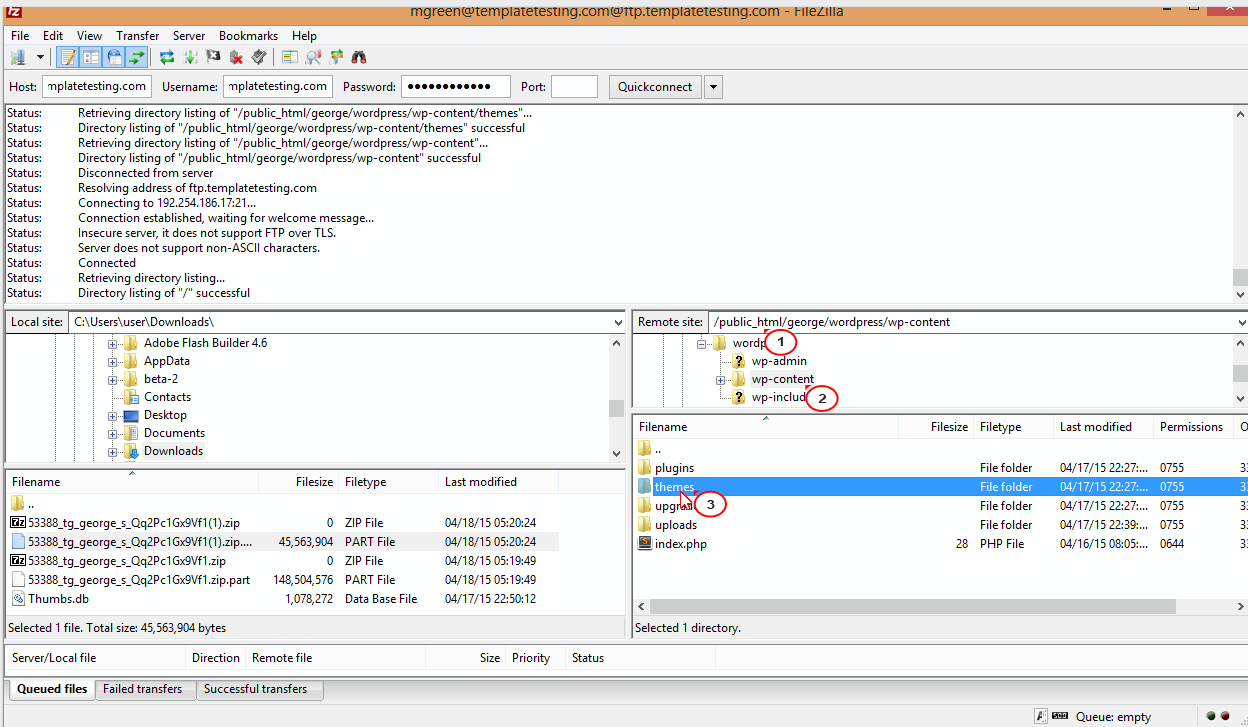
Setting Up FTP Client is easy. Download an FTP client like FileZilla. Install it on your computer. Open FileZilla and enter your website’s FTP details. Connect to your server. Now you are ready to upload the theme.
Credit: wpmarmite.com
Accessing Your WordPress Directory
First, find your WordPress directory. It holds all your site files. You will need this to add a theme. Use an FTP client like FileZilla to help. Open the FTP client and enter your server info. This info comes from your hosting provider. Once connected, look for folders on the right side. The public_html folder is important. Inside, you will find wp-content. This is where WordPress keeps themes and plugins. Find the themes folder inside wp-content. This is where your new theme will go.
Connecting To Ftp Server
Start by launching your FTP client. Enter your FTP credentials carefully. Username and password must be correct. Click connect to access the server. You will see a list of files and folders. Navigate to your WordPress directory. Ensure you are in the right spot. Check for the wp-content folder. This is your target area. Now you are ready to transfer the theme.
Uploading Theme Via Ftp
To install a theme, use FTP to upload files. First, open your FTP client. Popular choices are FileZilla or Cyberduck. Connect to your website using login details. This lets you access the server files.
Navigating To Themes Folder
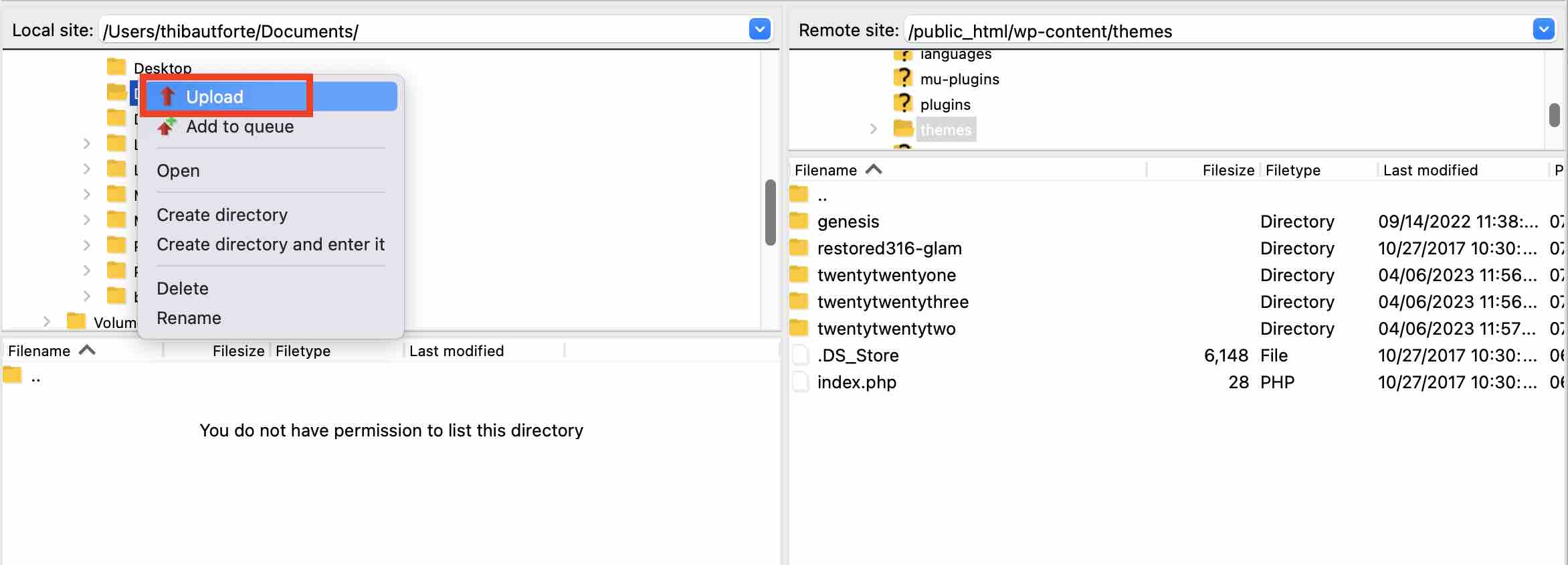
Find the wp-content folder on your server. Click to open it. Inside, locate the themes folder. This is where all themes are stored. You will place your new theme here. Double-click to open the themes folder.
Transferring Theme Files
Select theme files on your computer. Drag them into the themes folder. Wait for the transfer to complete. Make sure all files are uploaded. Check for any errors. After this, your theme is ready to use.
Activating The New Theme
First, go to your WordPress website URL. Add /wp-admin at the end of the URL. Press enter. This takes you to the login page. Enter your username and password. Click on the Log In button. Now you are in the WordPress dashboard.
From the dashboard, find Appearance on the sidebar. Click on it. Then, click on Themes. You will see all your themes here. Find the theme you uploaded via FTP. Hover over the theme and click Activate. Your new theme is now live. You can now customize it as you wish.
Troubleshooting Common Issues
Installing a theme template in WordPress via FTP can be tricky. Ensure your FTP client is set up correctly. Transfer the theme files to the wp-content/themes directory. If errors occur, double-check file permissions and paths.
Addressing Upload Errors
Upload errors can be frustrating. Sometimes, files are too big. Check the file size first. Ensure it doesn’t exceed the limit. If it does, reduce the size. Another common error is wrong file format. Ensure the theme is in a zip format. Double-check the file type before uploading. Also, internet connectivity can affect uploads. Ensure your connection is stable. A slow connection may interrupt the process. Restart the upload if needed. Follow each step carefully. This helps avoid mistakes.
Resolving Theme Compatibility
Compatibility issues can arise with themes. Always check the WordPress version. Ensure your theme supports it. Older themes may not work with new versions. Update the theme if needed. Also, look at other plugins. They can interfere with themes. Disable plugins one by one. This helps find the conflicting one. Some themes need extra settings. Follow the instructions provided. They guide you on setup. Keep everything updated. Updates fix many compatibility issues.
Enhancing Theme With Customization
Using WordPress Customizer is simple and fun. You can change colors and fonts. It’s like giving your website a fresh coat of paint. Start by going to the Appearance tab. Click on Customize. You will see many options. Choose one and start playing. Watch your site change. Make it yours.
Adding Widgets and Plugins can make your site cooler. Widgets add tools like clocks and calendars. Plugins add new features. Go to the Plugins menu. Click Add New. Search for cool plugins. Click Install and then Activate. Your website will have new powers. It’s like giving your site superpowers!

Credit: www.interserver.net
Frequently Asked Questions
How Do I Upload A Theme Via Ftp?
To upload a theme via FTP, first connect to your server using an FTP client. Navigate to the ‘wp-content/themes’ directory. Drag and drop your theme folder into this directory. Once uploaded, activate the theme through your WordPress admin panel under ‘Appearance’.
Why Use Ftp For WordPress Themes?
Using FTP allows you to manually install themes without relying on WordPress’s built-in uploader. It’s useful for larger themes that might exceed upload limits. FTP also helps troubleshoot issues by providing direct access to theme files, offering more control over your WordPress installation.
What Is The Best Ftp Client For WordPress?
Popular FTP clients for WordPress include FileZilla, Cyberduck, and WinSCP. FileZilla is widely used for its user-friendly interface and cross-platform compatibility. Cyberduck offers seamless integration with cloud services. Choose one based on your operating system and personal preference for ease of use.
Can I Revert Theme Changes Made Via Ftp?
Yes, you can revert changes by restoring original theme files. Backup your theme before editing via FTP. If needed, replace modified files with backup copies. Alternatively, deactivate the theme and reinstall it from the WordPress admin panel to reset it to the original state.
Conclusion
Installing a theme template via FTP might seem tricky. But with practice, it becomes simple. Follow each step carefully. Always back up your site before changes. This prevents data loss. Use FTP clients like FileZilla for easy file transfers. Check your theme compatibility.
Not all themes work with every WordPress version. Ensure you download themes from trusted sources. This avoids security risks. Troubleshoot common errors by consulting forums or support. Lastly, explore your new theme features. Customize to match your brand. Happy blogging!



