
Are you eager to give your WordPress website a professional look without having to start from scratch? Installing demo content is the perfect way to achieve a polished, ready-to-use site in no time.
Imagine having all the features and design elements of a premium theme laid out beautifully, waiting for your personal touch. In this guide, you’ll discover the step-by-step process to seamlessly install demo content on your WordPress theme, transforming your site into a stunning masterpiece.
Whether you’re a seasoned developer or a beginner, this method will save you hours of setup time and help you unlock your website’s true potential. Dive in and see how easy it is to make your online presence shine.
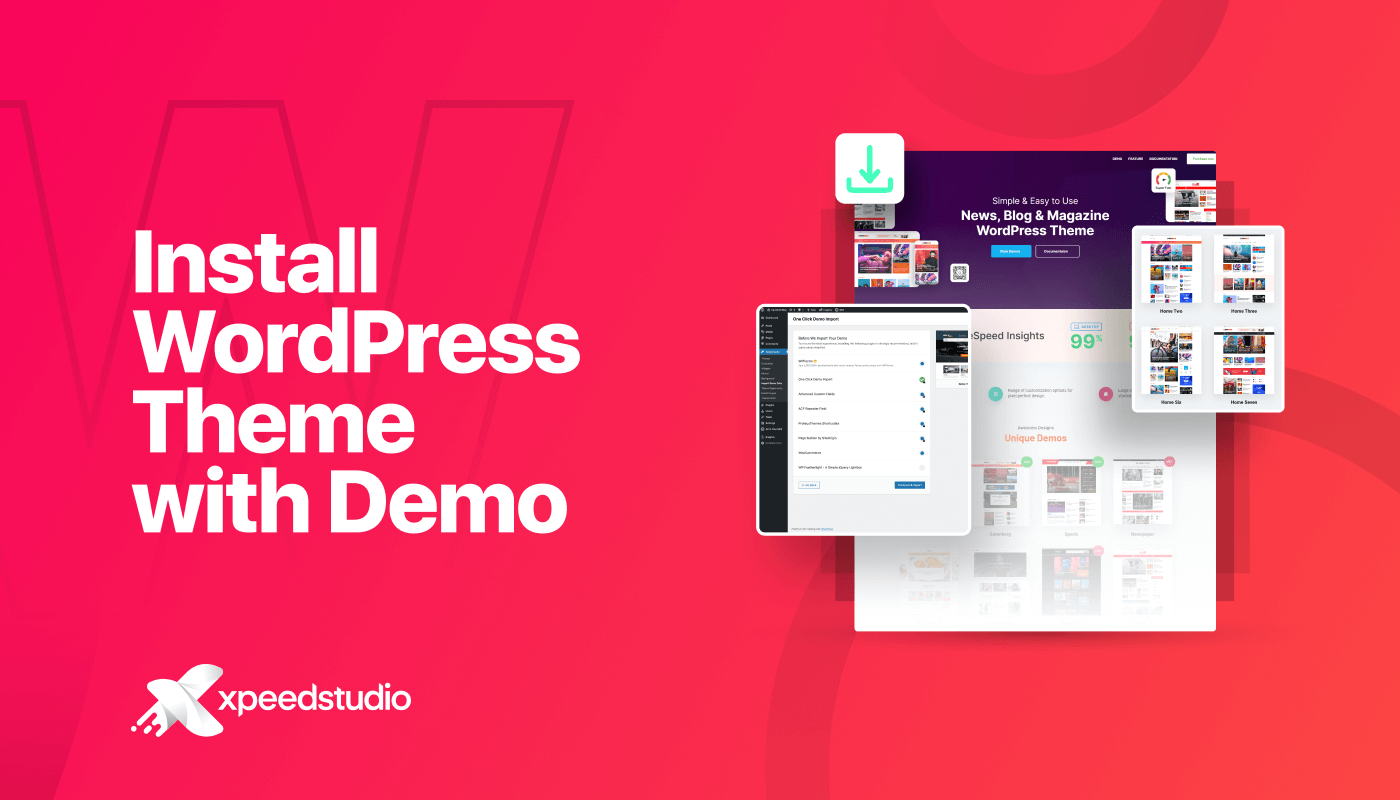
Credit: xpeedstudio.com
Choosing The Right WordPress Theme
First, think about what your website should do. Is it a blog or a shop? Knowing this helps you pick a theme. Themes can make your site look fun or serious. Some themes are simple. Others have many features. Decide what is best for you.
Check the WordPress theme directory. There are many choices. Some are free. Others cost money. Look at the pictures and descriptions. See which one you like. You can also read reviews. This helps you know if others like it too.
Make sure the theme works on your device. Open it on a phone and a computer. It should look good on both. Some themes don’t work with old WordPress versions. Update your WordPress if needed. Always check this before installing.
Installing WordPress Theme
First, open your web browser. Type the URL of your website. Add /wp-admin at the end. Press Enter on the keyboard. The login page will appear. Enter your username and password. Click the Login button. You will reach the dashboard. This is the control center. You can manage your website here.
On the dashboard, find Appearance in the menu. Click on it. Then, click on Themes. Find the Add New button at the top. Click it. Choose the Upload Theme option. Select the theme file from your computer. Click the Install Now button. Wait a few moments. The theme will be uploaded.
After installation, look for the Activate button. Click on it. The new theme becomes active. Your website now uses this theme. Check your site. See how it looks. You might need to adjust settings. Explore the options. Make it look great.
Importing Demo Content
Easily install demo content in a WordPress theme by navigating to the theme options and selecting “Import Demo Content. ” This process sets up a fully functional site with pre-configured pages, posts, and widgets, giving your website a professional appearance instantly.
It’s a quick way to launch your site.
Locating Demo Content Files
First, check the theme’s documentation. It often has a demo content folder. Look for files with a .xml extension. These files contain the demo content. Save them to your computer. Some themes provide a demo data URL. You can download it directly from there.
Using The Built-in Importer Tool
Log into your WordPress dashboard. Go to the Tools section. Click on Import. Choose the WordPress option. Install the importer plugin if needed. Upload the .xml file you saved earlier. Click import. Your demo content should appear on your site.
Troubleshooting Common Issues
Sometimes, demo content doesn’t load properly. Check your hosting server settings. Make sure they meet the theme’s requirements. Increase memory limits if needed. Re-import if content is missing. Contact theme support for help if issues persist.

Credit: harutheme.com
Customizing Demo Content
Edit pages and posts with ease. Access your WordPress dashboard. Navigate to Pages or Posts. Click the page or post you want. Use the block editor to make changes. Add text, images, or videos. Ensure content matches your style. Save changes by clicking Update. View your site to see changes live.
Open the Customizer in your WordPress dashboard. Locate the Theme Options. Adjust settings like colors, fonts, and layout. Each setting changes your site’s look. Preview changes instantly. Click Publish to save. Make sure the design suits your brand.
Personalize your site with widgets and menus. Go to Appearance in your dashboard. Select Widgets for sidebars or footers. Drag and drop widgets to desired areas. For menus, choose Menus. Add pages or links to your menu. Arrange them in any order. Save to display on your site.
Optimizing For Performance
Fast websites make users happy. Optimizing speed reduces bounce rates. Use lightweight images for faster loading. Minimize HTTP requests for better performance. Small changes matter. Faster sites rank better.
Mobile users are everywhere. Responsive design is key. Adjust layouts for small screens. Test on multiple devices. Ensure buttons and links are easy to tap. Mobile-friendly sites get more visitors. Don’t ignore mobile users.
Caching plugins boost site speed. They store data for faster access. Use plugins like WP Super Cache or W3 Total Cache. They reduce server load. Make sure to update them regularly. Caching improves user experience.
Maintaining Your WordPress Site
Keeping your site up-to-date is crucial. Updates fix bugs and improve security. Always use the latest version of WordPress. Plugins need updates too. Without them, your site may break. Backing up is essential. Backups save your data. Use backup plugins to automate this. Never skip this step.
Site speed affects user experience. Slow sites lose visitors. Check your site speed often. Tools like Google PageSpeed can help. Analyze the results. Make necessary changes. Optimize images to improve speed. Faster sites rank better. Monitor uptime too. Downtime hurts traffic.
Security keeps hackers away. Use strong passwords. Change them regularly. Install security plugins for added protection. Keep themes and plugins updated. Old versions have vulnerabilities. Regularly scan for malware. Set up a firewall. It blocks malicious traffic. Always secure your site.

Credit: wordpress.org
Frequently Asked Questions
How Do I Install Demo Content In WordPress?
To install demo content in WordPress, first activate your theme. Then, navigate to the theme’s settings panel and look for the “Import Demo Content” option. Click it and follow the instructions. This process may vary slightly depending on the theme you are using.
Can I Delete Demo Content After Installation?
Yes, you can delete demo content after installation. Navigate to the WordPress dashboard, select Posts, Pages, or Media to remove unwanted items. Ensure you delete only demo content, so you don’t remove anything crucial for your website’s functionality or design.
Is Importing Demo Content Safe?
Importing demo content is generally safe if done correctly. Ensure you use reputable themes from trusted developers. Always back up your website before importing demo content to avoid any potential data loss or issues during the process.
Do All WordPress Themes Have Demo Content?
Not all WordPress themes offer demo content. Premium themes typically include demo content to showcase features and design options. Free themes might not offer this feature. Always check the theme documentation or developer’s site for demo content availability.
Conclusion
Installing demo content on a WordPress theme simplifies setup. It helps you see the theme’s potential instantly. You can follow the steps for a smooth installation. Practice patience as you adjust settings. Remember, each theme might have unique requirements. Backup your data before starting.
This prevents loss of important information. Experiment with different demo content styles. It enhances your understanding of the theme’s features. Enjoy creating a visually appealing website. Let your creativity shine through customization. Your website will soon reflect your vision. Happy designing!


