
Ever stumbled upon a stunning WordPress website and wondered what theme it’s using? You’re not alone.
Discovering the theme behind a beautifully crafted website can be the first step toward creating your own captivating online presence. But how do you crack the code and identify the theme in use? We’ll unveil simple, effective techniques to help you uncover the WordPress theme behind any website.
Imagine the satisfaction of being able to pinpoint the design framework that caught your eye, and the power it gives you to replicate its allure in your own project. This knowledge isn’t just for tech gurus; it’s accessible to anyone with a curiosity and a desire to learn. Get ready to dive into practical methods that will empower you to identify and leverage WordPress themes, turning your vision into reality. The insights you gain could be the key to transforming your website into a masterpiece that captivates visitors and keeps them coming back for more. Let’s unlock the secrets together.
Credit: winningwp.com
Theme Directory Inspection
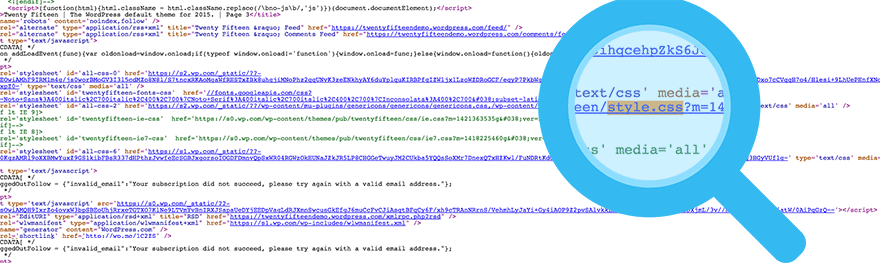
Open the website in your browser. Right-click on any part of the page. Select “View Page Source” or “Inspect”. This opens the website’s HTML code. Look for lines with style.css. This file often contains the theme’s name.
In the source code, press Ctrl + F (or Command + F on Mac). Search for “Theme Name”. The name usually appears in the style.css file. This file has other theme details too. Note the Theme Author and Version if needed.
Online Tools For Detection
Several tools can help you find a WordPress theme. WPThemeDetector is one of the top choices. It shows the theme name and plugins used. BuiltWith offers detailed tech information. It lists frameworks and tools used. What WordPress Theme Is That? is another great tool. It helps you identify themes quickly. IsItWP checks for theme and plugin details. Each tool is free and easy to use.
Chrome extensions offer another way to detect themes. WordPress Theme Detector is a popular choice. It scans websites for theme details. Wappalyzer identifies software on websites. It provides theme and plugin info. These extensions are simple to install. Open Chrome and go to the extensions store. Search and add them to your browser. They make theme detection fast and easy.
Browser Developer Tools
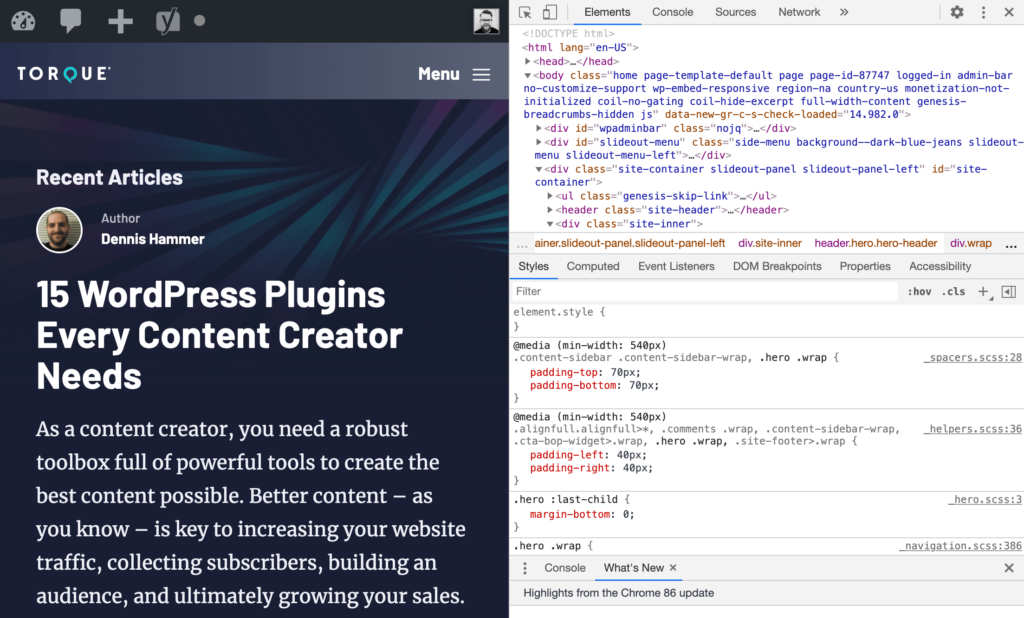
Open the website in your browser. Right-click and choose “Inspect” to open the Developer Tools. Click on the “Sources” tab. Locate the folder that contains CSS files. These files may have the name of the theme. Look for files like style.css and open them.
The top of the file might have the theme’s name and details. This information can help you identify the theme used.
After finding the CSS file, look for the theme name. Sometimes it is in a comment at the top. The details might include the theme’s name, author, and version. This can tell you more about the theme. Use these details to search online for more information. It’s an easy way to learn about the theme.
Checking WordPress Footer
The footer can reveal theme details. Many sites display their theme here. Look for phrases like “Powered by” or “Theme by“. These phrases are common in footers. They often link to the theme’s page. This provides a direct clue about the theme.
Footers may contain theme info. Check the bottom of the page. Sometimes, theme names are shown there. Links can lead to the theme’s website. This is a helpful hint. Other clues include theme version and author name. These details help in identifying the theme.
Exploring Theme Style Sheet
The style.css file contains the theme’s design rules. It is key to understanding the theme’s look. Start by opening the website in a browser. Right-click on the page. Select “View Page Source”. Look for the style.css link. It is often in the header section. Click to see the file.
At the top of the style.css file, find theme details. These include the theme’s name, author, and version. This metadata helps identify the theme used. It is usually in a comment block. Look for lines starting with /. These lines give crucial theme information.
Credit: www.greengeeks.com
Theme Detection Plugins
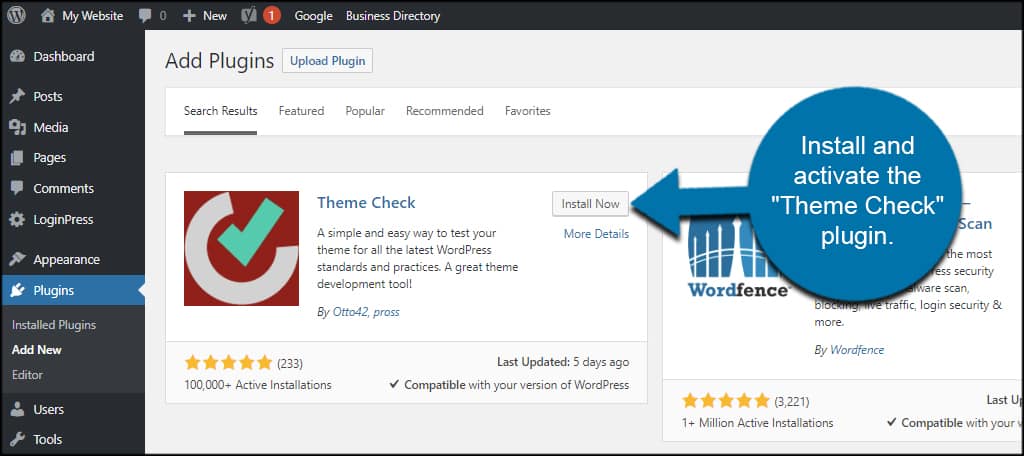
Several plugins help find a theme on WordPress. These plugins are easy to use. They are quick and give accurate results. WP Theme Detector is one of these plugins. It tells you the theme and other details. What WordPress Theme Is That is another useful plugin. It shows both themes and plugins. Both are free to use.
Install plugins from the WordPress Plugin Directory. Search the plugin’s name. Click install, then activate. Once done, enter the website URL. The plugin will show the theme name. It’s simple and takes just a minute. You get the theme details fast.
Seeking Developer Assistance
Discovering a WordPress theme involves using tools or checking page source code. Online services can identify themes quickly. Developers can also analyze theme files directly.
Hiring A Developer
Finding a developer to help is smart. Developers know how to find themes quickly. They have tools and skills. Many developers can locate the theme in minutes. Some developers have special software. This software makes finding themes easy. Hiring a developer saves time. It also reduces stress. Developers are trained. They know what to do. They help make websites better.
Consulting Professional Services
Professional services offer expert help. They can find your website theme. They work with many websites. They have experience. They use advanced tools. They provide detailed reports. Reports show theme information. They give clear answers. Consulting services make things simple. They explain everything. Their advice helps improve your site. It makes your site run smoothly. Professional help is valuable.
Credit: torquemag.io
Frequently Asked Questions
How Can I Find A WordPress Theme Name?
To find a WordPress theme name, use online tools like WPThemeDetector or What WordPress Theme Is That. Simply enter the website URL, and these tools will reveal the theme name and sometimes additional details, such as plugins used. This is a quick and effective method for theme identification.
What Plugin Reveals WordPress Theme Details?
The “What WordPress Theme Is That” plugin can reveal theme details. It provides information about the theme name and author. You simply need to input the website URL to get the details. This tool is user-friendly and offers quick insights into the theme and plugins used.
Can Browser Extensions Detect WordPress Themes?
Yes, browser extensions like Wappalyzer can detect WordPress themes. These extensions analyze website components to identify the theme. They also provide additional details, such as the content management system and plugins used. This method is convenient for quickly discovering WordPress theme information.
Is It Possible To Identify Themes Manually?
Yes, manually inspecting a website’s source code can identify themes. Right-click on the webpage and select “View Page Source. ” Look for the “wp-content/themes” directory in the code. This reveals the theme folder name, giving insight into the theme used on the WordPress website.
Conclusion
Identifying a WordPress theme is simple with the right tools. Start by checking the website’s source code. Look for theme names and folder paths. Use online tools like What WordPress Theme Is That? They help identify themes quickly. Browser extensions can also reveal theme details.
Practice makes perfect. The more you try, the easier it gets. Remember, understanding themes can enhance your WordPress skills. Keep exploring and learning. This knowledge benefits your website projects. Happy theme hunting!


