
Have you ever imagined transforming your WordPress site into a stunning masterpiece, but felt overwhelmed by the technicalities? You’re not alone.
Hosting a WordPress theme with GoDaddy can seem daunting, but it’s simpler than you think. Picture this: your website running smoothly, impressing visitors, and effortlessly attracting more traffic. The secret lies in mastering the art of hosting with GoDaddy. This guide is your ticket to a hassle-free experience, providing you with practical steps to power up your site with the perfect theme.
You’ll discover how to navigate GoDaddy’s user-friendly platform, leverage its robust features, and ensure your website stands out in the crowded online space. Ready to take control of your WordPress journey and unlock new possibilities? Dive in, and let’s get started on creating a website that truly reflects your vision.
Choosing The Right Hosting Plan
Shared hosting is like sharing a pizza with friends. Everyone gets a slice. It is cheap but may slow down your site. Dedicated hosting is like having the whole pizza to yourself. Your site runs fast. But it costs more money. Choose wisely based on your needs and budget.
Managed WordPress hosting makes life easier. It takes care of updates. Your site stays secure. You get great support when needed. This hosting also speeds up your site. It can handle lots of visitors. You focus on your content. Hosting handles the rest. A smart choice for WordPress users.
Credit: themeforest.net
Setting Up Your Godaddy Account
Creating a GoDaddy account makes hosting your WordPress theme straightforward. Sign up on GoDaddy, choose a hosting plan, and install WordPress in a few clicks. Customize your site using the WordPress theme and manage settings directly from the user-friendly GoDaddy dashboard.
Creating An Account
First, visit the GoDaddy website. Look for the Sign Up button. Click it to start. Enter your email, password, and username. Make sure your password is strong. Then, click Create Account. You will get a confirmation email. Open it and click the link. This verifies your email. Now your GoDaddy account is ready.
Accessing The Hosting Dashboard
Log into your account. Look for the My Products tab. Click it to find your hosting plan. Click on Manage to access the dashboard. Here, you can see different options. Choose Web Hosting. This takes you to the control panel. You can manage your website from here.
Installing WordPress
Hosting a WordPress theme with GoDaddy involves selecting a plan, installing WordPress, and choosing a theme. Follow the setup instructions provided by GoDaddy to ensure a smooth installation process. This approach helps in efficiently managing your WordPress site.
Using Godaddy’s One-click Installation
GoDaddy makes it easy to install WordPress. Use the One-Click Installation feature. First, log in to your GoDaddy account. Go to the My Products page. Click on Web Hosting and then Manage. Find the WordPress icon and click it. Follow the prompts on screen. Enter your site details. Choose a username and password. Click Install. You will see a progress bar. Wait for it to finish. Your WordPress is now ready.
Manual Installation Steps
Manual installation takes more steps. First, download the WordPress package from the official site. Unzip the package files. Open your GoDaddy cPanel. Create a MySQL database and user. Remember the database name and password. Upload the WordPress files to your GoDaddy server. Use an FTP client. Connect to your server with your GoDaddy credentials. Move the files to your root directory. Open your website in a browser. You will see the setup page. Enter the database details. Click Submit. Follow the setup instructions. Your WordPress is now installed.

Credit: www.youtube.com
Uploading Your WordPress Theme
Go to your WordPress dashboard. Find the Appearance menu. Click on Themes. You will see an Add New button. Click it. Now, click on Upload Theme. Choose your theme file. Make sure it is a .zip file. Click Install Now. Wait a few seconds. Then, click Activate. Your theme is now live. Easy, right? Now your site looks new.
First, download FileZilla. It’s an FTP client. Open FileZilla. Enter your FTP details. These are in your GoDaddy account. Connect to your server. Find the wp-content folder. Open it. Then, open the themes folder. Drag your theme folder here. Wait for it to upload. Go back to your WordPress dashboard. Find the new theme. Click Activate. Now your theme is ready.
Configuring Theme Settings
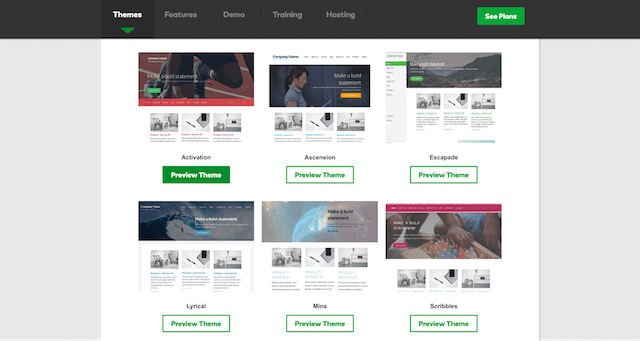
Customizing Appearance on WordPress is simple with Godaddy. Begin by accessing the WordPress dashboard. Click on Appearance, then select Customize. This opens a panel where you can change colors, fonts, and layouts. Try different styles to find what you like best. Preview changes before saving. This ensures your site looks good.
Setting Up Widgets and Menus is easy too. Widgets add extra features to your site. Go to Appearance, then choose Widgets. Drag and drop widgets to the desired location. Menus help organize your site. Click Menus under Appearance. Add pages or categories to your menu. Arrange them in order. Save changes when done. This helps visitors find information easily.
Credit: www.godaddy.com
Optimizing For Performance
Caching makes your website faster. It stores copies of pages. This means the server works less. Users get pages quickly. Use plugins for caching. Some are free. Others may cost money. Choose what fits best.
Big images slow websites. Make images smaller. Use tools to compress them. Smaller images load faster. Users stay happy. Always use the right format. JPEGs are good for photos. PNGs work for logos. Never use BMPs. They are too big.
Securing Your Website
Hosting a WordPress theme with GoDaddy involves setting up your domain and installing WordPress. Access GoDaddy’s hosting panel, choose WordPress, and follow the steps to upload your theme. Secure your site with a strong password and regular updates.
Implementing Ssl Certificates
Secure websites use SSL certificates. They keep data safe. SSL certificates stop hackers. They protect user info. Godaddy offers SSL certificates. They are easy to install. SSL certificates make your site look safe. Visitors trust secure sites. Websites with SSL have a lock icon. The lock icon means safety. Google likes secure websites. SSL helps with search ranking. Everyone should use SSL certificates. They are important for security.
Installing Security Plugins
Security plugins protect your site. They stop bad things. They block harmful traffic. Plugins keep your site clean. They check for malware. Godaddy supports security plugins. Plugins are easy to install. They are simple to use. Some plugins are free. Others cost money. Choose plugins that fit your needs. Always keep plugins updated. Updates fix problems. Updates improve security. Plugins are important for safety.
Managing Backups
Backups are very important for your website. They keep your data safe. Regular backups protect you from losing data. Use a backup plugin for WordPress. It makes scheduling easy. Set it to backup weekly or daily. Store backups in a safe place. Cloud storage is a good choice. This way, your website is always protected.
Sometimes, things go wrong. You might need to restore your site. Restoring from a backup brings back your data. First, find the backup file. Then, use your plugin to restore it. Follow the simple steps in the plugin. Your website will be back to normal. Always make sure your backup is recent. It helps in quick recovery.
Troubleshooting Common Issues
Hosting a WordPress theme with GoDaddy may face common issues like theme compatibility and plugin conflicts. Ensure PHP version is updated and disable conflicting plugins to troubleshoot effectively. Use GoDaddy’s customer support for persistent problems.
Resolving Installation Errors
Many face installation errors with WordPress themes. First, check your internet connection. It should be stable. Next, confirm your hosting plan supports WordPress. Sometimes, the file size is too large. Compress it if needed. Check that your theme file ends with .zip. Other formats won’t work. Ensure you have enough space on your server. Clear unnecessary files if it’s full.
Fixing Theme Conflicts
Theme conflicts can make your site look bad. To fix, deactivate all plugins first. Then, activate them one by one. This helps find the problematic plugin. Check for theme updates. New versions fix old issues. Sometimes, two themes clash. Only use one theme at a time. Ensure your WordPress version is up to date. Old versions cause issues.
Frequently Asked Questions
How Do I Upload A WordPress Theme To Godaddy?
To upload a WordPress theme to GoDaddy, log into your WordPress dashboard. Navigate to Appearance > Themes > Add New. Click Upload Theme, choose the theme’s zip file from your computer, and click Install Now. Once uploaded, click Activate to apply the theme to your site.
Can I Host A WordPress Theme On Godaddy?
Yes, you can host a WordPress theme on GoDaddy. Purchase a GoDaddy hosting plan and set up WordPress. Upload your theme via the WordPress dashboard. GoDaddy supports WordPress hosting with easy installation and management features, ensuring a smooth experience for users.
What Are The Benefits Of Using Godaddy For WordPress?
GoDaddy offers reliable hosting, 24/7 support, and easy WordPress installation. It provides automatic backups and updates for security. Their hosting plans include features like free domain, SSL certificate, and performance optimization. This ensures your WordPress site runs smoothly and securely, enhancing user experience.
Is Godaddy Good For WordPress Beginners?
Yes, GoDaddy is ideal for WordPress beginners. It provides user-friendly tools and 24/7 customer support. The platform offers one-click WordPress installation and simplified management features. These make it easy for beginners to set up and maintain their websites without technical expertise.
Conclusion
Hosting your WordPress theme with GoDaddy is simple. Follow these steps, and you’re set. Choose the right plan first. Install WordPress with one click. Upload your theme easily. Customize it to match your style. GoDaddy offers reliable service and support.
Your website will stay secure and fast. Now, you’re ready to manage your WordPress site. Enjoy creating and sharing your content. With GoDaddy, hosting is hassle-free and efficient. Happy blogging!


