
Are you ready to give your WordPress site a stunning new look? Importing themes from ThemeForest to WordPress via FTP might sound complex, but it’s simpler than you think.
Imagine transforming your site with just a few clicks, creating a professional and captivating online presence. This guide is your roadmap to effortlessly bringing your chosen ThemeForest theme to life on your WordPress site. You’ll discover the straightforward steps that make the process smooth and stress-free.
By the end of this article, you’ll have the confidence to upgrade your website’s design without a hitch. Keep reading to unlock the secrets of seamless theme importation!
Credit: wpmarmite.com
Choosing The Right Theme
Your website needs are key. Think about what you want. Do you need a clean design or something fancy? Consider your audience. Will they like bright colors or soft tones? Make a list of features you want. Write down your must-have features. Do you need a contact form? Think about the pages you need. A home page, maybe a blog, or a shop?
Themeforest has many themes. There are themes for every taste. Search by category or style. Read the reviews. See what others say. Check the ratings. Look at the screenshots. They show the theme’s design. Some themes have demos. Try them out. Think about the price. Does it fit your budget? Make sure it has good support. Support helps fix problems.
Preparing For The Import
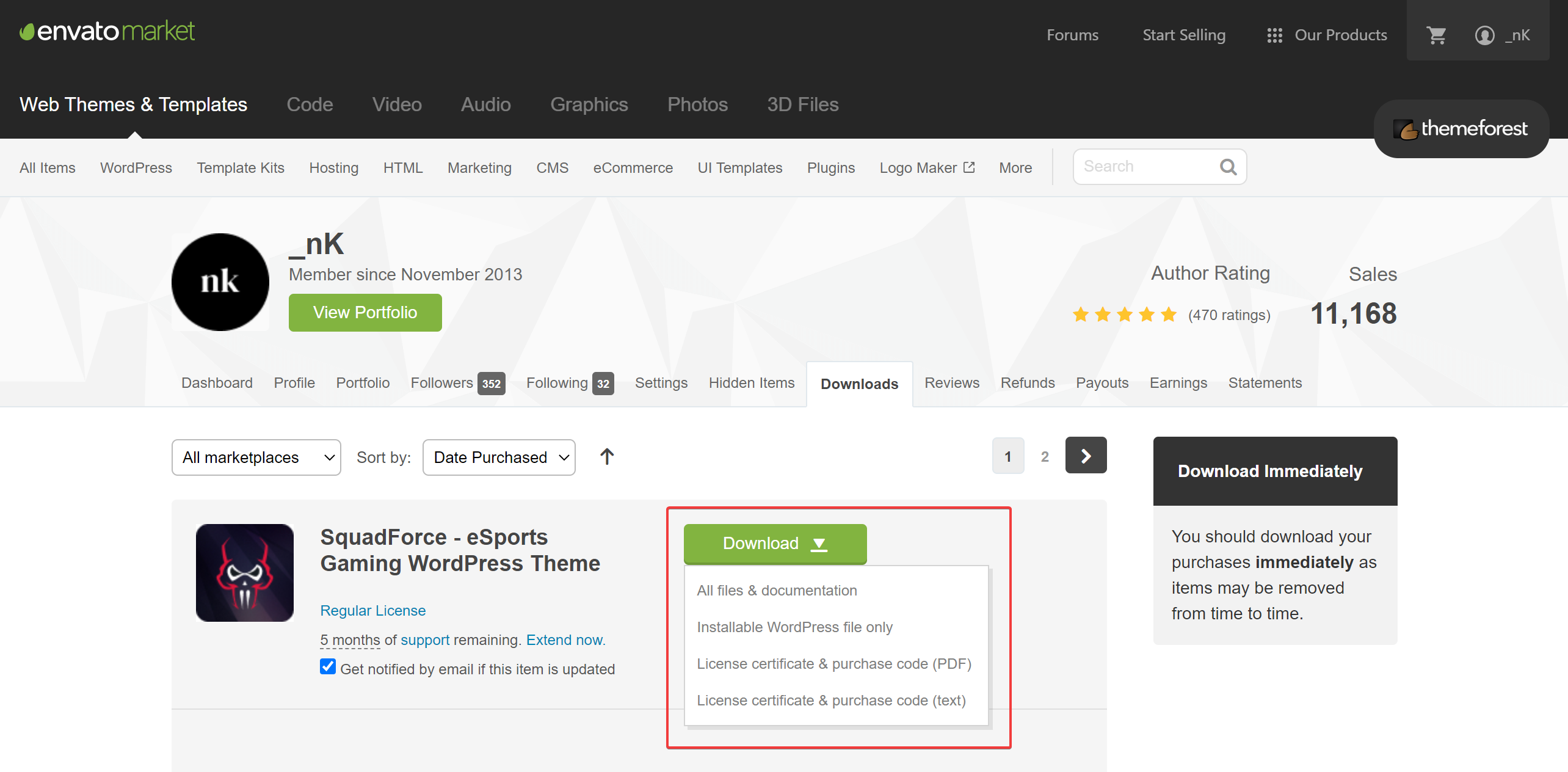
First, visit Themeforest and log in to your account. Find the theme you bought. Click on the download button. Choose the “Installable WordPress file only” option. Save this file to your computer. It is a zip file. Do not unzip it yet. Keep it safe.
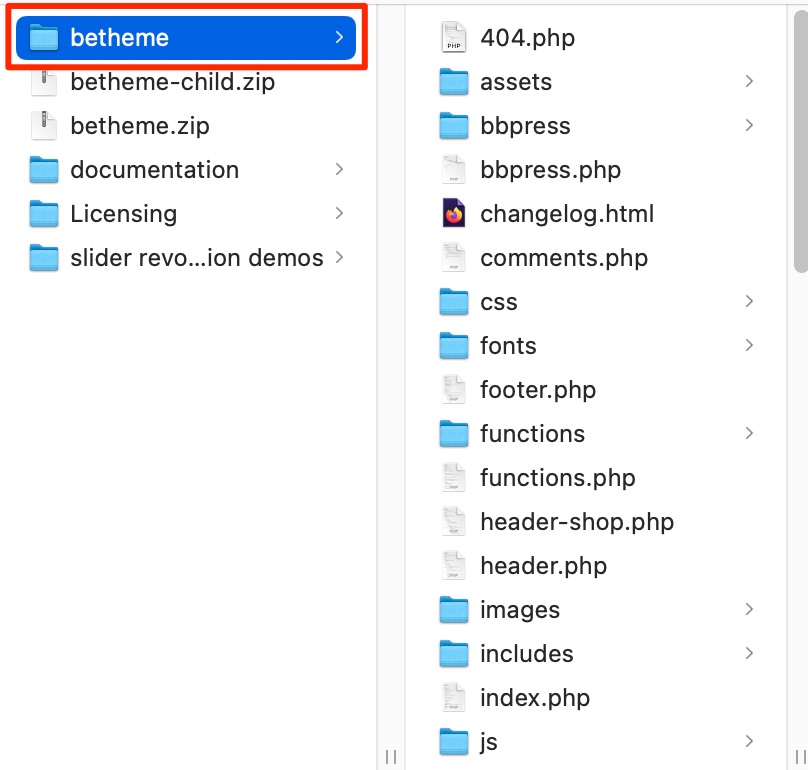
The theme package contains many files. You will see a documentation folder. It has instructions on how to use the theme. There is a licensing folder too. It contains the terms of use. Another file is the theme zip file. This is what you need to upload to WordPress. Check for a demo content folder. It helps set up your site like the demo.
Accessing WordPress Ftp
Importing themes from Themeforest to WordPress via FTP involves downloading the theme files. Then, connect to your server using an FTP client. Navigate to the wp-content/themes directory and upload the theme folder. Activate the theme in your WordPress dashboard to complete the process.
Setting Up Ftp Client
Setting up an FTP client is easy. First, download an FTP client like FileZilla. Open the client and look for the site manager option. This helps you to add new sites. Enter your website’s address in the host field. Choose FTP as your protocol. Make sure to select normal login type.
Obtaining Ftp Credentials
FTP credentials are keys to your website. You get them from your hosting provider. They include username and password. Log into your hosting account. Go to the FTP section. Find the credentials there. Copy them carefully. These are essential for accessing your site files.
Uploading Theme Via Ftp
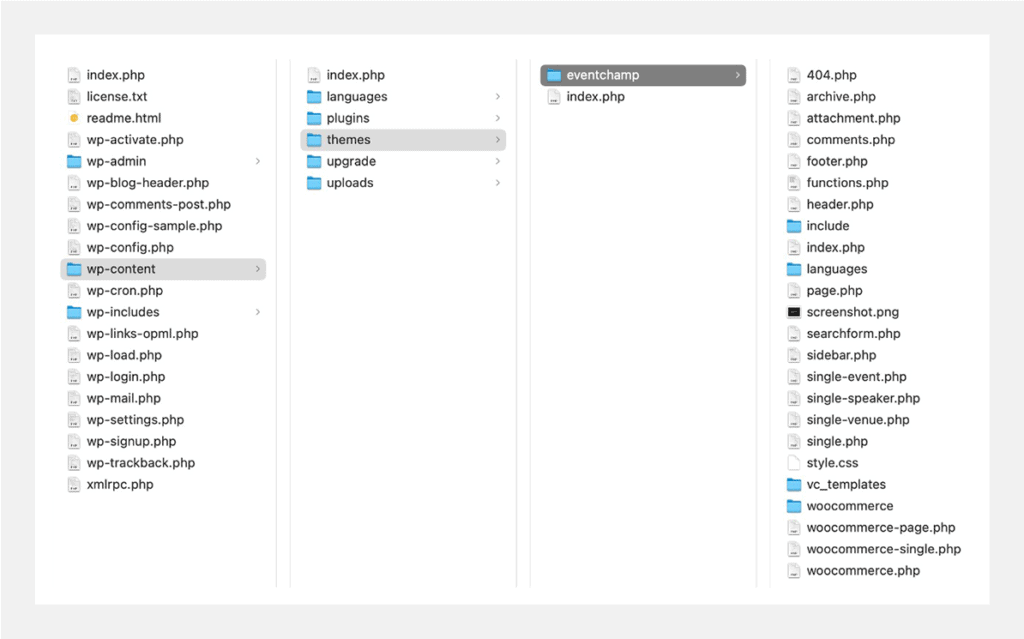
Find your theme directory in WordPress. It is in wp-content/themes. This folder holds all your themes. Open your FTP client and connect to your server. Enter your login details. Go to the root folder of your WordPress site. Find the wp-content folder. Click on it. Inside, locate the themes folder. Make sure you are in the right place.
Download your theme from Themeforest. It comes as a zip file. Extract the files on your computer. You will see a folder with your theme name. Open your FTP client. Connect to your server. Drag the theme folder to the themes directory. Wait for the files to transfer. Check if all files are copied. This process takes a few minutes. Once complete, your theme is uploaded. You can now activate it in WordPress.
Activating The New Theme
Accessing WordPress Dashboard is the first step. Open your browser and type your WordPress URL. Add “/wp-admin” at the end. Enter your username and password. Click on “Log In”. You are now inside the dashboard.
Setting the Theme as Active is easy. Look on the left side of the dashboard. Find the “Appearance” option. Click on it. Then, choose “Themes”. You will see all your themes here. Find the new theme you uploaded. Click on “Activate”. Your new theme is now live.
Troubleshooting Common Issues
Importing themes from Themeforest to WordPress via FTP can be tricky. Ensure your FTP client is set up correctly. Upload the theme files to the WordPress themes directory. Then, activate the theme from your WordPress dashboard.
Handling File Upload Errors
Uploading files can sometimes be tricky. Make sure your file size is not too big. Large files often cause upload errors. Check your internet connection too. A weak connection can stop uploads. If the problem persists, try a different browser. Some browsers work better with FTP uploads. You can also clear the browser cache. This can help solve upload problems. Always ensure you have the correct file format. Only upload themes in ZIP format. If these steps don’t work, contact your hosting provider. They might help with server-side issues.
Resolving Activation Problems
Sometimes themes don’t activate easily. Check if the theme is compatible with your WordPress version. Incompatible themes can cause activation issues. Make sure all necessary plugins are installed. Themes often need specific plugins to work. Also, verify the theme license. An invalid license can block activation. Double-check theme settings in the WordPress dashboard. Incorrect settings might prevent activation. If problems continue, reach out to the theme developer. They can provide expert help and guidance.
Customizing Your Theme
Importing themes from Themeforest to WordPress via FTP is straightforward. First, download your theme and unzip it. Then, use an FTP client to connect to your server and upload the theme folder to the ‘wp-content/themes’ directory. Finally, activate the theme through your WordPress dashboard.
Exploring Theme Options
Explore different theme options to make your site unique. Themes have various layouts, colors, and fonts. Each option can change your site’s look. Some themes offer pre-made styles for quick changes. Try different options to see what fits best. Remember, a good theme should match your brand.
Utilizing Customization Tools
Use customization tools to adjust your theme easily. These tools let you change the header, footer, and sidebar. You can also add your logo and background. Some themes have a live preview. This helps you see changes in real-time. Always save your work after customizing. This ensures your changes are not lost.
Credit: gloriathemes.com
Credit: nkdev.info
Frequently Asked Questions
How Do I Download Themes From Themeforest?
To download themes from Themeforest, sign in to your account. Navigate to the ‘Downloads’ section and locate your purchased theme. Click on the ‘Download’ button to save the theme file to your computer. Ensure you download the ‘Installable WordPress file only’ for easy installation.
Can I Import Themes Via Ftp?
Yes, you can import themes via FTP. First, unzip your downloaded theme file. Use an FTP client like FileZilla to connect to your WordPress server. Upload the theme folder to the ‘wp-content/themes’ directory. After uploading, activate the theme through the WordPress dashboard.
What Are Ftp Client Requirements?
To use an FTP client, ensure you have your server credentials. You’ll need the FTP host, username, and password. Also, check if your server supports FTP connections. Popular FTP clients like FileZilla or Cyberduck are recommended for ease of use and reliable transfers.
Why Choose Themeforest For WordPress Themes?
Themeforest offers a wide variety of high-quality themes. They have professional designs and are updated regularly. Themes come with detailed documentation and support. You can find themes tailored to various niches and functionalities, ensuring you find one that meets your specific needs.
Conclusion
Importing themes from Themeforest to WordPress FTP is straightforward. Follow the steps carefully for a smooth process. Begin by downloading your theme files. Use an FTP client to upload them to your WordPress directory. Activate the theme in the WordPress dashboard.
Check your website for any changes. Customize the theme to fit your style and needs. Remember, each theme might have unique settings. Explore those settings for better results. Regular updates keep themes secure. Stay informed about updates and new features.
Enjoy your new look and functionality on your WordPress site!


