
Are you eager to give your WordPress site a fresh look, but feel overwhelmed by the prospect of importing samples? You’re not alone.
Many WordPress users find themselves stuck at this very step. Fortunately, bringing new life to your site can be simpler than you think. Imagine transforming your site with just a few clicks, making it stand out and engaging for your audience.
In this guide, we’ll demystify the process of importing samples into your WordPress theme. You’ll discover how to do it efficiently and effectively, so you can focus on what really matters—creating amazing content for your visitors. Ready to take your WordPress theme to the next level? Let’s dive in and make it happen!

Credit: harutheme.com
Choosing The Right Theme
Importing samples to a WordPress theme can simplify customization. Begin by selecting a theme compatible with demo content. Follow with importing sample data through the WordPress dashboard. This approach helps in understanding the theme’s layout and features before making any changes.
Evaluating Theme Requirements
Start by checking the theme documentation. It often lists what the theme needs. Look for details on sample data and import features. Ensure your WordPress version supports the theme. This will help avoid problems later. Consider if your site has special needs. Some themes work better for blogs. Others are great for shops or portfolios. Always match the theme with your site’s goals. This ensures a smooth experience.
Checking Theme Compatibility
Compatibility is key for a good theme. Check if the theme works with your plugins. Some themes may not support certain plugins. This can cause problems with functionality. Look for themes that have regular updates. Updated themes often fix bugs and improve compatibility. Always read user reviews. They provide real feedback about theme compatibility. This helps in making a wise choice.
Credit: motopress.com
Preparing Sample Data
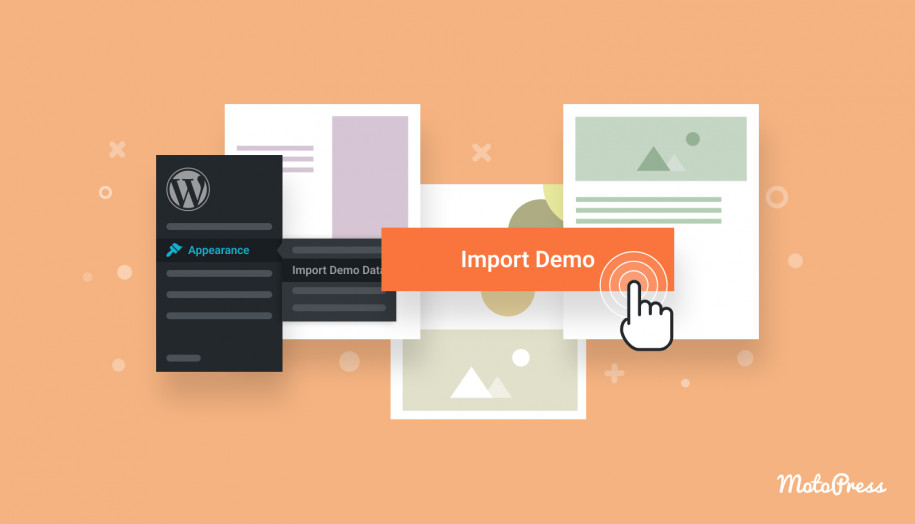
Importing samples to a WordPress theme simplifies the setup process. First, navigate to the theme’s demo import section. Then, select and import the desired sample data. This enhances your site with pre-configured layouts and content, offering a quick start for customization.
Locating Sample Files
Finding sample files is easy. Theme providers often include them. Check the theme’s documentation. Look for a folder named “Sample Data” or “Demo Content.” Download the files to your computer. Ensure they are unzipped before use. This helps you see all the files inside.
Understanding File Formats
Sample files come in different formats. XML is common for WordPress. It holds posts and pages. JSON files are used too. They store settings or options. Sometimes, images are in JPEG or PNG. Make sure you know each file type. This helps during the import process.
Installing Required Plugins
Before importing samples, install essential plugins. They help in making your theme work well. Go to your WordPress dashboard. Click on Plugins. Choose Add New.
Essential Plugins For Import
Some plugins are crucial. They help with importing. One Click Demo Import is important. It brings sample content to your theme. Contact Form 7 helps create forms. Use Yoast SEO for better search results. Install these plugins for a smooth process.
Activating And Configuring Plugins
After installing, activate plugins. Click on Activate under each plugin. Configure them to match your needs. For One Click Demo Import, go to its settings. Choose your sample file. Follow instructions to import. For Contact Form 7, set up forms easily. Use guides provided in plugin settings.
Importing Content
The WordPress Importer is a handy tool. It helps add sample data. First, go to your dashboard. Find “Tools” and click “Import”. This opens a new page. You will see many import options. Choose “WordPress”. Now, you will need a plugin. Click “Install Now”. Once installed, activate it. The importer is ready.
Next, you need a sample XML file. This file has content for your theme. Download it from your theme provider. Save it on your computer. Click “Choose File” in the importer. Locate your XML file. Select it and click “Upload file and import”. Wait a few moments. Your sample data will load into your theme.
Sample XML files are easy to upload. First, have your file ready. It should be on your computer. Open your WordPress dashboard. Go to “Tools” and select “Import”. Choose the “WordPress” option. Click “Choose File” to locate your XML. Select the file and click “Upload”. This process is quick. Your theme will now have sample content. The XML file brings text, images, and more. It helps show the theme features.
Customizing Imported Samples
Start by checking the layout of each page. Ensure it looks right. Change the text and images to match your ideas. Use the WordPress editor for this. It’s simple to use. Just click and type. Make sure each page tells the right story. You can add new sections if needed. Check spelling and grammar. It helps your site look professional. Review your changes. Preview the page before publishing. This keeps your site fresh and accurate.
Menus help people find pages. Arrange items in the menu for easy navigation. Use clear names for each item. Widgets add special features. Place them in sidebars or footers. Add a widget for social media links. It connects visitors to your profiles. Keep menus and widgets simple. They should enhance the user experience. Test the menu links. Make sure they work. Update widgets regularly. This keeps your site interactive and engaging.
Troubleshooting Common Issues
Importing samples to a WordPress theme can sometimes be tricky. Ensure your theme is compatible and check your server settings. Verify your XML file for errors and adjust your PHP limits if needed. This helps in a smoother import process.
Resolving Import Errors
Sometimes, errors happen during import. First, ensure you have a strong internet connection. This prevents interruptions. Next, check your file type. Is it compatible with WordPress? Common types are XML or JSON. If errors persist, verify your file size. Large files often cause issues. Try splitting the file into smaller parts. Finally, clear your browser cache. This can solve many small problems.
Handling Missing Content
Missing content can be frustrating. Start by checking your file. Did all data export correctly? Sometimes, only parts of the file import. Consider re-importing if needed. Another solution is to check your theme settings. Some themes don’t support certain content types. Ensure your theme is updated. Updates often fix compatibility issues. Lastly, check for plugin conflicts. Some plugins interfere with imports. Disable plugins one by one. This identifies the problematic one.
Optimizing Performance
Site speed affects user experience. Slow sites annoy visitors. A fast site keeps them happy. Compress images for quick loading. Use a reliable hosting provider. Minimize CSS and JavaScript files. Faster sites rank higher on search engines.
SEO helps your site get found. Use clean code for better indexing. Add alt text to images. This helps search engines understand them. Use proper headings and subheadings. They improve structure and readability. Keywords in titles and tags help ranking. Ensure your site is mobile-friendly. Many people browse on phones.
Credit: support.undsgn.com
Frequently Asked Questions
How Can I Import WordPress Theme Samples Easily?
To import samples, use the WordPress theme’s built-in import tool. Access it through the theme settings in your dashboard. Follow the prompts to upload your sample file. This process usually involves selecting an XML file. Ensure your file is compatible with the theme for a smooth import.
What File Types Are Used For Sample Import?
WordPress themes typically use XML files for sample imports. These files contain data like posts, pages, and settings. Ensure your XML file is formatted correctly. Some themes may offer additional formats, but XML is the standard. Always check the theme documentation for specific requirements.
Do I Need Plugins For Sample Import?
Some themes may require plugins for sample import. These plugins help manage data and settings during import. Check your theme’s documentation to see if any plugins are recommended or necessary. Installing required plugins beforehand can simplify the import process.
Can Sample Imports Affect My Current Site Data?
Sample imports can overwrite existing content. Always backup your site before importing samples to prevent data loss. Consider importing samples on a staging site first. This way, you can review changes without affecting your live site. Proper planning ensures a smooth import experience.
Conclusion
Importing samples to a WordPress theme can simplify your design process. Follow the steps carefully, and you’ll enhance your site efficiently. Start by choosing compatible samples for your theme. Upload them correctly to avoid errors. Preview your changes to ensure everything looks perfect.
Don’t rush; take your time to understand each step. Doing so ensures your site remains functional and visually appealing. With practice, importing samples becomes easier. Your WordPress theme will reflect your unique style and vision. Enjoy creating a site that stands out to your visitors.
Keep experimenting with new ideas.


