
Are you looking to give your WordPress website a fresh new look? Installing a theme from a file might be just what you need.
It’s a simple process that can transform your site’s appearance and functionality in minutes. But where do you start? You might feel overwhelmed by technical jargon or worry about making a mistake. Don’t worry; you’re not alone. In this guide, you’ll learn how to easily install a WordPress theme from a file, even if you’re not tech-savvy.
Imagine how satisfying it will be to see your website come alive with a design that truly reflects your vision. This step-by-step process is designed with you in mind, ensuring you’ll feel confident and empowered throughout the whole experience. So, are you ready to take your website to the next level and captivate your audience? Let’s dive in, and soon you’ll have a stunning site that stands out from the rest.
Prerequisites
Ensure you can access the WordPress dashboard. You need the login details. Username and password are important. Make sure they are correct. Check your internet connection too. It must be stable. This helps in smooth access. A good connection prevents errors. Keep your browser updated. This can improve performance. Make sure you have admin rights. Only admins can install themes. Without them, installation is impossible.
Your theme file must be ready. It is usually in ZIP format. Always download from trusted sources. This keeps your site safe. Untrusted files may harm your site. Save the file on your computer. Remember its location. Easy access to the file is needed. Check the file size. Too large files may cause issues. Ensure your hosting plan can handle it. Prepare a backup of your site. Protect your data from loss.
Locating The Theme File
Themes often come in different formats. The most common is .zip. This format keeps the theme files together. It is easy to upload to WordPress. Other formats might not work. Always choose the .zip file for safety. Be careful with other formats. They may cause problems. Understanding these formats is important. It helps in a smooth installation.
Always download themes from trusted sources. Trusted sources are safe. They keep your site secure. Unknown sources may have malware. They can harm your site. Check reviews before downloading. Reviews tell if a source is safe. Official websites are the best. They offer support and updates. This keeps your theme fresh and secure.
Uploading The Theme
To upload a theme, first go to the WordPress Dashboard. Click on Appearance, then Themes. At the top, you will see Add New. Click it. Next, click Upload Theme. Choose the file from your computer. Make sure it’s a .zip file. Click Install Now. After installing, click Activate to use the theme.
For FTP, you need an FTP client like FileZilla. First, connect to your server with your FTP details. Locate the wp-content/themes folder on the server. Upload the unzipped theme folder here. Once uploaded, go to your WordPress Dashboard. Go to Appearance and then Themes. Your theme will be listed. Click Activate to use it.
Activating The Theme
Installing a theme from a file in WordPress is simple. Begin by accessing your WordPress dashboard. Navigate to “Appearance,” then “Themes,” and click “Add New. ” Select the “Upload Theme” option, choose your theme file, and hit “Install Now. ” Activate the theme to apply it to your site.
Theme Activation Process
Start by going to your WordPress dashboard. Click on Appearance, then choose Themes. Look for your new theme. It should be listed. Click the Activate button. This will make your new theme live. Your website will now use this theme’s design. Make sure the theme is working well.
Verifying Successful Activation
Visit your website to see the changes. Check if the new theme appears. Look at the layout and colors. They should match the theme’s design. Ensure all images and text display correctly. If something looks wrong, go back to the dashboard. Try activating the theme again. You may also need to refresh your browser. Always make sure the site looks good. This ensures a happy visit for your guests.
Troubleshooting Common Issues
Easily install a WordPress theme from a file by accessing your dashboard and navigating to “Appearance. ” Upload the theme file directly to ensure quick setup. Address common issues like file size errors by checking your hosting settings.
Upload Errors
Sometimes, themes won’t upload. This happens due to file size limits. Check the file size first. Make sure it’s under the allowed limit. Another cause is incorrect file format. Themes must be in .zip format. Double-check the file type before uploading.
Network issues can also cause upload errors. Stable internet is crucial. A slow connection might interrupt the upload. Try again with a strong network. If errors persist, try clearing your browser cache. Cache can hold old data and cause problems.
Compatibility Problems
Themes may not work with certain versions of WordPress. Ensure your WordPress is up-to-date. Updates fix compatibility issues. Plugins can also affect theme performance. Some themes conflict with specific plugins. Disable suspicious plugins to see if the theme works.
Check theme documentation for compatibility notes. Developers often list known issues. If problems continue, contact theme support. They can provide solutions or updates.

Credit: docs.themeisle.com
Customizing The Installed Theme
The Customizer helps you change your site’s look. Start by clicking on Appearance in the dashboard. Then, select Customize. You can see changes in real-time. Adjust colors, fonts, and layouts. Make your site look just right. Save changes to keep them. It’s simple and fun!
Widgets are small tools for your site. They go in sidebars or footers. To add them, go to Appearance and click Widgets. Drag and drop them where you want. Menus help visitors find pages. Go to Appearance and select Menus. Create a menu and add links. Organize them in the order you like. Save when done. Your site is now ready!
Keeping Themes Updated
Installing a theme from a file in WordPress is simple. First, download the theme file to your computer. Next, go to your WordPress dashboard, select ‘Appearance,’ then ‘Themes,’ and click ‘Add New. ‘ Choose ‘Upload Theme,’ select your file, and click ‘Install Now.
‘ Finally, activate the theme to complete the process.
Checking For Updates
Always check for theme updates. Updates keep your site secure and fast. Go to your WordPress dashboard. Click on the “Themes” section. Find the “Update Available” notice. This means your theme needs an update. Click “Update Now” to install it. Keep your website safe and smooth. Regular updates help prevent bugs.
Automating Theme Updates
Automate theme updates for ease. Use the WordPress auto-update feature. Navigate to the “Themes” page. Find the theme you want to update. Click on “Enable Auto-Updates”. Now, WordPress will update your theme automatically. You can focus on creating content. Let WordPress handle theme updates. This saves time and keeps your site current.

Credit: visualmodo.com
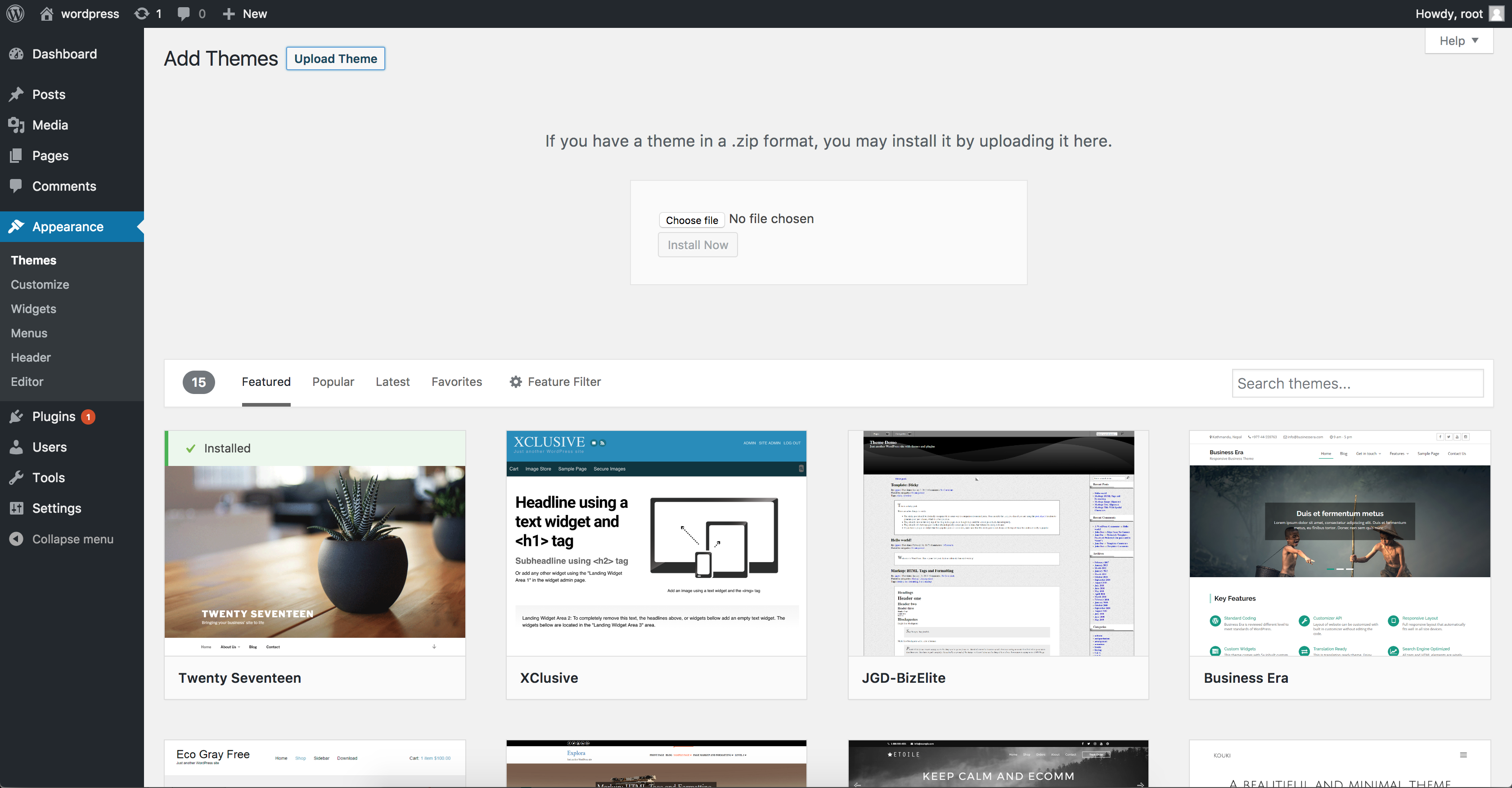
Credit: www.namecheap.com
Frequently Asked Questions
How Do I Upload A Theme File In WordPress?
To upload a theme file, navigate to the WordPress dashboard. Click on “Appearance,” then “Themes,” and select “Add New. ” Choose “Upload Theme” and click “Choose File” to select your theme file. Finally, click “Install Now” to upload and activate your theme.
Can I Install Themes From Zip Files?
Yes, WordPress supports theme installation from ZIP files. Navigate to “Appearance” > “Themes” > “Add New. ” Select “Upload Theme,” choose your ZIP file, and click “Install Now. ” Once uploaded, activate the theme to apply changes.
What Should I Do If Theme Installation Fails?
If installation fails, ensure your theme file is compatible with WordPress. Check if the ZIP file is complete and not corrupted. Verify server permissions and memory limits. If issues persist, contact your hosting provider or seek help from WordPress support forums.
Are Themes From External Sources Safe?
Themes from reputable sources like WordPress. org, ThemeForest, or Elegant Themes are generally safe. Always check reviews and ratings before downloading. Avoid themes from unknown or suspicious sites to protect your website from malware or security vulnerabilities.
Conclusion
Installing a theme from a file in WordPress is simple. Follow the steps carefully. Start by logging into your WordPress dashboard. Navigate to “Appearance” and then “Themes. ” Click on “Add New” and choose “Upload Theme. ” Select your theme file and click “Install Now.
” Activate the theme to see changes. This process enhances your site’s look instantly. Themes help create a unique website. They improve user experience and engagement. Practice makes it easier with time. Enjoy customizing your WordPress site with new themes! Keep exploring different themes to find the best fit for your website.


