
Are you tired of the same old look of your WordPress site? Want to give it a fresh, new appearance that reflects your brand’s personality?
You’re in the right place! Learning how to import a new theme in WordPress is not just about aesthetics; it’s about enhancing user experience and boosting your site’s performance. Imagine capturing your visitors’ attention from the first click and keeping them engaged.
In this guide, you’ll discover just how simple it is to transform your website with a few clicks. Stay with us, and by the end of this article, you’ll have the tools to make your site as unique as your brand. Ready to create a lasting impression? Let’s dive in!
Credit: www.wpbeginner.com
Choosing The Right Theme
Understand what your website requires. Is it for a blog or a business? Each type has different features. A blog needs a simple design. A business site might need a professional look. Decide what is important for your site.
Many places offer themes. Sites like WordPress.org have many options. Other sites like ThemeForest provide premium choices. Explore different places for unique designs. Choose a theme that fits your website’s style.
Free themes are cost-effective. They are easy to use and simple. Premium themes offer advanced features. They can be more customizable. Free is good for small budgets. Premium suits advanced users. Decide based on your needs and budget.
Credit: help.market.envato.com
Preparing Your WordPress Site
Always keep a backup of your website. It is very important. Use a plugin to save your data. Some popular plugins are UpdraftPlus and BackupBuddy. They are easy to use. Regular backups keep your site safe. If something goes wrong, you can restore it. This saves time and effort.
Make sure your WordPress is up to date. This includes the core software and all plugins. Updated software keeps your site secure. It also makes sure your site works well. Go to the dashboard. Check for updates. Click to update each item. It is quick and simple. Always update before making big changes.
Installing A New Theme
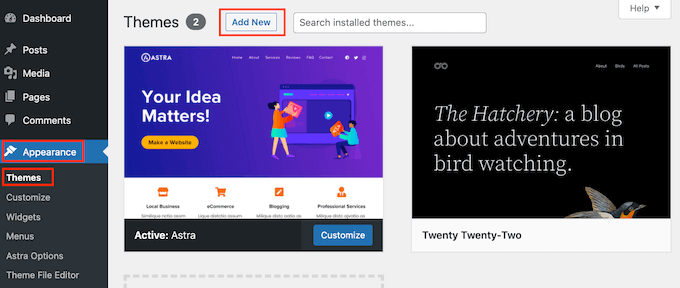
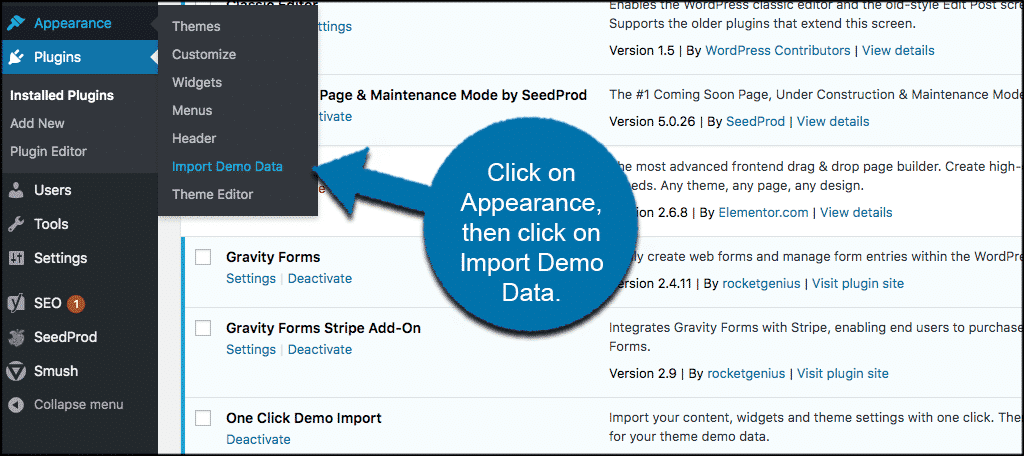
The WordPress Theme Directory is a great place to find themes. Click on Appearance in the dashboard. Then, select Themes. You’ll see a button that says Add New. Click it. Browse the themes you like. Hover over the theme and click Install. Wait for it to finish. Now, click Activate. Your new theme is ready to use.
First, download the theme file. It will be a ZIP file. Go to your dashboard and click Appearance. Then choose Themes and click Add New. Look for Upload Theme. Click it. Choose the ZIP file from your computer. Click Install Now. After installation, click Activate. Enjoy your new theme.
FTP is another way to install themes. Download the theme ZIP file. Unzip it on your computer. Connect to your site using FTP. Find the folder called wp-content/themes. Upload the unzipped theme folder there. Go to your WordPress dashboard. Click Appearance, then Themes. You will see the new theme. Click Activate to use it.
Activating The Theme
Importing a new theme in WordPress is simple. Navigate to the dashboard and select ‘Appearance’ then ‘Themes’. Click ‘Add New’, search for your desired theme, and install it. Once installed, activate the theme to change your site’s appearance.
Previewing The Theme
Click on the theme thumbnail to preview. This lets you see how your website will look. If you like the theme, click Activate. This will make the theme live on your site. Remember, not all themes look good without changes.
Try to test different pages to make sure the theme fits your needs. Look at menus, fonts, and colors. Make sure everything appears right. If something looks odd, check your settings. Sometimes, themes need adjustments after activation.
Activating Directly
Find the theme you want. Click the Activate button. Your site will immediately change to the new theme. No need to preview if you are sure. This is fast but sometimes risky. Make sure you like the theme before you activate. You can always switch back if needed.
After activating, check your site carefully. Ensure all parts work well. If something breaks, you might need to fix it. Themes can change settings, so check them.
Customizing Your Theme
The WordPress Customizer helps you change your theme’s look. Open it from your dashboard. You can see changes live. Adjust colors, fonts, and layouts easily. Save your changes once you are happy. This tool makes theme tweaks simple.
Find your theme settings in the dashboard. Click on “Appearance” and select “Customize”. Here, change site identity or layout. Set up your homepage, menus, or widgets. Each theme may offer different options. Explore these settings to suit your needs.
To add unique styles, use Custom CSS. Go to the Customizer and find “Additional CSS”. Type your styles here. Make your site look special with these codes. This feature allows you to personalize your theme beyond default settings. Always preview before saving.
Testing And Troubleshooting
Importing a new theme in WordPress involves navigating to the dashboard, selecting “Appearance,” and clicking “Themes. ” Choose “Add New” to upload your desired theme. Ensure compatibility with your plugins to avoid issues. This process enhances your site’s look and feel effortlessly.
Checking For Compatibility Issues
Always check if the theme works with your version of WordPress. Compatibility issues can break your site. Use a test site first. This way, your main site stays safe. Also, check plugin compatibility. Some themes don’t work well with certain plugins. This can cause errors. So, test everything well.
Resolving Common Theme Conflicts
Theme conflicts can stop your site from working. First, deactivate all plugins. Then, activate them one by one. This helps find which plugin is causing the problem. If the theme still has issues, check the theme settings. Sometimes, a simple setting change can fix the problem. If all else fails, ask for help from theme support. They can provide solutions.
Maintaining Theme Updates
Updating Your Theme Regularly is essential. Themes improve with updates. They fix bugs and add features. Check for updates often. Make sure your WordPress theme stays current. A current theme works better. It also keeps your site safe. Hackers can attack old themes. A new theme version stops them. Use the WordPress dashboard to update. It’s easy and quick.
Managing Theme Backups is crucial. Backups save your work. They protect you from losing data. A mistake can delete your theme. A backup helps you restore it. Backup your theme before updating. Use plugins to make backups easy. Store backups in a safe place. You can use cloud storage or external drives. Regular backups keep your site secure. Always backup important files.
Credit: www.greengeeks.com
Frequently Asked Questions
How Do I Import A Theme In WordPress?
To import a theme in WordPress, go to your dashboard. Click ‘Appearance’, then ‘Themes’. Select ‘Add New’ and upload your theme file. Activate it after installation. Ensure the theme is compatible with your WordPress version. Always backup your site before making any changes.
Can I Upload Themes Without Using Ftp?
Yes, WordPress allows theme uploads directly from the dashboard. Go to ‘Appearance’, then ‘Themes’, and select ‘Add New’. Upload your theme zip file. This method eliminates the need for FTP access. Ensure your theme file is in. zip format for a successful upload.
Why Is My WordPress Theme Not Installing?
Your theme might not install due to compatibility issues. Check if it’s compatible with your WordPress version. Ensure the theme file is in. zip format. Also, verify server permissions and available disk space. Contact your hosting provider if problems persist.
How Do I Activate A Theme After Importing?
After importing, go to ‘Appearance’ and ‘Themes’ in your dashboard. Find your uploaded theme and click ‘Activate’. This sets it as your site’s default theme. Check your site to ensure everything displays correctly. Customize your theme settings as needed.
Conclusion
Importing a new theme in WordPress is simple and rewarding. You can enhance your site’s look in just a few clicks. First, find a theme that suits your style. Then, follow the easy steps to upload it. Remember to preview before activating.
This ensures everything looks perfect. Customizing options will help personalize your site. A fresh theme can boost your site’s appeal. Try different themes to find the best fit. Don’t forget to check compatibility and updates. Enjoy your new WordPress theme and keep exploring creative designs.


