
Are you looking to enhance your WordPress site without getting tangled in complex code? Shortcodes could be your best ally.
These nifty snippets allow you to add dynamic content effortlessly, even if you’re not a coding wizard. But how exactly do you insert a shortcode into your WordPress theme? Whether you want to embed a gallery, add a form, or display recent posts, mastering shortcodes can transform your site’s functionality and appearance.
By following this guide, you’ll learn how to seamlessly integrate shortcodes into your WordPress theme, making your website more engaging and interactive for your audience. Stick around, and discover how these small codes can make a big difference.
Credit: tonjoostudio.com
Understanding Shortcodes
Shortcodes are small code snippetsShortcodes save time and effort. They are like magic words for your site.
Shortcodes offer many benefits. They are easy to use. Even beginners can handle them. No need for complex coding skills. You can add features quickly. Shortcodes help keep your site clean. They are versatile. Use them anywhere in WordPress. Pages, posts, widgets, all work well with shortcodes. Boost your site’s functionality with simple codes.

Credit: premiumaddons.com
Creating A Shortcode
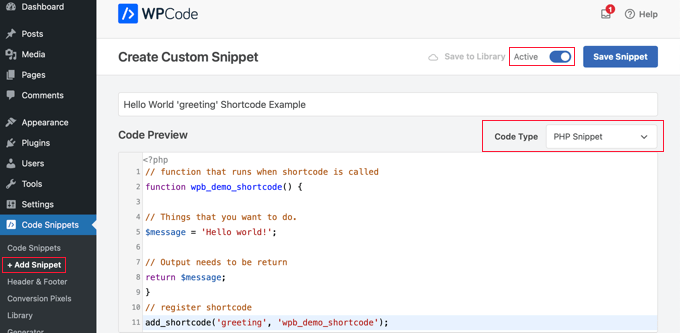
A shortcode is a simple code that helps you add things to your website. To create one, start with a basic function in your theme’s functions.php file. Use the function my_shortcode() {} format. Inside the curly brackets, add what you want the shortcode to do. The next step is to register your shortcode using add_shortcode('shortcode_name', 'my_shortcode'). Replace 'shortcode_name' with your chosen name. This name will be used inside your posts or pages.
Parameters make shortcodes more flexible. They let users change how the shortcode works. Add parameters by updating the function. Use the $atts variable inside the function. Here’s an example: $atts = shortcode_atts(array('color' => 'blue'), $atts);. This sets a default color of blue. Users can change it by adding [shortcode_name color="red"] in their posts. This makes your shortcode more useful.
Inserting Shortcode In Posts And Pages
Open your WordPress editor. Find the post or page you want. You can add a shortcode here. Click on the place you want it. Type the shortcode between [ ]. For example, . This code will show your gallery.
Open the block editor. Click the plus sign to add a block. Search for the “Shortcode” block. Click it to add. Type your shortcode in the box. Press save or update. Your shortcode will now work.
Credit: www.wpbeginner.com
Adding Shortcode To Theme Files
Integrating shortcode into WordPress theme files enhances functionality. Simply locate the desired PHP file and use “ to embed. This allows dynamic content insertion, offering a seamless user experience.
Locating The Theme Files
Theme files are important for your site. You need to find them. Start by accessing the WordPress dashboard. Go to Appearance and select Theme Editor. Now, you can see all your files. Look for the file where you want to add the shortcode. This might be header.php or footer.php. Check each file carefully. Make sure you choose the right one.
Editing Template Files
Editing a template file is easy. First, locate the file. Open it carefully. Use the correct code to add your shortcode. Place the shortcode where you want it. Save your changes. Always remember to backup your files before editing. This helps if something goes wrong. Test your site after editing. Check if the shortcode works.
Testing The Shortcode
Check the shortcode on your site. Go to the page where you added it. See if everything looks right. Does the content appear as expected? If not, you might need to adjust the shortcode. Sometimes small changes make a big difference.
Shortcodes may not work always. Common issues can pop up. Check if the shortcode is correct. Sometimes a small typo can cause problems. Use the correct format. Also, check theme and plugin compatibility. Updates can help fix issues.
Best Practices
Shortcode functions should be placed in a separate file. This keeps your code clean. It helps in easy updates. Use descriptive names for your functions. This makes them easy to find and understand. Group similar shortcodes together. This improves readability and management. Document each function with comments. This helps others understand your code.
Check for WordPress version compatibility. Some functions may not work in older versions. Test your shortcodes on different themes. This ensures they work everywhere. Use conditional statements to avoid errors. This makes your site stable. Regular updates are important. They fix bugs and add new features.
Frequently Asked Questions
What Is A Shortcode In WordPress?
A shortcode is a small code snippet that lets you perform specific functions. You can embed this code in posts, pages, or widgets. Shortcodes help users add dynamic elements like galleries, videos, or forms without complex coding. They simplify the customization process in WordPress themes.
How Do I Insert A Shortcode In WordPress?
To insert a shortcode, first copy the shortcode from your plugin or widget. Paste it into the WordPress editor where you want the function. You can place shortcodes in posts, pages, or even widgets. Ensure the plugin or theme supports the specific shortcode for proper functionality.
Can Shortcodes Be Used In Widgets?
Yes, shortcodes can be used in widgets. Simply add a Text widget to your widget area. Insert the desired shortcode within the widget’s text field. Once saved, the shortcode will execute its function. Ensure your theme or plugin supports shortcode usage in widgets for effective results.
Are All Shortcodes Compatible With Themes?
Not all shortcodes are compatible with every theme. Compatibility depends on the theme’s design and supported plugins. Always check documentation or test the shortcode before using it. If issues arise, consider switching themes or plugins for better shortcode functionality.
Conclusion
Inserting a shortcode in a WordPress theme is straightforward. Follow the steps above for success. Shortcodes enhance your website’s functionality. They save you time and effort. Practice regularly to get comfortable with them. Experiment with different shortcodes. See which ones work best for your site.
Always keep your theme files backed up. This prevents any accidental loss. Remember, shortcodes can improve user experience. They make your site more dynamic. With practice, you will handle them with ease. Happy coding!


