
Are you looking to enhance your WordPress site without breaking the bank or hiring a developer? Including a plugin in your WordPress theme might be the perfect solution.
Whether you’re aiming to optimize performance, add new features, or simply customize your site’s functionality, knowing how to seamlessly integrate plugins into your theme can make a world of difference. Imagine having the power to tailor your website to meet your exact needs, all while keeping visitors engaged and coming back for more.
You’ll discover straightforward steps to effortlessly include a plugin in your WordPress theme, unlocking a world of possibilities for your online presence. Ready to transform your site into a user-friendly powerhouse? Let’s dive in and explore how you can achieve this with ease.
Benefits Of Using Plugins
Plugins make your site better. They add new features. You can get a contact form. Or a gallery. Many plugins are free. Some need money. Pick what fits your site best. Plugins save time. You do not need to code. Click and install. Your site gets new power.
Plugins help with SEO. Better rankings mean more visitors. They help with security. Keep your site safe. Plugins also speed up your site. Users enjoy fast sites. They stay longer. More visitors can mean more sales.
Choosing The Right Plugin
Plugins must work well with your WordPress theme. Check for WordPress version compatibility. Ensure the plugin supports your theme. This prevents problems later.
Read reviews from other users. Higher ratings mean better trust. Low ratings might signal problems. Look for frequent updates. This shows developers care.
Identify key features you need. Compare with the plugin’s features. Ensure it meets your requirements. Avoid extra features you won’t use. They can slow your site.
Preparing Your Theme For Plugins
Backing up your theme is crucial. Mistakes can happen. Save your work first. Use a plugin like UpdraftPlus. It helps you save files safely. You can recover them easily if needed. Keep backups in different places. Cloud storage works well. This way, everything stays safe.
Create a child theme for safety. It protects your original theme. Changes will not harm your main theme. To make a child theme, copy the style.css file. Add a new folder in your themes directory. Paste the copied file there. This keeps your main theme unchanged. Child themes are easy to update. You won’t lose custom settings.
Credit: www.elegantthemes.com
Installing A Plugin
Plugins make your WordPress site better. They add new features. You can find plugins easily. The WordPress Plugin Directory is the best place. This directory has many plugins. Find the right plugin for your site here.
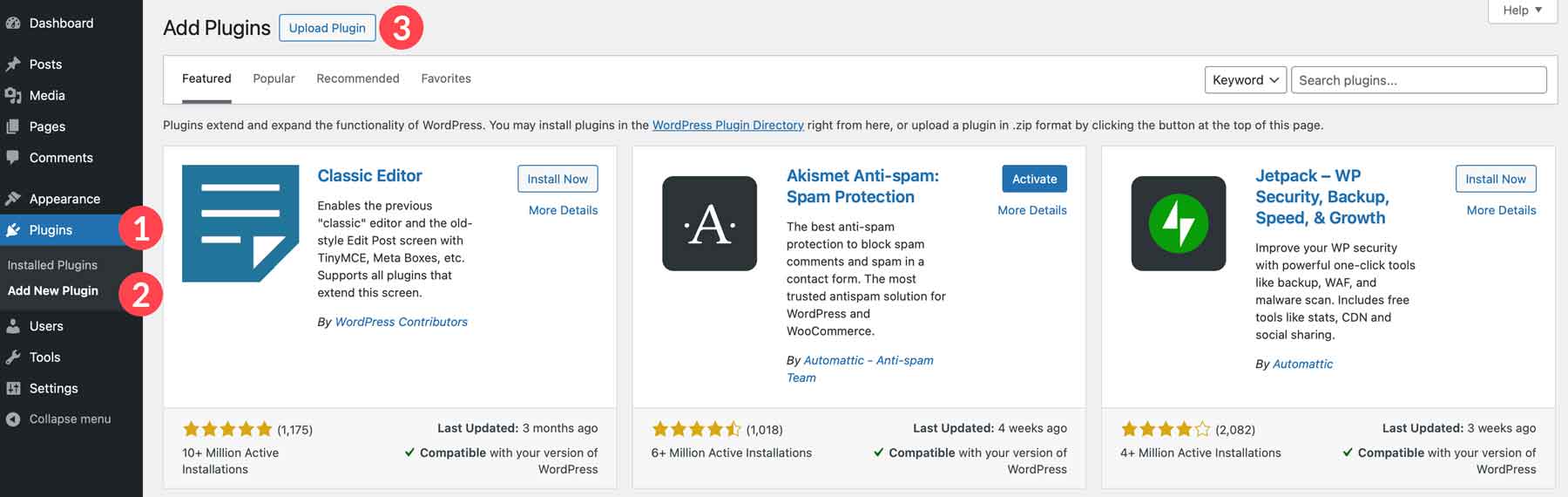
First, go to your WordPress dashboard. Click on “Plugins“. Then click “Add New“. Search for the plugin you want. Type its name in the search box. Look at the options. Choose the plugin you need. Click “Install Now“. Wait for it to install. After installing, click “Activate“. Your plugin is now ready to use.
Download the plugin file to your computer. It will be a zip file. Go to your WordPress dashboard. Click “Plugins“. Then click “Add New“. Next, click “Upload Plugin“. Find the zip file on your computer. Select it and click “Install Now“. Wait for the upload. After it finishes, click “Activate“. Your plugin is now live.
Embedding Plugins Into Theme
WordPress hooks let you add or change parts of the theme. Hooks are like signals that tell the theme what to do. They make plugins fit into the theme easily. Action hooks let you add new stuff to the theme. Filter hooks change what is already there. Adding plugins with hooks makes the theme work better.
Shortcodes are like magic words. They make plugins show in posts and pages. You type a small code, and the plugin appears. Widgets are small boxes. They show important things like calendars or galleries. Drag and drop them where you want. Both shortcodes and widgets make your site fun and cool.
Customizing Plugin Appearance
Change the plugin’s look with CSS styles. Add your custom styles in the theme’s CSS file. Make sure styles don’t clash with existing ones. Use browser tools to inspect elements. Adjust colors, fonts, and sizes. Keep it simple and clear. Test changes on different screens. Ensure responsive design.
Many plugins come with settings. Navigate to the plugin settings panel. Adjust settings to match your theme. Use simple options for easy changes. Explore all available settings. Some plugins offer advanced options. Check documentation for help. Save changes after each adjustment. Refresh the page to see updates. Ensure settings enhance the user experience.
Testing Plugin Integration
Testing is important. A plugin must work well. Try all its features. Check if it shows up on your website. Click every button. Look at every page. Make sure nothing breaks. If something is wrong, fix it. Plugins can sometimes cause problems. Test again after fixing. Keep testing till everything is perfect.
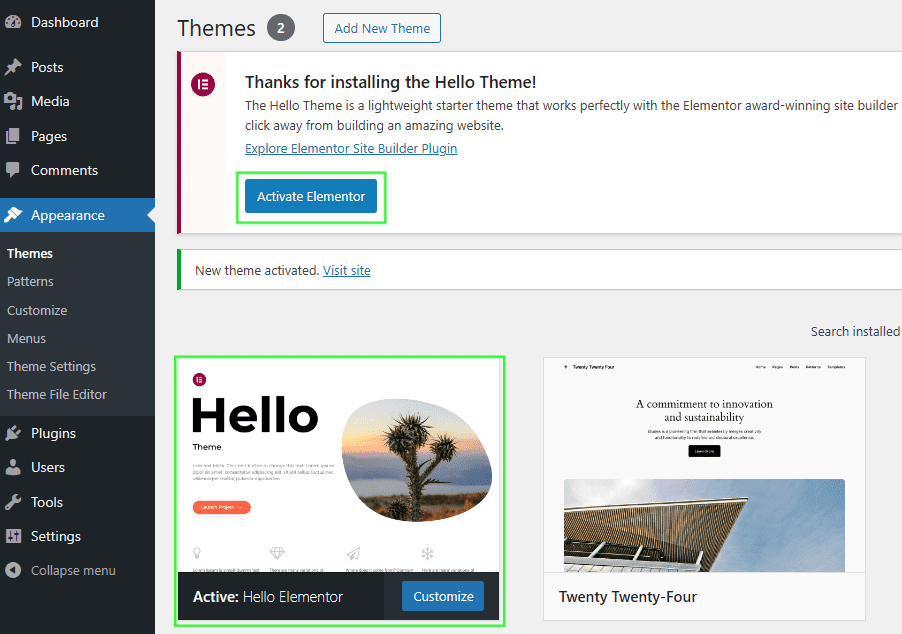
Your plugin should work on all browsers. Open your website in Chrome. Then in Firefox. Also use Safari and Edge. Make sure the plugin looks good everywhere. Check on a phone too. Different browsers show websites differently. This can cause issues. Fix any problems you see. This helps all visitors see your site correctly.
Credit: help.elements.envato.com
Troubleshooting Common Issues
Integrating a plugin into a WordPress theme can sometimes be tricky. Ensure compatibility by checking the plugin’s documentation and following installation steps carefully. Keep themes updated to avoid conflicts and ensure smooth functionality.
Conflict Resolution
Plugin conflicts can cause errors in your theme. Check if the plugin is compatible with your theme. Disable other plugins one by one. This helps find the problematic plugin. Ensure both your theme and plugin are updated. Updates fix many issues. If problems persist, seek help from plugin support.
Error Log Analysis
Error logs are like a diary of problems. Find them in your WordPress dashboard. They help you know what went wrong. Look for error messages in the log. These messages guide you to fix issues. Sometimes, logs show which file caused the error. Use this info to solve problems quickly.
Best Practices For Plugin Management
Integrating a plugin into a WordPress theme enhances functionality and user experience. Start by identifying the plugin’s compatibility with your theme. Then, carefully follow installation instructions and test thoroughly to ensure smooth operation without conflicts.
Regular Updates
Keeping plugins updated is crucial for site performance. Updates fix bugs and improve features. They also enhance security. Check for updates weekly. Install them promptly. This reduces risks and ensures smooth operation. Always backup your site before updating. This prevents data loss.
Security Measures
Security is vital for any WordPress site. Use trusted plugins only. Read reviews before installing. Monitor plugin activity regularly. Look out for suspicious changes. Disable any plugin that shows unusual behavior. Regularly scan your site for malware. Update passwords often. Strong passwords protect your site. Limit plugin use to essential ones. More plugins mean more security risks.
Credit: tommcfarlin.com
Frequently Asked Questions
How To Add A Plugin To A WordPress Theme?
To add a plugin, navigate to your WordPress dashboard. Click on “Plugins” and then “Add New. ” Search for the desired plugin, click “Install Now,” and then activate it. Ensure the plugin is compatible with your theme to avoid conflicts or errors.
Can Plugins Be Included In WordPress Themes?
Yes, plugins can be included in WordPress themes. However, it’s recommended to use plugins separately for better flexibility and updates. Including plugins directly in themes might lead to compatibility issues. Always ensure you have the latest versions and backup your site before making changes.
Why Include Plugins In WordPress Themes?
Including plugins in WordPress themes can offer additional functionality. It provides features not available in the default theme setup. This approach can enhance user experience and design. However, it should be done cautiously to avoid potential conflicts or bloating the site.
What Are The Risks Of Including Plugins?
Including plugins in themes can cause compatibility issues. It might lead to conflicts with WordPress updates or other plugins. It can also make the theme bulky, affecting site performance. Always test thoroughly and ensure compatibility before adding plugins to a theme.
Conclusion
Adding a plugin to your WordPress theme enhances its functionality. It opens up new possibilities for your website. Follow the simple steps discussed to integrate plugins smoothly. Always choose reliable plugins to ensure security and performance. Test your plugins regularly to avoid conflicts.
Stay updated with the latest WordPress changes. This helps maintain your site’s efficiency. Don’t hesitate to explore new plugins. They can offer valuable features. Your website can greatly benefit from well-chosen plugins. Remember, practice makes perfect. Keep experimenting to find what works best.
Happy WordPress designing!


