
Are you looking to give your WordPress website a fresh and stunning look? Importing a Photocrati theme could be the perfect solution.
With its unique designs and customizable features, Photocrati themes can transform your site into a visual masterpiece. But perhaps you’re feeling a bit unsure about how to get started. Don’t worry; you’re not alone. Many website owners wonder how to seamlessly integrate these themes into their WordPress setup.
In this guide, you’ll learn step-by-step how to import a Photocrati theme into WordPress, ensuring your website stands out in the digital crowd. Stay with us, and soon you’ll be on your way to a more visually captivating online presence.

Credit: www.wpbeginner.com
Preparing Your WordPress Environment
Ensure your system meets all requirements. Check WordPress version compatibility. Verify your server space is enough. Look at your PHP version. Make sure it’s up to date. Confirm your database can handle the theme. A smooth import process needs these checks.
Always make a backup of your site. Use a plugin for this task. Save your settings and posts. Store them safely. Backups help if something goes wrong. Protect your hard work. It’s smart to have a copy. You will feel secure with backups.
Downloading Photocrati Theme Files
Visit the Photocrati website to find the theme. You need an account to download. Sign up if you don’t have one yet. After signing in, navigate to the theme download section. Ensure you’re on the official Photocrati site. Look for the download link for themes. This link is usually in the user dashboard. Click the link to start downloading. Save the file to your computer. Remember where you save it.
Choose the version that suits your needs. Some themes have different versions. Check the version number and release date. Older versions might lack features. Newer versions may have more options. Consider your WordPress version. Ensure compatibility with your WordPress. This avoids problems during installation. Confirm the theme details before downloading. Review any available documentation. This helps in making the best choice.
Installing The Photocrati Theme
Download the Photocrati theme to your computer. Keep the file safe. Open your WordPress dashboard. Click on Appearance, then Themes. Find the Upload Theme button. Click it. Select the Photocrati file from your computer. Wait for the upload to finish.
Go back to the Themes section in your dashboard. See the Photocrati theme listed there. Click on Activate. The theme is now live. Check your site to see the changes. Customize it to fit your style. Explore the settings to make it unique.
Configuring Theme Settings
The Photocrati theme gives many options. You can customize the layout and design easily. Start by accessing the theme settings. Choose a color scheme that matches your style. Adjust the font to suit your taste. Make sure to save your changes. This will ensure your settings are applied.
Customizing Layout And Design
Changing the layout can be fun. You can choose from different styles. Decide if you want a sidebar or full-width layout. Set the header size to your liking. Add your logo for a personal touch. These steps will make your site unique. Remember to preview your changes. This helps to see how your site looks.
Setting Up Galleries And Portfolios
Create galleries to showcase photos. Start by selecting the gallery option. You can add images easily. Organize them into categories. This helps visitors find them. Setting up a portfolio is similar. Select the portfolio option. Add your best work. Make sure to update regularly. This keeps your site fresh.
Optimizing For Performance
Importing a Photocrati theme into WordPress boosts site performance. Begin by navigating to the WordPress dashboard, then click ‘Themes’ and ‘Add New. ‘ Upload the Photocrati theme file, activate it, and customize settings for optimal speed and functionality.
Enhancing Load Speed
Improving load speed is important. A fast website keeps users happy. Use a lightweight theme for better speed. Optimize images to make them smaller. Smaller images load faster. Use plugins sparingly. Too many plugins slow down your site. Consider a caching plugin. It saves time by storing data. Choose a reliable hosting provider. A good host improves speed. Regularly update your WordPress and plugins. Updates fix bugs and improve performance.
Ensuring Mobile Responsiveness
Mobile responsiveness is crucial today. Many users browse on phones. Choose a theme that adapts to small screens. This makes your site look good on phones. Test your site on different devices. Make sure everything works well. Text should be readable without zooming. Navigation should be easy. Buttons must be big enough to tap. Keep your design clean and simple. Avoid large files that take long to load. This ensures a smooth experience for mobile users.
Troubleshooting Common Issues
Sometimes, theme installation does not work. First, check your WordPress version. It should be up-to-date. Also, ensure the theme file is not corrupted. Download it again if necessary. If errors persist, check your server settings. Make sure it meets the theme’s requirements.
If you see an error message, search for it online. Many solutions exist for common errors. You can also seek help from WordPress forums. Many users share their solutions there.
Sometimes, the design looks strange. Check if the CSS files are loading. If not, clear the browser cache. This can solve display issues. Ensure all theme files are properly uploaded. Missing files can break the design.
If layout problems continue, try using a different browser. This can help identify the issue. Plugins can also cause conflicts. Disable them one by one to find the problem. Once found, consider replacing the faulty plugin.
Utilizing Photocrati Support Resources
Photocrati offers helpful online documentation. It is easy to find. Visit the Photocrati website. Look for the support section. Click on documentation. Follow the steps listed there. The guide is simple. It helps you learn quickly.
Forums are great places to ask questions. Many users share their tips. You can learn from others. Find forums on the Photocrati site. Join and start talking. Share your own stories. Get advice from experienced users. Communities are friendly. They help each other.

Credit: www.youtube.com
Credit: members.photocrati.com
Frequently Asked Questions
How Do I Install A Photocrati Theme?
To install a Photocrati theme, first download the theme zip file. Then, go to your WordPress dashboard, navigate to ‘Appearance > Themes’, click ‘Add New’, and upload the zip file. Finally, activate the theme to start customizing your site.
Can I Import A Photocrati Demo?
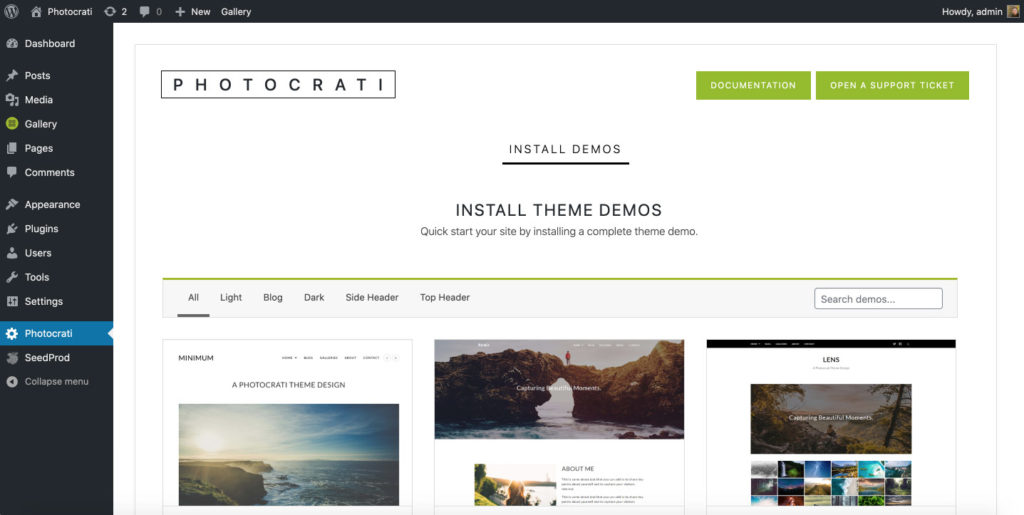
Yes, Photocrati themes often come with demo content. To import, go to ‘Appearance > Import Demo Data’. Follow the prompts to install the demo content, which helps you understand the theme’s features and layout.
Are Photocrati Themes Compatible With Plugins?
Photocrati themes are designed to be compatible with most popular plugins. However, always check compatibility notes and test plugins on a staging site. This ensures your website maintains functionality without conflicts.
What Are Photocrati Theme Customization Options?
Photocrati themes offer extensive customization through their built-in settings panel. You can adjust colors, fonts, layouts, and more. This enables you to tailor your website’s appearance to fit your brand’s style.
Conclusion
Importing a Photocrati theme into WordPress is simple. Follow the steps outlined to ensure smooth installation. First, download the theme file. Then, upload it in your WordPress dashboard. Finally, activate the theme. Now you can customize your website. Make it unique.
A great Photocrati theme enhances your site’s appearance. It also provides a user-friendly experience. Keep your content fresh and engaging. Regular updates help maintain your site’s performance. Enjoy creating a stunning website with Photocrati. It’s easier than you think. Happy blogging!


