
Have you ever wondered how those eye-catching sliders on WordPress websites grab your attention as soon as you land on a page? They not only make a website look sleek and professional but also provide a dynamic way to showcase your content.
If you’re looking to give your WordPress site a visual boost, adding a slider is an excellent start. But how do you insert a slider into your WordPress theme without pulling your hair out? Don’t worry; you’re about to discover a straightforward method that will transform your website’s visual appeal.
This guide is crafted just for you, breaking down the process into simple steps so you can seamlessly integrate a slider into your site. Get ready to captivate your audience and keep them scrolling through your content. Let’s dive in!
Choosing The Right Slider Plugin
Many plugins can help you add a slider. Some plugins are very popular. MetaSlider is easy to use and has many features. Soliloquy is also a good choice. It is fast and responsive. Smart Slider 3 offers many design options. Each plugin has its own strengths. Choose based on what you need. Think about ease of use and speed. Also, consider design options and support.
Important features can make your slider better. Responsive design ensures it works on phones. Customizable sliders allow for unique designs. SEO-friendly sliders help with search rankings. Look for fast loading times to keep visitors happy. Mobile compatibility is crucial today. Choose a plugin with good support. Easy setup is also important.
Installing A Slider Plugin
First, open your WordPress dashboard. Go to the Plugins section. Click on Add New. In the search box, type “slider”. Choose a slider plugin you like. Click on the Install Now button. Wait a few seconds.
After installation, find the Activate button. Click it. This makes the plugin ready to use. Now, look for the slider settings in your dashboard. Configure the settings to fit your needs. You can add images or text to your slider. Make it look just right. Finally, save your changes. Your slider is now active and visible on your site.
Creating A New Slider
Start by choosing a slider plugin from the WordPress library. Find one with good reviews. Install and activate it on your site. Next, go to the plugin’s settings. Here, you can customize your slider. Select the size that fits your theme. Choose how fast slides change. Add effects like fading or sliding. Make sure to save these settings. Check your site preview to see the changes. You might need to adjust settings for the best look.
Go to the slider plugin. Click on “Add Images”. Select the pictures you want. Make sure they are clear and good quality. Upload them to the slider. Arrange them in the order you like. Add captions if needed. This helps explain each image. Save your work. View your site to see how it looks.

Credit: www.youtube.com
Customizing Slider Appearance
Customizing your slider can be fun. Adjusting slider layout is key. You can change the size and position. This helps make your website look great. Try different styles to see what fits best. You can make it full-width or boxed. Use settings to adjust spacing between slides. Make sure images are clear and sharp.
Styling Options
Styling options let you change colors and fonts. Choose colors that match your site theme. You can add borders to each slide. This makes them stand out. Try different font styles for text. Make sure it is easy to read. Use bold for important text. You can also add animations. This makes the slider more lively. Keep it simple for a clean look. Always preview changes before saving.
Adding Slider To A Page
Shortcodes are simple and powerful. They allow you to add a slider easily. First, find the shortcode for the slider plugin you installed. Go to the page where you want the slider. Paste the shortcode into the page editor. Update the page to see the slider in action. It’s that easy! Shortcodes make adding features super simple.
Widgets can help you add a slider to your site. Go to your WordPress dashboard. Click on Appearance and then Widgets. Find the widget for your slider plugin. Drag and drop it to your desired widget area. Save your changes. Now, your slider should appear where you placed it. Widgets make customization fun and easy.
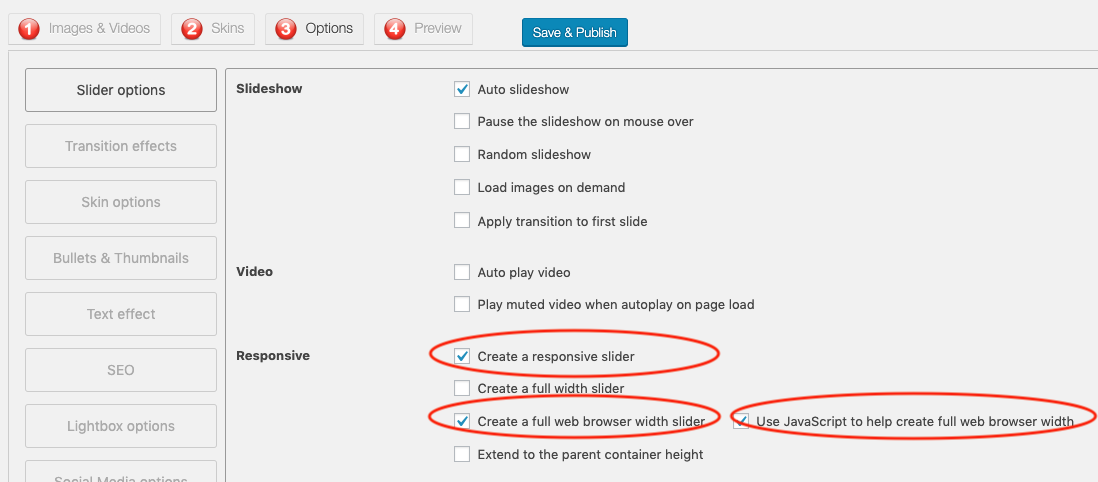
Credit: www.wonderplugin.com
Troubleshooting Common Issues
Learn how to insert a slider in a WordPress theme by addressing common issues. Ensure the slider plugin is compatible. Check theme settings for slider options. Adjust slider dimensions in the theme’s customization panel. Update all plugins and themes regularly to avoid conflicts.
Slider Not Displaying
The slider might not show because of a theme conflict. Check if your theme supports sliders. Sometimes, plugin conflicts can also cause this issue. Disable other plugins and see if the slider appears. Ensure all slider settings are correct. Double-check the shortcode placement. It should be in the right spot. Also, verify if JavaScript is enabled in your browser. This is important for sliders to work.
Image Loading Problems
Image loading issues can be frustrating. Check if your images are in the right format. JPEG and PNG are best. Large images may load slowly. Try reducing their size without losing quality. Broken links can also stop images from loading. Make sure all links are correct. Inspect the file path to confirm it is accurate. Sometimes, caching can cause problems. Clear your browser cache to see if images load properly.
Enhancing Slider Performance
Choose images with a smaller size for faster loading. Use formats like JPEG or PNG. Compress images to reduce file size. Tools like TinyPNG help in compression. Keep image dimensions suitable for the slider. Avoid using very large images. This saves bandwidth and improves speed.
Use a lazy loading technique. Load images only when needed. This helps in faster page display. Use plugins that support lazy loading. Reduce the number of slides. Use a simple transition effect. This reduces the load on browsers. Minimize the use of extra scripts. Keep the slider code clean and simple.
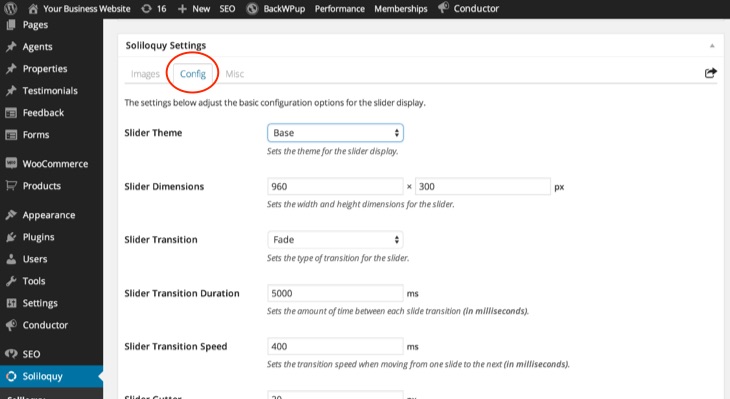
Credit: slocumthemes.com
Frequently Asked Questions
How Do I Add A Slider In WordPress?
To add a slider in WordPress, use a plugin like Smart Slider 3 or Slider Revolution. Install the plugin via the WordPress dashboard. Once activated, create a new slider and customize its settings. Embed it using a shortcode or widget in your desired theme location.
Can I Use A Slider Without Plugins?
Yes, you can manually add a slider using custom code or JavaScript libraries. This requires theme file editing and coding knowledge. Alternatively, some themes offer built-in slider features. Check your theme’s documentation for instructions on how to activate and customize them.
Which Slider Plugin Is Best For WordPress?
Smart Slider 3 and Slider Revolution are popular choices for WordPress sliders. They offer extensive customization options and user-friendly interfaces. Consider your needs and budget when choosing a plugin. Both have free versions with premium options for advanced features.
Are Sliders Mobile Responsive In WordPress?
Most modern slider plugins are mobile responsive. They automatically adjust to different screen sizes and devices. Always check the plugin’s documentation to ensure mobile compatibility. Test the slider on various devices to ensure optimal performance and appearance.
Conclusion
Inserting a slider in your WordPress theme is simple and effective. It enhances your site’s visual appeal. Follow the steps mentioned, and you’ll succeed. Choose a reliable slider plugin. Customize it to match your theme’s style. Regular updates keep your slider running smoothly.
Practice makes perfect, so experiment with different settings. These tips help create engaging content for visitors. A well-placed slider catches attention and boosts interaction. Start today, and see your website transform. Happy designing!


