
Are you tired of the generic look of your WordPress blog? Ready to stand out with a custom theme that truly reflects your unique style?
Installing a custom theme can transform your blog from ordinary to extraordinary, giving it a fresh, engaging appearance that captivates your audience. Imagine the thrill of seeing your blog come to life with colors, fonts, and layouts that speak your brand’s language.
In this guide, we’ll walk you through the simple steps to install a custom theme on your WordPress blog page. You’ll discover how easy it is to give your site a professional touch, boosting your credibility and keeping your readers coming back for more. Dive in and unlock the potential of your blog with a custom theme today!

Credit: www.namecheap.com
Choosing The Right Theme
Understand the purpose of your blog. Is it for sharing thoughts or selling products? Consider what features you need. Maybe a photo gallery or a contact form. List these needs. This will help you find the right theme. Think about your audience too. What do they want? A clean look or lots of colors? Identify your style. Make sure the theme matches it.
Search for themes online. WordPress has many choices. Browse through them. Look for ones that meet your needs. Read reviews from other users. Are they happy with the theme? Check if the theme is easy to install. Also, see if it is free or paid. Select a few themes that you like. Compare them. Choose the one that fits best.
Ensure the theme works with your plugins. Some themes may not be compatible. Verify if it supports mobile devices. Many people use phones to browse. Check the theme’s update history. Regular updates are important for security. See if it supports different browsers. This is crucial. Test the theme’s speed. A slow theme can be frustrating.
Preparing For Installation
Always backup your site before making changes. This keeps your data safe. Use a plugin or manual method. Save your backup file on your computer. Check if the backup is complete and correct. This will help if you need to restore your site later.
A child theme protects your changes. It keeps the original theme safe. First, create a new folder in your theme directory. Add a style.css file in this folder. Include a special header in the file. This tells WordPress it is a child theme. Activate the child theme in your dashboard.
Gather all necessary files for your custom theme. You need a theme folder, style.css, and functions.php. Also, get images or other media files needed. Make sure all files are ready before starting. This ensures a smooth installation process.
Installing Via WordPress Dashboard
Start by logging into your WordPress dashboard. Look for the Appearance menu on the left side. Click on it to see more options. This is where you can manage your themes.
Find the Upload Theme button at the top. Click it to add your custom theme file. Make sure your theme is in the correct format, usually a zip file. Select the file and upload it.
Once uploaded, your theme will appear in the list. Click Activate to set it as your site’s theme. Your blog will now show the new design. Check your blog to see the changes.
Installing Via Ftp
Upload your custom WordPress theme using FTP for a personalized blog page. Connect to your server via FTP, locate the WordPress themes directory, and transfer your theme files. Once uploaded, activate the theme from the WordPress dashboard to give your blog a unique look.
Setting Up Ftp Client
First, download an FTP client like FileZilla. Install it on your computer. Open the FTP client. Enter your host, username, and password. You got these from your hosting provider. Click “Connect” to access your blog files.
Uploading Theme Files
Find the wp-content/themes folder. Drag your theme folder from your computer. Drop it into the “themes” folder in the FTP client. Wait until the files upload completely.
Activating Through Dashboard
Go to your WordPress dashboard. Click on “Appearance” then “Themes”. Your new theme should appear here. Click “Activate” to use the theme. Check your blog to see the changes.
Customizing Your Theme
The WordPress Customizer helps you change your theme easily. You can find it in the WordPress dashboard. Click on Appearance and then Customize. Here, you can adjust colors, fonts, and layout. It shows changes in real-time. This makes it easy to see how your blog looks. Save changes when you are happy with them.
Some changes need editing theme files. Go to the Theme Editor under Appearance. Be careful with changes here. Wrong edits can break your site. Always back up files before editing. You can change PHP or HTML files. This lets you adjust headers, footers, or other parts.
Custom CSS helps style your blog more. You can add CSS in the Customizer. Look for the Additional CSS option. Write your CSS here. It changes how your site looks. CSS is powerful for design tweaks. Try changing font sizes or colors.
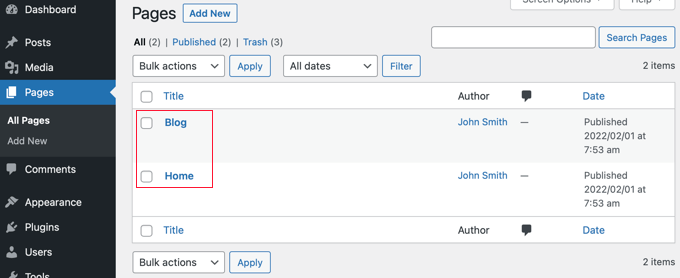
Credit: www.wpbeginner.com
Checking Theme Responsiveness
Use a computer and a smartphone to check the theme. Open your blog on both. The theme should adjust to different screens. If it doesn’t, fix it. Good themes look nice on any device. They show text clearly. Photos should not be cut off. Make sure everything fits right.
Mobile users need easy navigation. Ensure buttons are big enough to click. Text should be large and easy to read. Check if menus work on mobile. If parts are missing, you need to adjust the theme. Good themes work smoothly on phones. Your blog should be user-friendly.
Open the blog in different web browsers. Try Chrome, Firefox, and Safari. Check if the theme looks the same. Some themes only work well on one browser. Fix any issues you find. A good theme works on all browsers. This helps more people visit your blog. Make sure your theme is compatible.
Troubleshooting Common Issues
Installing a custom theme can sometimes be tricky. First, check the theme file. It should be in .zip format. Next, verify your WordPress version. An outdated version may cause issues. Update it to the latest version. If you see any error messages, read them carefully. They often tell what’s wrong. Ensure your server meets theme requirements. Check PHP version and memory limit.
Styling problems can make your blog look odd. Start by clearing your browser cache. Sometimes old data causes display errors. Next, check theme settings. Ensure colors and fonts are correct. Use the Customizer tool to preview changes. If styles still look wrong, check for conflicts with other themes or plugins. Disable them one by one to find the culprit.
Plugins can sometimes clash with themes. Deactivate all plugins first. Reactivate them one by one. This helps identify which plugin causes issues. Update plugins regularly. Check if they are compatible with your theme. Some plugins may require specific settings. Read plugin instructions carefully. If conflicts persist, consider using alternative plugins or contact support for help.
Maintaining Your Theme
Installing a custom theme on your WordPress blog enhances its look. Access your dashboard, navigate to ‘Appearance’, then ‘Themes’. Click ‘Add New’, upload your theme file, and activate it. Enjoy the refreshed design.
Updating The Theme
Keep your theme up-to-date. Updates fix bugs and add new features. Visit your WordPress dashboard. Check for theme updates regularly. Click on the update button if available. Ensure compatibility with WordPress version. Always read change logs. Understand what’s new before updating. Stay informed on theme changes.
Backing Up Customizations
Backup your customizations before updates. Use plugins for easy backup. Save theme settings and changes. Avoid losing important work. Store backups safely. You can use cloud services for storage. Restore easily if things go wrong. Regular backups are important. Protect your hard work.
Monitoring For Security Issues
Security is key for a blog. Check for vulnerabilities often. Use security plugins. Monitor your blog for suspicious activity. Update passwords regularly. Keep plugins updated too. Security updates are important. Protect your data and your blog. Stay safe online.
Credit: www.elegantthemes.com
Frequently Asked Questions
How Do I Install A Custom Theme?
To install a custom theme, go to your WordPress dashboard. Navigate to Appearance > Themes > Add New. Click ‘Upload Theme’ and select your downloaded theme file. Hit ‘Install Now’ and then ‘Activate’ to apply the theme. Ensure your theme is compatible with your WordPress version.
Can I Use Free Custom Themes?
Yes, many free custom themes are available. You can find them in the WordPress theme directory or third-party websites. Always ensure they are compatible and updated regularly. Free themes are great for beginners and small projects, but premium themes often offer more features and support.
What Are The Risks Of Custom Themes?
Custom themes can pose security risks if not coded properly. They may also lack support and updates, leading to compatibility issues. Always download themes from reputable sources. Regularly update themes and plugins to minimize security vulnerabilities and ensure optimal site performance.
How Do I Customize A WordPress Theme?
To customize a theme, go to Appearance > Customize in your WordPress dashboard. Use the customization panel to change colors, fonts, layouts, and more. Some themes offer additional settings under Appearance. Always preview changes before publishing to ensure they align with your brand.
Conclusion
Installing a custom theme on your WordPress blog is straightforward. Follow the steps carefully. Choose a theme that matches your style and brand. Download it from a trusted source. Upload the theme in your WordPress dashboard. Activate it to see the changes.
Customize the theme settings to fit your needs. Regularly update the theme for security. Enjoy a fresh, new look for your blog. Your audience will appreciate the improved design. Happy blogging with your new theme!


