
Are you looking to give your WordPress site a fresh and exciting look without starting from scratch? Importing theme options might be the perfect solution for you.
Whether you’re a seasoned developer or a beginner just getting the hang of WordPress, the process can seem a bit daunting. But don’t worry; you’re about to unlock the secret to transforming your site effortlessly. By learning how to import theme options, you’ll have the power to customize your website’s appearance with just a few clicks.
Imagine the time you’ll save and the professional results you’ll achieve. Intrigued? Let’s dive into how you can make this transformation happen smoothly and efficiently.

Credit: support.myhometheme.net
Preparing For Theme Import
Backing up is important. Save your current theme settings. Use a backup plugin. Backup keeps your site safe. If something goes wrong, you can restore. Make sure the backup is complete. This includes settings, widgets, and data.
Ensure your theme is compatible with your WordPress version. Check the theme’s documentation. Some themes need specific plugins. Verify your plugins are compatible too. Update WordPress to the latest version. This helps avoid issues during import.

Credit: mekshq.com
Accessing The WordPress Dashboard
First, go to the WordPress login page. Enter your username and password. Click on the Login button. This will take you to the dashboard. The dashboard is where you manage your site. It is the main control center. You can add posts, pages, and themes here.
On the left side, find the menu. Look for the Appearance option. Click on it to open more options. You will see several choices like Themes and Customize. To import theme options, you will need these settings. They help you change how your site looks. Customize your site easily from here.
Locating Theme Options
Start by logging into your WordPress dashboard. Look for the sidebar on the left. You will see an option called Appearance. Click on it. A new menu will appear. Find and click on Theme Options. This is where you can change how your site looks.
Inside the Theme Options panel, find the Import/Export tab. This section helps you manage your theme settings. You can save current settings or use new ones. Make sure to follow the steps given. Be careful while importing options. Wrong settings can change your site look.
Importing Theme Options
First, locate your theme’s import file. Usually, it ends with .xml. This file contains all the settings needed for your theme. Go to your WordPress dashboard. Click on Tools and then Import. Select WordPress from the list. If you haven’t installed the importer, do so now.
Once the importer is ready, click Run Importer. Choose the file you located earlier. Upload it. The system will guide you. Follow the prompts carefully. Wait for the process to finish. It might take a few minutes. Once done, check your site. Ensure everything is in place. Adjust settings if necessary. Your theme options are now imported!
Verifying Imported Settings
Review Site Appearance after importing your theme options. Check if everything looks right. Look at the colors and fonts. Make sure they match your design. Check the images and layout too. They should appear as expected. If something is wrong, adjust the settings. Sometimes, small tweaks are needed. This will make your site look perfect.
Test Functionality and Features to ensure everything works. Click on links and buttons. They should take you to the right pages. Test the contact form. Make sure messages are sent and received. Check the loading speed. It should be fast enough for users. Look at the mobile version. It should work well on phones and tablets. If you find issues, fix them quickly. This helps make your site user-friendly and functional.
Troubleshooting Common Issues
Struggling with importing theme options in WordPress? Start by ensuring your theme supports import functionality. Check for any plugin conflicts and verify file permissions. Use the WordPress Importer tool for seamless transitions.
Resolving Import Errors
Import errors can be frustrating. First, check your internet connection. It must be stable. A slow connection might cause errors. Next, verify the theme file. Ensure it’s not corrupted. Download it again if needed. Check your WordPress version too. Sometimes, older versions cause problems. Update your WordPress if necessary. Lastly, consider any plugins. Some plugins might conflict with the theme. Disable them one by one to find the issue.
Restoring Backup If Needed
Backups are important. They help if things go wrong. To restore a backup, go to your hosting dashboard. Look for the backup option. Follow the steps to restore. Make sure you backup your site regularly. This way, your data stays safe. If you face issues, contact your hosting support. They can assist in restoring your backup. Always keep backup files in a safe place.
Enhancing Theme Customization
Adding plugins can make your theme look better. They offer more options. With plugins, you can change colors, fonts, and more. This helps make your site unique. Always check if a plugin is safe. Some plugins can cause problems. Look for plugins with good reviews. They should also have regular updates. This ensures they work well with your theme. Popular plugins include Elementor and Beaver Builder. These tools are easy to use. They help in adding cool features.
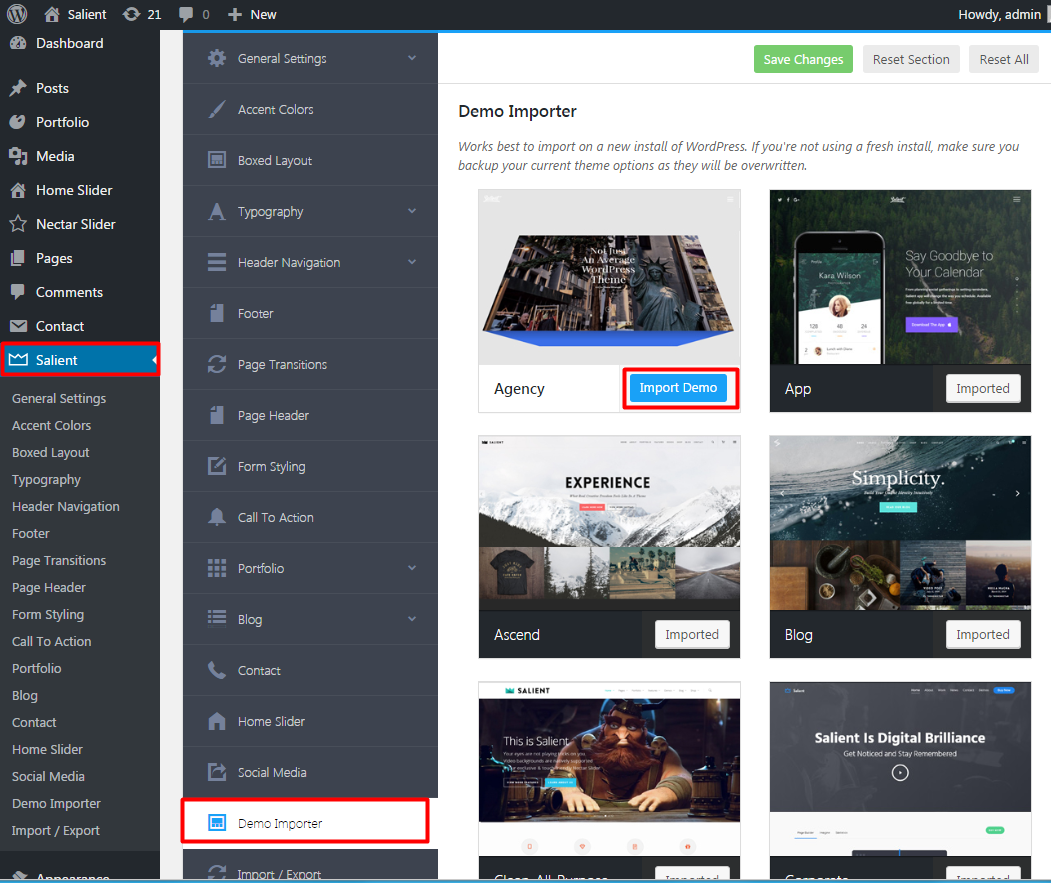
Advanced settings give more control over your theme. You can change layouts and styles. These settings help in making a site special. It’s important to explore these options. They can be found in the theme’s dashboard. Some themes have more settings than others. Reading the theme’s guide can help. This will show what each setting does. Be careful while changing settings. Always save your work. You can also reset if things go wrong.
Credit: themenectar.ticksy.com
Frequently Asked Questions
How To Import Theme Options In WordPress?
To import theme options in WordPress, navigate to your theme’s settings panel. Look for an Import/Export tab. Use the provided import option to upload a file with your theme options. This process will restore your saved settings, ensuring consistency across different installations or updates.
What Are WordPress Theme Options?
WordPress theme options are customizable settings that allow users to modify a theme’s appearance and functionality. These options can include layout changes, color schemes, fonts, and widget configurations. They enable users to personalize their websites without coding knowledge, enhancing the site’s aesthetic and usability according to specific needs.
Can I Export Theme Options From WordPress?
Yes, you can export theme options from WordPress. Most themes provide an Export option in their settings panel. This feature creates a file containing your current theme configurations. You can then use this file to import the same settings into another WordPress installation, ensuring consistent design and functionality.
Why Import Theme Options In WordPress?
Importing theme options in WordPress ensures consistency across different websites or after theme updates. It saves time by restoring previously configured settings without manual adjustments. This process is crucial for maintaining a cohesive design and functionality, especially when transferring a theme to a new WordPress installation.
Conclusion
Importing theme options in WordPress can simplify your website setup. Follow the steps outlined for a smooth process. This task enhances your site’s appearance and functionality. Consistency in design attracts more visitors. Remember to back up your site before importing.
Mistakes happen, and backups protect your data. Need help? Many online resources and forums offer support. Practice makes perfect, so don’t hesitate to try. Happy website building!


