
Are you ready to transform your WordPress site into something truly unique? Installing a custom theme in WordPress can be the game-changer you’ve been looking for.
Imagine capturing your visitors’ attention from the moment they land on your page, leaving a lasting impression that keeps them coming back. It’s easier than you might think, and you don’t need to be a tech wizard to make it happen.
Whether you want to reflect your brand’s personality or simply stand out in the crowded digital landscape, a custom theme is the key. In this guide, we’ll walk you through the simple steps to install a custom theme, ensuring your website not only looks great but also functions seamlessly. Ready to make your website truly yours? Let’s dive in!
Credit: blog.templatetoaster.com
Preparing Your WordPress Site
Always make a backup before changes. Use plugins like UpdraftPlus or BackupBuddy. Save your files and database. This keeps your data safe. Backups protect against mistakes. You can restore if needed. Regular backups are smart. They prevent data loss.
Ensure your theme works with your WordPress version. Some themes need updates. Check with your theme provider. Read reviews and details. Look for compatibility information. Themes must match your plugins. Mismatched themes cause errors. Always choose themes that are compatible. This ensures smooth operation. No errors or crashes.

Credit: www.hostdime.com
Choosing A Custom Theme
Selecting a theme is fun. Free themes are good for beginners. They offer basic features without cost. Premium themes have more options. They often look better and provide more support. Free themes sometimes lack updates. This can make your site less secure. Premium themes often update regularly. They can keep your site safe. Think about your needs. Budget is important too. Free themes save money. Premium themes can be an investment. Consider your site’s purpose. A blog might need fewer features. An online store may need more. Explore different themes. Choose the one that fits you best.
Themes come from many places. WordPress.org offers many free themes. They are easy to find and use. ThemeForest is a popular site. It has lots of premium themes. Prices vary, so check your budget. Elegant Themes is another choice. It provides beautiful designs. StudioPress offers themes built on Genesis Framework. They are known for speed and security. TemplateMonster has a big collection too. Make sure to read reviews. Look for themes with good ratings. This helps you choose a reliable source.
Uploading The Theme
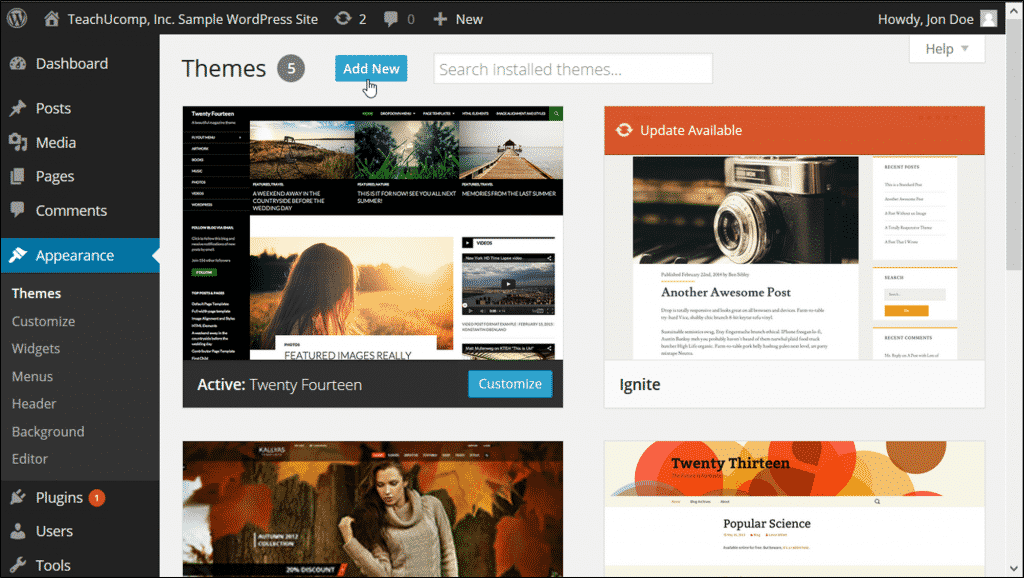
Uploading a theme in WordPress involves accessing the dashboard and selecting “Appearance. ” Next, click “Themes” and choose “Add New” to upload your custom theme file. Activate the theme to begin using it on your site.
Using WordPress Dashboard
Start with WordPress Dashboard. Click on Appearance. Then, click Themes. Hit the Add New button. Look for the Upload Theme option. Click it. Choose your theme file. Press Install Now. Wait for the upload. Click Activate to use your theme.
Uploading Via Ftp
First, open your FTP client. Connect to your server. Go to the wp-content/themes folder. Find your theme folder. Drag it into the themes folder. Wait for the files to upload. Open WordPress Dashboard. Go to Appearance and then Themes. Find your theme. Click Activate to make it live.
Credit: www.teachucomp.com
Activating The Theme
Click on Appearance in your WordPress dashboard. Choose Themes. Find your new theme and click on Preview. This lets you see how your site looks. Check colors, fonts, and layout. Make sure everything is right. If you like it, go to the next step.
After preview, click Activate to use the theme. Your site will change to the new look. Visit your site to see the changes. If something looks wrong, you can change settings. Go back to the dashboard for edits. Always save your changes. Your site should look just as you want.
Customizing The Theme
The Customizer helps you change your theme. Find it in the dashboard. Click on Appearance, then Customize. Here, you can see options for colors and fonts. Choose a color scheme that you like. Try different fonts to see what fits. You can also add a logo. Upload your logo under the Site Identity section. Remember to save changes. Check your site to see how it looks.
Widgets add extra features to your site. Go to Appearance, then Widgets. Drag and drop the widgets you want. You can add a search bar or a calendar. To change menus, visit Appearance, then Menus. Here, you can add new menu items. Arrange them to your liking. Save your menu when done. This helps users find pages easily.
Testing Your New Theme
Always check if the site works well. Click on links and buttons. Make sure pages open. Look for broken links. Check if images load. Ensure that forms submit. Try all features.
Cross-browser compatibility is key. Open your site in different browsers. Use Chrome, Firefox, Safari, and Edge. See if the theme looks good. Check on mobile and desktop. Adjust settings if needed. Make sure everyone can see your site.
Troubleshooting Common Issues
Discover tips for installing a custom theme in WordPress, addressing common problems like upload errors and theme compatibility. Ensure smooth setup by checking theme files and PHP version compatibility.
Theme Conflicts
Themes might not work well with others. Plugins can cause problems. Try disabling them one by one. Check if the theme works. Update your theme and plugins. This can fix many issues. Sometimes, themes need special plugins. Ensure you have them. Contact theme support if problems persist.
Common Error Fixes
Errors might appear during theme install. Check file size. Large files can fail. Delete old files. This frees up space. Refresh your browser. Sometimes, it’s stuck. Re-upload the theme. Make sure the file is complete. Review WordPress settings. Some might need changes.
Maintaining Your Custom Theme
Installing a custom theme in WordPress enhances your website’s appearance. First, download your chosen theme file. Navigate to the WordPress dashboard, click “Appearance,” then “Themes. ” Select “Add New,” “Upload Theme,” and choose your file. Install and activate the theme to customize your site’s look.
Regular Updates
Keeping your custom theme updated is vital. Updates fix bugs and add new features. Check for updates often. WordPress themes have an update section. Use it to see if updates are needed. Regular updates help your theme run smoothly. They also make your website secure. Outdated themes can cause problems. An updated theme is a healthy theme. Always backup your site before updating.
Theme Security Practices
Security is crucial for your custom theme. Protect your theme from hackers. Use strong passwords for your WordPress account. Regularly change these passwords. Install security plugins to guard your site. Keep your theme and plugins updated. This prevents security threats. Check your site for malware often. A secure site keeps visitors safe. Your website’s reputation depends on security.
Frequently Asked Questions
What Is A Custom Theme In WordPress?
A custom theme in WordPress is a tailor-made design that reflects your brand’s identity. It offers unique functionalities and aesthetics. Unlike default themes, custom themes are built specifically for your needs. They provide enhanced customization options and flexibility. This allows for a more personalized website experience.
How Do I Upload A Theme To WordPress?
To upload a theme, go to your WordPress dashboard. Click on “Appearance” then “Themes. ” Select “Add New” and click “Upload Theme. ” Choose the theme file from your computer and click “Install Now. ” Finally, activate the theme to make it live.
Can I Install A Theme Without Coding?
Yes, you can install a theme without coding skills. WordPress provides a user-friendly interface for theme installation. Simply follow the steps in the dashboard to upload and activate your theme. No coding is required, making it accessible for beginners.
Why Choose A Custom Theme Over Default?
A custom theme offers unique design tailored to your brand. It provides more flexibility and personalization than default themes. Custom themes can improve functionality and user experience. They help distinguish your site from competitors and attract visitors.
Conclusion
Installing a custom theme in WordPress is quite simple. Just follow the steps carefully. First, choose a theme that suits your needs. Next, download and install it through your WordPress dashboard. Activate the theme to see it live on your site.
Customize as needed to reflect your brand. Remember to save your changes. Regularly update your theme for security and new features. With practice, you’ll find it even easier. Enjoy your personalized website design!


